Sometimes we complicate our lives, and that includes Excel spreadsheets. Sometimes they’re a little too detailed for our own good. Having multiple headers in a spreadsheet can do more harm than good when it comes to proper organization.
But before you dump everything in the Recycle Bin, the good news is that fixing this problem is pretty simple to do. In this article, we’ll be showing you how to do it.
Fix Multiple Header Rows in Excel With Power Query
It may seem like a good idea to add more specificity by including two or more header rows to your columns. But the truth is that not only can it quickly become confusing to read and understand, but formatting your data and calculating formulas can become problematic, especially if you have multiple columns with the same name.
The quickest and most convenient way to fix this problem, apart from manually deleting the headers yourself (and even that might prove problematic in some cases), is to use Power Query to sort things out.
Setting Up Your Table
Before you can use Power Query to organize things, you’ll first need to set up your data set as a table. Here’s how:
Step 1. Open up your spreadsheet and click anywhere in your dataset.
Step 2. Navigate to the “Home” tab and click the “Format as Table” button on the ribbon.

Step 3. Select the layout for your table from the list and click to select it.
Step 4. A small window will pop up. If it isn’t done already, check the box next to “My table has headers.” Ensure the automatic range selection encompasses all the data your set. Adjust in the dialog box if not. Click “OK” to confirm.

Step 5. Because your table has two header rows, you’ll need to initially remove the automatic header formatting. In the “Table Design” tab, uncheck the box next to “Header Row” in the “Table Style Options.”
Using Power Query
Now that your table is set up, it’s time to finish the job with Power Query:
Step 1. Head to the “Data” tab and click anywhere in your table.
Step 2. Click the “From Table” or “From Table/Range” (depending on your version) on the ribbon.
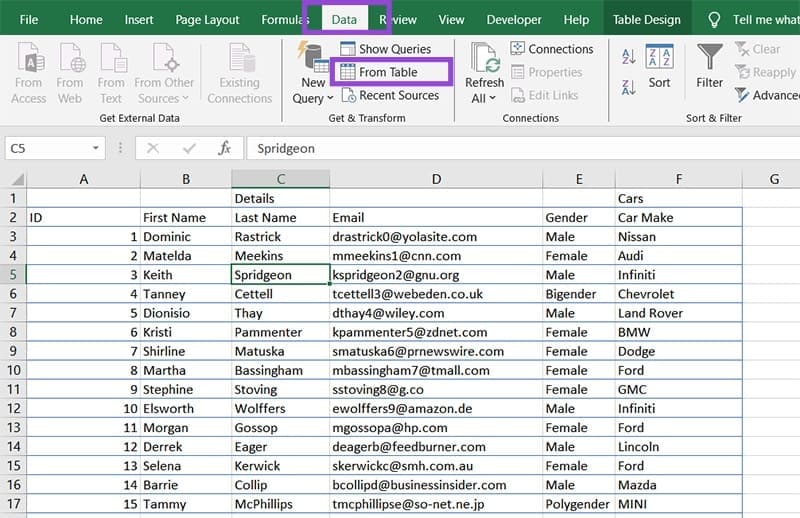
Step 3. The Power Query Editor will open. Head to the “Transform” tab and click the “Transpose” option to flip the rows into columns and vice versa.

Step 4. Fill in any blanks in your extra header rows (now columns). These will be filled with the “null” value.
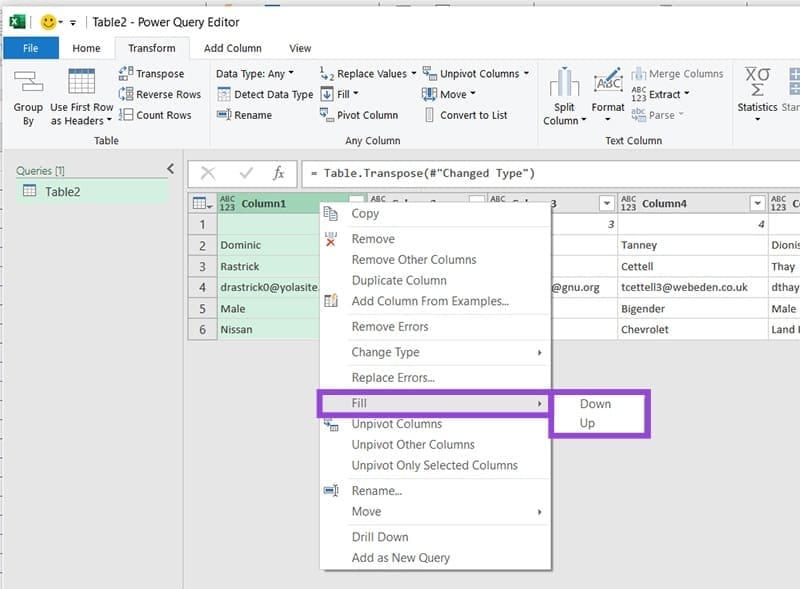
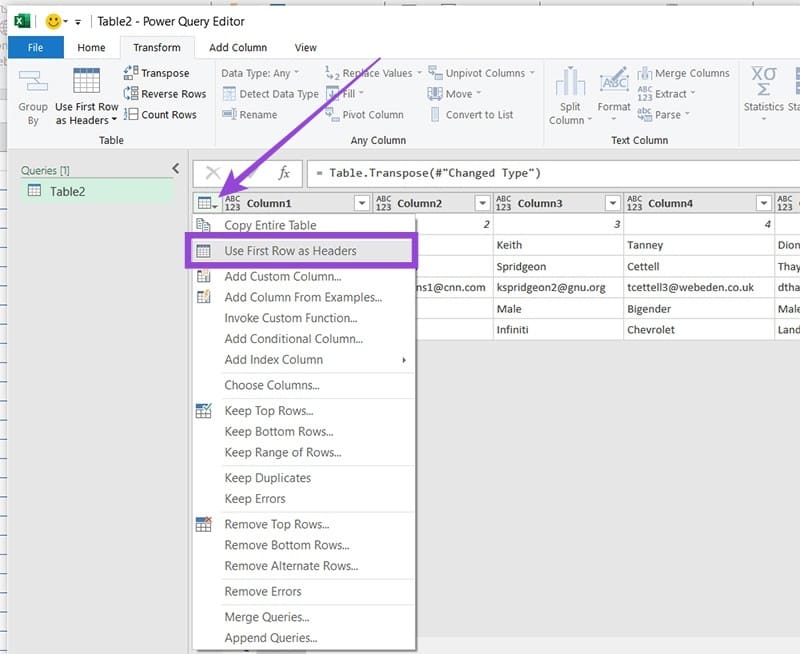
Step 5. Now flatten the top row into a header by clicking the Table icon in the top left and selecting “Use the First Row as Headers.”
Step 6. To add these rows to the other headers, select them (Shift + Click the columns you want to unpivot) and then right-click those same headers. Select “Unpivot Other Columns.”
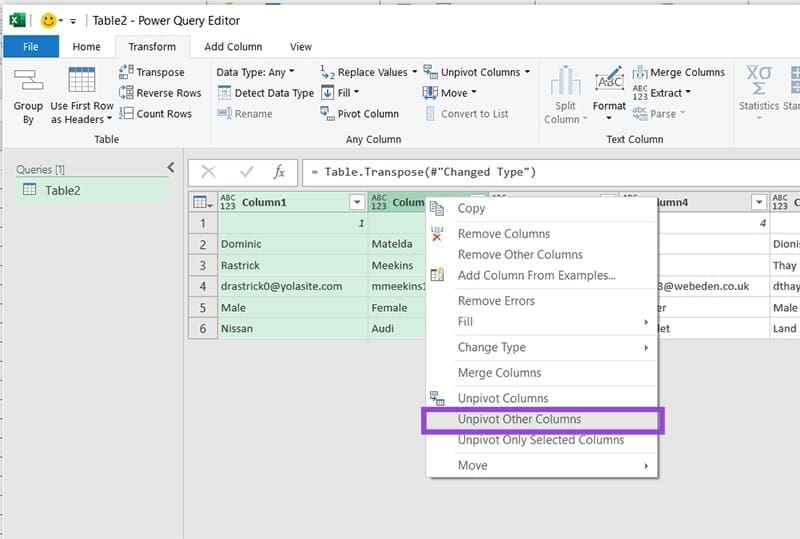
Step 7. The Row Headers will now be listed as a data type of their own.
Step 8. Rename the columns, then click “Close & Load” in the “Home” tab to finish the process.
Was this helpful?
Last updated on 01 November, 2025
Read Next
 How to Remove Empty Rows in Excel
When you’re working with large datasets in Excel, chances are you’re going to end up with blank cells or entire rows one way or the other.
How to Remove Empty Rows in Excel
When you’re working with large datasets in Excel, chances are you’re going to end up with blank cells or entire rows one way or the other.
 Google’s Pixel 9 Series Aims to Make Content Creators’ Lives Easier With AI
While most OEMs in the Android world chase large megapixel counts and RAM configurations, Google, on the other hand, has never been about numbers.
Google’s Pixel 9 Series Aims to Make Content Creators’ Lives Easier With AI
While most OEMs in the Android world chase large megapixel counts and RAM configurations, Google, on the other hand, has never been about numbers.
 How to Create a Different Header and Footer for Each Page in Google Docs
Add Different Headers and Footers for Pages in Google Docs First, you must add a section break and cut the link between successive sections by unchecking the 'Link to previous'
How to Create a Different Header and Footer for Each Page in Google Docs
Add Different Headers and Footers for Pages in Google Docs First, you must add a section break and cut the link between successive sections by unchecking the 'Link to previous'
 How to Create and Customize Tables in Canva
How to Make a Table Using Elements in Canva Canva makes it easy to create a table with different cell sizes and customize it to suit your needs.
How to Create and Customize Tables in Canva
How to Make a Table Using Elements in Canva Canva makes it easy to create a table with different cell sizes and customize it to suit your needs.
 3 Ways to Format Tables in Google Sheets
Method 1.
3 Ways to Format Tables in Google Sheets
Method 1.
 How to View Multiple Worksheets Side-by-Side in Excel
How to View Two Excel Worksheets Side-by-Side View Two Worksheets in the Same Excel Workbook Side-by-Side Step 1: From your PC's Start menu or Taskbar, click the Microsoft Excel app
How to View Multiple Worksheets Side-by-Side in Excel
How to View Two Excel Worksheets Side-by-Side View Two Worksheets in the Same Excel Workbook Side-by-Side Step 1: From your PC's Start menu or Taskbar, click the Microsoft Excel app
 How to Split a Large Excel File Into Multiple Files
Officially, a Microsoft Excel file can only be 1,048,576 rows by 16,384 columns.
How to Split a Large Excel File Into Multiple Files
Officially, a Microsoft Excel file can only be 1,048,576 rows by 16,384 columns.
 6 Ways to Fix Multiple Connections to a Server or Shared Resource by the Same User
Network and file sharing issues can be frustrating, especially when encountering errors like 'Multiple Connections to a Server or Shared Resource by the Same User.' In this article, we'll delve
6 Ways to Fix Multiple Connections to a Server or Shared Resource by the Same User
Network and file sharing issues can be frustrating, especially when encountering errors like 'Multiple Connections to a Server or Shared Resource by the Same User.' In this article, we'll delve
The article above may contain affiliate links which help support Guiding Tech. The content remains unbiased and authentic and will never affect our editorial integrity.