How to Import Stickers on a Discord Server
Importing stickers into a Discord Server requires Server ownership. If you are not a Server owner, you can also request role permission to Manage Emojis and Stickers. Sticker management is possible only from the Discord desktop app and the web. After getting permission, follow the steps below to import stickers into your Discord Server.
Step 1: Launch the Discord Desktop app.
Step 2: On the left of the Discord app, click on your Server to open it.

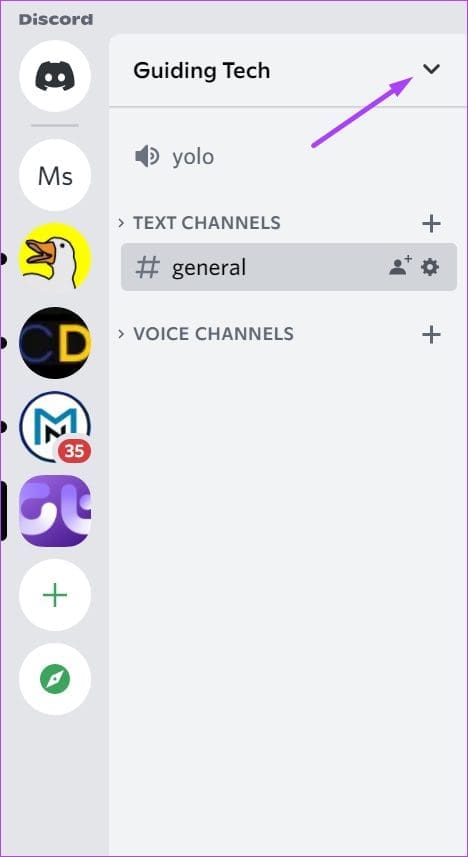
Step 3: At the top of the Discord app, click on the drop-down beside your Server’s name.
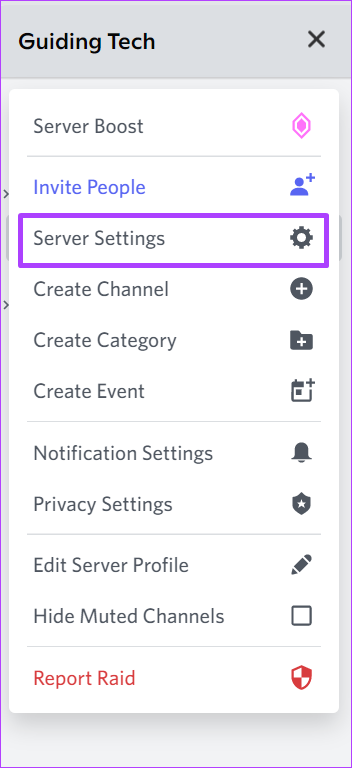
Step 4: Click on Server Settings from the options.
Step 5: Click on Stickers.

Step 6: Click on Upload Sticker.

Servers without a level only have five free sticker slots. You must pay to boost the Server level to upload more stickers.
Step 7: Click on Browse beside the File field.
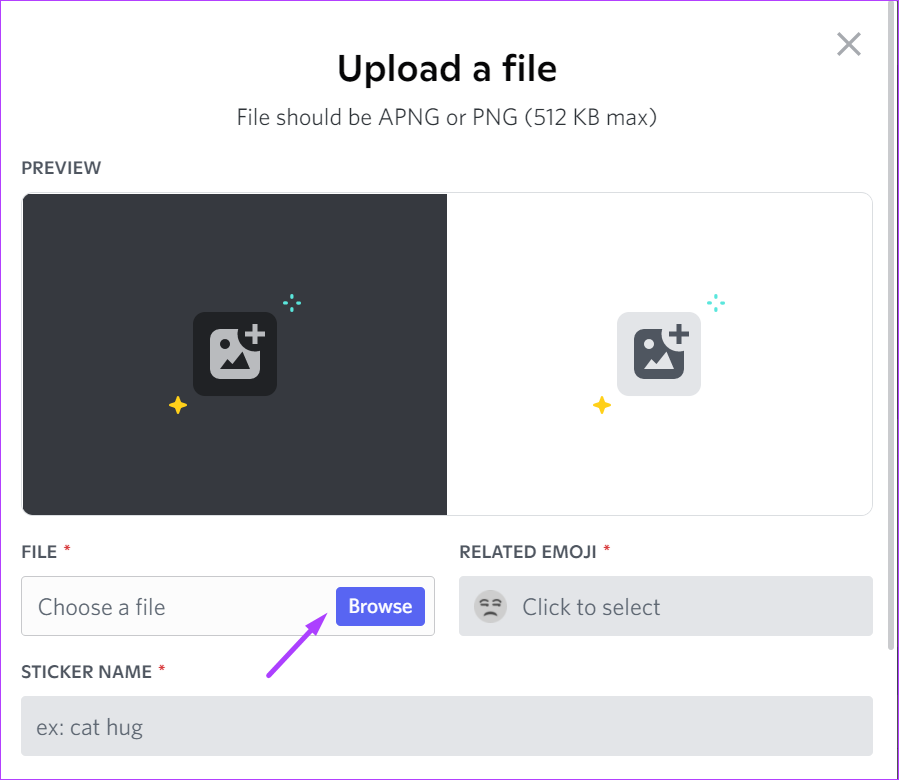
Step 8: Select the sticker file from your PC and click Open. Discord accepts stickers in PNG or APNG file formats.

Step 9: Click on the emoji beneath the Related Emoji field.

Step 10: Select the emoji you want your stick connected with.

Step 11: Beneath the Sticker Name field, name your sticker.
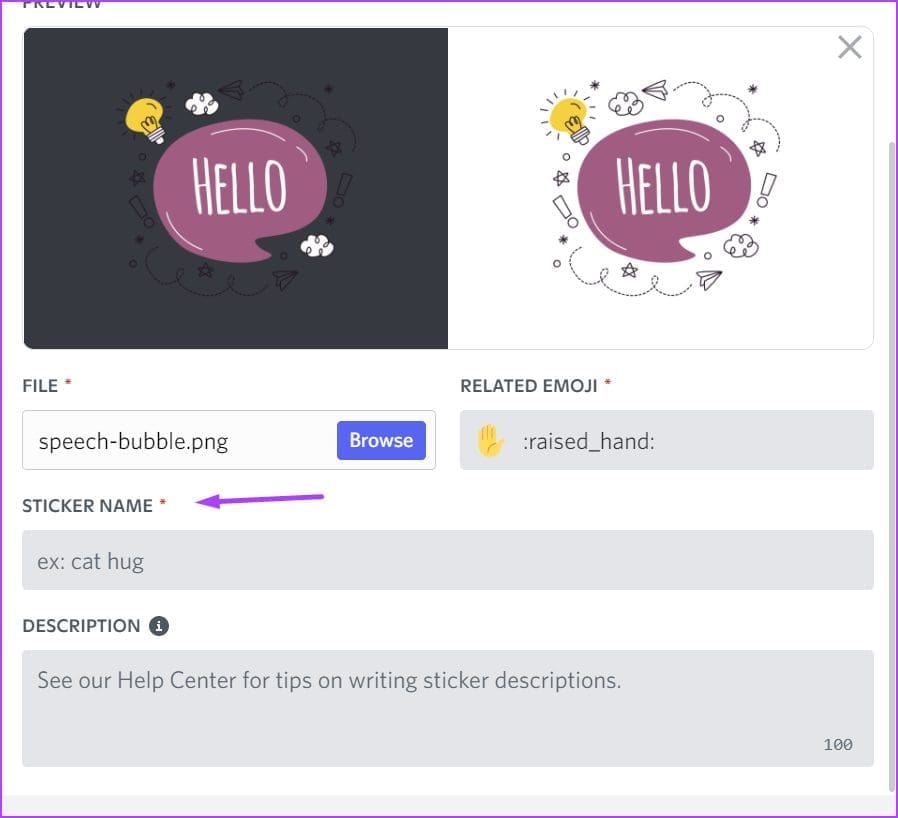
Step 12: Provide a Description for your sticker to help with accessibility.
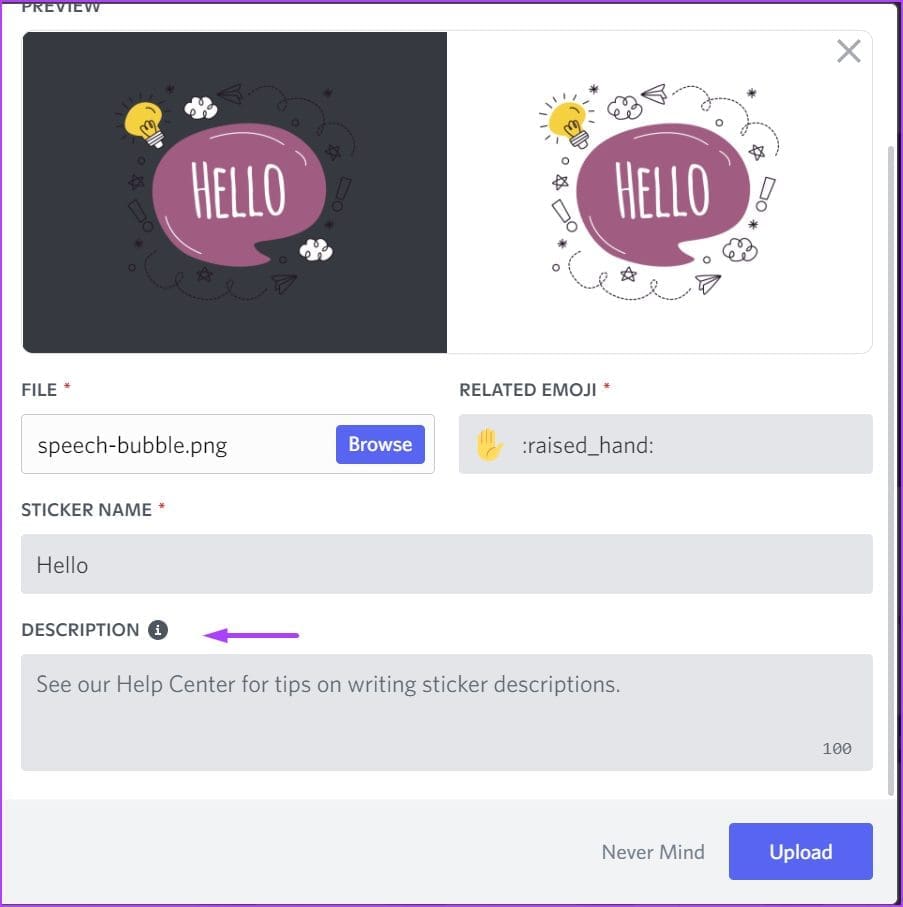
Step 13: Click Upload to save your new sticker on your Server.

How to Use Stickers on a Discord Channel
For Discord users, you can access the Stickers of your Server from the Text Channels. If you want to use the sticker from one server on another server, ensure you have Nitro. Here’s how to use stickers:
Step 1: Launch your Discord app.
Step 2: On the left of the Discord app, click on your Server to open it.
Step 3: Select the drop-down beside Text Channels and select the channel to send the sticker.

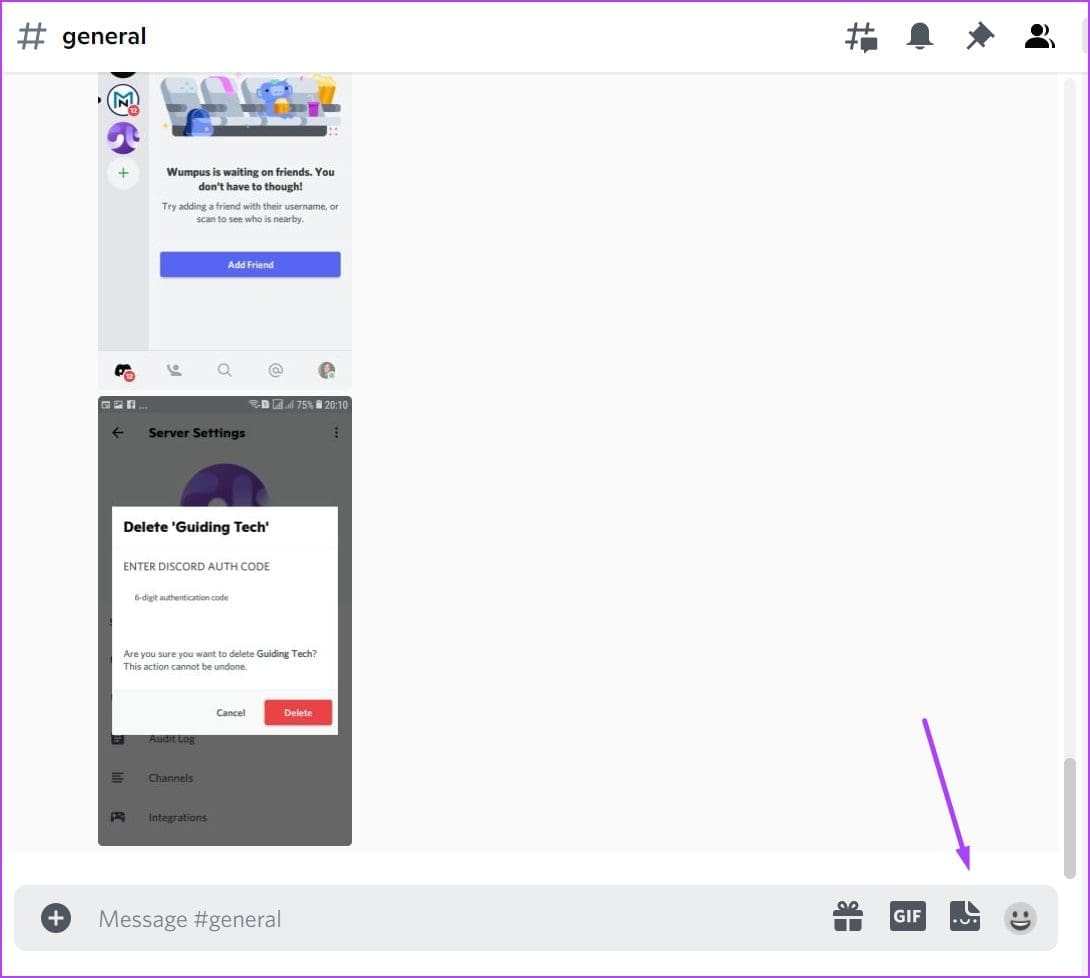
Step 4: On the text channel, click the Sticker icon at the bottom.
Step 5: Select your Server at the left of the page to view all your Server stickers.
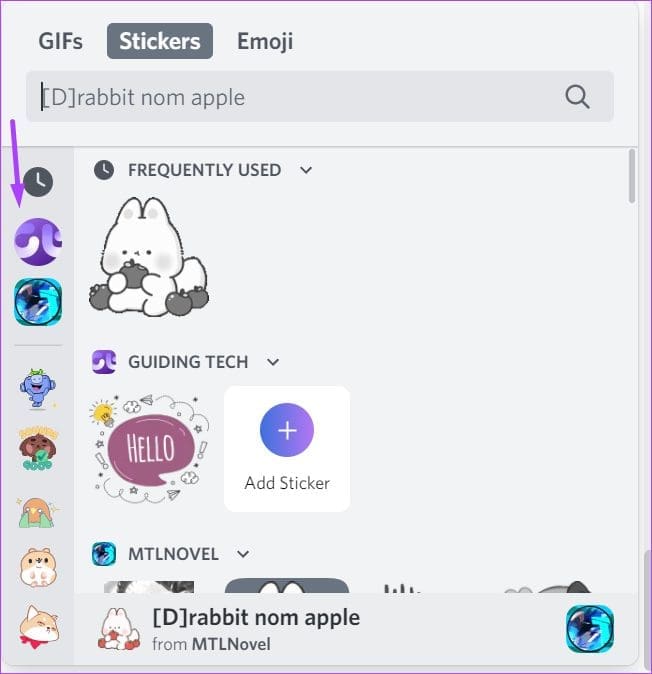
Step 6: Click your preferred sticker to send it to the channel.

How to Animate Stickers on a Discord Server
Two sticker formats are allowed on Discord: APNG and PNG. APNG represents animated stickers, while PNG represents stickers without animations. If your stickers are APNG, but you notice that they do not animate when you use them, here’s what you can do:
Step 1: Launch Discord.
Step 2: Click on the User Settings (gear icon) at the bottom right.

Step 3: Scroll to the App Settings section > click Accessibility.

Step 4: Scroll down the Accessibility Settings to Stickers.

Step 5: To ensure your APNG file stickers animate when using them, choose Always Animate or Animate on Interaction.

Step 6: Click the Esc button on the page to return to the Text Channel with your stickers. You can check if your APNG stickers are animated.

If you do not have the option to upload or use stickers on your Discord server and channel, it might be because your app isn’t updated or Discord failed to update. You can try re-installing Discord or clearing your cache to fix the problem.
Was this helpful?
Last updated on 23 August, 2024
Read Next
 How to Play Discord Games Using Discord Activities
What Are Discord Games?
How to Play Discord Games Using Discord Activities
What Are Discord Games?
 How to Import Chrome Bookmarks to Samsung Internet Browser
Samsung Internet Browser is one of the finest alternatives to Chrome on Android, answering many of the persistent usability issues in Google’s flagship browser.
How to Import Chrome Bookmarks to Samsung Internet Browser
Samsung Internet Browser is one of the finest alternatives to Chrome on Android, answering many of the persistent usability issues in Google’s flagship browser.
 2 Best Ways to Import Questions Into Google Forms From Google Sheets
Typically, when you create a Google Form, you need to perform several steps.
2 Best Ways to Import Questions Into Google Forms From Google Sheets
Typically, when you create a Google Form, you need to perform several steps.
 How to Import Questions Into Google Forms Easily
Method 1: Import Questions From Another Google Form The easiest way to import questions into Google Forms is from another form.
How to Import Questions Into Google Forms Easily
Method 1: Import Questions From Another Google Form The easiest way to import questions into Google Forms is from another form.
 How to Import or Export Firefox Bookmarks
Browsers are a part and parcel of our lives.
How to Import or Export Firefox Bookmarks
Browsers are a part and parcel of our lives.
 How to Import Styles from Another Word Document
Import Styles from Another Word Document You can import styles via the Developer tab in Microsoft Word.
How to Import Styles from Another Word Document
Import Styles from Another Word Document You can import styles via the Developer tab in Microsoft Word.
 How to Use Facebook Messenger Stickers in WhatsApp
WhatsApp recently launched stickers and the world has been going crazy since then.
How to Use Facebook Messenger Stickers in WhatsApp
WhatsApp recently launched stickers and the world has been going crazy since then.
 How to Add Stickers to Instagram Posts and Stories
Add Stickers to Instagram Stories on Android and iPhone Step 1: Open the Instagram app on your iPhone and Android.
How to Add Stickers to Instagram Posts and Stories
Add Stickers to Instagram Stories on Android and iPhone Step 1: Open the Instagram app on your iPhone and Android.
The article above may contain affiliate links which help support Guiding Tech. The content remains unbiased and authentic and will never affect our editorial integrity.