


Method 1. How to Hide a Facebook Story From Someone
You must tweak a setting in the Facebook app to hide all the upcoming stories from specific friends. Follow the steps below.
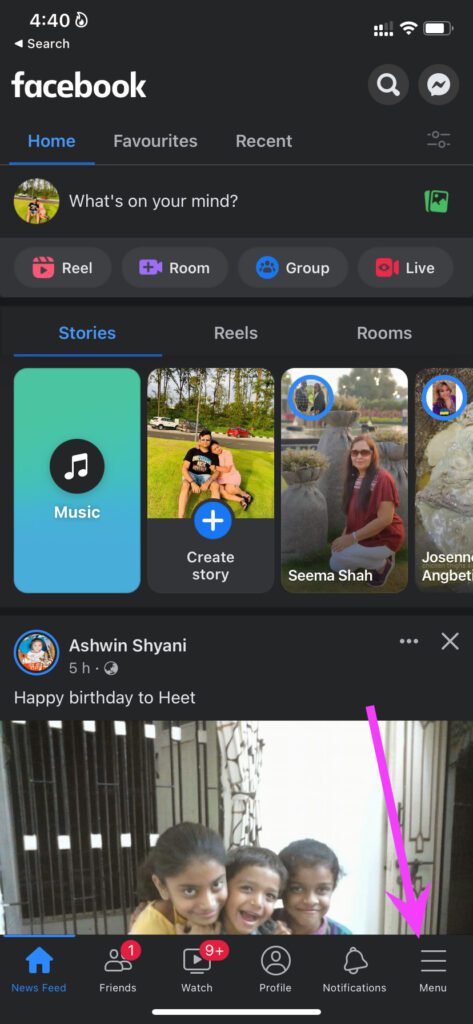
Step 1: Open Facebook on your iPhone or Android. Tap Menu from the bottom bar.
Step 2: Scroll down and select Settings & Privacy > Settings.

Step 3: Next, tap Stories under Audience and visibility.
Step 4: Go to the Story Privacy menu > select ‘Hide story from’.
Step 5: Search for the person and add them to the story exception.

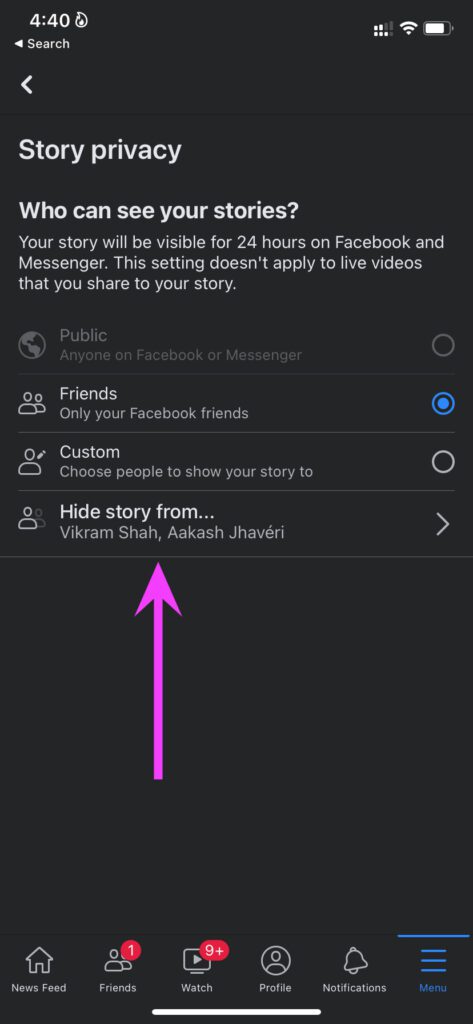

From now on, whenever you upload a new story on the social platform, selected friends can’t see it in the Facebook or Messenger app. There is another method to access Facebook story privacy options as well.
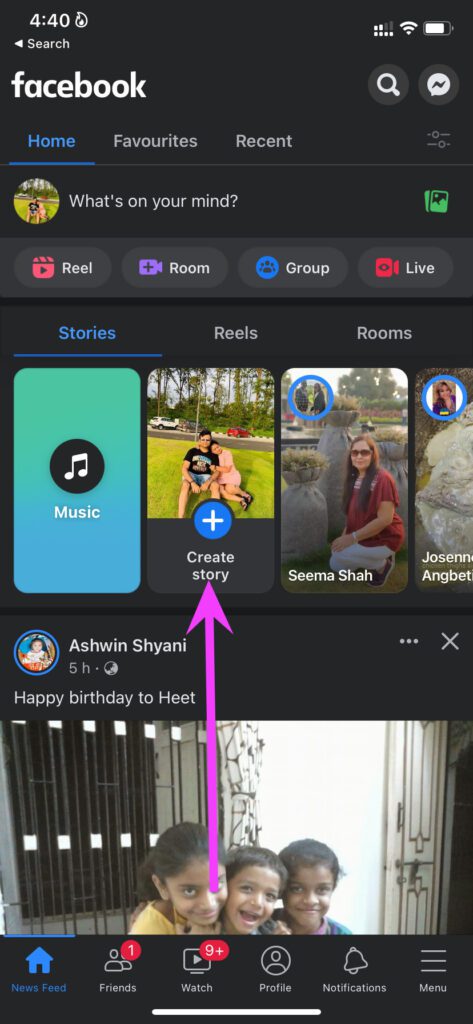
Step 1: From your Facebook feed menu, select Create story.
Step 2: Tap on Settings gear at the top. This will take you directly to the Story privacy menu.
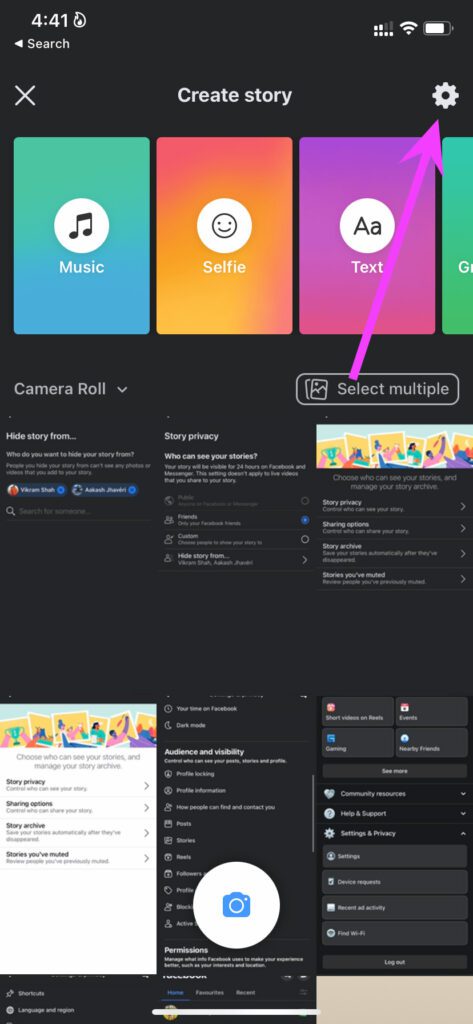
You can go to the Hide story from option and make your Facebook stories disappear for selected friends.
Method 2. Share Stories With Select Friends Only
This is like Instagram’s Close Friends feature. When you have thousands of friends on Facebook, filtering out dozens of them can be difficult. Instead, you can create a limited group of friends on Facebook and share your stories with them only. Here’s what you must do.
Step 1: Open Facebook > select Create Story.
Step 2: Tap on the Settings icon > go to the Story privacy options.
Step 3: Select Custom and you will find a friends list from the following menu.
Step 4: Select friends with whom you want to share all Facebook stories.
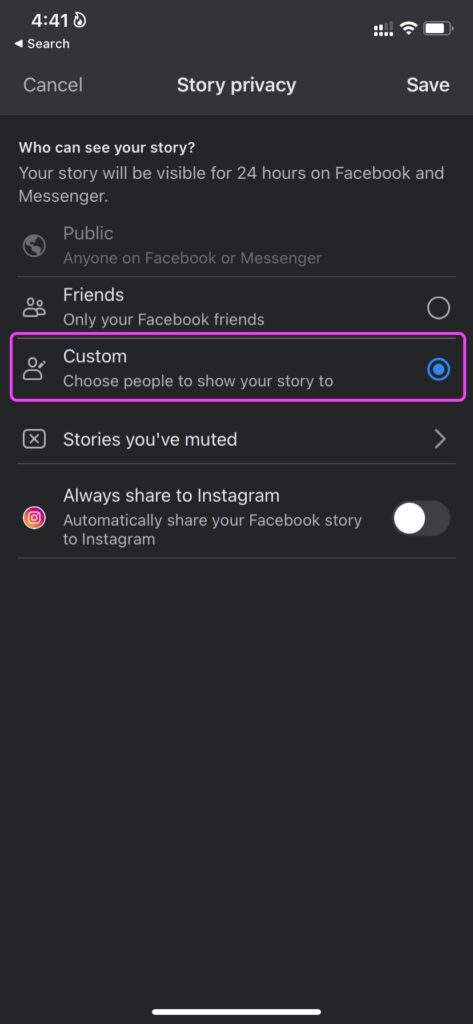

After making changes, your Facebook story will remain invisible to everyone else (except your selected friends from the custom menu).
Notably, if you have enabled the ‘Always share to Instagram’ toggle, your uploaded Facebook stories will be visible to all your Instagram followers. If you want to utilize the same privacy function on Instagram, learn how to hide a story from someone on Instagram.
How to Unhide a Story From Someone on Facebook
If you have a change of heart, you can unhide a story from someone on Facebook.
Step 1: From the Facebook home menu, select Create Story. Tap on the Settings icon → Story privacy.
Step 2: Go to Hide story from and uncheck friends from the list.
Hit Done at the top, and you are good to go with story-sharing with everyone. Alternatively, if you’ve used the second method, add that person’s name to the selected friend’s list.
FAQs
Your current Facebook stories remain unaffected by the change. You must delete the current story and upload it again. Only then will the story be hidden from selected friends.
You are only hiding Facebook stories from friends. Your same friends will continue to see your posts, pictures, and other details on Facebook.
Hiding a story from someone is strictly a privacy add-on. Your friends won’t get any notification about the move. Your friends can make a guess when they haven’t seen your Facebook story for a long time.
Yes, you will remain friends with all the users, whether you hide them from story viewing or not. This means these people can see your profile, upload photos, and reach you via Facebook Messenger.
Was this helpful?
Last updated on 05 July, 2024
1 Comment
Leave a Reply
Read Next
 How to Hide a Story from Someone on Snapchat
Snapchat on iOS and Android uses a similar UI.
How to Hide a Story from Someone on Snapchat
Snapchat on iOS and Android uses a similar UI.
 Facebook Story vs Messenger Story: Similarities and Differences
Key Differences and Similarities FeatureFacebook StoriesMessenger StoriesCross-PostingFacebook Stories are visible to Messenger contacts.Messenger Stories are visible to Facebook friends.AvailabilityAvailable on mobile apps and the Facebook website.Available only on the mobile
Facebook Story vs Messenger Story: Similarities and Differences
Key Differences and Similarities FeatureFacebook StoriesMessenger StoriesCross-PostingFacebook Stories are visible to Messenger contacts.Messenger Stories are visible to Facebook friends.AvailabilityAvailable on mobile apps and the Facebook website.Available only on the mobile
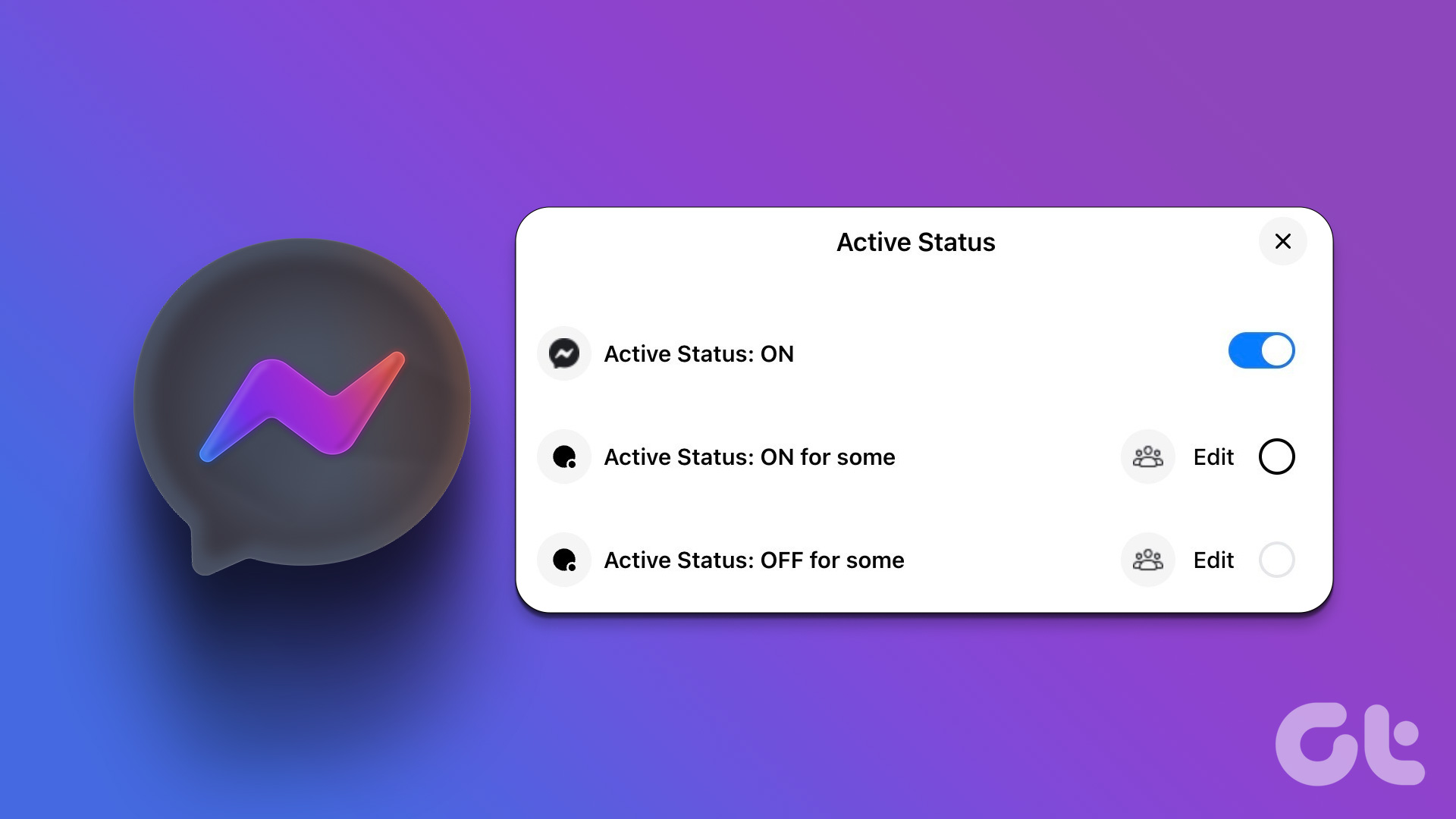 How to Hide Active Status From Someone on Facebook Messenger
Hide Active Status From a Particular Person on Messenger Although Facebook offers native Messenger apps on iOS, Android, Windows, and Mac, the ability to hide active status from one person
How to Hide Active Status From Someone on Facebook Messenger
Hide Active Status From a Particular Person on Messenger Although Facebook offers native Messenger apps on iOS, Android, Windows, and Mac, the ability to hide active status from one person
 How to Hide Instagram Story From Everyone Except One Person
https://www.youtube.com/embed/SgnBlWR97EY Method 1: Use the Close Friends List You can hide your story from all except one by using the close friends list.
How to Hide Instagram Story From Everyone Except One Person
https://www.youtube.com/embed/SgnBlWR97EY Method 1: Use the Close Friends List You can hide your story from all except one by using the close friends list.
 How to Share (Repost) Someone Else’s Story on Instagram
Have you ever stumbled upon a captivating Instagram story you wished to share with your followers?
How to Share (Repost) Someone Else’s Story on Instagram
Have you ever stumbled upon a captivating Instagram story you wished to share with your followers?
 How to Tag Someone on Instagram Story After Posting
Have you ever spent hours crafting the perfect Instagram Story, only to regret it when you post and realize you forgot to tag someone?
How to Tag Someone on Instagram Story After Posting
Have you ever spent hours crafting the perfect Instagram Story, only to regret it when you post and realize you forgot to tag someone?
 How to Tag/Mention Someone on Instagram Story Without It Showing
Instagram's tagging system is great for public shoutouts, but what about when you want to send a secret message to your friend?
How to Tag/Mention Someone on Instagram Story Without It Showing
Instagram's tagging system is great for public shoutouts, but what about when you want to send a secret message to your friend?
 3 Easy Ways to Hide Posts From Someone on Instagram
Note: Changing settings on your desktop automatically syncs to your mobile device, so you don't have to follow the same methods on your mobile device as you would on your
3 Easy Ways to Hide Posts From Someone on Instagram
Note: Changing settings on your desktop automatically syncs to your mobile device, so you don't have to follow the same methods on your mobile device as you would on your
The article above may contain affiliate links which help support Guiding Tech. The content remains unbiased and authentic and will never affect our editorial integrity.

I created a custom story privacy and I now want it deleted – the custom list, not the story itself – how do you do that?