How to Create and Save Tab Groups in Chrome
On Mac
If you find that you’ve got too many tabs open while in the middle of a Google Chrome session, you can group them and minimize the ones you aren’t using. Grouping Google Chrome tabs with different colors is easy. If you’re on a Mac, all you need to do is follow the steps below.
Step 1: Hold Ctrl and click the trackpad at the same time on a tab.
Step 2: Click Add tab to new group.

Step 3: Give your group a name and then choose the color.

You’ll then need to add the tabs you want to be included in the group. To do this, the steps below are for you.
Step 1: Hold Ctrl and click the trackpad on the tab you want to move.
Step 2: Hover over Add tab to new group, and then choose the new tab.

Repeat the above two processes for every group you want to create. Alternatively, you can drag them over.
On Windows
If you’re on a Windows computer, you can instead follow the steps listed below.
Step 1: For the first step in each of the above walkthroughs, right-click on the tab you want to add to a group instead of using Ctrl + trackpad.
Step 2: The remaining processes are identical to those listed above.
Once you create the tab groups, you can just click on their names to hide or show the tabs while using Chrome.
Organize Your Tab Groups in Chrome
Once you have specified the categories for your Chrome tabs, you get a few options to organize them.
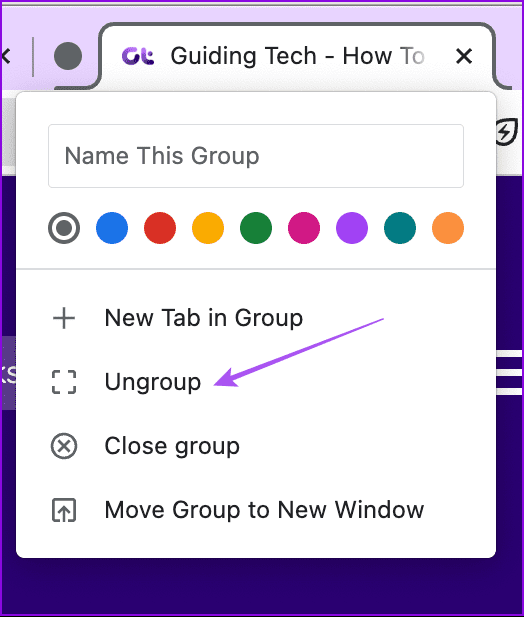
Ungroup Tab
If there’s a specific tab that you wish to remove from a group, right-click on the tab name and then choose Ungroup.
Hide Group
You can choose to hide your tab group while using Chrome. Just right-click on the tab group name and then choose Hide group.

Move to a New Window
You can choose to open a tab from a group in a new window on Chrome. Right-click on the tab and then choose Move Tab to New Window.

Was this helpful?
Last updated on 24 July, 2024
Read Next
 How to Restore Tabs & Save Tab Groups In Google Chrome
Usually when Google Chrome crashes, it gives you a restore tabs option when you open the chrome browser again.
How to Restore Tabs & Save Tab Groups In Google Chrome
Usually when Google Chrome crashes, it gives you a restore tabs option when you open the chrome browser again.
 7 Chrome Extensions to Save Open Tabs
1.
7 Chrome Extensions to Save Open Tabs
1.
 How to Save Tabs Before Closing Chrome and Restore Lost Ones
Use Built-In Chrome Feature to Reopen Tabs Automatically Google Chrome has a native feature to open the last used tabs automatically.
How to Save Tabs Before Closing Chrome and Restore Lost Ones
Use Built-In Chrome Feature to Reopen Tabs Automatically Google Chrome has a native feature to open the last used tabs automatically.
 4 Fixes for Google Chrome Not Opening New Tabs on Windows
Common Fixes Before you delve into complex troubleshooting methods, try these basic fixes and see if they help restore normalcy to Google Chrome: Restart Google Chrome - Restarting the browser
4 Fixes for Google Chrome Not Opening New Tabs on Windows
Common Fixes Before you delve into complex troubleshooting methods, try these basic fixes and see if they help restore normalcy to Google Chrome: Restart Google Chrome - Restarting the browser
 3 Ways to Auto Refresh Tabs in Google Chrome
Method 1: Using Extensions While there are no native controls to reload web pages on Chrome automatically, you can add the Easy Auto Refresh extension to Chrome and get the
3 Ways to Auto Refresh Tabs in Google Chrome
Method 1: Using Extensions While there are no native controls to reload web pages on Chrome automatically, you can add the Easy Auto Refresh extension to Chrome and get the
 How to Create an Email Group in Mail App on Mac
Create a New Group Using the Contacts App Like Gmail and Outlook, the Mail app on Mac also lets you send group emails.
How to Create an Email Group in Mail App on Mac
Create a New Group Using the Contacts App Like Gmail and Outlook, the Mail app on Mac also lets you send group emails.
 How to Enable Sleeping Tabs in Google Chrome
Method 1: Enable Sleeping Tabs Using Memory Saver Step 1: Open Google Chrome and click on three vertical dots.
How to Enable Sleeping Tabs in Google Chrome
Method 1: Enable Sleeping Tabs Using Memory Saver Step 1: Open Google Chrome and click on three vertical dots.
 How to Close All Tabs From the Same Website on Google Chrome
Note: Chrome doesn't support this feature by default.
How to Close All Tabs From the Same Website on Google Chrome
Note: Chrome doesn't support this feature by default.
The article above may contain affiliate links which help support Guiding Tech. The content remains unbiased and authentic and will never affect our editorial integrity.