


1. Get Battery Full Alert on Samsung Galaxy Phones
Step 1: Open Settings on your Samsung Galaxy phone.
Step 2: Go to Advanced features. Then, toggle Bixby Routines, followed by Bixby Routines text.
Step 3: Tap on the Add Routine tab at the bottom.


Step 4: Tap on the (+) Add icon under the If condition. Scroll down and tap on Battery level.


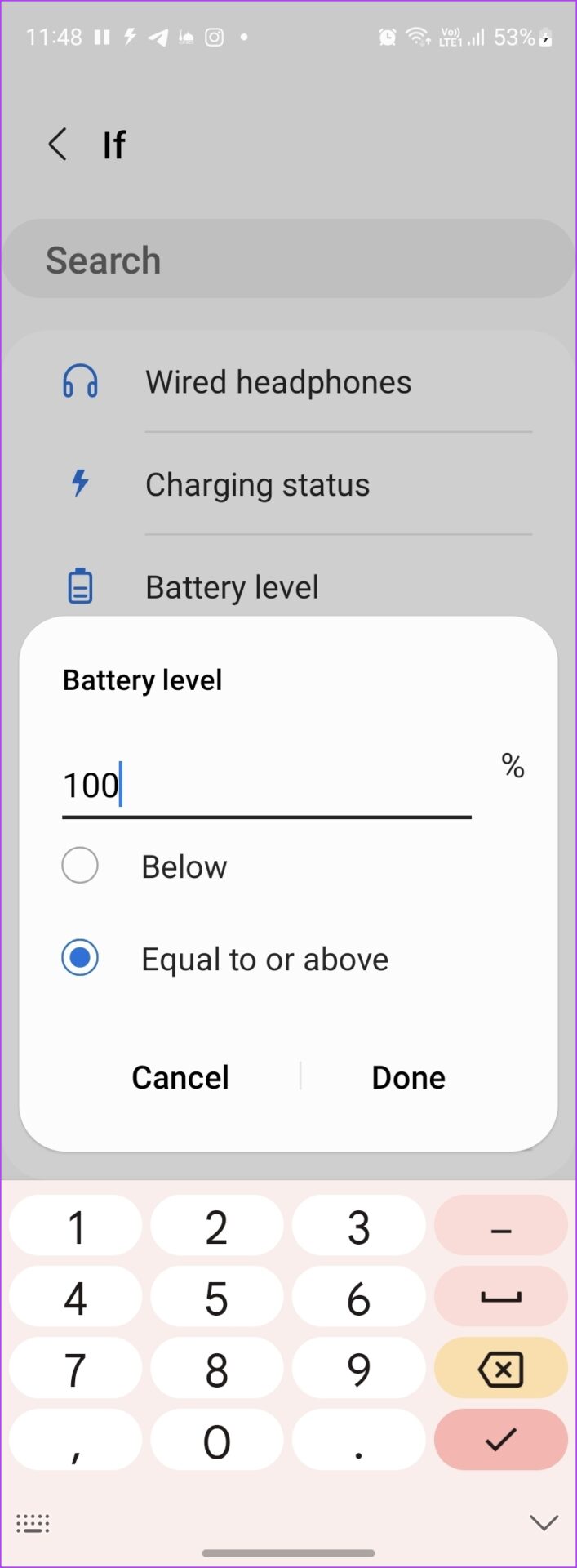
Step 5: Enter the battery level percentage at which your Samsung phone should alert you. Since we want to get full battery alerts, enter 100 and select the Equal to or above option. Press the Done button.
Step 6: Now, tap the (+) Add button under the Then section.

Step 7: Depending on your preference, you can make your phone do a variety of things when the battery is fully charged. For instance, you can make it vibrate, announce that the battery is fully charged, play notification, or activate edge lighting.
Note: The actions will activate in the order they appear under the Then section. You may reorder the actions as you prefer.
Step 8: Finally, tap on the Next button at the bottom.
Step 9: Give a name to your routine and select an icon for it. Hit Done at the bottom.

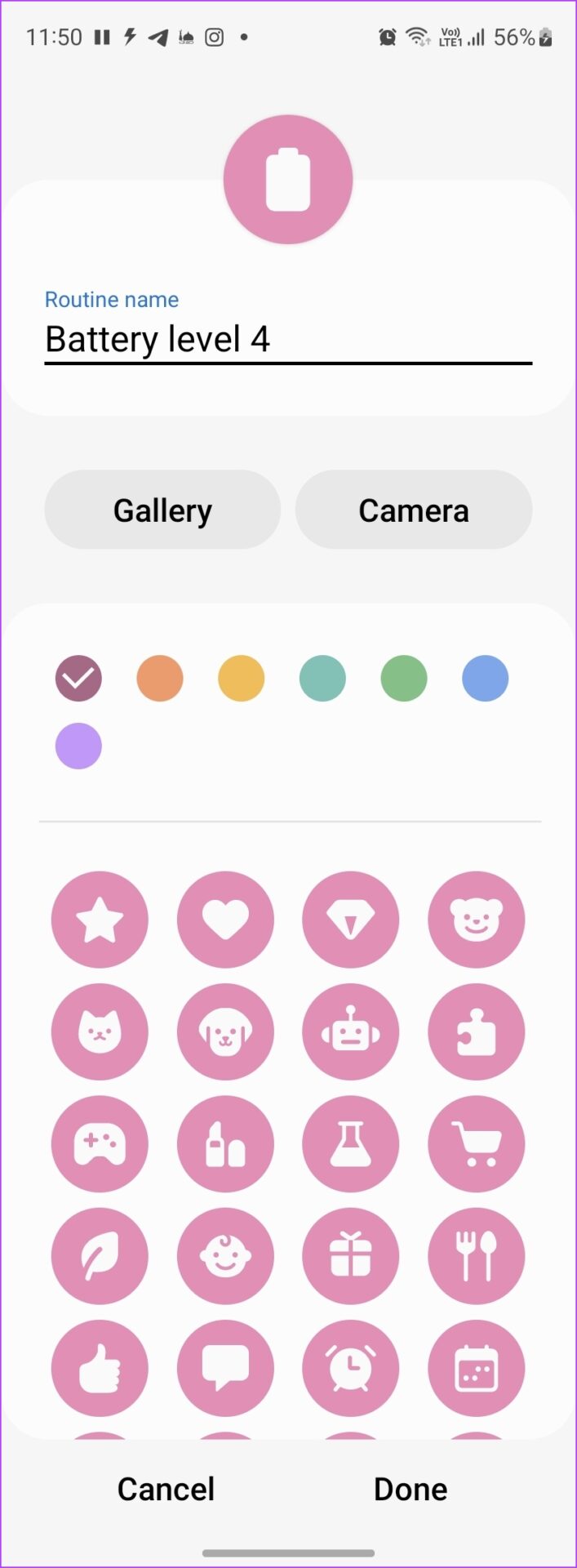
That’s it. Now, the Routine will run automatically and alert you whenever the battery is fully charged on your Samsung Galaxy phone.
2. Get Battery Full Alarm on Any Android Phone
Sadly, not all Android phones come with a native battery full alert feature. However, you can use third-party battery alert apps to notify you about the battery’s full status on any Android phone. Follow these steps:
Step 1: Install and open the Full Battery Charge Alarm app on your Android phone.
Step 2: Tap on the Enable Alarm button.
Step 3: A notification permission pop-up will show up. Tap on Continue followed by Allow.

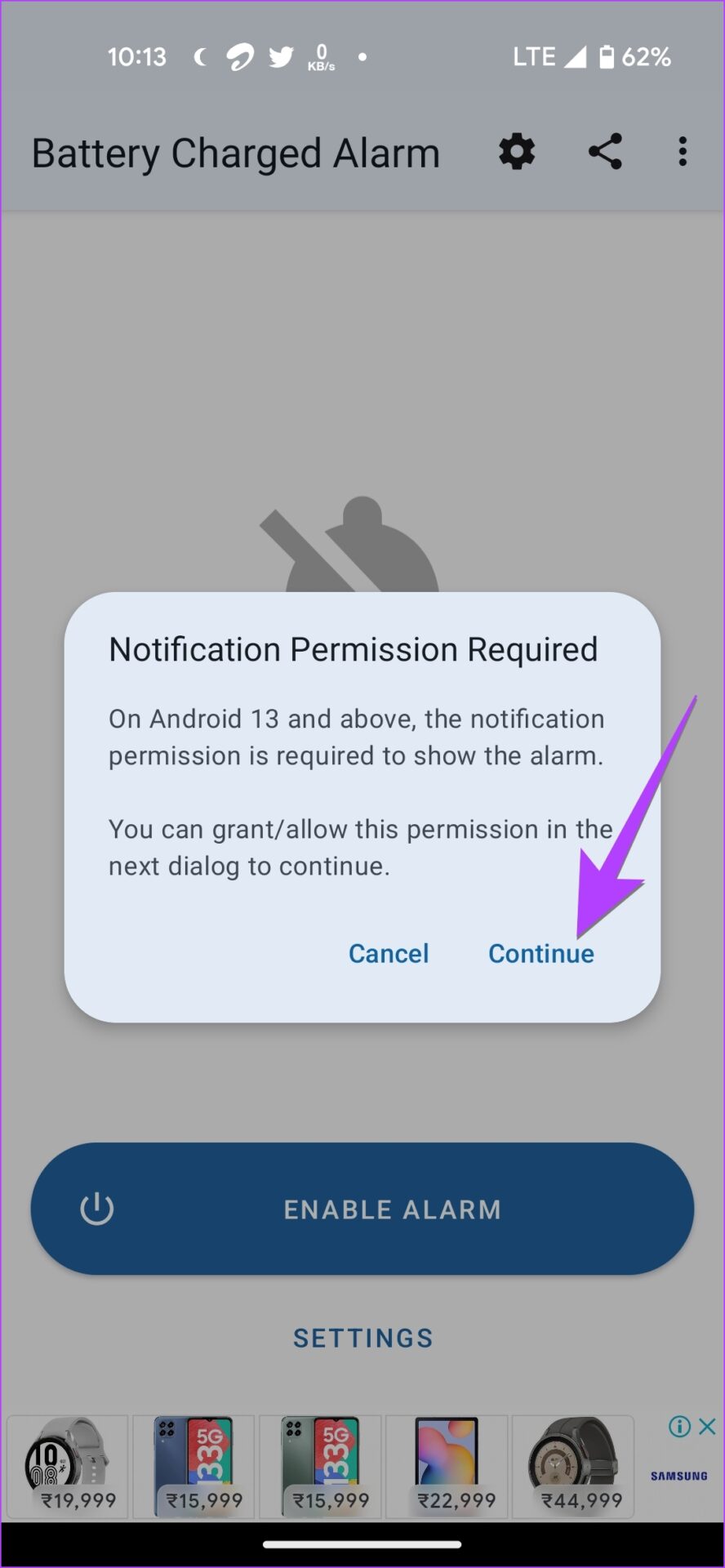
Step 4: Another pop-up will show up saying that you will see this app’s notification in the notification panel. Tap on OK.
Note: It’s important for that notification to stay in the notification area. If the battery alarm doesn’t work, open the app and ensure you see that notification in the notification area.
Step 5: You will see that the Enable Alarm button has converted to Disable Alarm. Now, tap on the Settings icon at the top and customize the battery full alarm notifications.
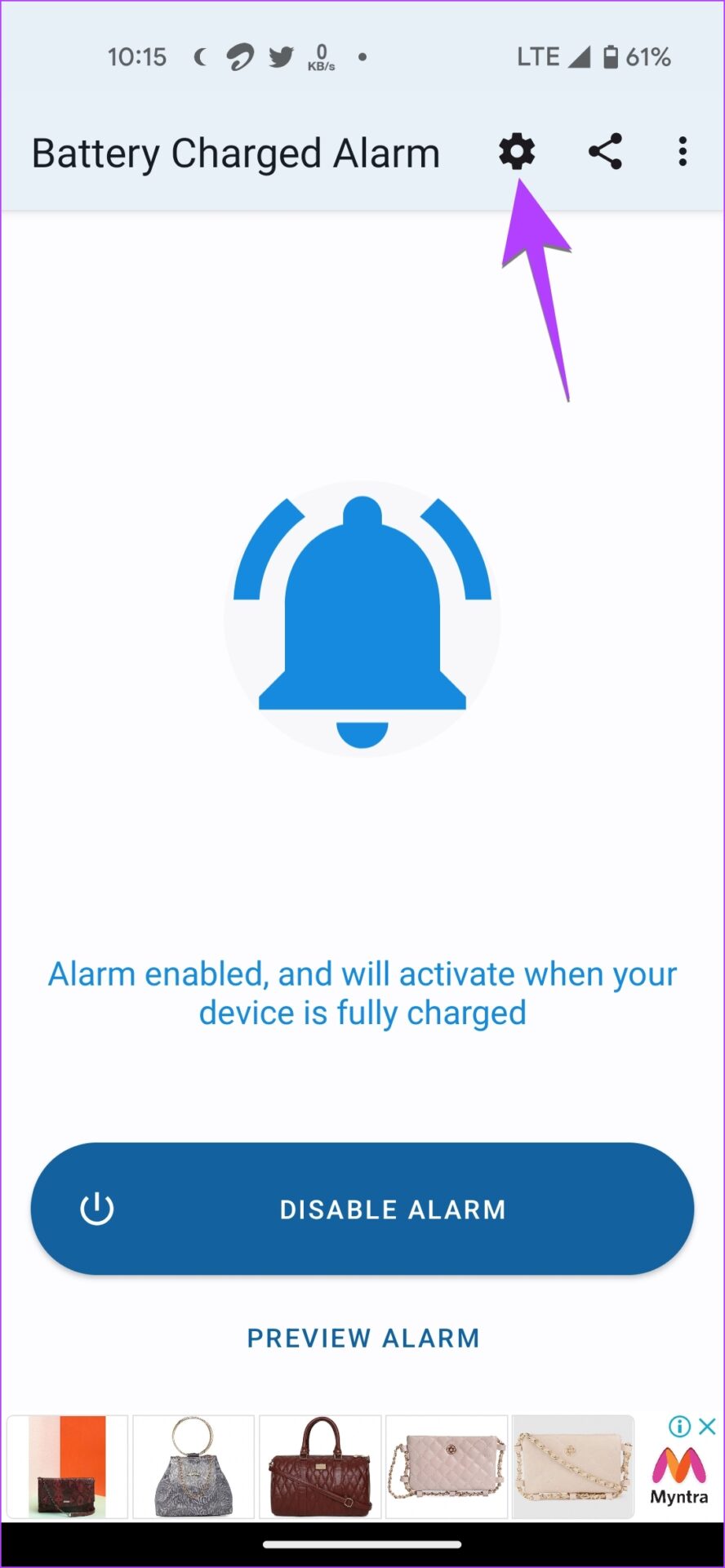
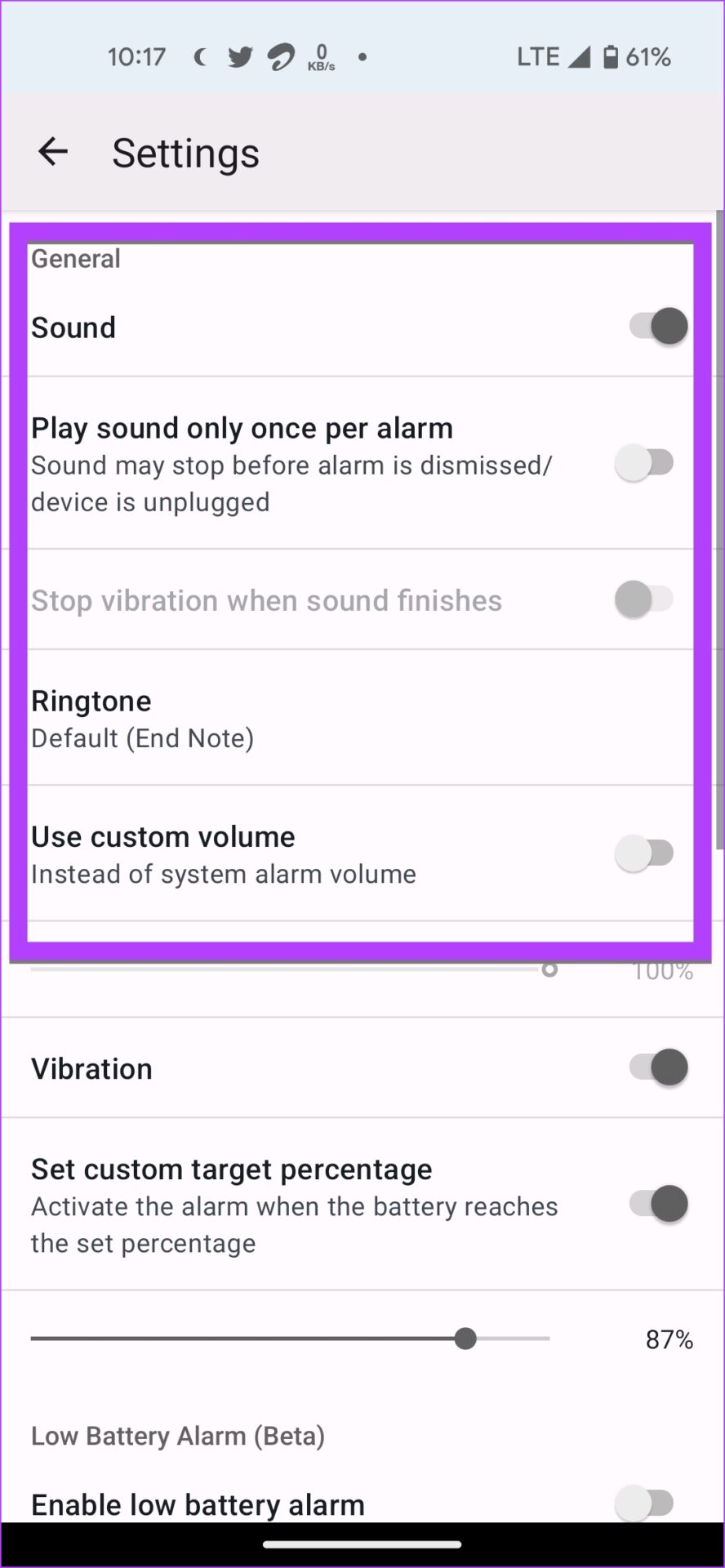
Step 6: By default, you will be alerted when the battery level reaches 100%. But, you can customize and change the target percentage. For that, first, enable the toggle next to Set custom target percentage. Then, set the desired battery percentage.

Step 7: Now, whenever you charge your phone, the app will alert you when the battery is fully charged.
Tip: Use this app to set low battery alarms as well.
Some other battery-full alarm apps for Android that you can try are:
FAQs About Full Battery Notification on Android
Samsung Galaxy phones come with a feature that limits the maximum charge to 85%. To disable this feature, go to Settings > General management > Battery > More battery settings. Turn off the toggle for Protect battery.
When you connect your charger to the phone, you will see a lightning icon inside the battery icon in the status bar. You will also see the charging status on the always-on display on your phone.
Was this helpful?
Last updated on 22 August, 2024
1 Comment
Leave a Reply
Read Next
 2 Ways to Get Full Battery Notification on iPhone and iPad
Method 1: Get Battery Full Alert Using iPhone's Shortcuts App Here's how to automate your iPhone to notify you when the battery is charged to 100%.
2 Ways to Get Full Battery Notification on iPhone and iPad
Method 1: Get Battery Full Alert Using iPhone's Shortcuts App Here's how to automate your iPhone to notify you when the battery is charged to 100%.
 How to Set Custom Notification Sounds for Different Apps on Samsung Galaxy Phones
How to Set Different Notification Sounds for Different Apps You can change app sounds through the phone's Settings app.
How to Set Custom Notification Sounds for Different Apps on Samsung Galaxy Phones
How to Set Different Notification Sounds for Different Apps You can change app sounds through the phone's Settings app.
 8 Ways to Fix Battery Drain on Samsung Galaxy Phones
Basic Fixes: Disable 5G: While 5G provides faster data transfer speeds, it can increase the device's battery drain.
8 Ways to Fix Battery Drain on Samsung Galaxy Phones
Basic Fixes: Disable 5G: While 5G provides faster data transfer speeds, it can increase the device's battery drain.
 Top 5 Fixes for Windows 10 Battery Low Notification Not Working
What would you do if your Windows 10 laptop shuts down abruptly without any warning or notification?
Top 5 Fixes for Windows 10 Battery Low Notification Not Working
What would you do if your Windows 10 laptop shuts down abruptly without any warning or notification?
 How to Join an Android App’s Beta Program Even if It’s Full
Method 1: Via the Beta Maniac App It's simple to join the beta program of an Android app via the Play Store.
How to Join an Android App’s Beta Program Even if It’s Full
Method 1: Via the Beta Maniac App It's simple to join the beta program of an Android app via the Play Store.
 How to Fit Full Page to Window By Default in Adobe Acrobat DC and Reader DC
Adobe Acrobat DC and Acrobat Reader DC prefer fitting pages by width.
How to Fit Full Page to Window By Default in Adobe Acrobat DC and Reader DC
Adobe Acrobat DC and Acrobat Reader DC prefer fitting pages by width.
 6 Ways to Clear iCloud Storage That Is Full on iPhone and iPad
Method 1: Turn Off iCloud Photos Turning off iCloud Photos will turn off all subsequent backups to iCloud.
6 Ways to Clear iCloud Storage That Is Full on iPhone and iPad
Method 1: Turn Off iCloud Photos Turning off iCloud Photos will turn off all subsequent backups to iCloud.
 Top 11 Red Dead Redemption 2 Wallpapers in 4K and Full HD
Rockstar's Red Dead Redemption 2 was one of the most awaited open world game of 2018.
Top 11 Red Dead Redemption 2 Wallpapers in 4K and Full HD
Rockstar's Red Dead Redemption 2 was one of the most awaited open world game of 2018.
The article above may contain affiliate links which help support Guiding Tech. The content remains unbiased and authentic and will never affect our editorial integrity.
My new Galaxy A14 doesn’t have Bixby Routines in the ‘Advanced features’ section. On closer inspection, I see there is an app Modes and Routines which seems to do the same thing.