Basic Fixes
- Check cable and Bluetooth connection: Check the microphone and its wire for significant damage on either side. You can also try using the microphone with another device to rule out problems with the headset.
- Don’t cover the microphone: The recipient may hear a muffled sound if you accidentally cover the microphone on your headset.
- Check battery level: If your Bluetooth headset runs low on battery, the microphone and audio may not work properly. Connect it to a power adapter, and try using it again.
- Disconnect other devices from the PC: Other connected Bluetooth devices may interfere with the microphone on the headset.
- Close other apps using the microphone: If another app uses a microphone in the background, which may cause a conflict, you must close it.
Also Read: How to fix Bluetooth device is paired but not connected on Windows.
Fix 1: Change the Default Microphone on Windows
If you use a Windows laptop and connect an external headset to it, change the default microphone.
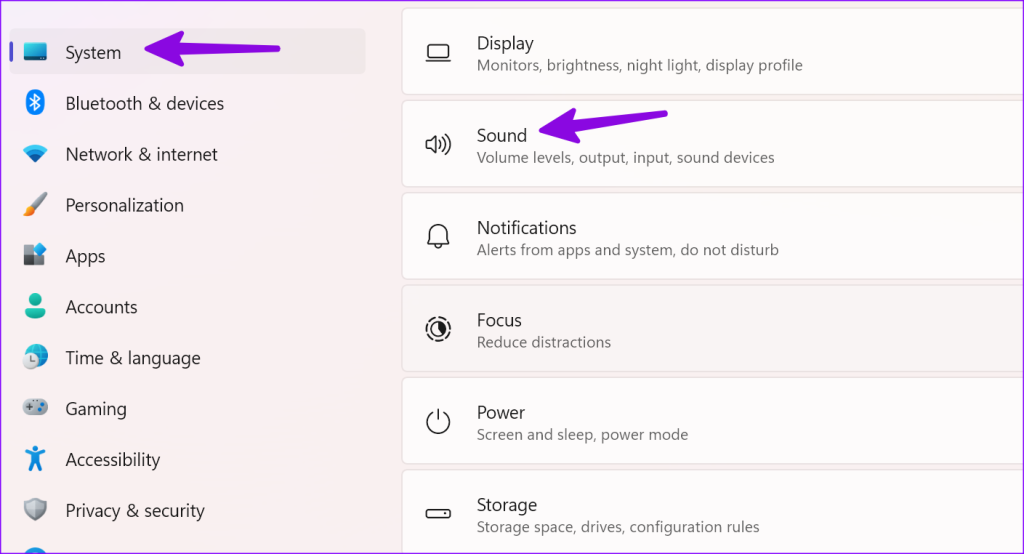
Step 1: Press the Windows + I keyboard shortcut to launch the Settings app. Select System from the left sidebar and choose Sound from the right pane.
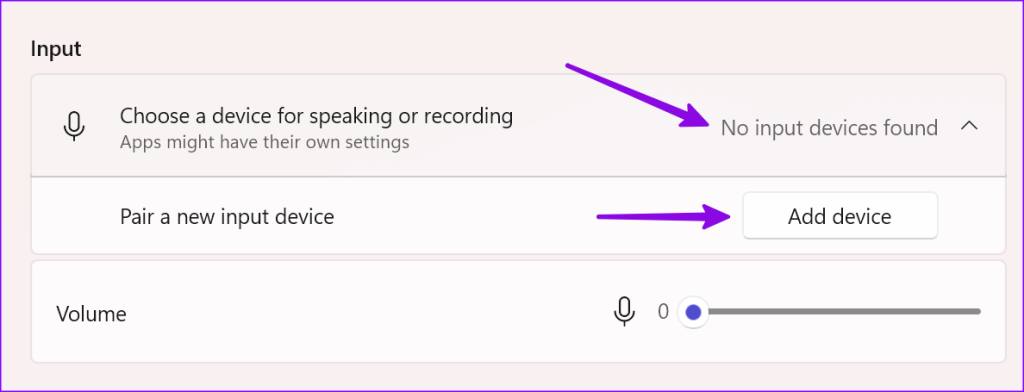
Step 2: Select the microphone under the Choose a device for speaking or recording menu. If the microphone doesn’t show up, pair a new input device from the same menu.
Fix 2: Run Microphone Troubleshooter
Windows comes with a built-in troubleshooter to fix microphone issues. Here’s how you can use it.
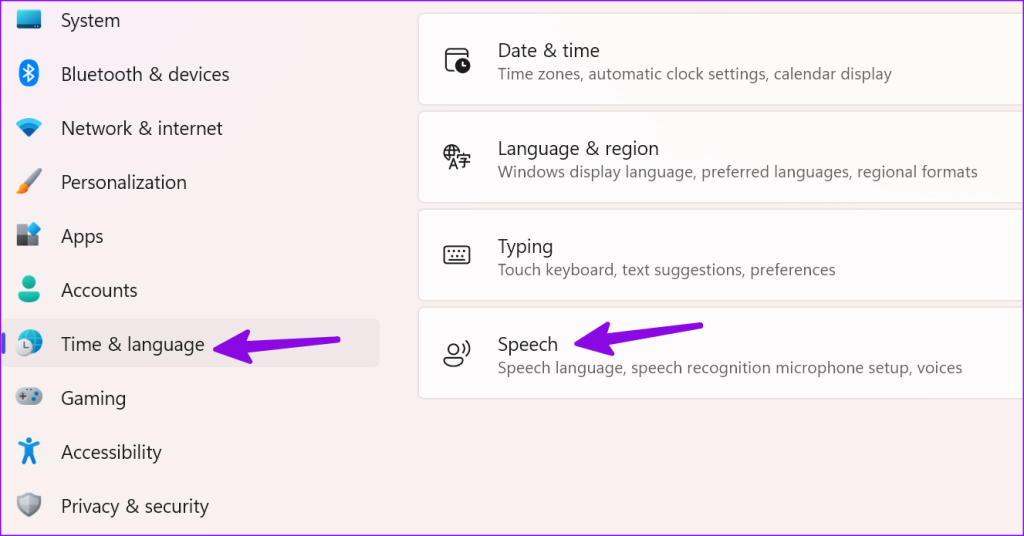
Step 1: Press Windows + I to open the Settings app. Click Time & language from the left sidebar and select Speech from the right pane.
Step 3: Click the Get Started button under the Microphone section.

Step 4: Now, follow the on-screen instructions to run the troubleshooter.

Fix 3: Enable Microphone
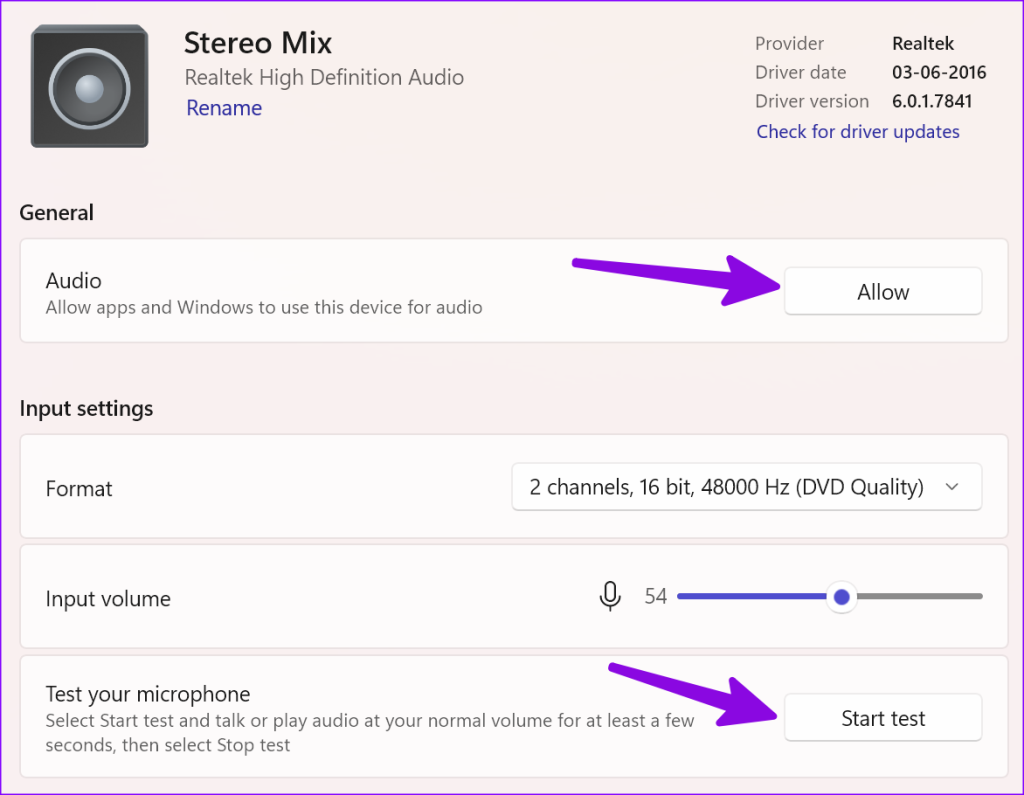
Did you disable the input device on your Windows PC? If yes, you will continue to face issues with the microphone on the headset. Let’s enable it from Settings.
Step 1: Press Windows + I to open the Settings app, select System from the left sidebar, and choose Sound from the right pane.
Step 2: Select All sound devices.

Step 3: Select your headset under the input devices.

Step 4: Click Allow. You can test your headset microphone from the same menu.
Fix 4: Update Audio Drivers
Outdated audio drivers lead to issues like ‘Windows PC not detecting microphone on headset’. It’s time to check and install driver updates on Windows.
Step 1: Press Windows + I to open the Settings app > select System from the sidebar > choose Sound from the right pane.
Step 2: From the Input Devices section, select your input device.

Step 3: Check for driver updates and install pending updates from the following menu.

Fix 5: Check App Permissions
If a specific app like Teams or Zoom does not have microphone permission, it can’t detect the same on your headset.
Step 1: Press Windows + I to open Settings > select Privacy & Security from the left sidebar > choose Microphone from the right pane.
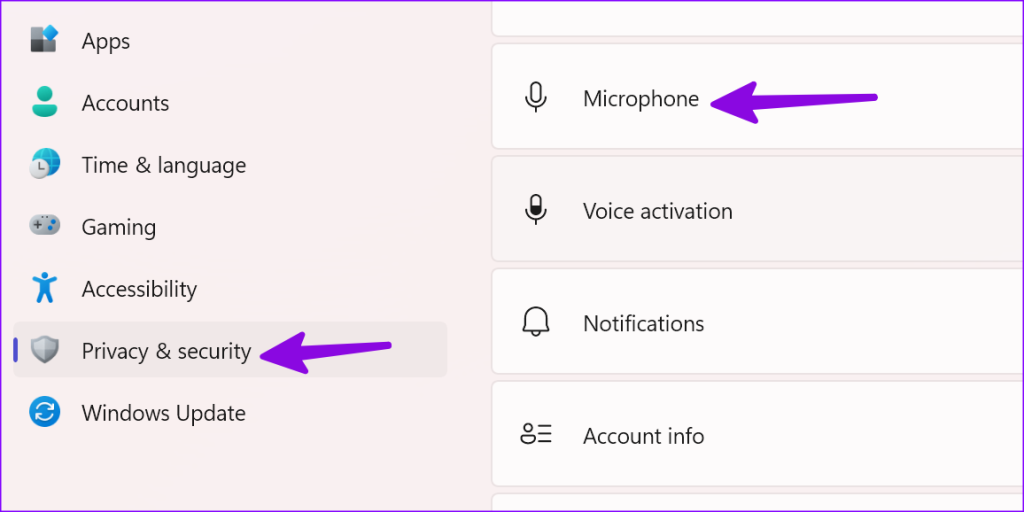
Step 2: Enable the Microphone access toggle. From the same menu, turn on the permission for essential apps.

Fix 6: Restart Windows Audio Service
You can reboot the Windows audio service and try detecting the microphone on the headset again.
Step 1: Press the Windows key to open the Start menu > type Services > hit Enter.
Step 2: Right-click on Windows Audio > select Restart.

Also Read: How to fix microphone not working on Windows
Was this helpful?
Last updated on 19 April, 2024
Read Next
 7 Ways to Fix Discord Audio Not Coming Through Headset
Fix 1: Check the Default Audio Output Device on Your System To start, check the default audio output device on your Windows or Mac computer and ensure that audio is
7 Ways to Fix Discord Audio Not Coming Through Headset
Fix 1: Check the Default Audio Output Device on Your System To start, check the default audio output device on your Windows or Mac computer and ensure that audio is
 How to Fix Bluetooth Headset Mic Not Working in Windows PC
Basic Fixes: Check if it's working with another device: You cannot rule out the possibility that your headset’s mic is the problem.
How to Fix Bluetooth Headset Mic Not Working in Windows PC
Basic Fixes: Check if it's working with another device: You cannot rule out the possibility that your headset’s mic is the problem.
 Top 4 Ways to Fix Windows 10 Not Detecting PS4 Controller
While Xbox reigns to work as a controller with Windows, there are plenty of PS4 owners who struggle to use their Dual Shock controller with Windows.
Top 4 Ways to Fix Windows 10 Not Detecting PS4 Controller
While Xbox reigns to work as a controller with Windows, there are plenty of PS4 owners who struggle to use their Dual Shock controller with Windows.
 5 Ways to Fix Microsoft Teams Not Detecting Camera on Windows 11
Common Fixes Check the camera hardware: Ensure your camera's view isn't blocked.
5 Ways to Fix Microsoft Teams Not Detecting Camera on Windows 11
Common Fixes Check the camera hardware: Ensure your camera's view isn't blocked.
 3 Ways to Fix Discord Not Detecting Games on Windows
Try Basic Fixes Restart your game: If it’s just a one-off glitch preventing Discord from detecting your game, restarting it will help.
3 Ways to Fix Discord Not Detecting Games on Windows
Try Basic Fixes Restart your game: If it’s just a one-off glitch preventing Discord from detecting your game, restarting it will help.
 4 Best Fixes for Windows 10 Not Detecting HDMI TV/Monitor
You'd find a few video connection ports on a typical Windows computer.
4 Best Fixes for Windows 10 Not Detecting HDMI TV/Monitor
You'd find a few video connection ports on a typical Windows computer.
 6 Best Fixes for Windows 11 Not Detecting HDMI TV/Monitor
An HDMI connection is the preferred versatile choice to stream content from a Windows 11 PC to a TV or monitor.
6 Best Fixes for Windows 11 Not Detecting HDMI TV/Monitor
An HDMI connection is the preferred versatile choice to stream content from a Windows 11 PC to a TV or monitor.
 Best 5 Fixes for Windows 11 Not Detecting GPU
Basic Fixes: Update Windows: While this will not work every time, there is a chance that specific components will be outdated and no longer function correctly.
Best 5 Fixes for Windows 11 Not Detecting GPU
Basic Fixes: Update Windows: While this will not work every time, there is a chance that specific components will be outdated and no longer function correctly.
The article above may contain affiliate links which help support Guiding Tech. The content remains unbiased and authentic and will never affect our editorial integrity.