Try Basic Fixes
- Check if Snapchat is down: Server-side issues could prevent some Snapchat features from working. To overrule this possibility, check Snapchat’s server status on Downdetector.
- Update the app: An outdated Snapchat app could also cause problems. Hence, it’s a good idea to update the Snapchat app from the Play Store or App Store.
Fix 1: Enable Smart Backup
Are you using mobile data to back up your Snapchat Memories? If so, you must ensure that the Smart Backup option is enabled in Snapchat’s settings.
Step 1: Open the Snapchat app and tap on your profile icon at the top left. Then, tap the gear-shaped icon at the top right to visit the settings menu.
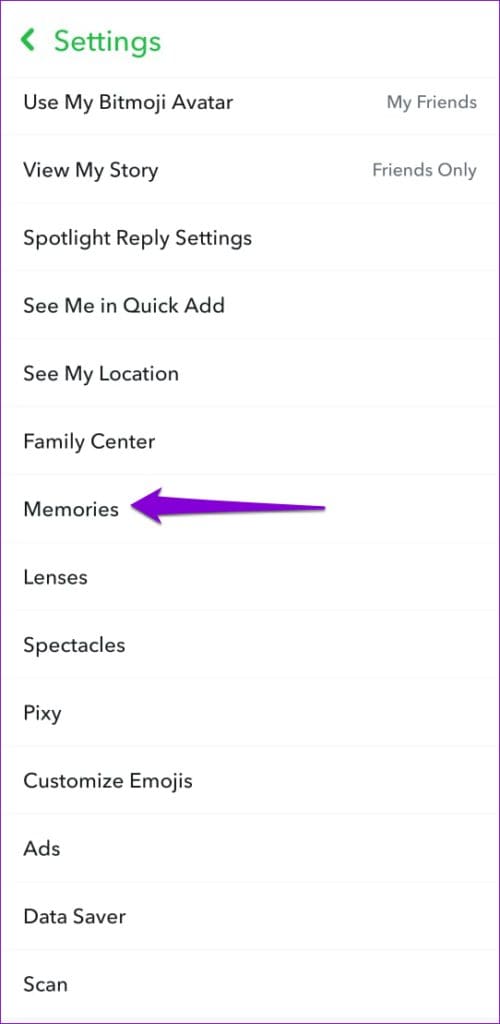
Step 2: Scroll down to tap Memories and check the box for Smart Backup.

Fix 2: Enable Auto-Save Snaps to Memories
Snapchat only backs up snaps that are saved to Memories. You must ensure that the Snapchat app on your phone is configured to automatically save your snaps to Memories.
Step 1: Open the Snapchat settings menu and scroll down to tap Memories.
Step 2: Tap on Auto-Save My Story Snaps and select Auto-Save to Memories from the following menu.


Fix 3: Check the Backup Progress Before Logging Out
If you use your Snapchat account on different devices, check the backup progress before logging out of your account or logging into Snapchat on another device. If the backup is incomplete, your Snapchat Memories won’t show up on other devices.
To check the backup progress in the Snapchat app:
Step 1: Open the Snapchat settings menu and scroll down to tap on Memories.
Step 2: Check the Backup Progress status. If the backup is incomplete, wait before you log into another device. After the backup is finished, the Backup Progress will read Complete.


Fix 4: Clear Snapchat App Cache
Corrupt or inaccessible cache data can lead to all kinds of app-related issues, including this one. Clearing the existing Snapchat app cache effectively troubleshoots such issues. Here’s how to do it.
Step 1: Open the Snapchat settings menu.
Step 2: Scroll down to Account Actions and tap Clear Cache. Choose Continue when prompted.


Was this helpful?
Last updated on 29 July, 2024
Read Next
 How to Fix Snapchat Memories Not Loading on Android and iPhone
Try Basic Fixes Check if Snapchat is down: If the internet connection seems to be working, ensure that the Snapchat servers are up and running.
How to Fix Snapchat Memories Not Loading on Android and iPhone
Try Basic Fixes Check if Snapchat is down: If the internet connection seems to be working, ensure that the Snapchat servers are up and running.
 How to Fix Facebook Memories Not Showing
Basic Fixes Force stop the Facebook app and reopen: Swipe up from your phone's screen bottom to switch apps and slide up the Facebook card to force close it.
How to Fix Facebook Memories Not Showing
Basic Fixes Force stop the Facebook app and reopen: Swipe up from your phone's screen bottom to switch apps and slide up the Facebook card to force close it.
 How to Fix Google Photos Not Backing up on iPhone and Android
Common Fixes Check Google Photos server status: Visit Downdetector to check an active Google Photos service outage.
How to Fix Google Photos Not Backing up on iPhone and Android
Common Fixes Check Google Photos server status: Visit Downdetector to check an active Google Photos service outage.
 Top 10 Ways to Fix iPhone Not Backing Up to iCloud
Most users opt for iCloud backup when switching from an old iPhone to a new one.
Top 10 Ways to Fix iPhone Not Backing Up to iCloud
Most users opt for iCloud backup when switching from an old iPhone to a new one.
 5 Ways to Turn off OneDrive Memories Notifications on Windows and Mobile
Method 1.
5 Ways to Turn off OneDrive Memories Notifications on Windows and Mobile
Method 1.
 How to Create Memories Using the Photos App on iPhone and iPad
The modern gallery apps such as Google Photos, Apple Photos, and Samsung gallery come with cloud storage support, face recognition, advanced editing tools, and the ability to create a video/movie
How to Create Memories Using the Photos App on iPhone and iPad
The modern gallery apps such as Google Photos, Apple Photos, and Samsung gallery come with cloud storage support, face recognition, advanced editing tools, and the ability to create a video/movie
 3 Ways to Fix Snapchat “Something Went Wrong” Error on Android and iPhone
https://youtu.be/qmKVtzAaayE Try Basic Fixes Avoid adding too many friends at once: If you've recently added too many friends, Snapchat may prevent you from adding more by displaying errors like "Something
3 Ways to Fix Snapchat “Something Went Wrong” Error on Android and iPhone
https://youtu.be/qmKVtzAaayE Try Basic Fixes Avoid adding too many friends at once: If you've recently added too many friends, Snapchat may prevent you from adding more by displaying errors like "Something
 3 Ways to Fix Snapchat Not Playing Videos on Android and iPhone
Try Basic Fixes Check if Snapchat is down: At times, server congestion or other related issues can impact Snapchat’s performance and trigger various errors.
3 Ways to Fix Snapchat Not Playing Videos on Android and iPhone
Try Basic Fixes Check if Snapchat is down: At times, server congestion or other related issues can impact Snapchat’s performance and trigger various errors.
The article above may contain affiliate links which help support Guiding Tech. The content remains unbiased and authentic and will never affect our editorial integrity.