Considering how vital it is for some professions, you’d think that Slack is one of the most dependable apps out there. And it is. However, you might experience a rare issue of Slack app not working in Windows 11. Once you’ve removed the usual suspects (closing and reopening the app, resetting your network, or restarting the PC), here’s what you can do to hopefully fix it.
Fix 1 – Check if Slack Servers Are Up
In some cases, the issue might not be on your end, but with Slack’s servers refusing to connect users. If this happens, there’s really nothing you can do but wait. Here’s how you can check if the Slack app not working in Windows 11 is due to server downtime.
Step 1. Open your internet browser.
Step 2. Go to Slack’s status page (status.slack.com).
Step 3. You’ll see a table of services that the Slack app runs on. If “Login/SSO” or “Connectivity” are experiencing issues, it’s likely why you’re seeing a blank window when the app is running. If “Messaging” is showing errors, it might prevent anyone from sending or receiving messages or files.
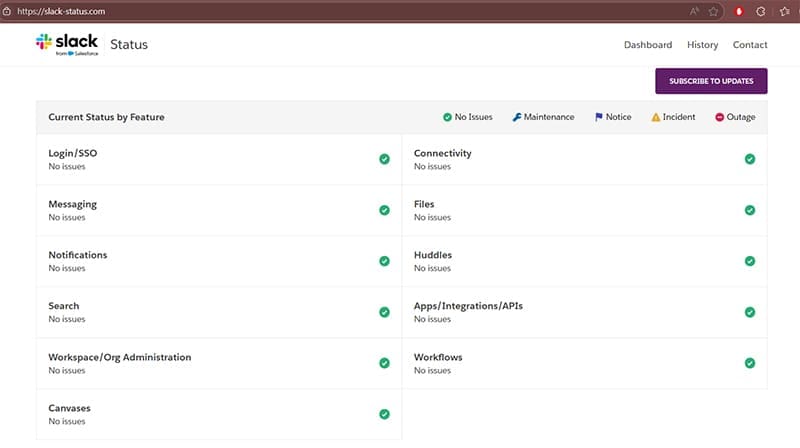
Step 4. If the page suggests all systems are operational, go to the Slack test page to check your connection. This will prompt you to log in with your credentials and check your connection to Slack’s servers.
Fix 2 – Clear Slack’s Cache
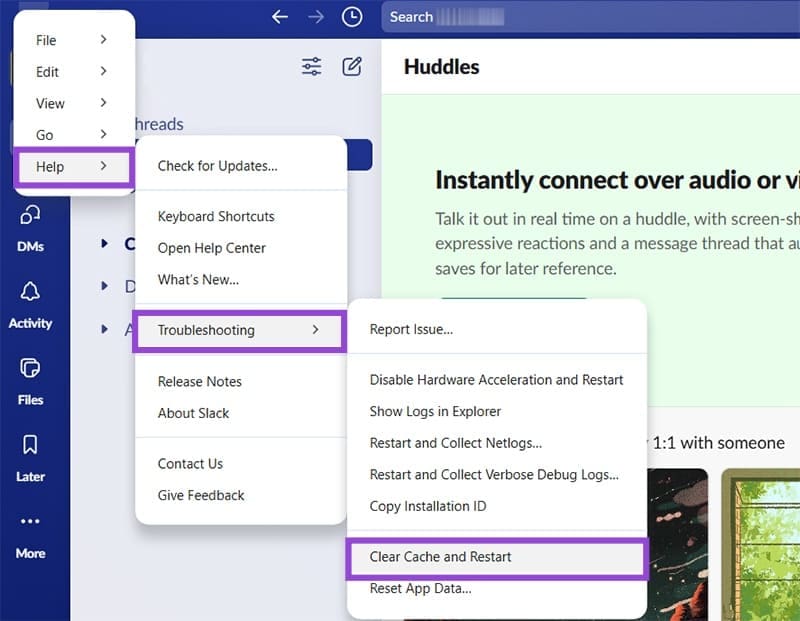
Method 1: In some cases, you can force Slack to reload with an empty cache through the app itself.
Step 1. In the Slack window, open the “Menu” (the three horizontal lines in top-left).
Step 2. Select “Help,” then go to “Troubleshooting.”
Step 3. Click on “Clear Cache and Restart.”
Method 2: If the Slack app doesn’t show the Menu icon, you can use a workaround to manually clear the cache via the system.
Step 1. Close or quit out of the Slack app (you can use “Ctrl + Q” with the window in focus).
Step 2. Open the “Run” dialog (such as by pressing “Windows + R”).
Step 3. Paste the following command and hit “Enter:”
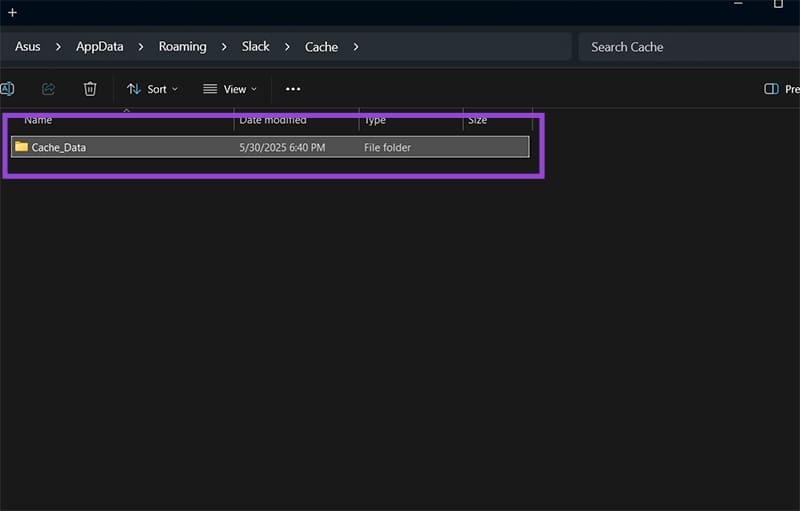
%AppData%\Slack\Cache

Step 4. Open the “Cache_Data” folder and remove everything from it.
Fix 3 – Run Slack in Compatibility Mode
If the app won’t start at all on your device, even if you’re trying to open it as an administrator, then running it compatibility mode might provide a temporary fix.
Step 1. Seach for “Slack” via the search bar then select “Open file location” or find its shortcut on your desktop.

Step 2. Right-click on the shortcut and click on “Properties.”

Step 3. Go to the “Compatibility tab” and check the “Compatibility mode” box.
Step 4. Click on the drop-down menu in that section and choose “Windows 8” or “Windows 7.” If you have the “Windows 10” option available, you can try that one as well.
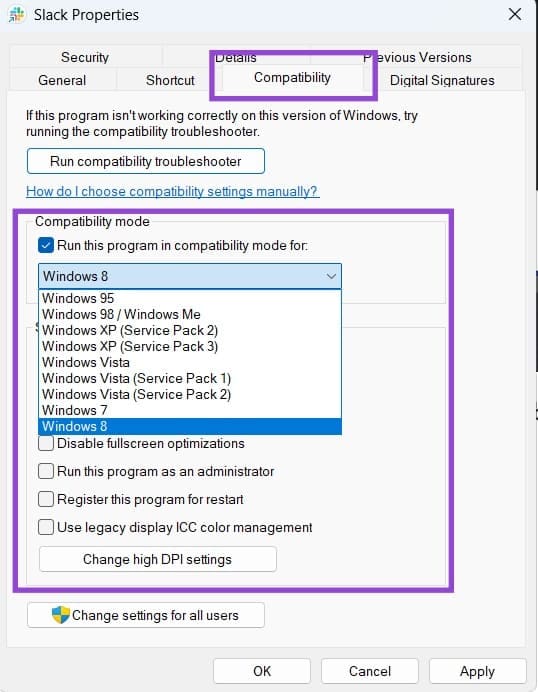
Step 5. Click on “Apply,” then on “OK” to close the window.
Step 6. Try to open the app. If you can’t, change the compatibility setting to another system, but we don’t recommend going earlier than Windows 7.
Fix 4 – End Slack Processes Manually
In rare cases, your operating system won’t properly end all of Slack’s background processes, which can prevent the app from restarting. You can use the Task Manager to fix Slack app not working in Windows 11.
Step 1. Open the Task Manager (it’s available by right-clicking the toolbar and selecting the option).
Step 2. In the “Processes” tab, find “Slack.exe” from the list. It should be under the “Apps” category.
Step 3. Right-click on the process and select “End task.”

Step 4. Open Slack again and see if that fixes the issue.
Was this helpful?
Last updated on 05 June, 2025
Read Next
 Slack Badges Not Working in Windows
Slack notifications will update you on direct messages, mentions, an important channel activity in your workspace.
Slack Badges Not Working in Windows
Slack notifications will update you on direct messages, mentions, an important channel activity in your workspace.
 3 Ways to Fix Slack Not Uploading Images (iPhone and Android)
Basic Fixes Check Slack servers: If Slack's servers are down, you may not be able to upload images.
3 Ways to Fix Slack Not Uploading Images (iPhone and Android)
Basic Fixes Check Slack servers: If Slack's servers are down, you may not be able to upload images.
 How to Keep Slack Status Active All the Time
Things to Know Before Setting Your Slack Status Your Slack status stays active as long as you keep using your device.
How to Keep Slack Status Active All the Time
Things to Know Before Setting Your Slack Status Your Slack status stays active as long as you keep using your device.
 How to Leave a Slack Workspace on Desktop or Mobile
How to Leave a Slack Workspace Note: The steps remain the same for Windows, Mac, iOS and Android.
How to Leave a Slack Workspace on Desktop or Mobile
How to Leave a Slack Workspace Note: The steps remain the same for Windows, Mac, iOS and Android.
 2 Ways to Fix Facebook App Not Working on iPhone
Try Basic Fixes Check if Facebook is down: It's not uncommon for services like Facebook to experience server outages.
2 Ways to Fix Facebook App Not Working on iPhone
Try Basic Fixes Check if Facebook is down: It's not uncommon for services like Facebook to experience server outages.
 3 Ways to Fix YouTube App Crashing or Not Working on iPhone
Try Basic Fixes Check iPhone storage status: Low storage can affect your iPhone's efficiency, subsequently leading the apps to crash or freeze, especially demanding apps.
3 Ways to Fix YouTube App Crashing or Not Working on iPhone
Try Basic Fixes Check iPhone storage status: Low storage can affect your iPhone's efficiency, subsequently leading the apps to crash or freeze, especially demanding apps.
 3 Ways to Fix Translate Not Working on X (Twitter) App
Basic Fixes Check network connection: If there's a problem with your Wi-Fi or cellular connection, X may not be able to translate the post.
3 Ways to Fix Translate Not Working on X (Twitter) App
Basic Fixes Check network connection: If there's a problem with your Wi-Fi or cellular connection, X may not be able to translate the post.
 4 Ways to Fix BeReal App Not Working as It Should
Note: All the fixes mentioned in the article work on Android and iOS devices, with a few exceptions, which we have highlighted in the specific methods.
4 Ways to Fix BeReal App Not Working as It Should
Note: All the fixes mentioned in the article work on Android and iOS devices, with a few exceptions, which we have highlighted in the specific methods.
The article above may contain affiliate links which help support Guiding Tech. The content remains unbiased and authentic and will never affect our editorial integrity.