


How to Bring Back the Sidebar
Step 1: Launch Finder on your Mac.
Step 2: Go to View and select Show Sidebar.
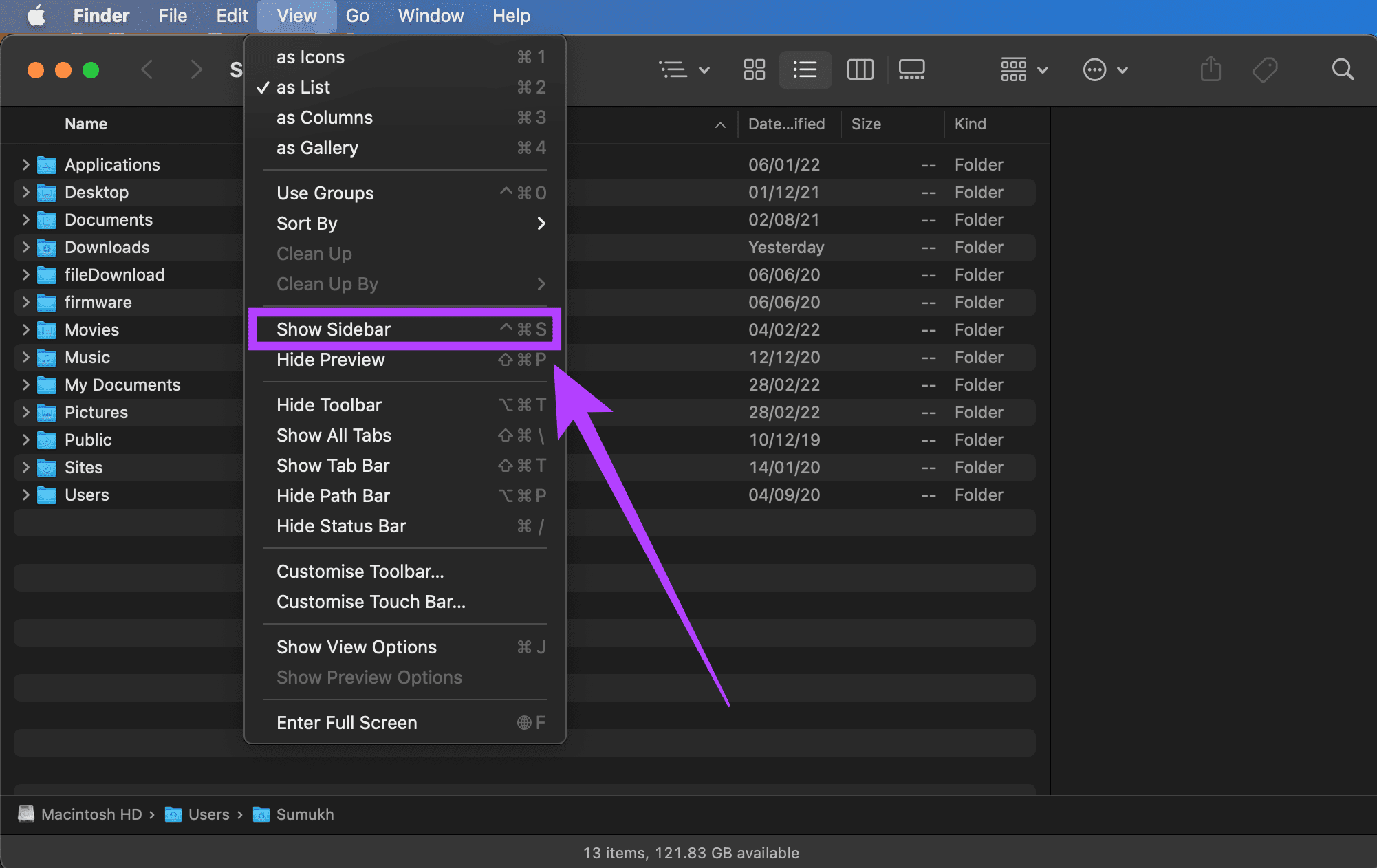
That’s it. The Sidebar is back on Finder; you can navigate between different folders on your Mac easily. However, restoring the Sidebar doesn’t mean it restores your required options on the Sidebar.
How to Restore Missing Folders and Drives on the Sidebar
At times, the Sidebar options may disappear, which is equally annoying. So you’ll see no folders or drives under Favorites, Locations, and Tags. If that’s the issue you’re facing, here’s how to bring those options back on the Sidebar.
Note: Ensure the Sidebar is enabled first using the method above.
Step 1: Fire up a Finder window on your Mac.
Step 2: You will find several categories listed on the Sidebar. This includes Favorites, Locations, iCloud, and Tags. When you hover your mouse pointer over these options, you will see a small arrow next to each option. Click on this arrow to restore all the hidden options.
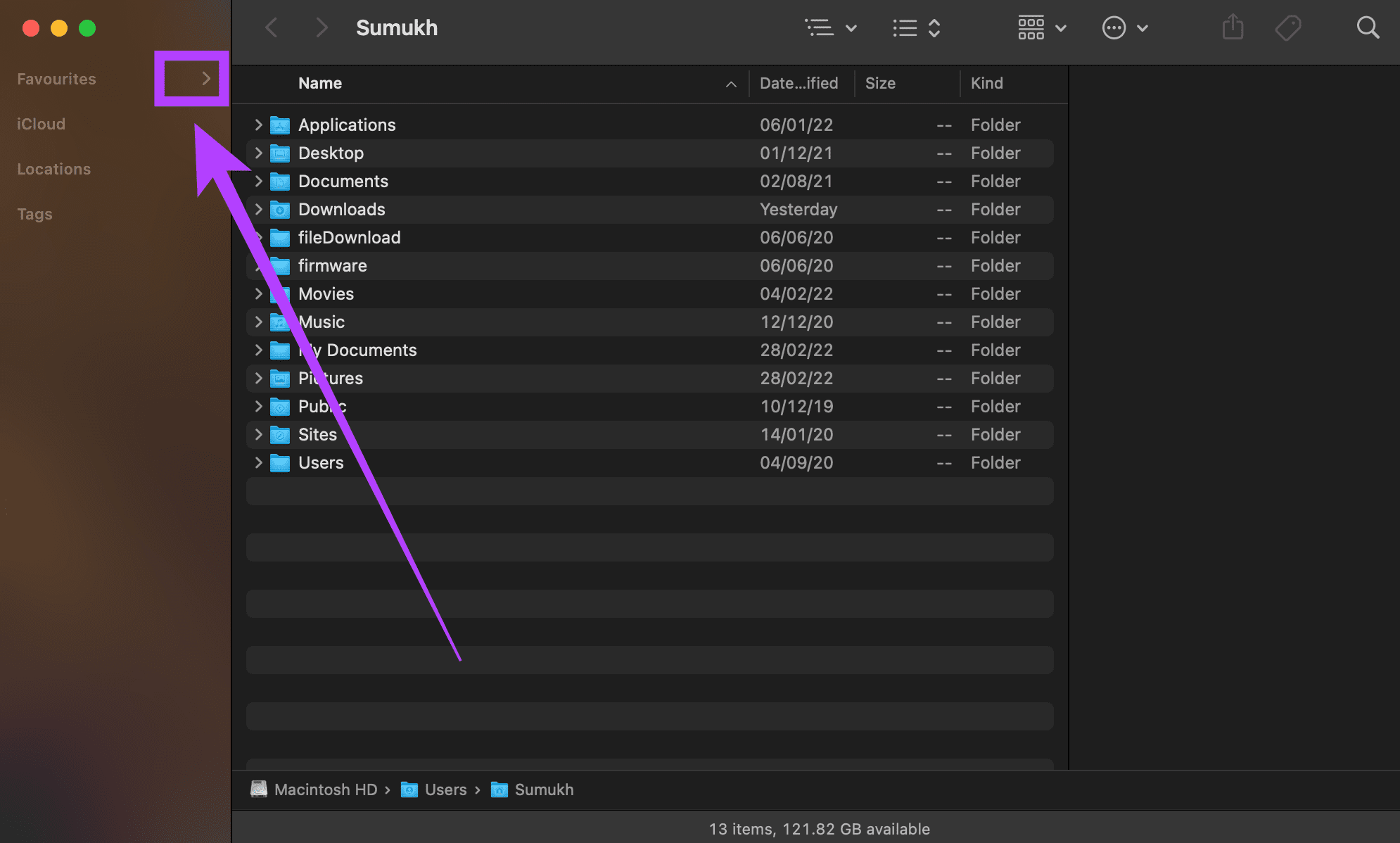
Step 3: To hide the options in a certain category, hover your mouse over it and click on the downward-pointing arrow next to it.
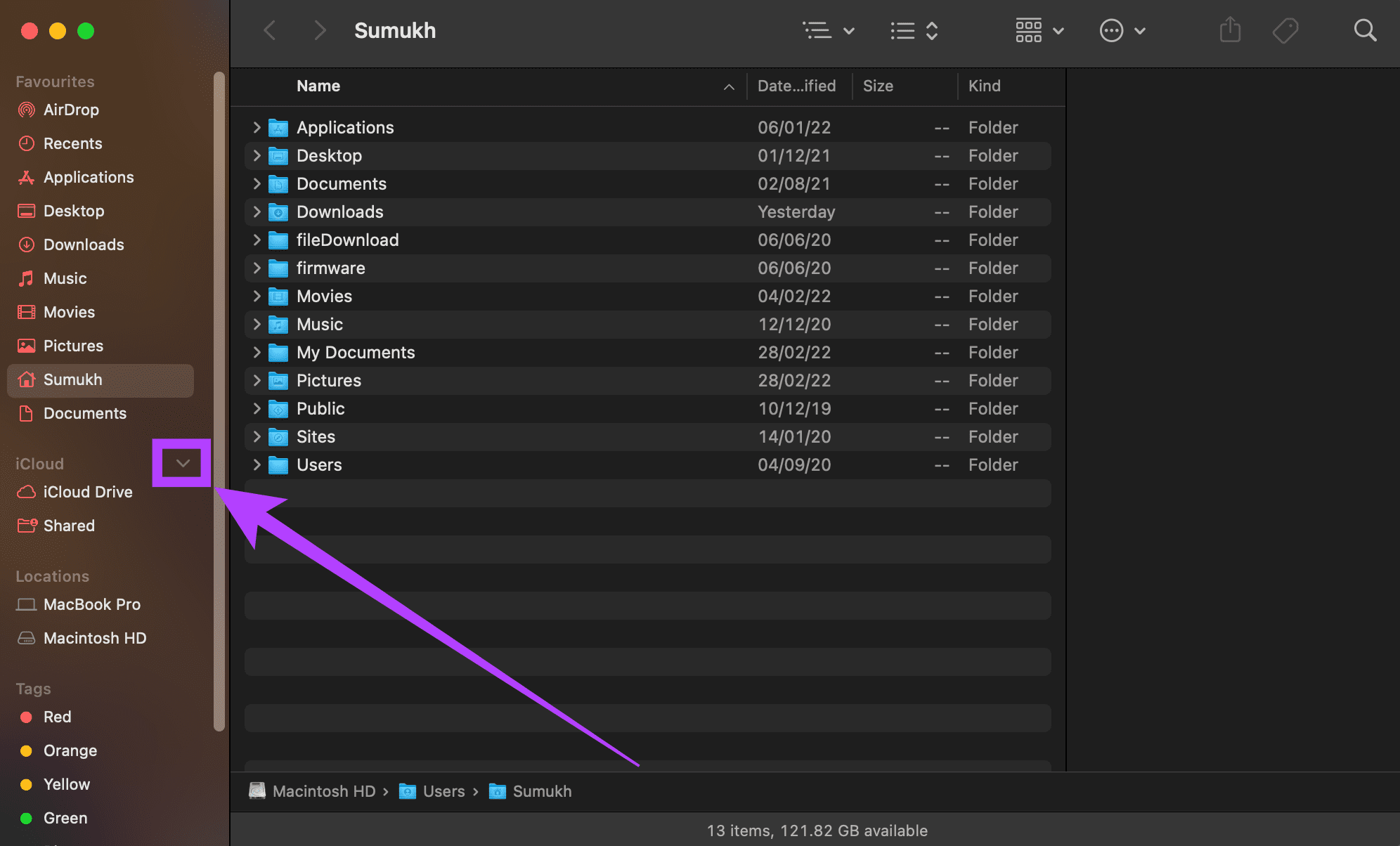
However, one more aspect that can be important to many people is customizing the elements in the Sidebar.
How to Add or Remove Items From the Sidebar
Step 1: Open the Finder window on your Mac.
Step 2: Click on the Finder option on the menu bar and choose Settings.
Step 3: Navigate to the Sidebar tab.

Step 4: Select only the ones you require. You can deselect options you don’t use frequently, such as iCloud, Hard disks, Connected Servers, Cloud Storage, recent tags, etc. This will clear up some clutter.

Step 5: Close the Settings window, and macOS will apply your settings. That’s it.
Was this helpful?
Last updated on 31 May, 2024
4 Comments
Leave a Reply
Read Next
 How to Customize Microsoft Edge Sidebar
How to Enable or Disable Edge Sidebar While Edge's sidebar is useful for accessing several browser functions, it might end up taking up additional space on your page or even
How to Customize Microsoft Edge Sidebar
How to Enable or Disable Edge Sidebar While Edge's sidebar is useful for accessing several browser functions, it might end up taking up additional space on your page or even
 3 Ways to Fix Mac Desktop Icons Missing or Not Showing
Basic Fixes Force quit Finder: Finder is always running on Mac, so you can't exactly close it.
3 Ways to Fix Mac Desktop Icons Missing or Not Showing
Basic Fixes Force quit Finder: Finder is always running on Mac, so you can't exactly close it.
 5 Best Ways to Fix Google Search Bar Widget Missing in Android
Google is still the king of search engines.
5 Best Ways to Fix Google Search Bar Widget Missing in Android
Google is still the king of search engines.
 How to Fix Synaptics TouchPad Settings Missing in Windows
If you use a Windows-based laptop, there’s a good chance your laptop uses Synaptics TouchPad — the reason you are here too.
How to Fix Synaptics TouchPad Settings Missing in Windows
If you use a Windows-based laptop, there’s a good chance your laptop uses Synaptics TouchPad — the reason you are here too.
 How to Fix Taskbar Icons Missing on Windows 11
Windows 11's new Taskbar looks great and feels modern, but it's not as perfect as it used to be.
How to Fix Taskbar Icons Missing on Windows 11
Windows 11's new Taskbar looks great and feels modern, but it's not as perfect as it used to be.
 5 Ways to Fix Some Update Files are Missing or Have Problems Error on Windows 11
Fix 1: Run the Windows Update Troubleshooter Windows 11 includes a dedicated troubleshooter to automatically identify and resolve any common issues with the Windows Update process.
5 Ways to Fix Some Update Files are Missing or Have Problems Error on Windows 11
Fix 1: Run the Windows Update Troubleshooter Windows 11 includes a dedicated troubleshooter to automatically identify and resolve any common issues with the Windows Update process.
 6 Ways to Fix the “Missing File Privileges” Error in Steam for Windows
Fix 1: End the igfxEM Module Process The igfxEM process is a component of the Intel Graphic Executable Main Module.
6 Ways to Fix the “Missing File Privileges” Error in Steam for Windows
Fix 1: End the igfxEM Module Process The igfxEM process is a component of the Intel Graphic Executable Main Module.
 Copilot Missing on Windows 11? Here’s How to Bring It Back
Get Copilot From the Microsoft Store If you can't find Microsoft Copilot on your Windows 11 system, install it from the Microsoft Store to get started.
Copilot Missing on Windows 11? Here’s How to Bring It Back
Get Copilot From the Microsoft Store If you can't find Microsoft Copilot on your Windows 11 system, install it from the Microsoft Store to get started.
The article above may contain affiliate links which help support Guiding Tech. The content remains unbiased and authentic and will never affect our editorial integrity.

Thank you thank you thank you. We had no idea the finder had a hide button hidden! The finder folders all disappeared. Other sites were completely useless and a waste of time. Until yours. Big help. Something so simple, why would apple hide the HIDE button? It’s infuriating to make the laptop software so hard to use that you need a computer tech on staff. Big thanks. Many thanks for this information!
Thank you! Your helpful article turned what I thought was a major issue into a simple fix. I appreciate you!
Thank you!
What a PITA, Apple!
Gina
This is SO helpful! Had no idea where to look—thank you.