


Basic Fixes:
- Restart your phone: Long-press the power button and select Restart. Once done, it should fix any temporary glitches preventing calls from coming through.
- Reinsert SIM: Use the SIM ejector tool to remove the SIM card from your phone. Check for wear and tear, clean it, and insert it back into the phone. Ensure the SIM card is correctly seated in the slot.
- Disable DND: Is your Samsung phone on an active Do Not Disturb mode? If yes, you won’t receive calls and messages. So, disable DND and check again.
- Clear the Phone app cache: Samsung uses its Phone app to enhance user experience. However, due to a corrupt cache, you may face issues making or receiving calls on your Samsung phone. So, clear the cache for your Samsung device’s Phone app and check.
- Update the Phone app: Samsung regularly releases new software updates to fix bugs and add new features. So, launch the Settings app and install the latest One UI updates for your Samsung phone to fix related issues.
Fix 1: Check the Blocked Numbers List
Did you block several contacts or unknown numbers on your Samsung Galaxy phone? The phone blocks calls and messages from such contacts. It’s time to check the blocked numbers list and make the necessary changes. Here’s how.
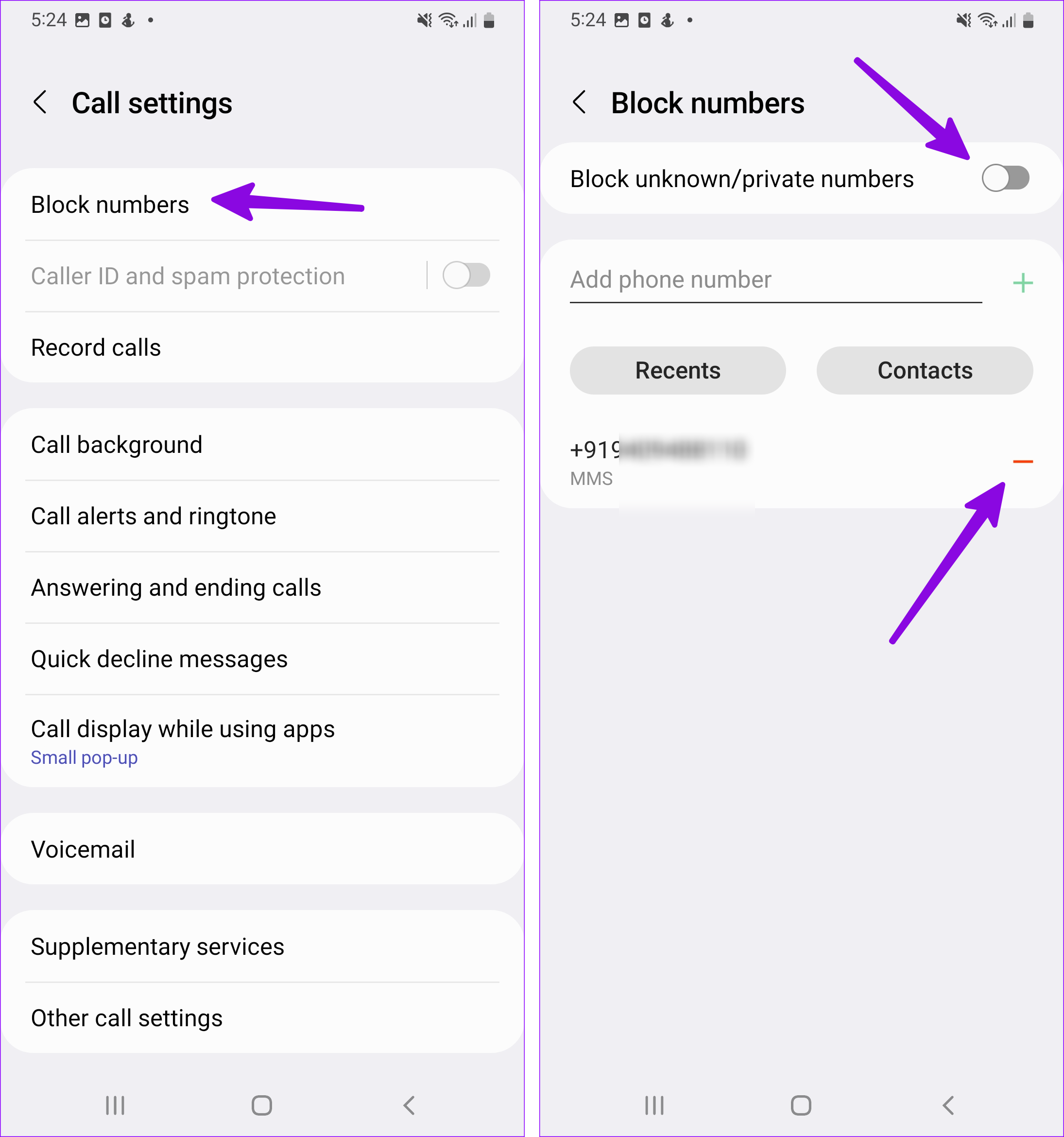
Step 1: Open the Phone app and tap the three vertical dots menu. Tap on Settings.

Step 2: Select Block numbers. Remove necessary numbers from the blocked list.
Step 3: Disable the Block unknown/private numbers toggle to stop blocking unknown callers.
Fix 2: Disable 5G
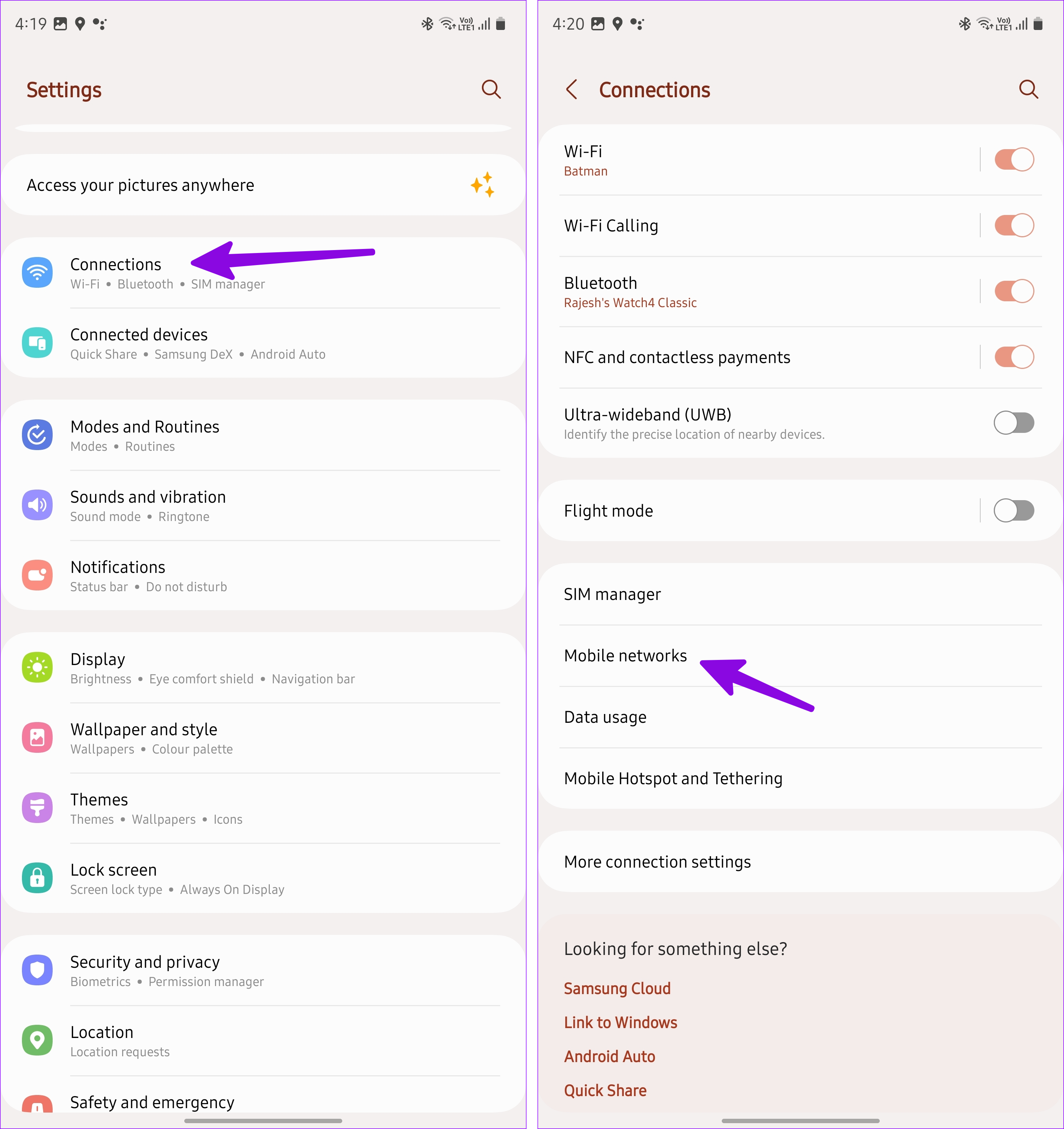
While the 5G network offers a high-speed internet speed, it’s unreliable and doesn’t have robust coverage in selected areas. So, when you face call issues, disable 5G on your Samsung phone. Here’s how to do it.
Step 1: Open Settings and select Connections. Tap Mobile networks.
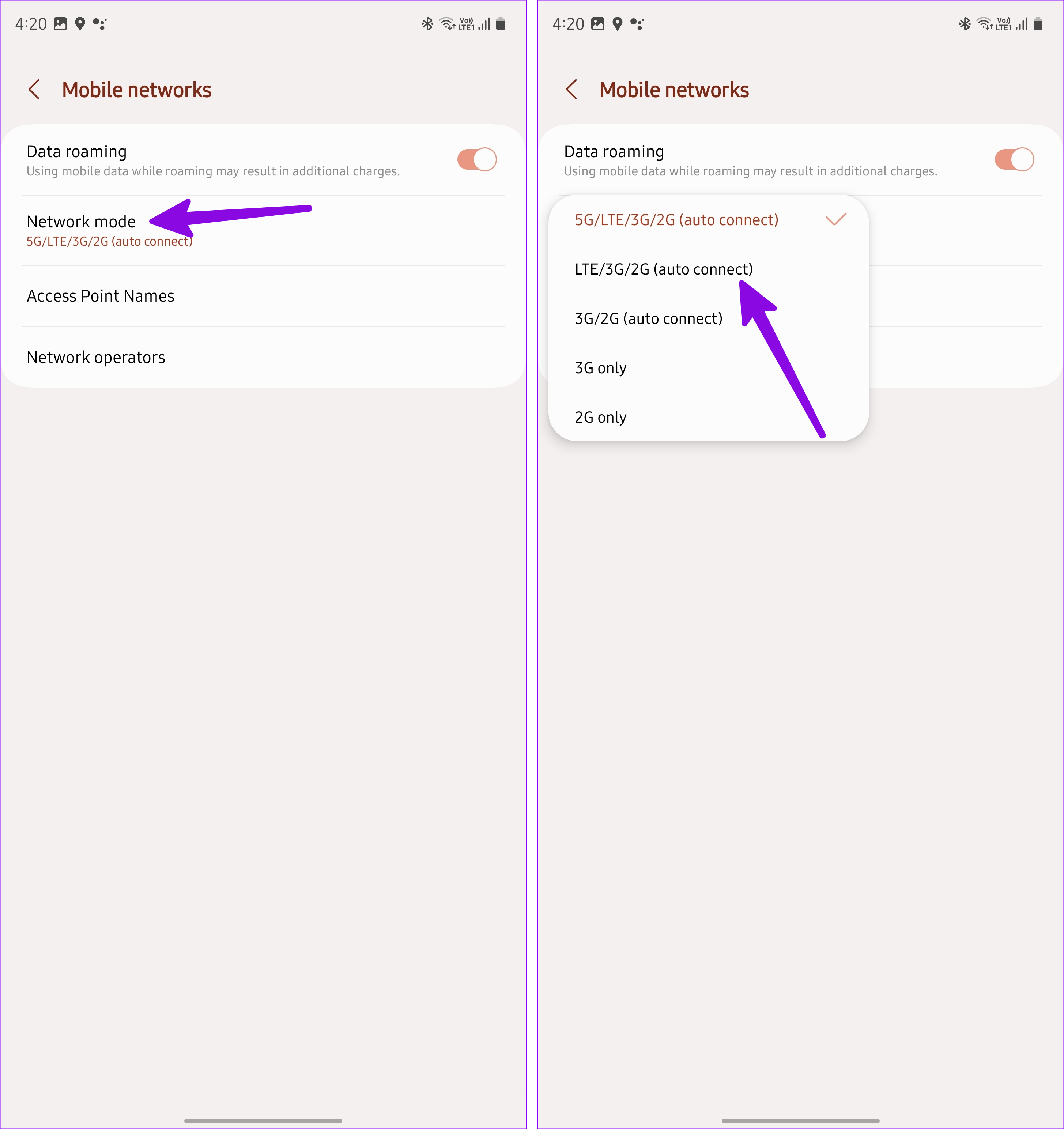
Step 2: Select Network mode. Tap LTE/3G/2G (auto connect).
Also Read: How to fix call drop issue on Samsung Galaxy phones
Fix 3: Disable Wi-Fi Calling
Wi-Fi calling helps use your device’s Wi-Fi connection to connect calls when network connectivity is low. However, this can also cause calls to fail. So, disable Wi-Fi calling and try receiving calls again. Follow the below steps to do it.
Step 1: Open Settings → Connections. Disable the Wi-Fi Calling toggle.

Fix 4: Re-Enable SIM
Due to incorrect SIM settings, you may face issues receiving or making calls. To refresh these settings, disable and re-enable the SIM card on your Samsung phone. Here’s how.
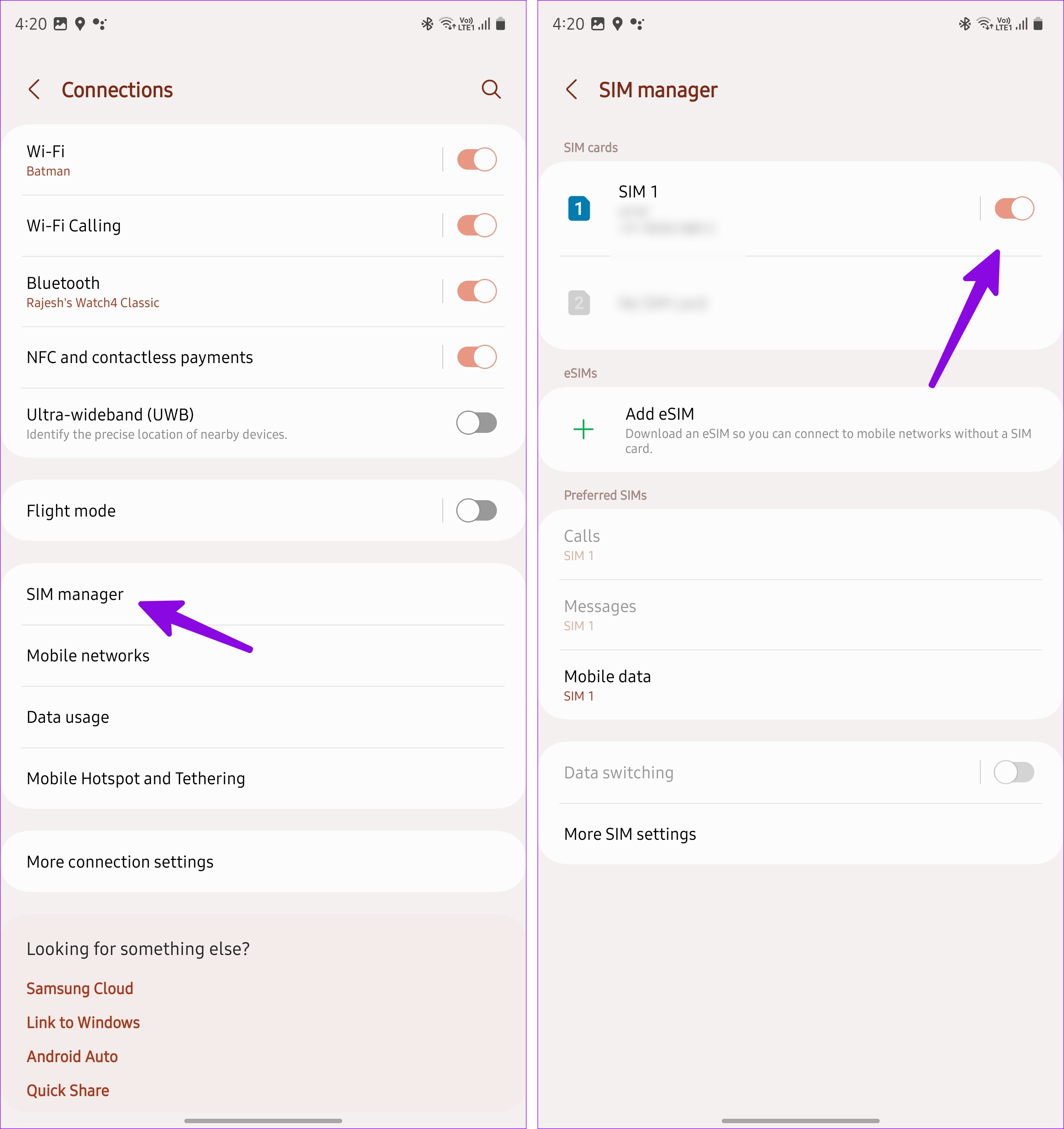
Step 1: Open Settings → Connections. Tap SIM manager.
Step 2: Disable the SIM card toggle and enable it after a minute or two.
Fix 5: Reset Network Settings
Is your Samsung Galaxy phone still not receiving calls? You can reset the network settings. This will remove any custom network settings that might prevent calls from coming through on your Samsung phone. Here’s how to do it.
Step 1: Open Settings and tap on General management. Tap Reset.

Step 2: Select Reset network settings and confirm the same.

Wait for the reset process to finish. Then, ask someone to call you on your Samsung phone to see if the issue has been fixed.
Was this helpful?
Last updated on 28 June, 2024
1 Comment
Leave a Reply
Read Next
 How to Fix Call Recording Not Working on Samsung Galaxy Phones
Basic Fixes: Restart Samsung Galaxy phone: Rebooting your Samsung Galaxy phone is one of the effective ways to troubleshoot common problems.
How to Fix Call Recording Not Working on Samsung Galaxy Phones
Basic Fixes: Restart Samsung Galaxy phone: Rebooting your Samsung Galaxy phone is one of the effective ways to troubleshoot common problems.
 5 Fixes for Android Not Making or Receiving Calls
Before you begin, restart your Android device and ensure you have an active plan that supports outgoing calls.
5 Fixes for Android Not Making or Receiving Calls
Before you begin, restart your Android device and ensure you have an active plan that supports outgoing calls.
 How to Fix Samsung Phone Not Showing Incoming Calls
Preliminary Fixes Restart Galaxy Phone: Restarting your Samsung Galaxy phone can help resolve minor software glitches that might be causing the problem of incoming calls not showing.
How to Fix Samsung Phone Not Showing Incoming Calls
Preliminary Fixes Restart Galaxy Phone: Restarting your Samsung Galaxy phone can help resolve minor software glitches that might be causing the problem of incoming calls not showing.
 5 Ways to Fix Android Phone Not Receiving Emails
Basic Fixes Check internet connectivity: Ensure your device is connected to a Wi-Fi network or cellular data with good signal strength and an active plan.
5 Ways to Fix Android Phone Not Receiving Emails
Basic Fixes Check internet connectivity: Ensure your device is connected to a Wi-Fi network or cellular data with good signal strength and an active plan.
 5 Ways to Fix Gmail Receiving Late Emails on Phone
Common Fixes Check your network connection: Ensure your phone has a good internet connection to avoid delays in receiving new emails on Gmail.
5 Ways to Fix Gmail Receiving Late Emails on Phone
Common Fixes Check your network connection: Ensure your phone has a good internet connection to avoid delays in receiving new emails on Gmail.
 5 Fixes for Samsung Galaxy Watch Not Receiving Notifications
Basic Fixes Ensure your phone is turned on: If your phone is switched off, your smartwatch will not receive notifications—unless it's an LTE variant.
5 Fixes for Samsung Galaxy Watch Not Receiving Notifications
Basic Fixes Ensure your phone is turned on: If your phone is switched off, your smartwatch will not receive notifications—unless it's an LTE variant.
 6 Fixes for Samsung Galaxy Phones Not Receiving Text Messages
Basic Fixes Check cellular network: Ensure that you have a working cellular network on your phone.
6 Fixes for Samsung Galaxy Phones Not Receiving Text Messages
Basic Fixes Check cellular network: Ensure that you have a working cellular network on your phone.
 5 Ways to Fix Android Phone Not Making Calls But Can Text
Basic Fixes Eject and re-insert SIM: Eject the SIM card from your phone, and insert it again - doing this can refresh the network connection.
5 Ways to Fix Android Phone Not Making Calls But Can Text
Basic Fixes Eject and re-insert SIM: Eject the SIM card from your phone, and insert it again - doing this can refresh the network connection.
The article above may contain affiliate links which help support Guiding Tech. The content remains unbiased and authentic and will never affect our editorial integrity.
Thanks, I eventually found it was the wi-fi which is with a different server to my phone. I now need to remember to leave it turned off until I need it as it tries to take my calls. Found you article really helpful and have applied a number of changes you have suggested .. like turning off “do not disturb”. Cheers Joan