If you’re lamenting that “Outlook keeps signing me into the wrong account,” chances are the “wrong” account is an old office or school account that was saved on the device and never properly removed. This is usually due to a corrupted cache. Here’s how to stop Outlook signing in to wrong account for good.
Fix 1 – Remove Extra Account(s) to Stop Outlook Signing in to Wrong Account
Office apps often use a single Microsoft account for authentication, so if you’ve switched from Word to Outlook, for example, it might load instead of the intended account. However, you can solve this by ensuring that a selected account shows up as “primary” in Outlook’s own app by removing others.
Step 1. Open Outlook and go to “File” then select “Account info.”
Step 2. In the “Accounts” section, click on “Manage” for the account that keeps showing up, then click “Remove.”
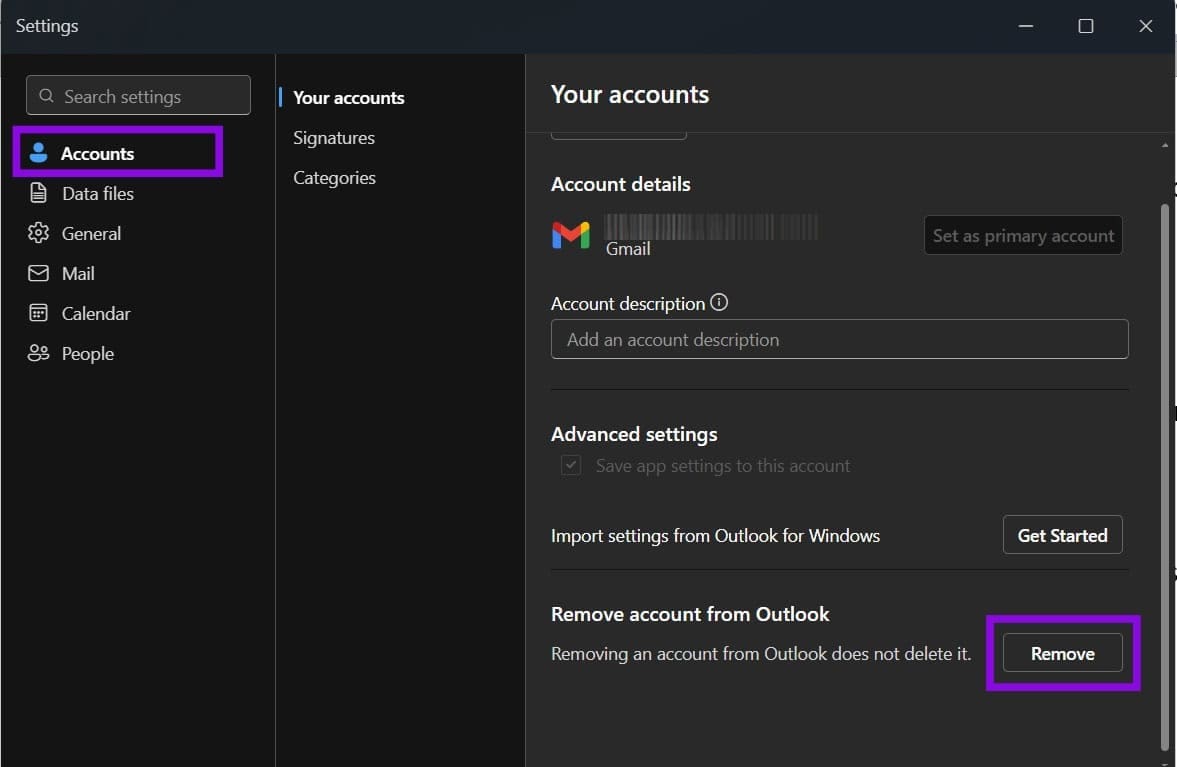
Step 3. Add or sign in to the account you actually want to use.
Step 4. Close every Office app and restart Outlook. This is important because if one Office app is open, it still might detect its account.
Step 5. If you want to keep additional accounts, go back to Account settings and click on “Set as primary account” next to the one you actually want to use.
Fix 2 – Clear Cached Logins When Outlook Is Signing In to the Wrong Account
Windows keeps old Office tokens in Credential Manager, and Outlook will keep using them until they’re gone.
Step 1. Close Outlook and all other Office apps.
Step 2. Search for “Credential Manager” in the Start menu and open it.
Step 3. Select “Windows Credentials.”
Step 4. Under “Generic Credentials,” look for credentials associated with the unwanted account or the affected Outlook account. Remove only the relevant entries.
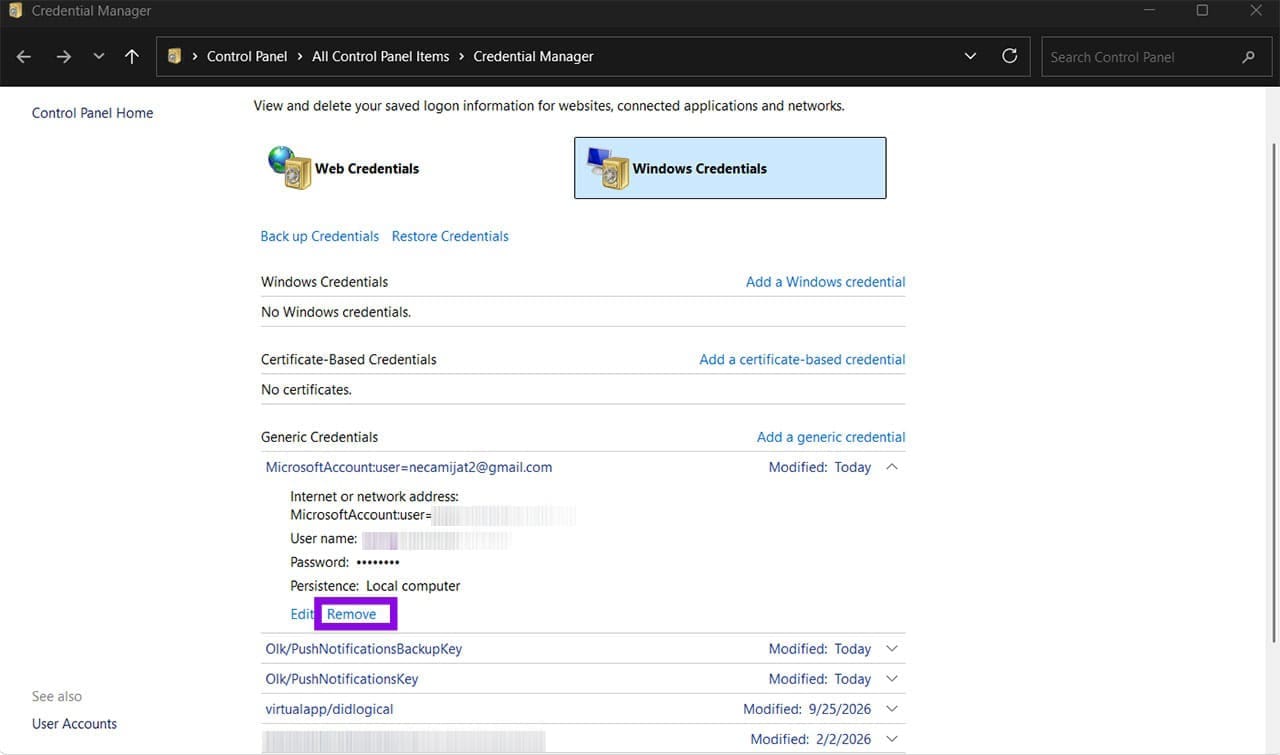
Step 5. Restart your PC, open Outlook, and sign in with the correct account when prompted.
If the problem persists in classic Outlook, you can remove the registry identity entry associated with the affected account:
Step 1. Open the “Run” utility and enter “regedit.”
Step 2. Go to the following address:
HKEY_CURRENT_USER\Software\Microsoft\Office\16.0\Common\Identity
Step 3. Expand Identities, locate the subkey corresponding to the unwanted account, right-click that specific account identity subkey, and select “Delete.”

Step 4. Restart the PC and sign back into Outlook.
Consider exporting the key first (right-click > “Export”) so you can restore it if something goes wrong.
Fix 3 – Disconnect the Account From Windows
If you ever used a work or school account on your PC, Windows may be handing that login straight to Outlook through single sign-on.
Step 1. Open Settings and go to “Accounts.”
Step 2. Select “Access work or school.”
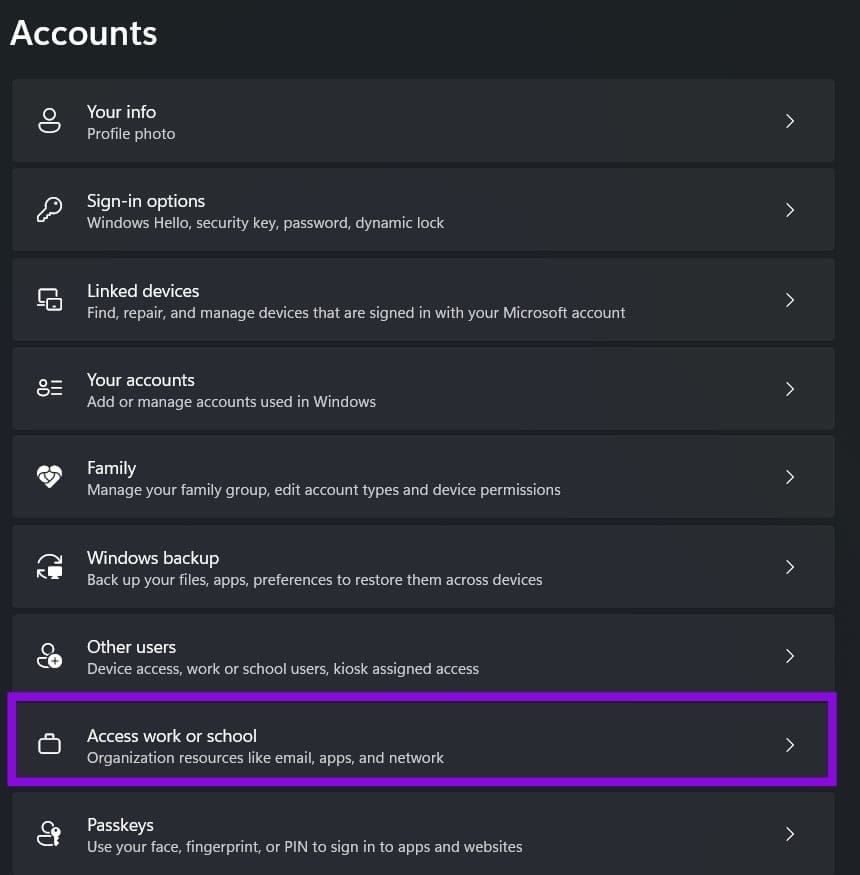
Step 3. If an account is there, select it and click “Disconnect.”
Step 4. Go to Settings > Accounts > Email & accounts, find the unwanted account under “Accounts used by other apps, and select “Remove.”
Step 5. Restart the PC.
Fix 4 – Create a New Outlook Profile
If a classic Outlook profile is corrupted or configured incorrectly, creating a new profile can give you a clean configuration.
Step 1. Close Outlook and open “Control Panel.”
Step 2. Set “View by” to “Large icons” and open “Mail (Microsoft Outlook).”
Step 3. Click “Show Profiles,” then “Add,” and give the new profile a name.
Step 4. Add the account you want Outlook to use and finish the setup.
Step 5. Back in the profiles window, select “Always use this profile” and pick the new profile from the dropdown.
Once everything syncs, you can remove the old profile from the same window.
Fix 5 – Set the Primary Account in New Outlook
New Outlook for Windows doesn’t use the classic Outlook profile system. Instead, you can manage multiple email accounts directly and designate one as the primary account.
Step 1. Click the gear icon in the top right to open “Settings.”
Step 2. Go to “Accounts” and then “Email accounts.”

Step 3. Click “Manage” next to the account you want and select “Set as primary account.”
Was this helpful?
Last updated on 09 October, 2026
Read Next
 6 Ways to Fix Edge Keeps Signing Me Out of Websites
Fix 1: Prevent Edge From Deleting Cookies and Passwords on Exit First, ensure that Edge isn’t configured to delete passwords and browser cookies every time you close the browser.
6 Ways to Fix Edge Keeps Signing Me Out of Websites
Fix 1: Prevent Edge From Deleting Cookies and Passwords on Exit First, ensure that Edge isn’t configured to delete passwords and browser cookies every time you close the browser.
 4 Fixes for Microsoft OneDrive Not Signing In on Mac
Basic Fixes Check internet connection: Switch to 5GHz frequency band to get better connection speeds.
4 Fixes for Microsoft OneDrive Not Signing In on Mac
Basic Fixes Check internet connection: Switch to 5GHz frequency band to get better connection speeds.
 Set Up and Disable Personal Vault in OneDrive by Emptying and Signing Out
The Personal Vault is a core feature of Microsoft OneDrive, the tech giant’s priority cloud storage service.
Set Up and Disable Personal Vault in OneDrive by Emptying and Signing Out
The Personal Vault is a core feature of Microsoft OneDrive, the tech giant’s priority cloud storage service.
 4 Ways to Fix Outlook Error 500 ‘Something Went Wrong’
Preliminary Fixes Troubleshoot your internet connection: Ensure you have a stable and reliable internet connection.
4 Ways to Fix Outlook Error 500 ‘Something Went Wrong’
Preliminary Fixes Troubleshoot your internet connection: Ensure you have a stable and reliable internet connection.
 How to Automatically CC or BCC Yourself in Outlook and Gmail
How to Automatically CC or BCC Yourself in Outlook Step 1: Open Outlook and click on the three-dot menu.
How to Automatically CC or BCC Yourself in Outlook and Gmail
How to Automatically CC or BCC Yourself in Outlook Step 1: Open Outlook and click on the three-dot menu.
 How to Automatically Forward Emails in Outlook
There are several reasons you may want to automatically forward emails in Outlook.
How to Automatically Forward Emails in Outlook
There are several reasons you may want to automatically forward emails in Outlook.
 How to Automatically Move Emails to a Folder in Outlook
With the average office worker receiving over 100 emails per day, managing your inbox can feel overwhelming.
How to Automatically Move Emails to a Folder in Outlook
With the average office worker receiving over 100 emails per day, managing your inbox can feel overwhelming.
 3 Ways to Fix Snapchat “Something Went Wrong” Error on Android and iPhone
https://youtu.be/qmKVtzAaayE Try Basic Fixes Avoid adding too many friends at once: If you've recently added too many friends, Snapchat may prevent you from adding more by displaying errors like "Something
3 Ways to Fix Snapchat “Something Went Wrong” Error on Android and iPhone
https://youtu.be/qmKVtzAaayE Try Basic Fixes Avoid adding too many friends at once: If you've recently added too many friends, Snapchat may prevent you from adding more by displaying errors like "Something
The article above may contain affiliate links which help support Guiding Tech. The content remains unbiased and authentic and will never affect our editorial integrity.