If you’re receiving the OneNote error code 0xE000002E, it means you’re experiencing a OneNote sync error. The application is having problems synchronizing your notes, meaning they can’t be automatically refreshed.
The issue is typically due to temporary glitches, a corrupted cache, or connectivity problems. Fortunately, there are simple steps you can take that should resolve the error without too much fuss. Let’s take a look at the solutions.
OneNote Error Code 0xE000002E – The Fixes
Perform the fixes below in order until the issue is resolved and your notes are syncing and refreshing as they should be.
Check Your Connection
An unstable internet connection is a common reason for OneNote sync errors. Before getting into slightly more technical fixes, start by verifying that your connection is stable. For example, check that other internet-enabled apps are working normally.
Force a Full Sync
If your connection is stable, the first thing to try is forcing OneNote to synchronize.
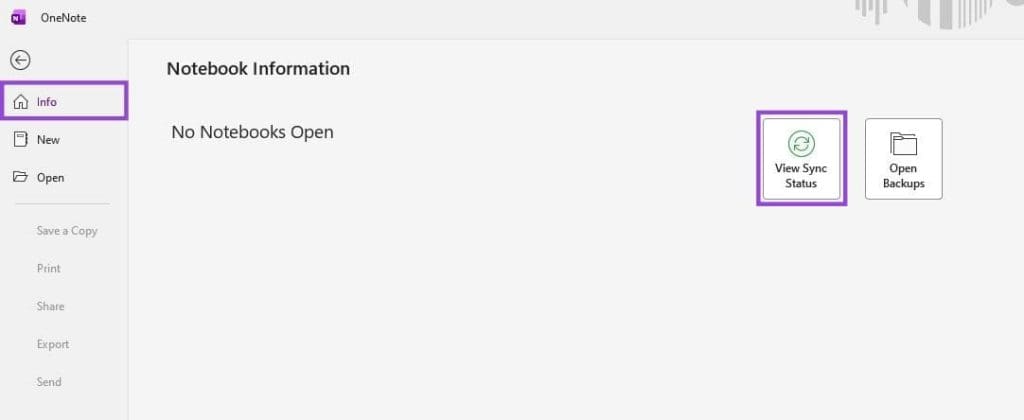
There are two ways to do this. Press Shift + F9 while OneNote is running. Alternatively, click File > Info > View Sync Status and then select “Sync Now.”

Clear the OneNote Cache
If the forced sync fails and you still receive the 0xE000002E error, the next step is to clear the cache.
There may be problematic or corrupted files causing the OneNote sync error. If so, deleting them should allow normal syncing to resume. Here’s a quick way to navigate to the cache and clear it.
Step 1. Close OneNote completely.
Step 2. Press Windows Key + R to open the Run command.
Step 3. Type %localappdata%\Microsoft\OneNote into the text box and click “OK.”
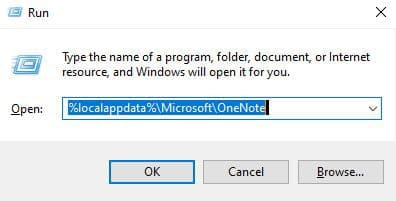
Step 4. Delete all files and folders within the version-specific folder (e.g., “16.0” or “18.0”).

Step 5. Restart OneNote.
Delete Corrupted Items
If OneNote error code 0xE000002E is still not resolved, check the OneNote Recycle Bin.
A corrupted partition in your Recycle Bin can prevent OneNote from syncing. Deleting the files in your OneNote Recycle Bin will stop the error.
Step 1. In OneNote, select the History tab.
Step 2. Select the OneNote Recycle Bin.
Step 3. Permanently delete any corrupted pages or sections.
Repair or Reset OneNote
If the previous steps fail to sync OneNote, try a repair or reset of the app itself.
Step 1. Open Windows Settings.
Step 2. Select “Apps.”
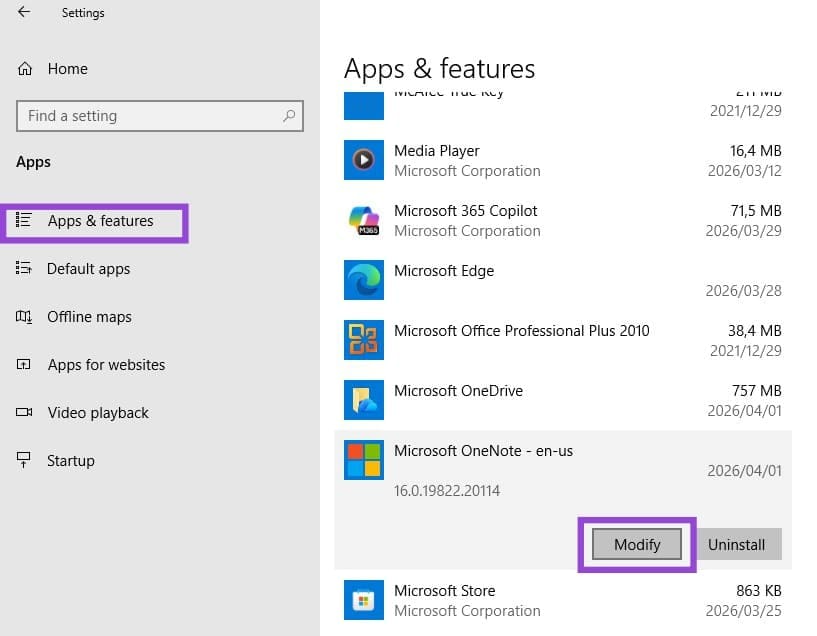
Step 3. Under Apps & features, scroll down and select “OneNote.”
Step 4. Select “Modify,” and then run the Repair option of your choice.

If the Repair options fail, back up your data and try the Reset option (if available).
Move Content to a New Section
Sometimes, you’ll receive only OneNote error code 0xE000002E when working on a specific section, not on all notes. If that is indeed the case, try moving the problematic content. Simply create a new section or notebook and copy your content into it. The action will force a fresh sync.
Was this helpful?
Last updated on 13 April, 2026
Read Next
 How to Fix “OneNote Can’t Connect to the Server” Error
For people on the go, OneNote is a fantastic way to make and check notes on the fly, no matter the location or device.
How to Fix “OneNote Can’t Connect to the Server” Error
For people on the go, OneNote is a fantastic way to make and check notes on the fly, no matter the location or device.
 7 Top Ways to Fix OneNote Notebook Disappearing Error on Windows
Microsoft OneNote has gone through a number of iterations.
7 Top Ways to Fix OneNote Notebook Disappearing Error on Windows
Microsoft OneNote has gone through a number of iterations.
 7 Best Ways to Fix OneNote Won’t Let Me Type Error in Windows 10
Microsoft OneNote is one of the oldest note-taking apps and a key component of Microsoft's Office Suite.
7 Best Ways to Fix OneNote Won’t Let Me Type Error in Windows 10
Microsoft OneNote is one of the oldest note-taking apps and a key component of Microsoft's Office Suite.
 How to Fix OneNote “Saved Offline” Error
Basic Fixes: Ensure OneDrive is not full: OneNote stores data using Microsoft’s OneDrive storage.
How to Fix OneNote “Saved Offline” Error
Basic Fixes: Ensure OneDrive is not full: OneNote stores data using Microsoft’s OneDrive storage.
 Amazon Prime Video – How to Fix Error Code 5004 or 5005
What Does Amazon Prime Video Error 5004 or 5005 Mean?
Amazon Prime Video – How to Fix Error Code 5004 or 5005
What Does Amazon Prime Video Error 5004 or 5005 Mean?
 5 Ways to Fix Roblox Error Code 403
Preliminary Fixes Check internet stability: An unstable or weak connection can interrupt communication between your device and Roblox servers, causing access issues.
5 Ways to Fix Roblox Error Code 403
Preliminary Fixes Check internet stability: An unstable or weak connection can interrupt communication between your device and Roblox servers, causing access issues.
 14 Best Ways to Fix Roblox Error Code 268
Roblox also has a massive user base, just like the games it offers and the issues manh experience.
14 Best Ways to Fix Roblox Error Code 268
Roblox also has a massive user base, just like the games it offers and the issues manh experience.
 11 Ways to Fix Roblox Error Code 267
Roblox is one of the most popular online games, with millions of active users worldwide.
11 Ways to Fix Roblox Error Code 267
Roblox is one of the most popular online games, with millions of active users worldwide.
The article above may contain affiliate links which help support Guiding Tech. The content remains unbiased and authentic and will never affect our editorial integrity.