For people on the go, OneNote is a fantastic way to make and check notes on the fly, no matter the location or device. One account is all you need. However, if you can’t access the server from one of these devices, things become pretty useless fast. If you’re having trouble with the “OneNote cannot connect to server” error, then we’ve got some fixes to hopefully help you out.
That Syncing Feeling, or Lack of One
Whether you receive the error as “OneNote can’t connect to the server” or see error code 0x803D0014 6g158, the OneNote problem you’re experiencing is related to syncing problems. Whatever the immediate cause, the result is that your device cannot sync with the server. Let’s take a look at some troubleshooters to help.
Fixing “OneNote Can’t Connect to Server”
If syncing is the problem, then we’ve got some potential solutions for the OneNote cannot connect to the server error fix:
Check Your Internet
It goes without saying that a reliable and stable internet connection is vital to OneNote performing its tasks properly. If it doesn’t have one, syncing and access become impossible or sporadic. Before doing anything else, check that your smart device or PC is properly connected to the internet by checking the signal or opening new browser tabs. Reset your router and check cables too. For one last good measure, restart your device.
Update Windows and the App
Outdated software and apps can cause all kinds of issues. To rule this out, update both your system software and the app. If using your Windows PC, update in the app itself:
Step 1. Click “File” in the Menu Bar.
Step 2. Head to “Account” in the sidebar and click “Update Options.”

Step 3. Choose “Update Now” to force an immediate update, if one is available.
Sync Manually
If things aren’t syncing automatically, then it might help to give it a little nudge yourself and sync manually. Here’s how to do so in Windows:
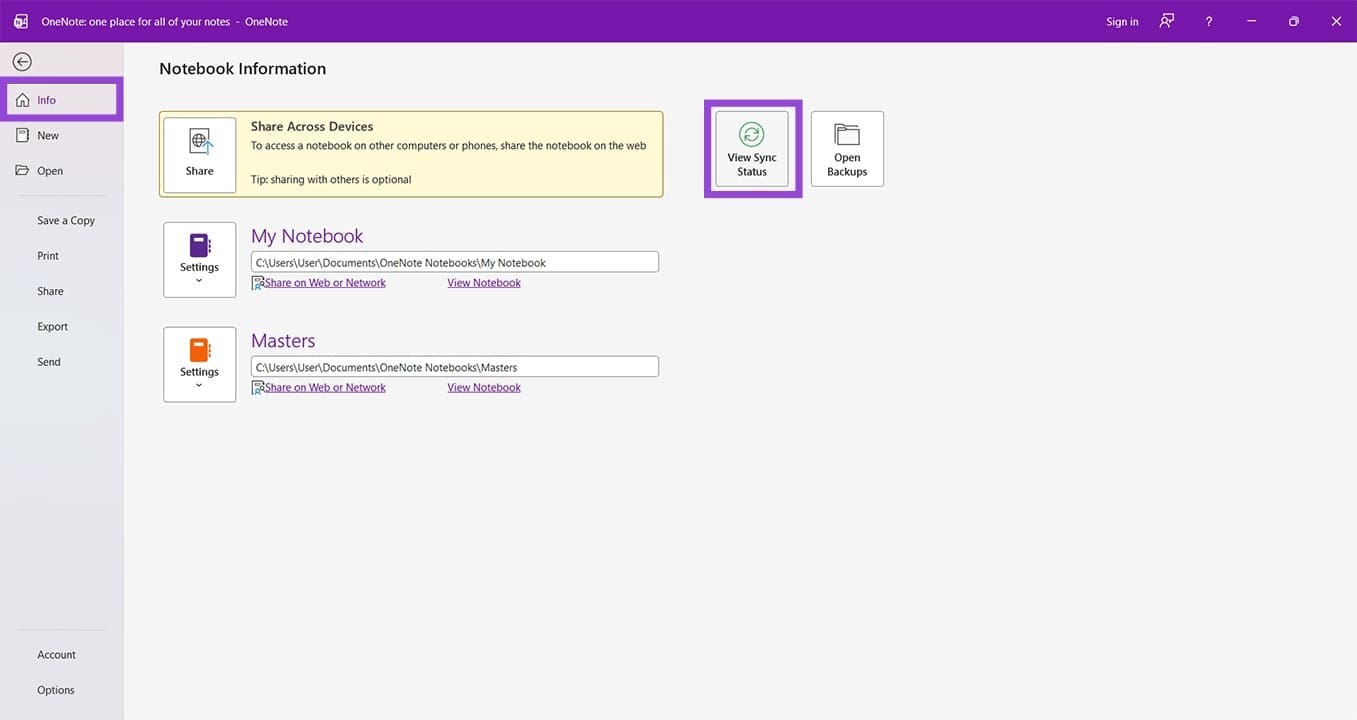
Step 1. Click the “File” tab and head to “Info” in the sidebar.
Step 2. Click the “View Sync Status” button.
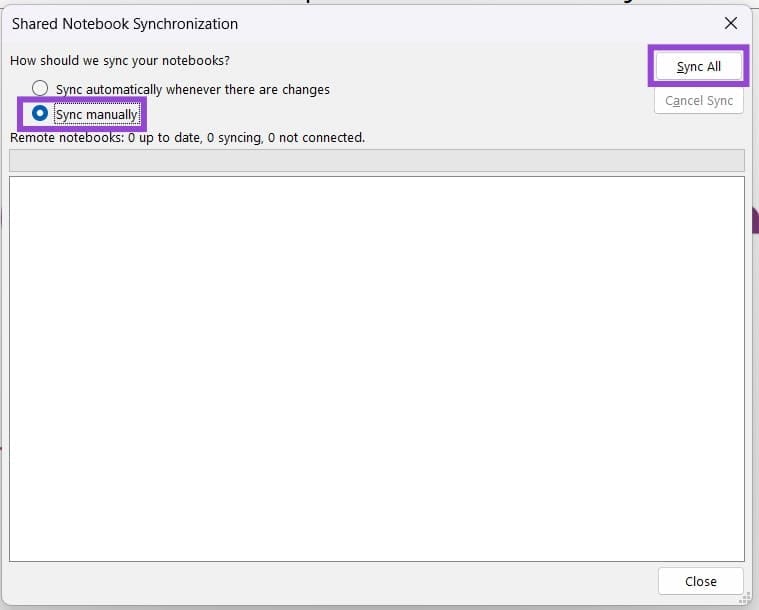
Step 3. Check the “Sync manually” option and click the “Sync All” button.
Sign Out and In
If your account cannot be properly authenticated on the device you’re using, nothing will sync. To be sure, try signing out and in again:
Step 1. On PC or smart device, open OneNote and click on your User Account.
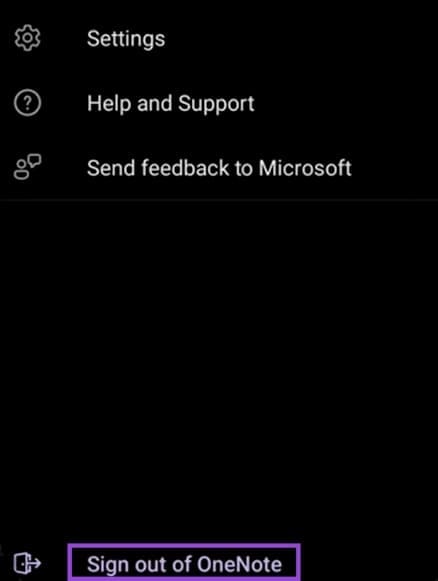
Step 2. Click or tap “Sign out of OneNote.”
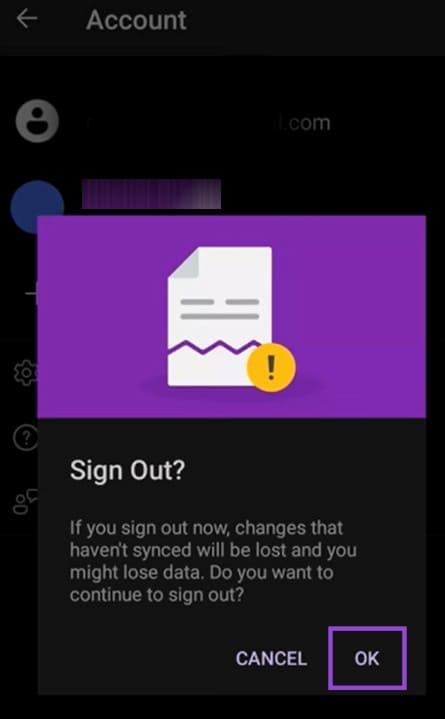
Step 3. Confirm your choice.
Step 4. Once done, tap the profile icon and enter your login details to sign in again.
Clear the App Cache
Sometimes, the OneNote app cache itself might become corrupted and cause syncing issues. Clearing the cache is quick and easy. Be sure to back up any unsynced text to a Word doc or Notepad:
Step 1. Open the Run dialog (Win +R).
Step 2. Type “%localappdata%\Microsoft\OneNote” into the box and hit “Enter.”
Step 3. Find the “Cache” folder in the Explorer window and (Shift + Del) to permanently remove the folder. Windows will create a new one on restart.
Check Your Antivirus
An overzealous antivirus or Firewall may be the cause of the error. Ensure that OneNote is added to your exception list on both.
Was this helpful?
Last updated on 06 April, 2026
Read Next
 5 Ways to Fix YouTube Server Error 400 on Android and iPhone
Try Basic Fixes Check if YouTube is down: If there is an issue with YouTube's server, the app will continue to display the 400 error, and you won't be able
5 Ways to Fix YouTube Server Error 400 on Android and iPhone
Try Basic Fixes Check if YouTube is down: If there is an issue with YouTube's server, the app will continue to display the 400 error, and you won't be able
 Top 9 Fixes For ‘There Is Something Wrong With the Proxy Server’ Error in Chrome
Proxy servers are useful when you need to hide your internet traffic from your ISP or connect to blocked websites.
Top 9 Fixes For ‘There Is Something Wrong With the Proxy Server’ Error in Chrome
Proxy servers are useful when you need to hide your internet traffic from your ISP or connect to blocked websites.
 7 Top Ways to Fix OneNote Notebook Disappearing Error on Windows
Microsoft OneNote has gone through a number of iterations.
7 Top Ways to Fix OneNote Notebook Disappearing Error on Windows
Microsoft OneNote has gone through a number of iterations.
 7 Best Ways to Fix OneNote Won’t Let Me Type Error in Windows 10
Microsoft OneNote is one of the oldest note-taking apps and a key component of Microsoft's Office Suite.
7 Best Ways to Fix OneNote Won’t Let Me Type Error in Windows 10
Microsoft OneNote is one of the oldest note-taking apps and a key component of Microsoft's Office Suite.
 How to Fix OneNote “Saved Offline” Error
Basic Fixes: Ensure OneDrive is not full: OneNote stores data using Microsoft’s OneDrive storage.
How to Fix OneNote “Saved Offline” Error
Basic Fixes: Ensure OneDrive is not full: OneNote stores data using Microsoft’s OneDrive storage.
 How to Fix “Safari Can’t Find the Server” Error on Mac
Why Can't Safari Connect to Server on Mac?
How to Fix “Safari Can’t Find the Server” Error on Mac
Why Can't Safari Connect to Server on Mac?
 4 Ways to Fix Unable to Contact Your DHCP Server Error on Windows 11
Fix 1: Restart Your DHCP Client service The DHCP Client service registers and updates the PC's IP address and DNS record.
4 Ways to Fix Unable to Contact Your DHCP Server Error on Windows 11
Fix 1: Restart Your DHCP Client service The DHCP Client service registers and updates the PC's IP address and DNS record.
 5 Ways to Fix “Cannot Verify Server Identity” Error on iPhone and iPad
Try Basic Fixes Use a secure network connection: The Mail app may fail to verify the server identity if you're on a public (less secure) network.
5 Ways to Fix “Cannot Verify Server Identity” Error on iPhone and iPad
Try Basic Fixes Use a secure network connection: The Mail app may fail to verify the server identity if you're on a public (less secure) network.
The article above may contain affiliate links which help support Guiding Tech. The content remains unbiased and authentic and will never affect our editorial integrity.