OneDrive is usually a reliable cloud storage service, but you might occasionally encounter the frustrating issue of OneDrive stuck on processing changes. This problem typically occurs when the sync process gets interrupted or encounters conflicts. Once you’ve ruled out the basic causes (restarting the app, checking your internet connection, or rebooting your PC), here’s what you can do to hopefully fix it.
Fix 1 – Check OneDrive Service Status
Sometimes the issue isn’t on your end, but with Microsoft’s OneDrive servers experiencing downtime. If this happens, there’s nothing you can do but wait. Here’s how you can check if OneDrive stuck on processing changes is due to server issues.
Step 1. Open your internet browser.
Step 2. Go to Microsoft 365 Service Health website or search for “OneDrive service status” online.
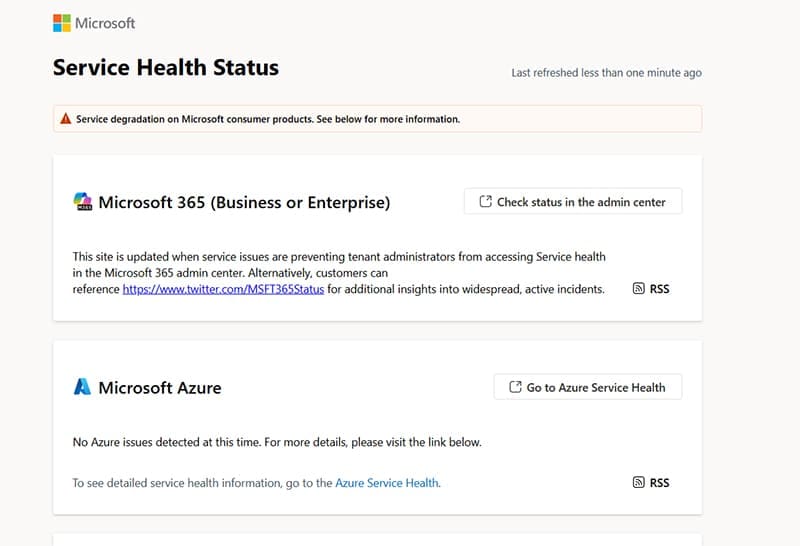
Step 3. Look for any reported issues with OneDrive or Microsoft 365 services. If there are ongoing problems, Microsoft will display them on the status page along with estimated resolution times.
Step 4. If all services appear operational, the issue is likely local to your system, and you can proceed with the other fixes below.
Fix 2 – Restart OneDrive Sync Process
The simplest solution is often to restart the OneDrive sync process entirely. This can clear temporary glitches that cause the processing changes to get stuck.
Step 1. Right-click the OneDrive icon in the system tray (notification area), click on “Pause syncing,” and select “Quit OneDrive.”

Step 2. Wait about 30 seconds to ensure all processes have stopped.
Step 3. Press “Windows + R” to open the Run dialog.
Step 4. Type “onedrive” and press “Enter” to restart OneDrive.

Step 5. Allow OneDrive to complete its initialization and check if the processing changes issue is resolved.
Fix 3 – Reset OneDrive Configuration
If restarting doesn’t work, you can reset OneDrive’s configuration to clear any corrupted settings or cached data.
Method 1: Using the Reset Command
Step 1. Press “Windows + R” to open the Run dialog.
Step 2. Copy and paste the following command and hit “Enter:”
%localappdata%\Microsoft\OneDrive\onedrive.exe /reset
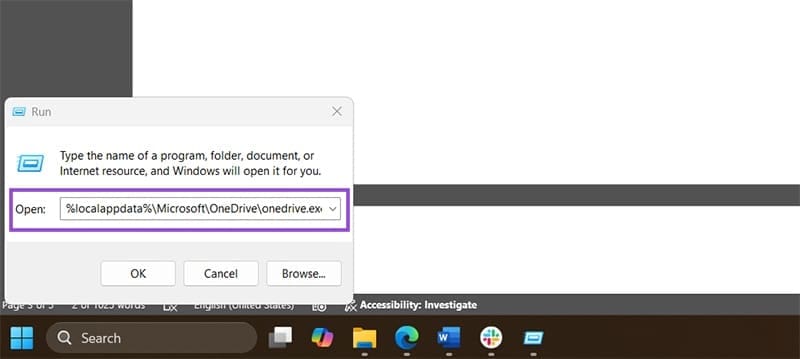
Step 3. The OneDrive icon will disappear from the system tray and reappear after 1-2 minutes.
Step 4. If the icon doesn’t reappear after a few minutes, open Run again and type:
%localappdata%\Microsoft\OneDrive\onedrive.exe
Step 5. Press “Enter” to manually restart OneDrive.
Method 2: For Older OneDrive Installations
Step 1. Open the Run dialog (“Windows + R”).
Step 2. Try this alternative command:
C:\Program Files (x86)\Microsoft OneDrive\onedrive.exe /reset
Step 3. Press “Enter.”
Fix 4 – Check Available Storage Space
OneDrive requires sufficient local disk space to sync files properly. Even though files are stored in the cloud, OneDrive needs temporary space during the sync process.
Step 1. Open “File Explorer” and navigate to “This PC.”
Step 2. Check the available space on your primary drive (usually C:).
Step 3. If you have less than 5GB of free space, you’ll need to free up disk space by:
- Deleting temporary files using Disk Cleanup
- Moving large files to external storage
- Uninstalling unused programs
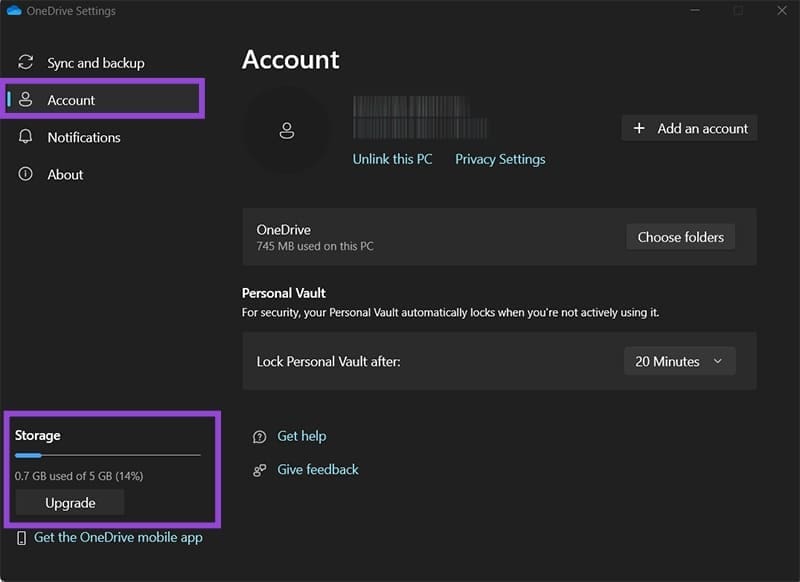
Step 4. Also check your OneDrive storage quota by clicking the OneDrive icon and selecting “Account” to ensure you haven’t exceeded your cloud storage limit.
Fix 5 – Reconnect OneDrive Account
Sometimes the connection between your local OneDrive client and your Microsoft account gets corrupted, causing sync issues.
Step 1. Right-click the OneDrive icon in the system tray and select “Settings.”
Step 2. Go to the “Account” tab and click “Unlink this PC.”

Step 3. Confirm the action when prompted.
Step 4. Restart your computer.
Step 5. Open OneDrive again and sign in with your Microsoft account credentials.
Step 6. Choose your sync settings and allow OneDrive to re-download your files.
Fix 6 – Remove Problematic Files
Certain files can cause OneDrive to get stuck during processing. This includes very large files, corrupted files, or files with special characters in their names.
Step 1. Click the OneDrive icon in the system tray to open the activity center.
Step 2. Look for any files showing “sync pending” or error messages.
Step 3. Check if you’re trying to sync files larger than 10GB, which OneDrive doesn’t support.
Step 4. Look for the file names like “000A0000-A000-A000-0A0A-00000A0A000A” in your OneDrive folder and delete it if found.
Step 5. Temporarily move very large files (especially large video files) out of your OneDrive folder.
Step 6. Close any files that might be open from OneDrive, especially Office documents.
Fix 7 – Modify OneDrive Folder Permissions
In some cases, permission issues can prevent OneDrive from processing changes properly.
Step 1. Navigate to your OneDrive folder in File Explorer.
Step 2. Right-click the OneDrive folder and select “Properties.”
Step 3. Go to the “Security” tab and click “Advanced.”

Step 4. Verify that your user account has “Full control” permissions.

Step 5. If not, click “Edit” and modify the permissions.
Step 6. Check the box “Replace all child object permission entries with inheritable permission entries from this object.”
Step 7. Click “Apply” then “OK” to save the changes.
Fix 8 – Change OneDrive Folder Location
If the issue persists, try changing the location of your OneDrive folder, which can resolve path-related conflicts.
Step 1. Right-click the OneDrive icon and select “Settings.”
Step 2. Go to the “Account” tab and click “Unlink this PC.”
Step 3. Sign back into OneDrive.
Step 4. When prompted to choose the OneDrive folder location, select “Change location” and choose a different drive or folder.
Step 5. Allow OneDrive to download your files to the new location.
Was this helpful?
Last updated on 22 June, 2025
Read Next
 Apple Pages vs Microsoft Word: Which Word Processing Software Is Better
Every major tech company out there is offering their version of the productivity suite.
Apple Pages vs Microsoft Word: Which Word Processing Software Is Better
Every major tech company out there is offering their version of the productivity suite.
 4 Fixes for Google Drive Videos Not Playing or Processing Error
Basic Fixes File size is too large: Google Drive supports up to 5TB file size.
4 Fixes for Google Drive Videos Not Playing or Processing Error
Basic Fixes File size is too large: Google Drive supports up to 5TB file size.
 15 Ways to Fix OneDrive Sync Is Pending or Stuck Error in Windows 10
One of the most common issues with any cloud storage service is broken sync.
15 Ways to Fix OneDrive Sync Is Pending or Stuck Error in Windows 10
One of the most common issues with any cloud storage service is broken sync.
 8 Best Ways to Fix Mouse Sensitivity Changes Randomly on Windows 10
While mice and keyboards help while working with desktop or laptop, the mouse gets finicky sometimes.
8 Best Ways to Fix Mouse Sensitivity Changes Randomly on Windows 10
While mice and keyboards help while working with desktop or laptop, the mouse gets finicky sometimes.
 7 Ways to Fix Undoing Changes Made to Your Computer in Windows 11
Fix 1: Boot Your PC Into Safe Mode If Windows becomes stuck on the undoing changes screen, you will first have to boot your PC into Safe Mode to troubleshoot
7 Ways to Fix Undoing Changes Made to Your Computer in Windows 11
Fix 1: Boot Your PC Into Safe Mode If Windows becomes stuck on the undoing changes screen, you will first have to boot your PC into Safe Mode to troubleshoot
 5 Ways to Fix Microsoft Excel Not Saving Changes on Windows
Fix 1: Repair Files From File Explorer Step 1: Open the Microsoft Excel app on your computer.
5 Ways to Fix Microsoft Excel Not Saving Changes on Windows
Fix 1: Repair Files From File Explorer Step 1: Open the Microsoft Excel app on your computer.
 How to Fix Discord Profile Theme and Other Changes Not Saving
Basic Fixes Check your network connection: Ensure your device has a good internet connection.
How to Fix Discord Profile Theme and Other Changes Not Saving
Basic Fixes Check your network connection: Ensure your device has a good internet connection.
 4 Fixes for Google Photos Unable to Save Changes Error
Basic Fixes Clear cache for Google Photos: Open Google Photos app info > tap on Storage and cache > Clear cache.
4 Fixes for Google Photos Unable to Save Changes Error
Basic Fixes Clear cache for Google Photos: Open Google Photos app info > tap on Storage and cache > Clear cache.
The article above may contain affiliate links which help support Guiding Tech. The content remains unbiased and authentic and will never affect our editorial integrity.