If you work with OneDrive every day and rely on it to save and access files, any error can be detrimental. If you’ve got an issue with OneDrive not running (Windows 11), then we’ve got some troubleshooters for you to try that’ll hopefully have you back in the cloud and on Cloud Nine.
Fix OneDrive Not Running – Windows 11
OneDrive is a client on your Windows 11 PC by default and is liable to all the problems that software encounters, not to mention those related to connectivity. If you’re dealing with crashes, account troubles, syncing, or uploading errors, here’s how to fix OneDrive not running:
Update Your System
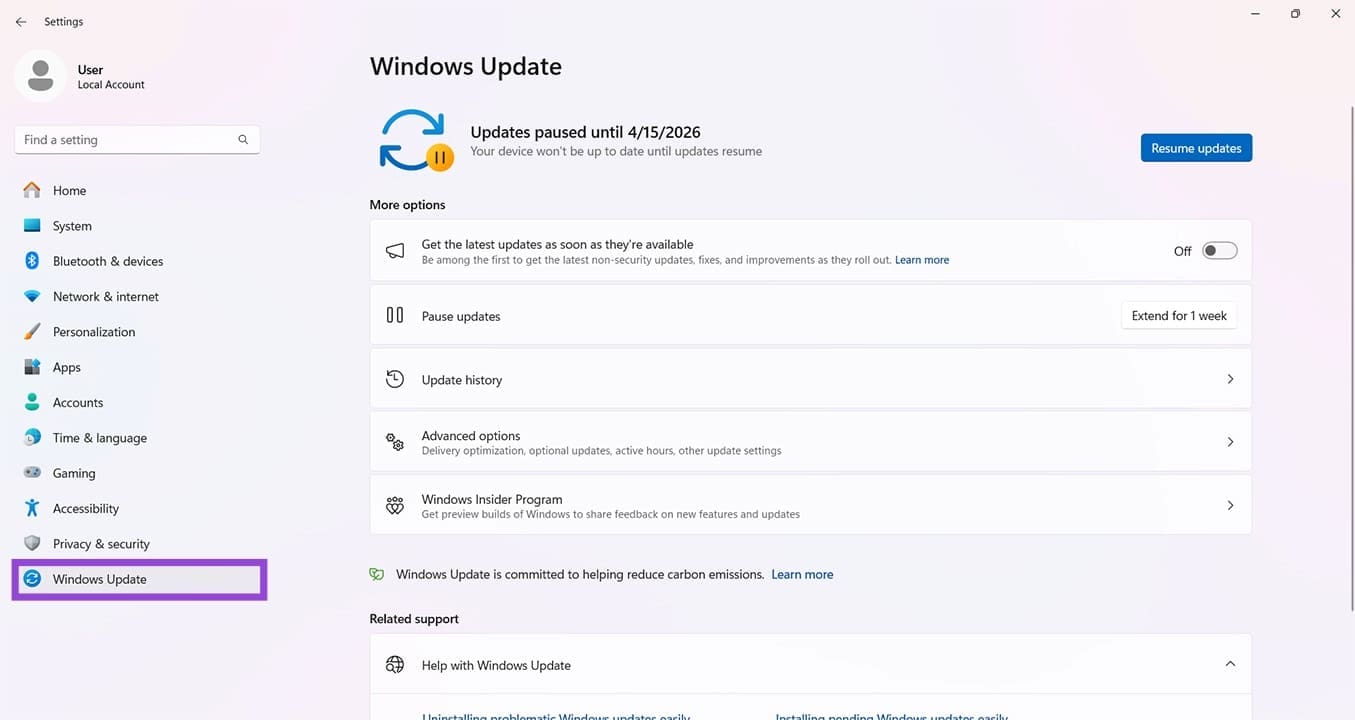
We’re starting simple. A lot of Windows problems can be resolved by fully updating your machine. Head into Settings (Win + I) and “Windows Update” to ensure everything is up to date.
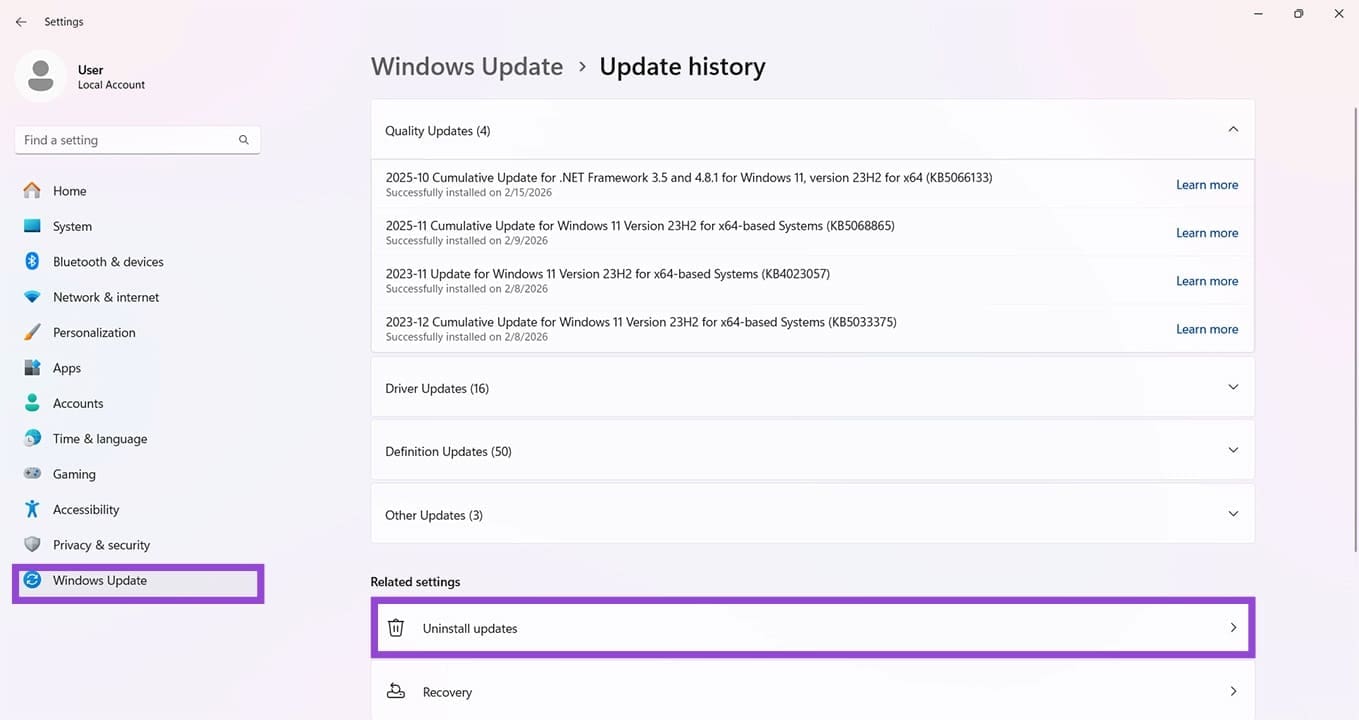
If the problems started after an update, you can also roll back the changes. Click on “Update history” and “Uninstall Updates” to remove the latest updates from your machine.
Clear Your OneDrive Recycle Bin
Some users report that upload errors are resolved when the Recycle Bin is emptied. It’s quick enough to do:
Step 1. In the sidebar of OneDrive, click the Recycle Bin icon.

Step 2. Click “Empty recycle bin” at the top of the page to clear the contents. Confirm the deletion, and try your upload again.
Unlink Your PC
Account issues can often be to blame with OneDrive. Try unlinking your PC from the OneDrive account and adding it again:
Step 1. Open up your OneDrive in the System Tray.
Step 2. Click the Settings icon and navigate to the “Account” tab in the sidebar.
Step 3. Under the avatar, click “Unlink this PC.” If you have multiple accounts, unlink them all.

Step 4. Open up the OneDrive app again via the Search Bar once this is done.
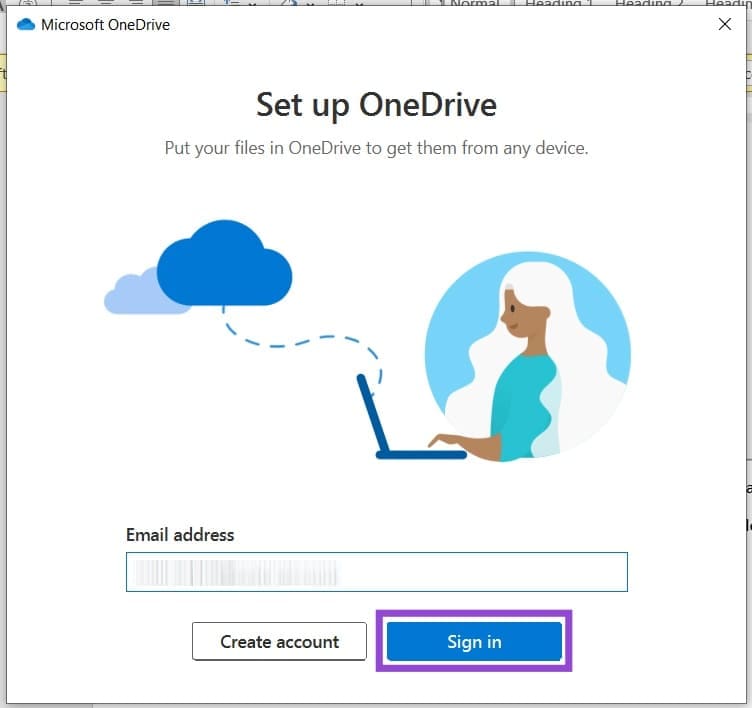
Step 5. Enter your login details and sign in.
Reset OneDrive
If you suspect the OneDrive client may have been corrupted, you can quickly reset it. Here’s how:
Step 1. Open the Run dialog (Win + R) and type “onedrive /reset” before hitting “Enter.”
Step 2. The client will reset. You can open it again from the Start Menu if need be.
Try Your Browser
If the OneDrive client is misbehaving in any way, it might be a good idea to try using a browser, or a different one if you’ve tried already, just to rule out a specific software issue.
Check Your File Name Length
Keep in mind that OneDrive caps file names at 255 characters. In addition, all the regular symbols that Microsoft Windows won’t allow you to name your files (# % & * : < > ?, etc.) apply too. Check your file or folder name length and content before uploading, because it might not tell you why it failed.
Was this helpful?
Last updated on 05 April, 2026
Read Next
 7 Ways to Fix Microsoft Edge Running Slow on Windows 11
Basic Fixes Update or reinstall Microsoft Edge: Open the Microsoft Store, search Microsoft Edge browser, and click Update.
7 Ways to Fix Microsoft Edge Running Slow on Windows 11
Basic Fixes Update or reinstall Microsoft Edge: Open the Microsoft Store, search Microsoft Edge browser, and click Update.
 How to Fix “Wireless AutoConfig Service Not Running” Issue on Windows 11
Basic Fixes Reboot PC: Press the Windows + X shortcut to open the Power User Menu, select Shut down or sign out, and click Restart.
How to Fix “Wireless AutoConfig Service Not Running” Issue on Windows 11
Basic Fixes Reboot PC: Press the Windows + X shortcut to open the Power User Menu, select Shut down or sign out, and click Restart.
 How to Prevent Users From Running Certain Programs on Windows 11
Method 1: Prevent Users From Running Certain Programs via the Group Policy Editor The Local Group Policy Editor on Windows makes it easy to apply system-wide changes on a computer.
How to Prevent Users From Running Certain Programs on Windows 11
Method 1: Prevent Users From Running Certain Programs via the Group Policy Editor The Local Group Policy Editor on Windows makes it easy to apply system-wide changes on a computer.
 4 Ways to Fix Storage Space Running Out Alert on Android
Basic Fixes: Clear the recycle bin: Most Android apps have a dedicated recycle bin or trash folder that holds deleted items for up to 30 days if you change your
4 Ways to Fix Storage Space Running Out Alert on Android
Basic Fixes: Clear the recycle bin: Most Android apps have a dedicated recycle bin or trash folder that holds deleted items for up to 30 days if you change your
 3 Ways to Fix “Steam Must be Running to Play This Game” Error
Basic Fixes: Ensure Steam is installed on your computer: If you play Steam games, ensure the client is installed on your computer.
3 Ways to Fix “Steam Must be Running to Play This Game” Error
Basic Fixes: Ensure Steam is installed on your computer: If you play Steam games, ensure the client is installed on your computer.
 3 Ways to Fix Microsoft Edge Keeps Running in Background Issue
Basic Fixes: Stop Edge using Task Manager: You can use Task Manager to check Edge's resource usage and stop it from running in the background if it is using too
3 Ways to Fix Microsoft Edge Keeps Running in Background Issue
Basic Fixes: Stop Edge using Task Manager: You can use Task Manager to check Edge's resource usage and stop it from running in the background if it is using too
 5 Best TWS Earbuds with Ear Hooks for Running
TWS earbuds are a godsend for health freaks as they help fuel their workout without cluttering up their personal space.
5 Best TWS Earbuds with Ear Hooks for Running
TWS earbuds are a godsend for health freaks as they help fuel their workout without cluttering up their personal space.
 This Item Name or Type Isn’t Allowed in OneDrive – How to Fix
OneDrive is a handy way to back up and transfer files between devices, and access your data wherever you go, provided you can actually get it uploaded, of course.
This Item Name or Type Isn’t Allowed in OneDrive – How to Fix
OneDrive is a handy way to back up and transfer files between devices, and access your data wherever you go, provided you can actually get it uploaded, of course.
The article above may contain affiliate links which help support Guiding Tech. The content remains unbiased and authentic and will never affect our editorial integrity.