Basic Fixes
- Disconnect External Mouse: This is to ensure there aren’t any hardware conflicts
- Update to the Latest Version: Updating your machine to the latest macOS version can also fix issues
- Reset: Factory resetting your Mac to the default setting can also help if nothing else works out for you
Fix 1: Restart the Service From Terminal
This method is mainly helpful when the three-finger swipe to bring up mission control or app exposé doesn’t work. You can try restarting the dock service on your Mac using the terminal to see if the gestures start working again. Here’s how to do it.
Step 1: Press the Command key on your Mac followed by the space bar. This will bring up Spotlight Search. Type in Terminal and hit the Enter Key.

Step 2: In the terminal window, input the “killall Dock” command and hit the enter key.

Reboot your Mac once and try using the trackpad gestures now.
Fix 2: Customize Gestures From Trackpad Settings
macOS gives you the ability to change and customize gestures. If you’re trying to perform a specific gesture but it’s not working, it’s possible that the gesture is assigned to do something else. Here’s how you can change it if that’s the case.
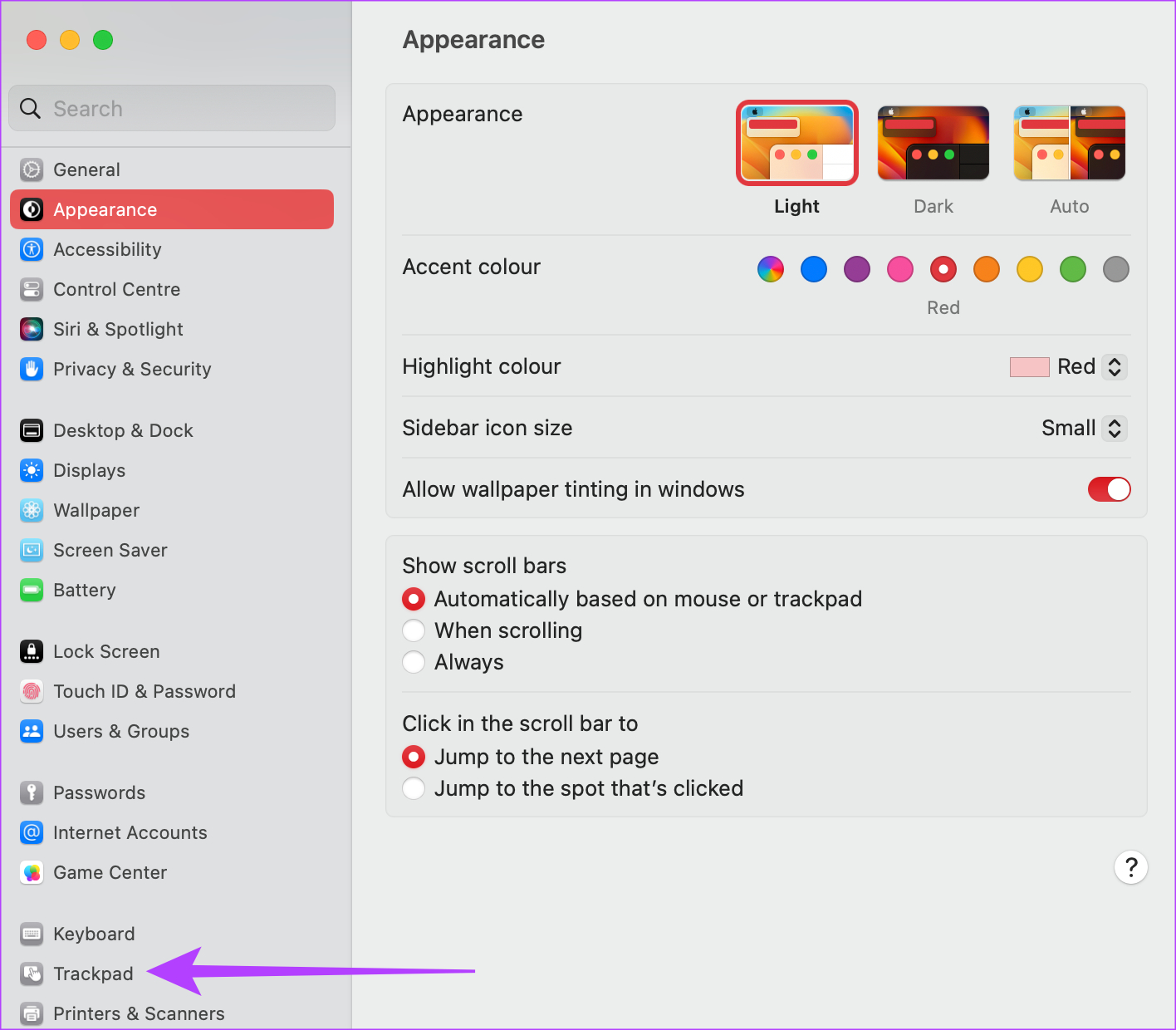
Step 1: Click on the Apple logo in the top-left corner of your screen. Select System Settings. If your Mac is running macOS Monterey or earlier, select System Preferences. Navigate to the Trackpad option in the left pane.
Step 2: Switch to the More Gestures tab. Here, you should see the description of various gestures. Select the relevant action and click on the gesture next to it.
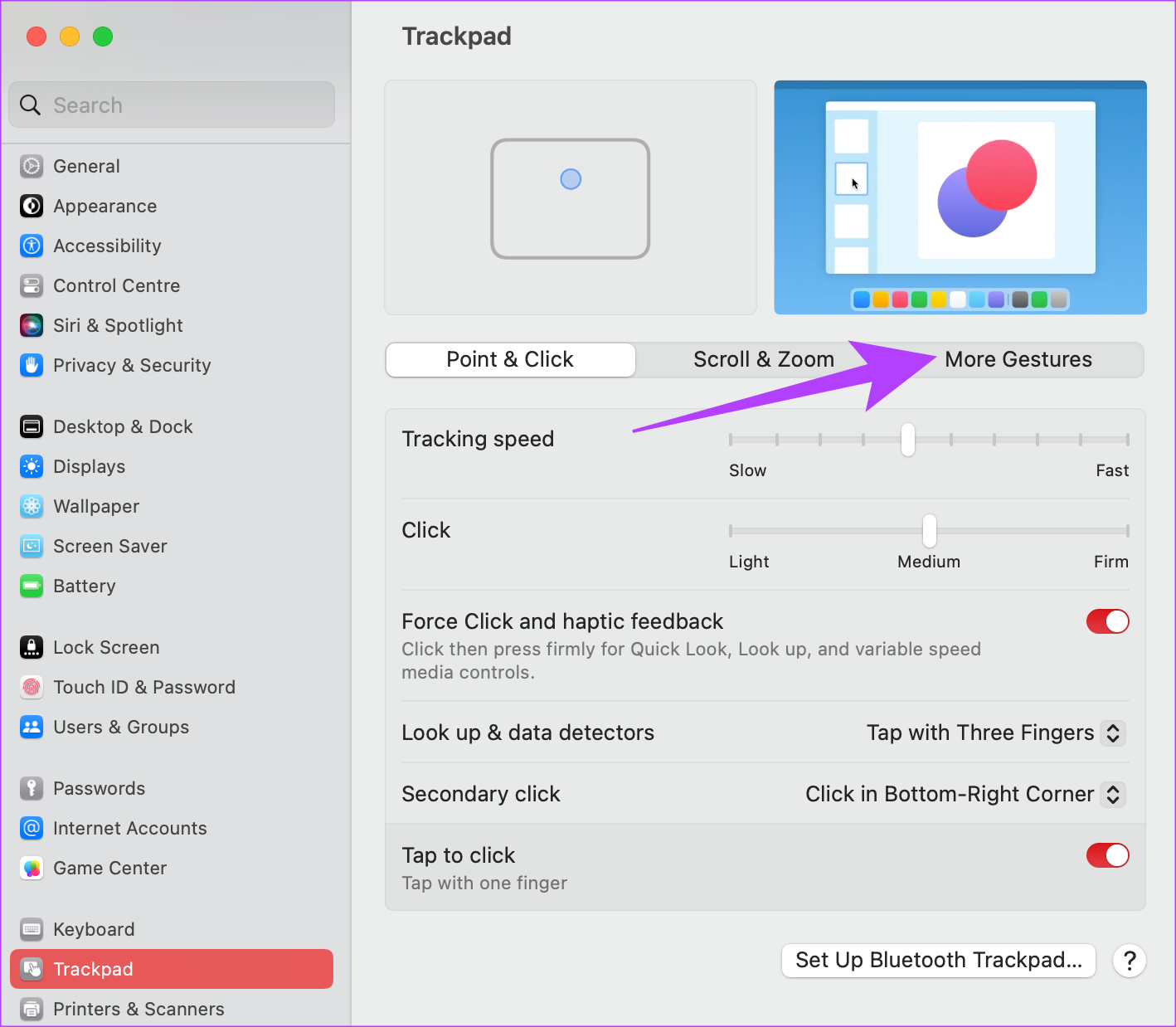
Step 3: Then, choose the trackpad gesture that you want to perform to trigger that action.

Fix 3: Disable Force Click
The Mac’s trackpad has the ability to detect different levels of pressure. As a result, you get the ability to force-click on the trackpad to perform certain functions. However, enabling a force click can interfere with some gestures at times. Try disabling it via the steps below to see if it makes a difference.
Step 1: Click on the Apple logo in the top-left corner of your screen. Select System Settings. If your Mac is running macOS Monterey, select System Preferences.
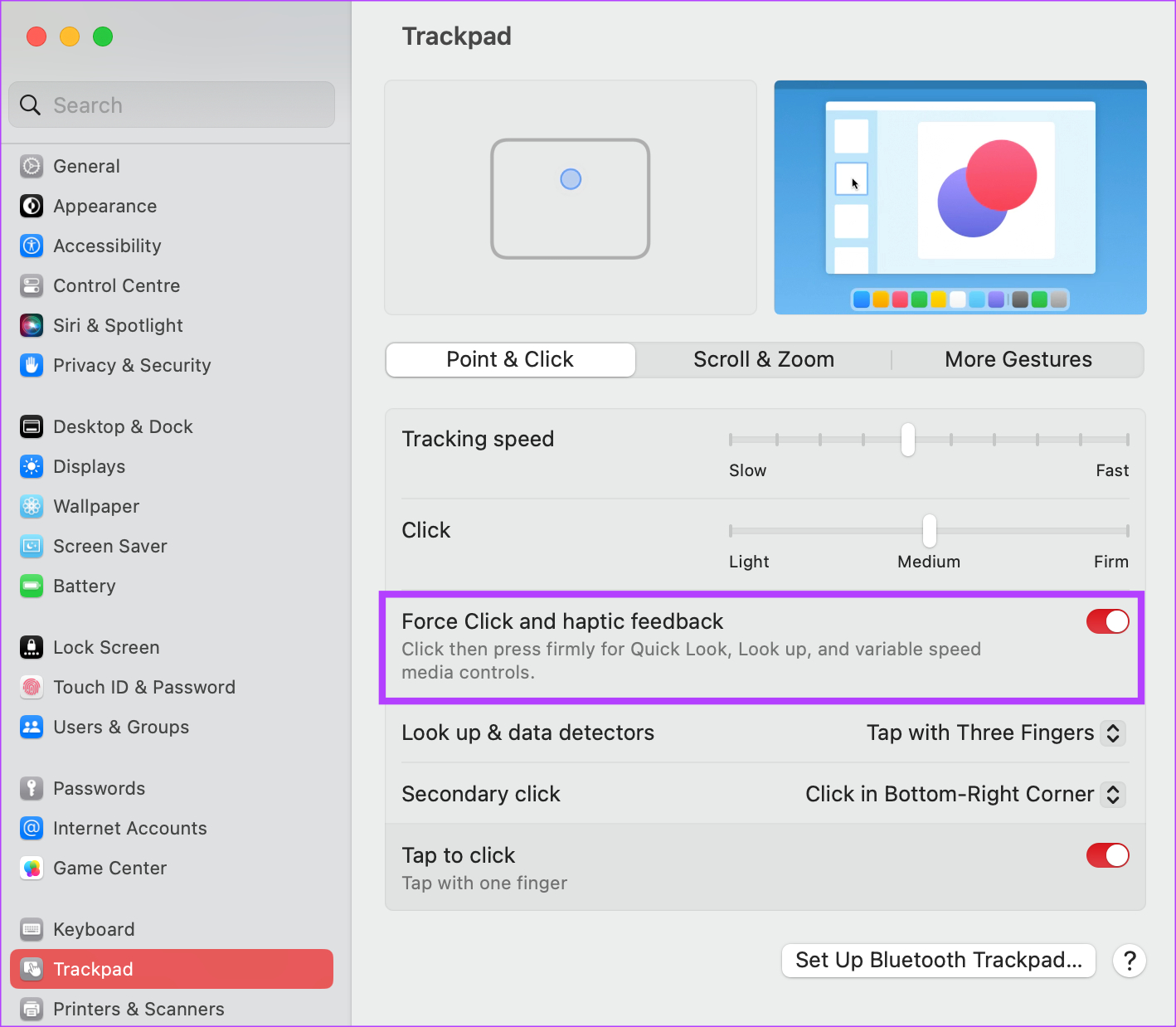
Step 2: Navigate to the Trackpad option in the left pane. In the Point & Click tab, disable the toggle next to ‘Force Click and haptic feedback‘.
Try performing the trackpad gestures now to see if they work.
FAQs for Mac Trackpad Gestures Not Working
Set the right gesture to trigger Mission Control from the trackpad settings. If one gesture doesn’t work, try setting something else. You can also use the Terminal method above to reset Mission Control.
Yes, Mac gestures are customizable from the System Settings section.
Was this helpful?
Last updated on 04 September, 2024
Read Next
 How to Customize Gestures for Apple’s Trackpad or Magic Mouse on a Mac
One of the iPhone’s greatest innovations was the ability to zoom with a pinch.
How to Customize Gestures for Apple’s Trackpad or Magic Mouse on a Mac
One of the iPhone’s greatest innovations was the ability to zoom with a pinch.
 Top 9 Ways to Fix Touchpad Gestures Not Working in Windows 10
Windows 10 supports various touchpad (trackpad) gestures.
Top 9 Ways to Fix Touchpad Gestures Not Working in Windows 10
Windows 10 supports various touchpad (trackpad) gestures.
 5 Ways to Fix Touchpad Gestures Not Working on Windows 11
Fix 1: Enable Touchpad Gestures The first thing you need to do is review the touchpad settings on your PC and ensure that gesture controls are enabled.
5 Ways to Fix Touchpad Gestures Not Working on Windows 11
Fix 1: Enable Touchpad Gestures The first thing you need to do is review the touchpad settings on your PC and ensure that gesture controls are enabled.
 4 Ways to Fix Gestures Not Working on Android
Try Basic Fixes Remove the screen protector and case: Using a low-quality screen protector from an unknown brand may affect the touchscreen's functionality.
4 Ways to Fix Gestures Not Working on Android
Try Basic Fixes Remove the screen protector and case: Using a low-quality screen protector from an unknown brand may affect the touchscreen's functionality.
 4 Ways to Fix FaceTime Reactions (Gestures) Not Working
Basic Fixes Update iOS: Ensure your device is running on iOS 17 and above.
4 Ways to Fix FaceTime Reactions (Gestures) Not Working
Basic Fixes Update iOS: Ensure your device is running on iOS 17 and above.
 4 Ways to Fix Copy and Paste Not Working on Mac
Fix 1: Force Quit the Pasteboard Server Pboard is the short form for Pasteboard Server.
4 Ways to Fix Copy and Paste Not Working on Mac
Fix 1: Force Quit the Pasteboard Server Pboard is the short form for Pasteboard Server.
 4 Ways to Fix Mac Display Not Working After Waking From Sleep
Basic Fixes Check screen brightness levels using the keyboard: If your Mac's display doesn't work properly after going into sleep mode, start pressing the Function keys on your Mac to
4 Ways to Fix Mac Display Not Working After Waking From Sleep
Basic Fixes Check screen brightness levels using the keyboard: If your Mac's display doesn't work properly after going into sleep mode, start pressing the Function keys on your Mac to
 2 Ways to Fix VLC Media Player Not Working on Mac
Basic Fixes: Restart Mac: Rebooting your Mac can fix frequent issues with the installed apps.
2 Ways to Fix VLC Media Player Not Working on Mac
Basic Fixes: Restart Mac: Rebooting your Mac can fix frequent issues with the installed apps.
The article above may contain affiliate links which help support Guiding Tech. The content remains unbiased and authentic and will never affect our editorial integrity.