Basic Fixes
- Check network connection: Ensure there’s no problem with network connectivity on your smartphone.
- Check storage: Ensure there’s enough storage space left on your Android/iPhone to accommodate new downloads.
- Restart Gmail: Restart the Gmail app to fix temporary bugs and glitches.
Fix 1: Save Gmail Attachments
When you tap on an attachment, Gmail opens the file on your phone. It doesn’t automatically download the attachment to the device storage. You need to save the file manually.
iPhone
Step 1: Open the Gmail app on your iPhone and select an email.
Step 2: Tap on an attachment. Hit the Share icon at the top and tap Save to Files.

Android
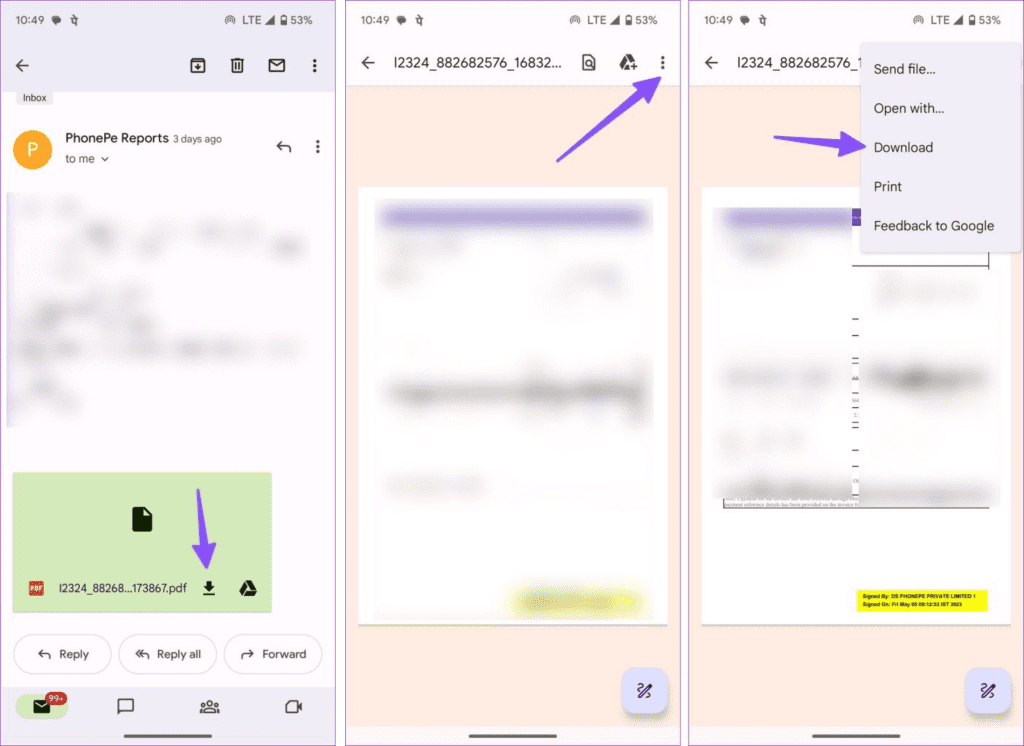
Step 1: Launch the Gmail app on your phone and open an email.
Step 2: Tap the download button to save the file or upload it to Google Drive.
Step 3: Open the attachment and tap the three-dot menu at the top right corner. Select Download.
Also Read: How to fix Gmail not sending emails on Android
Fix 2: Enable Mobile Data for Gmail
Did you disable mobile data permission for Gmail? Gmail fails to download attachments until you connect to a Wi-Fi network or enable mobile data access.
On iPhone
Step 1: Open the Settings app and scroll to Gmail.
Step 2: Enable the Mobile Data toggle and try downloading the attachment again.

On Android
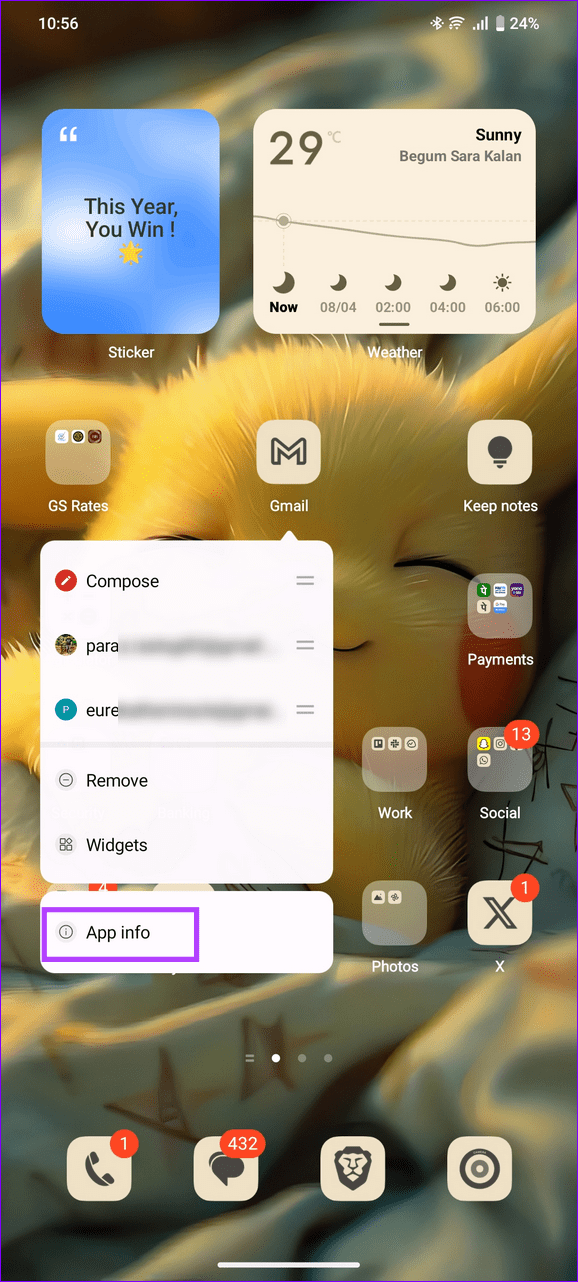
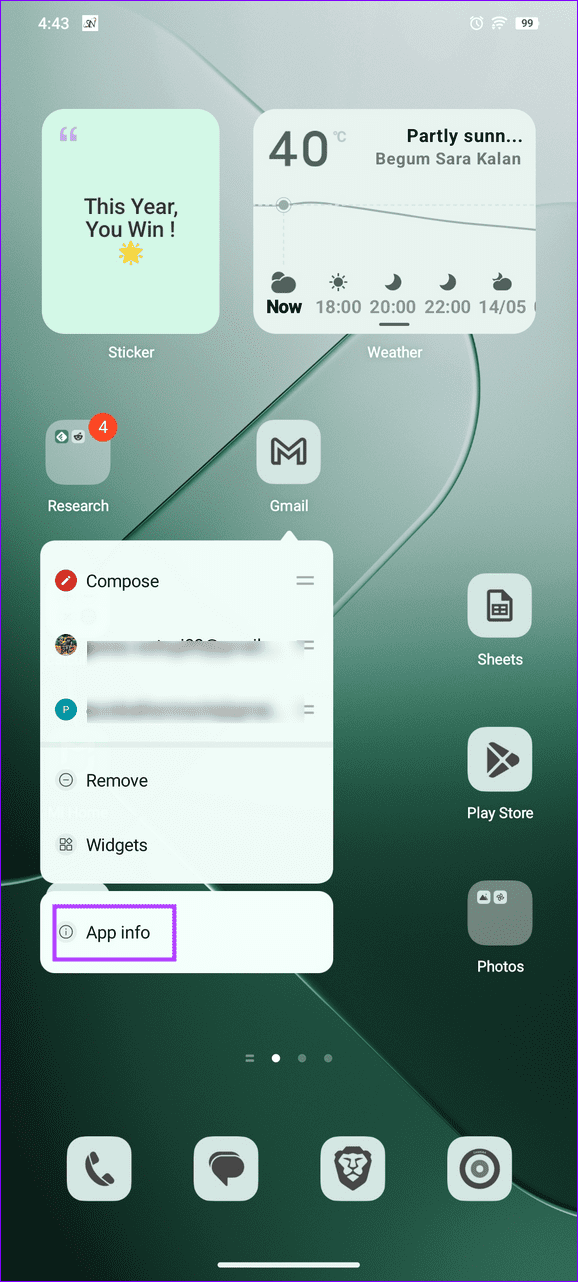
Step 1: Tap and hold the Gmail app icon, and tap on select App Info.
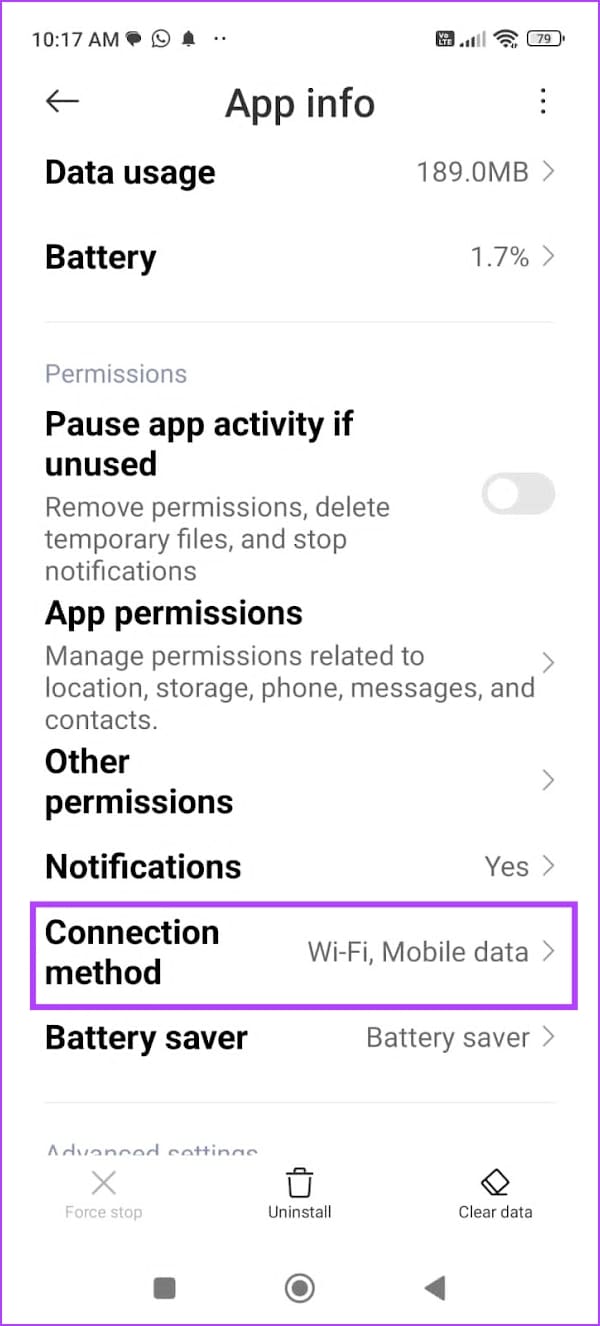
Step 2: Tap on Connection method, and ensure both Wi-Fi and Mobile data are selected.
This ensures the app has permission to use both Wi-Fi and mobile data to access the internet. However, these settings may vary on your device – we’ve used a Xiaomi device to illustrate the example.

Also Read: How to attach files on Gmail on iPhone and Android
Fix 3: Check for the Attachment Password
Attachments such as your bank statements and credit card bills come protected with a password to prevent unauthorized access.
When you open or download such attachments, the file asks for a combination of letters and numbers to access it.
Usually, companies send the password combination instructions with the email. You can read the email, look for the relevant password, and use it to open and save the attachment.
Fix 4: Clear Cache
Clear cache to remove junk files that may be causing the issue with the Gmail app on your phone.
On Android
Step 1: Tap and hold the Gmail app icon, and select App info.
Step 2: Tap on Storage & cache > Clear Cache.


Was this helpful?
Last updated on 26 August, 2024
Read Next
 4 Fixes for Outlook App Not Downloading Attachments
Basic Fixes Check the device's internal storage: You should have enough internal storage on your device so that the attachments can be saved.
4 Fixes for Outlook App Not Downloading Attachments
Basic Fixes Check the device's internal storage: You should have enough internal storage on your device so that the attachments can be saved.
 5 Ways to Fix Can’t Add Attachments in Microsoft Outlook for Windows
Fix 1: Check the Attachment File Size The maximum file size allowed for attachments in Outlook and Gmail is 20MB, while business emails are usually limited to 10MB.
5 Ways to Fix Can’t Add Attachments in Microsoft Outlook for Windows
Fix 1: Check the Attachment File Size The maximum file size allowed for attachments in Outlook and Gmail is 20MB, while business emails are usually limited to 10MB.
 5 Fixes for Unable to Open Attachments in Microsoft Outlook on Windows
Fix 1: Check Attachment Handling Settings If Outlook is unable to open your email attachments, it may be because the file previewer option is disabled.
5 Fixes for Unable to Open Attachments in Microsoft Outlook on Windows
Fix 1: Check Attachment Handling Settings If Outlook is unable to open your email attachments, it may be because the file previewer option is disabled.
 5 Ways to Fix WhatsApp Not Downloading PDFs on Phone
Basic Fixes Check WhatsApp server status: Use Downdetector to check an active WhatsApp service outage.
5 Ways to Fix WhatsApp Not Downloading PDFs on Phone
Basic Fixes Check WhatsApp server status: Use Downdetector to check an active WhatsApp service outage.
 3 Ways to Fix Spotify Not Downloading Songs on Android and iPhone
Try Basic Fixes Free up storage space: If your phone is running low on storage, you might have a hard time downloading new content.
3 Ways to Fix Spotify Not Downloading Songs on Android and iPhone
Try Basic Fixes Free up storage space: If your phone is running low on storage, you might have a hard time downloading new content.
 How to Fix Xbox App Not Downloading Games on Windows 11
Basic Fixes Check your network connection: Ensure your PC has a good internet connection to download games in the Xbox app.
How to Fix Xbox App Not Downloading Games on Windows 11
Basic Fixes Check your network connection: Ensure your PC has a good internet connection to download games in the Xbox app.
 How to Increase Downloading Speed in Xbox App for Windows 11
Try These Things First Restart the Xbox app: At times, the Xbox app might misbehave and cause issues like slow downloading speed due to a temporary glitch or bug.
How to Increase Downloading Speed in Xbox App for Windows 11
Try These Things First Restart the Xbox app: At times, the Xbox app might misbehave and cause issues like slow downloading speed due to a temporary glitch or bug.
 3 Fixes for Apple Books App Not Downloading Books
Basic Fixes Check internet connection: Ensure that you have a strong internet connection on your Apple device.
3 Fixes for Apple Books App Not Downloading Books
Basic Fixes Check internet connection: Ensure that you have a strong internet connection on your Apple device.
The article above may contain affiliate links which help support Guiding Tech. The content remains unbiased and authentic and will never affect our editorial integrity.