

How to Edit Videos With the Samsung Gallery App
To access the built-in video editor on your Samsung Galaxy phone, open the Gallery app and head to the video you wish to edit. Then, tap the pencil icon at the bottom to access the video editor.
Trim Your Video
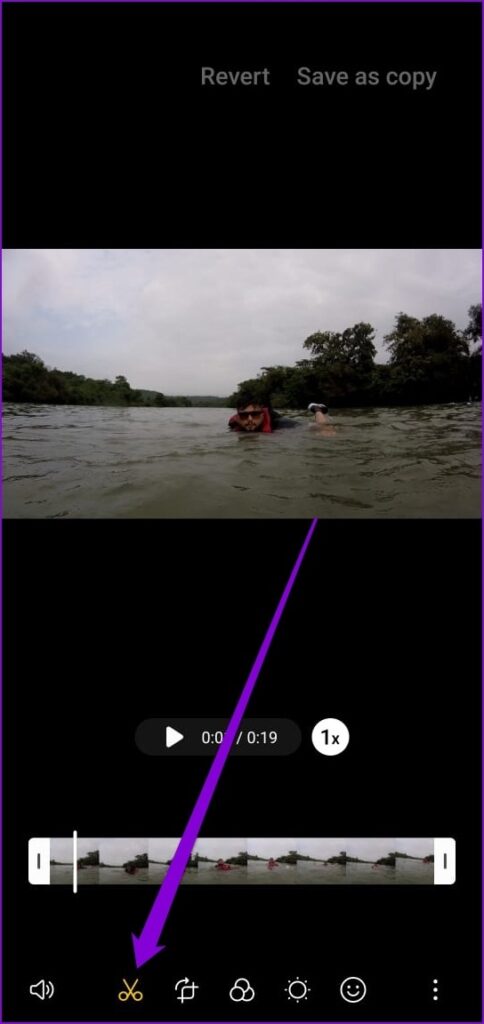
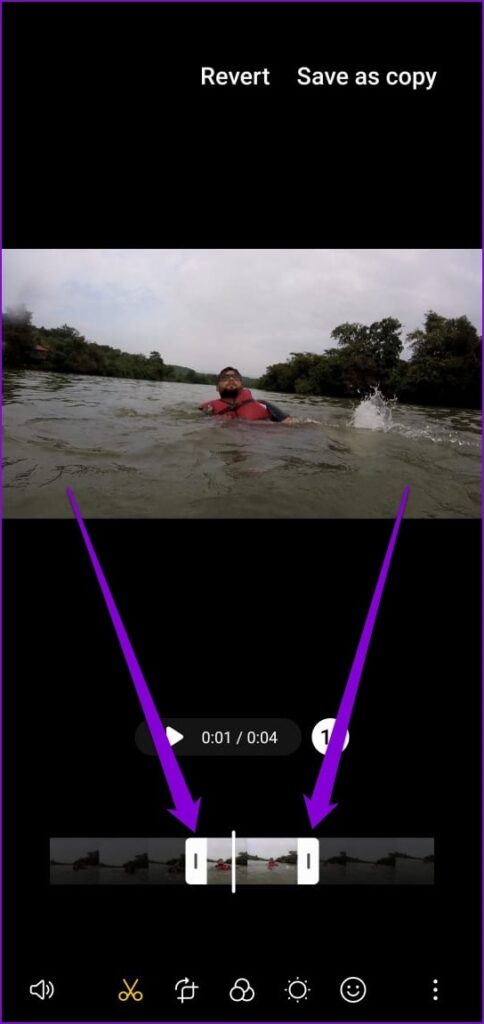
To trim your video, tap the scissor icon at the bottom. Then, drag the bars on the timeline to select a portion of the video to use. From here, you can optionally increase or decrease the video playback speed.

Crop, Rotate, and Flip a Video
If you want to crop, rotate, or flip your video, tap the Transform section (crop rotate icon). Drag the frames around the video to crop it. You can crop your video freely or lock the frame in a certain aspect ratio (portrait or landscape).
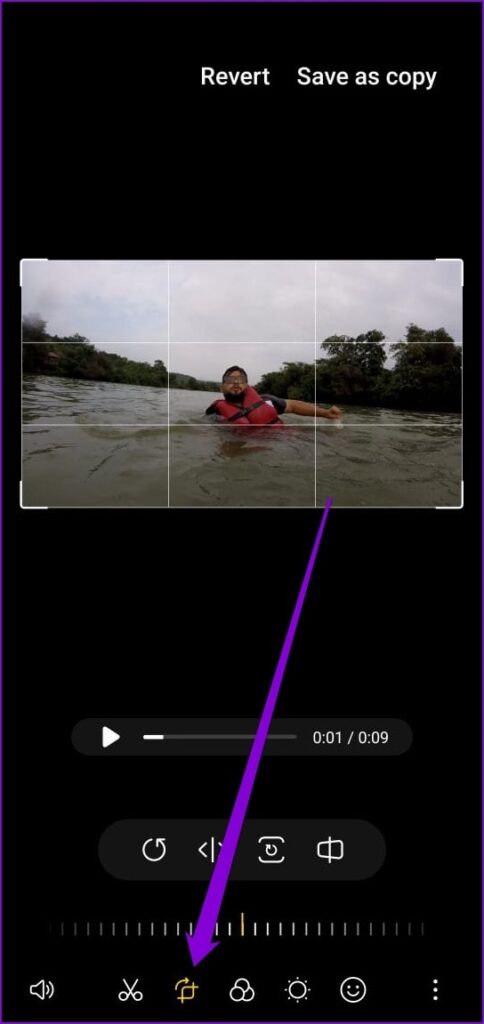


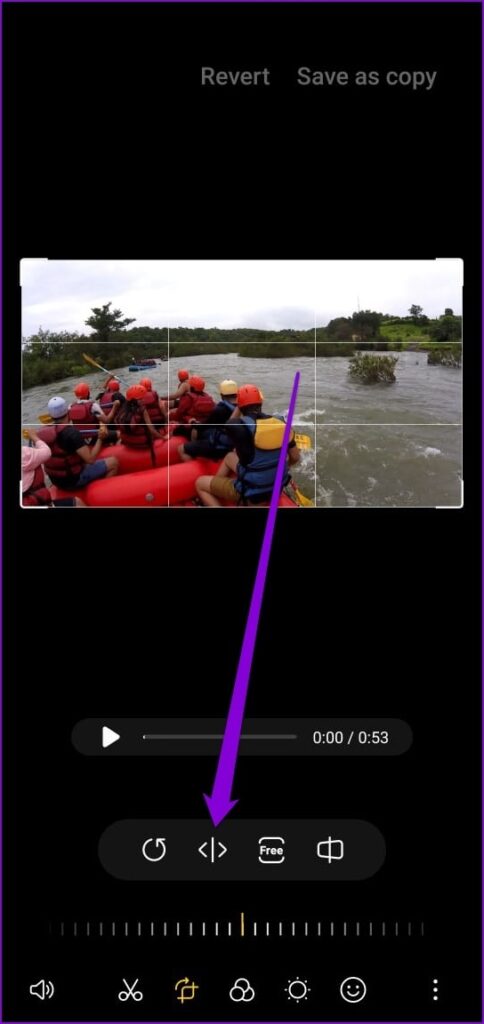
Tapping the rotate icon will allow you to rotate the video frame by 90 degrees. You can also flip your video horizontally.

Apply Filters to Video
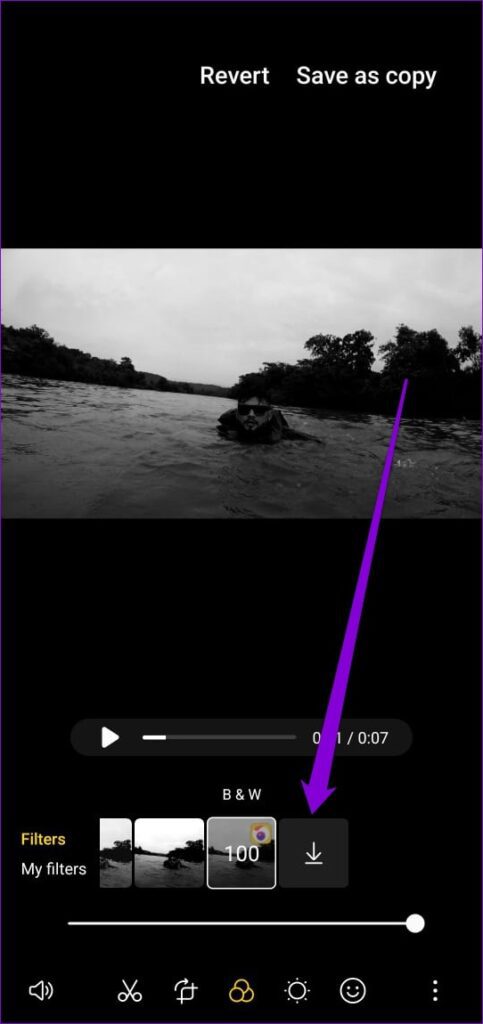
Besides basic editing capabilities, Samsung’s video editor allows you to apply filters to your video. For that, tap on the filter icon at the button to explore various filters. You can use one of the pre-installed filters or download new ones from the Galaxy Store.
After selecting the desired filter, use the slider underneath it to define its strength. Then, visit the Tone section to modify brightness, contrast, shadow, exposure, and more.


Draw on a Video
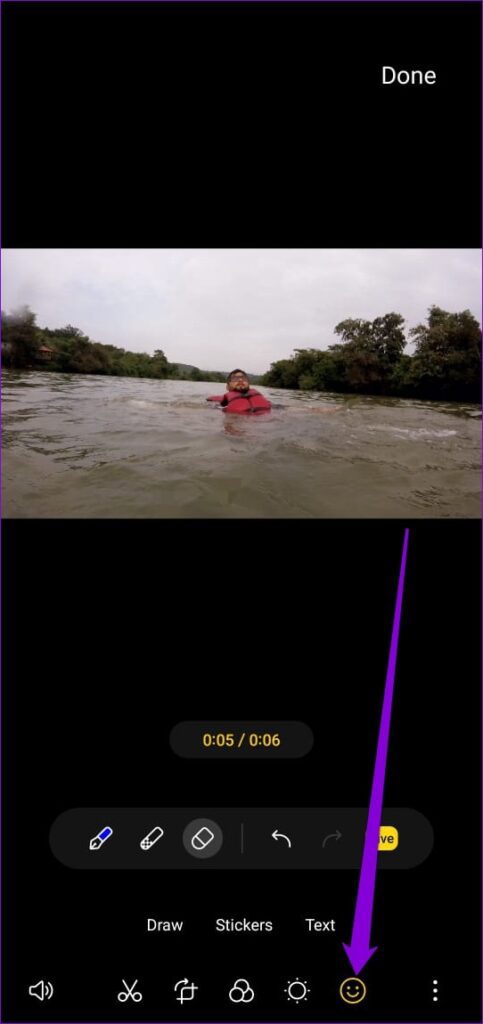
The video editor also lets you draw on your video to add more life to it. Tap the smiley icon on the toolbar to access the Decoration section. Then, choose from the pen types and colors to start doodling.
Once you finish drawing, tap Done and define the duration you wish the drawing to appear.
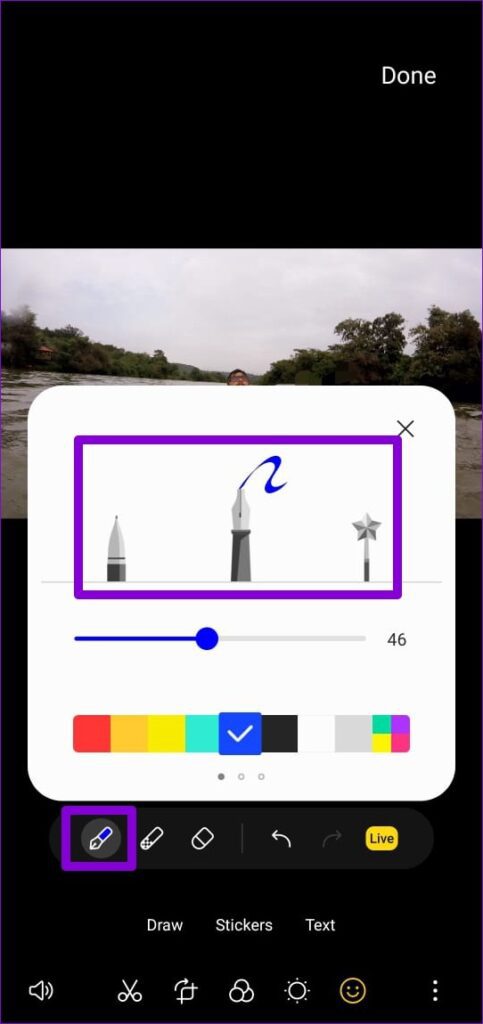

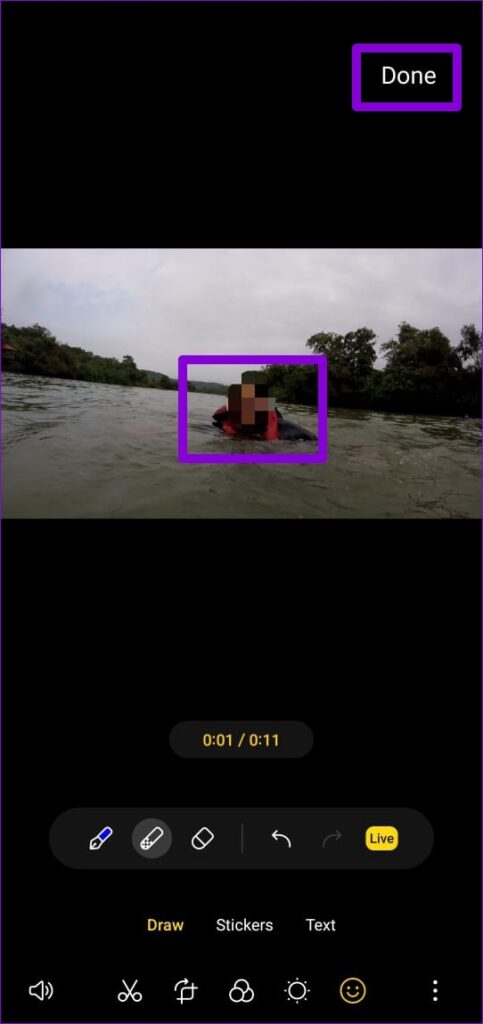
The drawing tool also allows you to blur a face or specific part of your video. For that, you must use the Blur pen and draw on the area you want to blur. After that, tap Done and use the yellow bars to define the duration of the blur.


Add Stickers and Text to the Video
Besides the drawing tool, you’ll also find the stickers and text tool in the Decoration section. Tap Stickers to add various shapes, emojis, symbols, and more.
Once added, you can move, rotate, or resize the sticker as you see fit. To remove it, tap the minus icon above it.

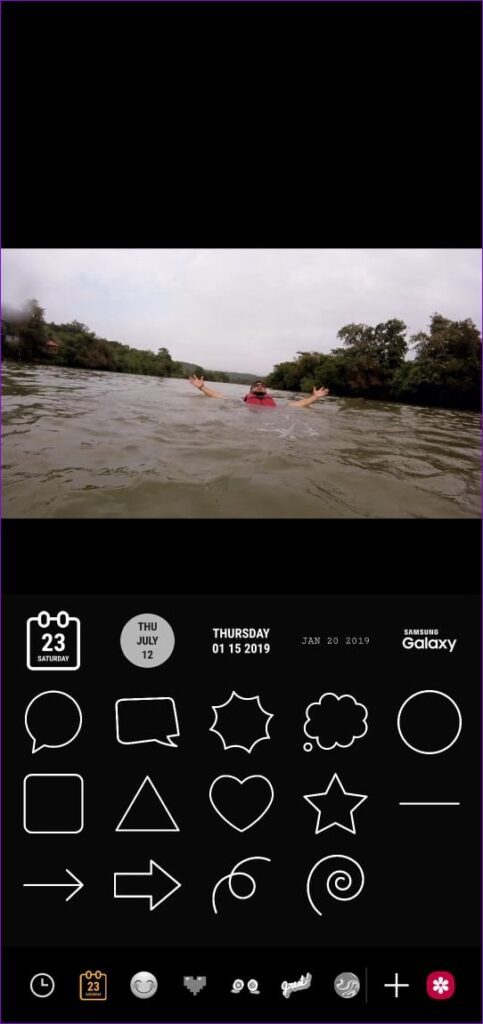

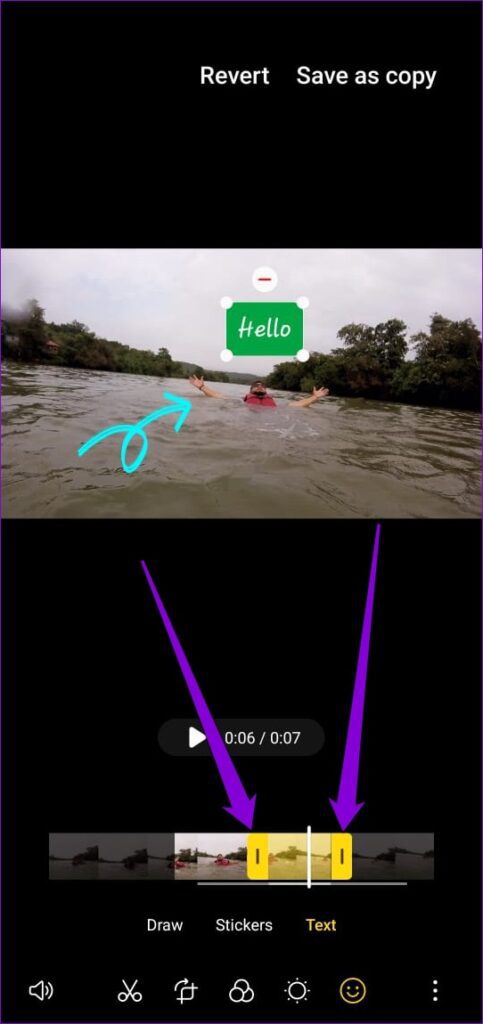
Similarly, you can use the Text tool to write text on your video and format it by changing fonts, alignment, background, and more. After adding the text, use the bars at the bottom to define its duration.


Add Background Music to Video
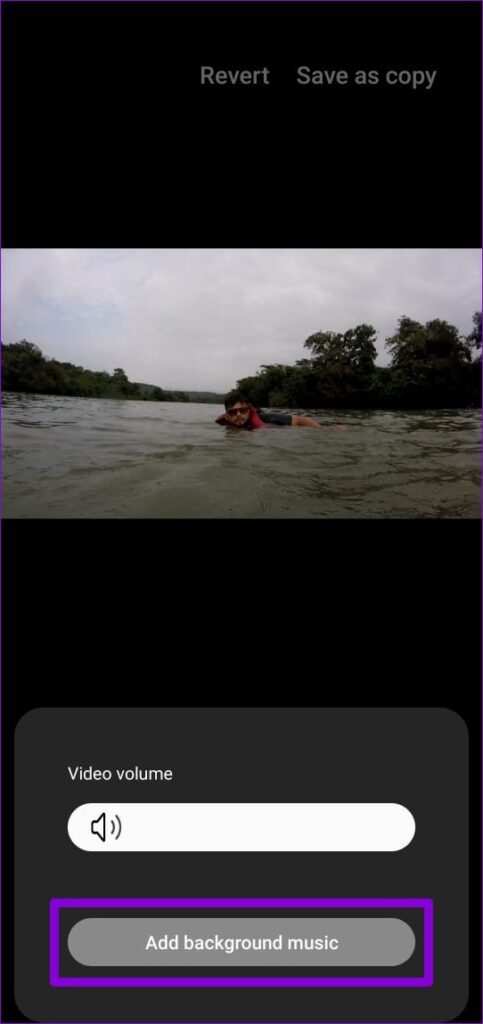
In the video editor, tap the speaker icon at the bottom-left corner and select Add background music. After adding your preferred music, you can assign different volume levels for the original audio and the added music.

Change the Size and Format of the Video
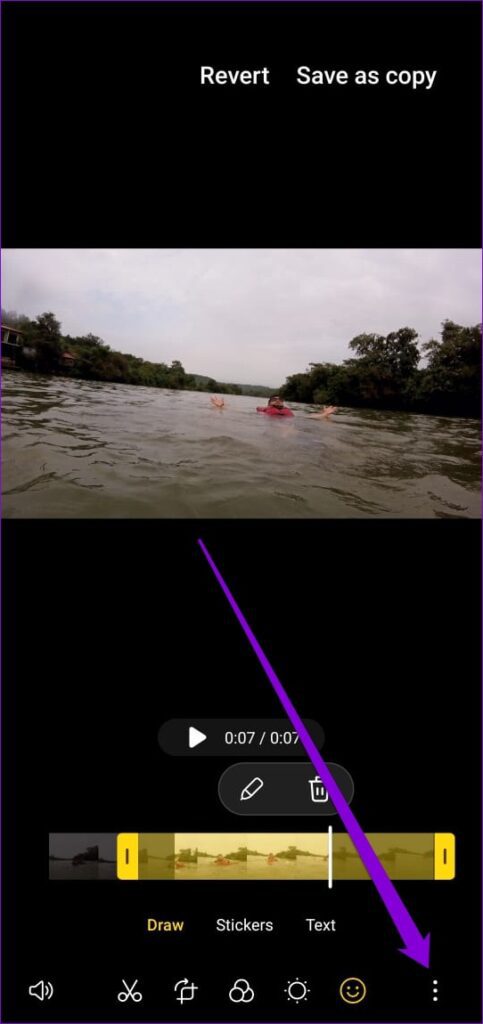
If your video file seems too large to share, the video editor lets you modify its size and format. Tap the three-dot menu icon at the bottom right and select Size and format.
To reduce the video file size, switch to a lower resolution or enable the High efficiency video option.


Merge Videos
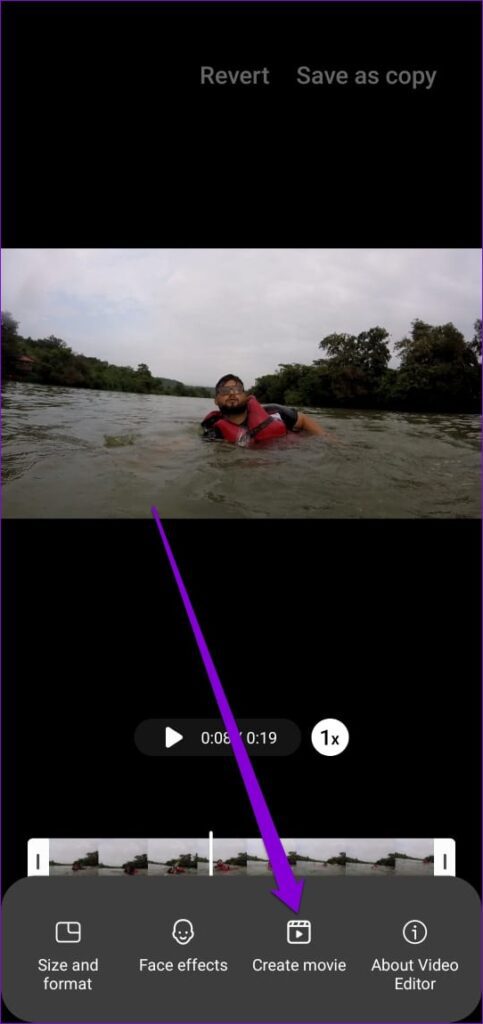
You can edit individual videos or merge them to create a movie. In the video editor, tap the three-dot menu icon and select Create movie. Select the videos you wish to add and tap Done.
Once added, you can change the order of your clips by long-pressing on a clip on the timeline and dragging it. Similarly, if you wish to edit or remove individual clips, tap the clip to view options.


You can also use the transition effects to join your clips smoothly. To do so, tap the square icon between the clips and select your preferred transition effect from the pop-up menu.
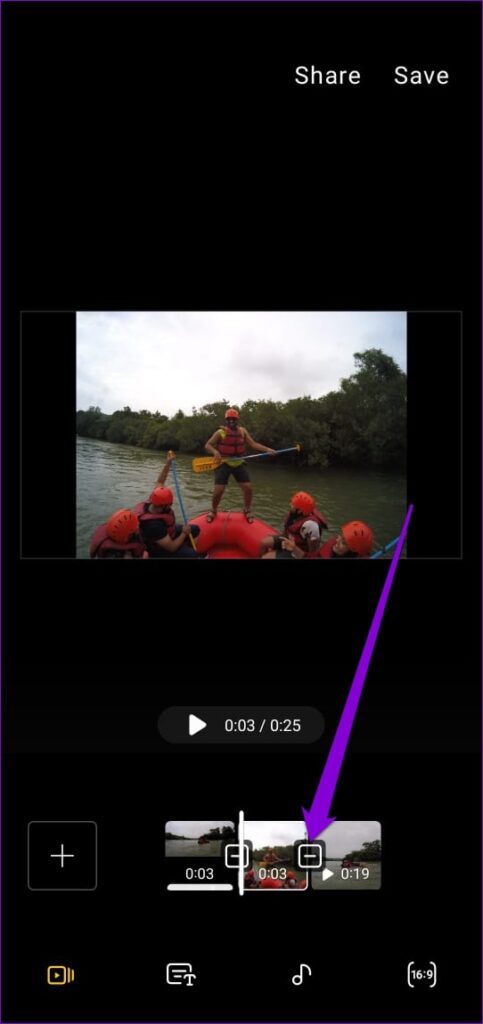

After editing your video, tap on Save to store it. Alternatively, you can also share the video directly.
Was this helpful?
Last updated on 03 July, 2024
2 Comments
Leave a Reply
Read Next
 3 Ways to Hide Photos and Videos on Samsung Galaxy Phones
Method 1: Use Secure Folder With Samsung’s Secure Folder, you can hide apps, documents, media, and more.
3 Ways to Hide Photos and Videos on Samsung Galaxy Phones
Method 1: Use Secure Folder With Samsung’s Secure Folder, you can hide apps, documents, media, and more.
 5 Fixes for Samsung Health App Not Tracking Steps
Basic Fixes Ensure that step counter is enabled: Open the Health app > Tap on Steps > Three dots in the top-right corner > Check and ensure that the step
5 Fixes for Samsung Health App Not Tracking Steps
Basic Fixes Ensure that step counter is enabled: Open the Health app > Tap on Steps > Three dots in the top-right corner > Check and ensure that the step
 Top 9 Ways to Fix Mobile Hotspot Not Working on Samsung Galaxy Phones
Mobile hotspot comes in handy when your office or home Wi-Fi is facing an outage.
Top 9 Ways to Fix Mobile Hotspot Not Working on Samsung Galaxy Phones
Mobile hotspot comes in handy when your office or home Wi-Fi is facing an outage.
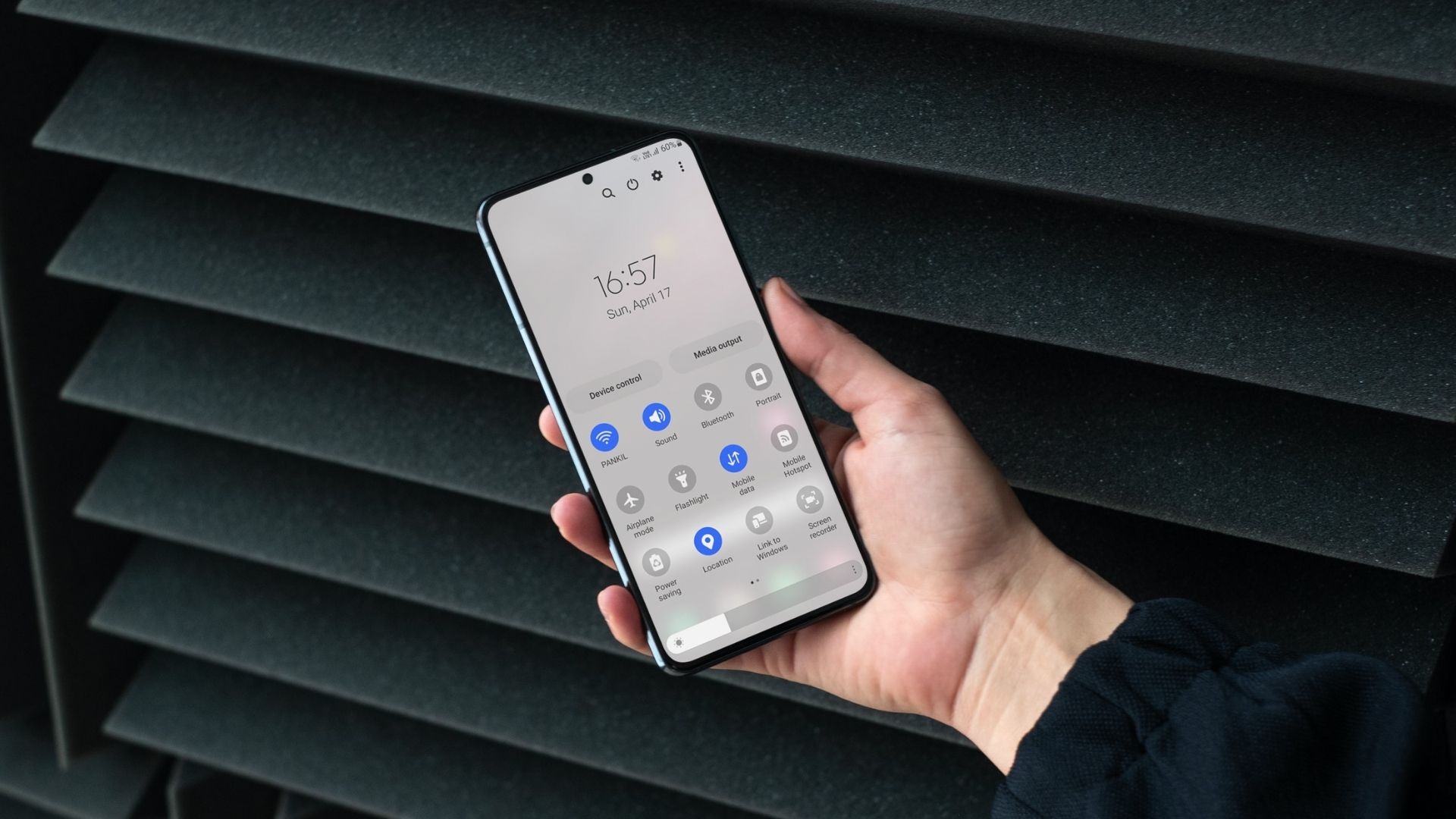 How to Use Quick Settings Panel on Samsung Galaxy Phones
How to Access the Quick Settings Panel You can access the Quick Settings panel by swiping down from the top of the screen.
How to Use Quick Settings Panel on Samsung Galaxy Phones
How to Access the Quick Settings Panel You can access the Quick Settings panel by swiping down from the top of the screen.
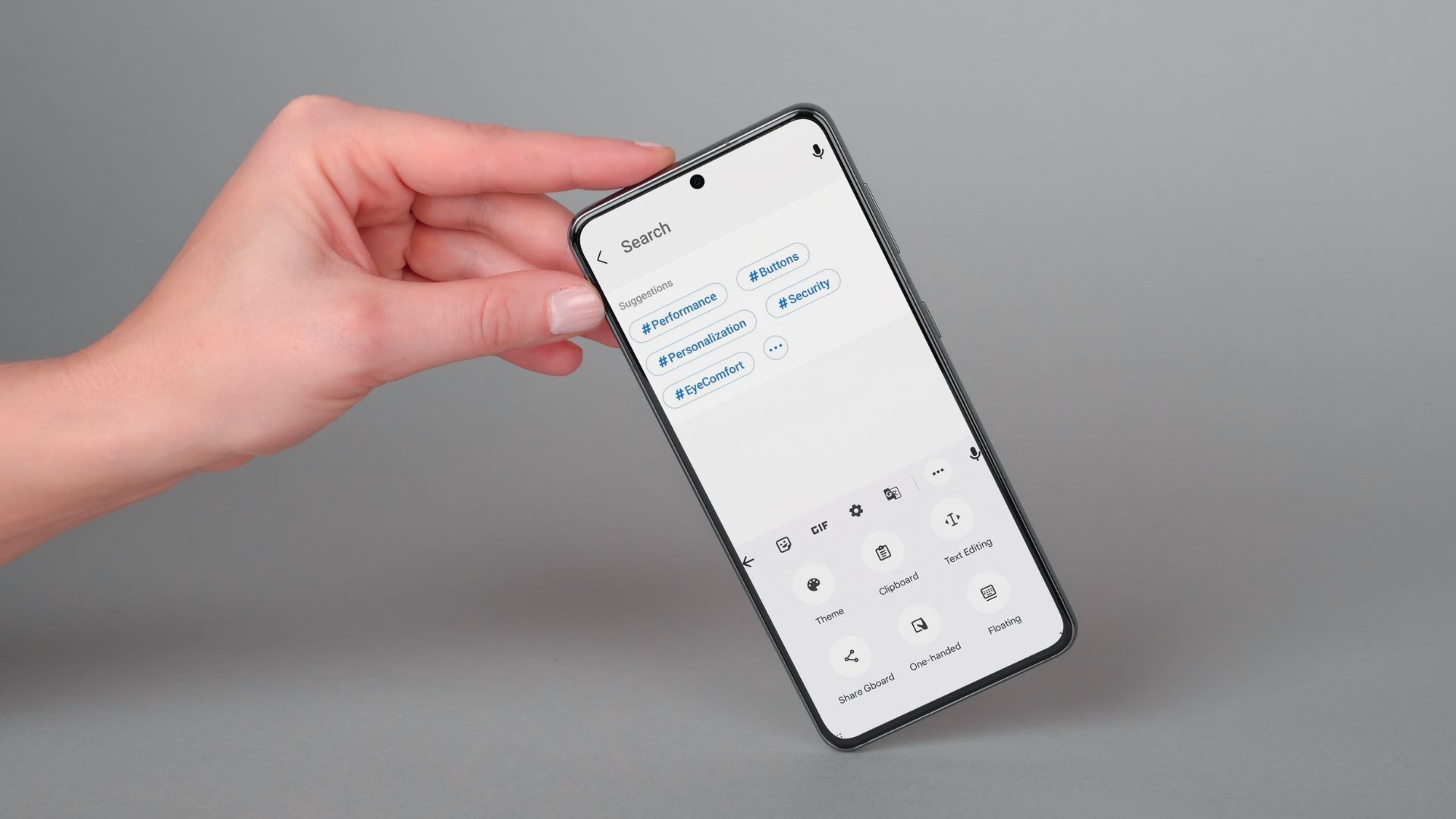 How to Use Clipboard on Samsung Galaxy Phones
Use Clipboard in Samsung Keyboard You can use One UI's native clipboard if Samsung Keyboard is your default keyboard app.
How to Use Clipboard on Samsung Galaxy Phones
Use Clipboard in Samsung Keyboard You can use One UI's native clipboard if Samsung Keyboard is your default keyboard app.
 5 Ways to Fix Bixby Not Working on Samsung Galaxy Phones
Fix 1: Enable App Permissions for Bixby Bixby requires a few permissions to access your phone's microphone, location, sensors, and other features.
5 Ways to Fix Bixby Not Working on Samsung Galaxy Phones
Fix 1: Enable App Permissions for Bixby Bixby requires a few permissions to access your phone's microphone, location, sensors, and other features.
 6 Ways to Turn off Do Not Disturb on Samsung Galaxy Phones
Basic Ways: Using Quick Settings: Swipe down twice from the top of the screen to open the Quick Settings panel.
6 Ways to Turn off Do Not Disturb on Samsung Galaxy Phones
Basic Ways: Using Quick Settings: Swipe down twice from the top of the screen to open the Quick Settings panel.
 How to Fix Call Recording Not Working on Samsung Galaxy Phones
Basic Fixes: Restart Samsung Galaxy phone: Rebooting your Samsung Galaxy phone is one of the effective ways to troubleshoot common problems.
How to Fix Call Recording Not Working on Samsung Galaxy Phones
Basic Fixes: Restart Samsung Galaxy phone: Rebooting your Samsung Galaxy phone is one of the effective ways to troubleshoot common problems.
The article above may contain affiliate links which help support Guiding Tech. The content remains unbiased and authentic and will never affect our editorial integrity.

Except that you cannot do any of this on the Samsung A23!
It has no editing features for video.
Buy S24 Ultra