The Taskbar is inseparable from Windows. The uproar when Windows 8 tried to remove it is still fresh in many users’ minds. Thankfully, Windows 11 has continued the tradition of the indispensable bar at the bottom of your computer screen. In this article, we’ll be showing you how to edit the taskbar in Windows 11.
What We Lost
While you might still be able to edit the taskbar in Windows 11, the extent is nowhere near as much as it was back in earlier versions of Windows, like Windows 95. This might change in the future, but at the time of writing, you still can’t do the following:
- Grow or shrink the height of the taskbar (This might be fixed this year)
- Move the taskbar to the left or right side of the screen (Microsoft might be allowing this soon)
This list used to be longer when Windows 11 was first introduced, but thankfully, it has shrunk quite a bit.
How to Edit the Taskbar in Windows 11
So, if you’re looking for ways to edit taskbar in Windows 11, we’ve grouped them by category.
Widgets and Task View
Widgets are continued from Windows 10, and exist not only in the Start menu, but also in the Taskbar. Task View is unique to Windows 11, allowing you to see windows and webpages currently open. Originally, this couldn’t be switched off. You can change whether or not you want to see different widget updates and Task View, too, now in the Settings menu:
Step 1. Open Settings (Win + I) and head to “Personalization.”
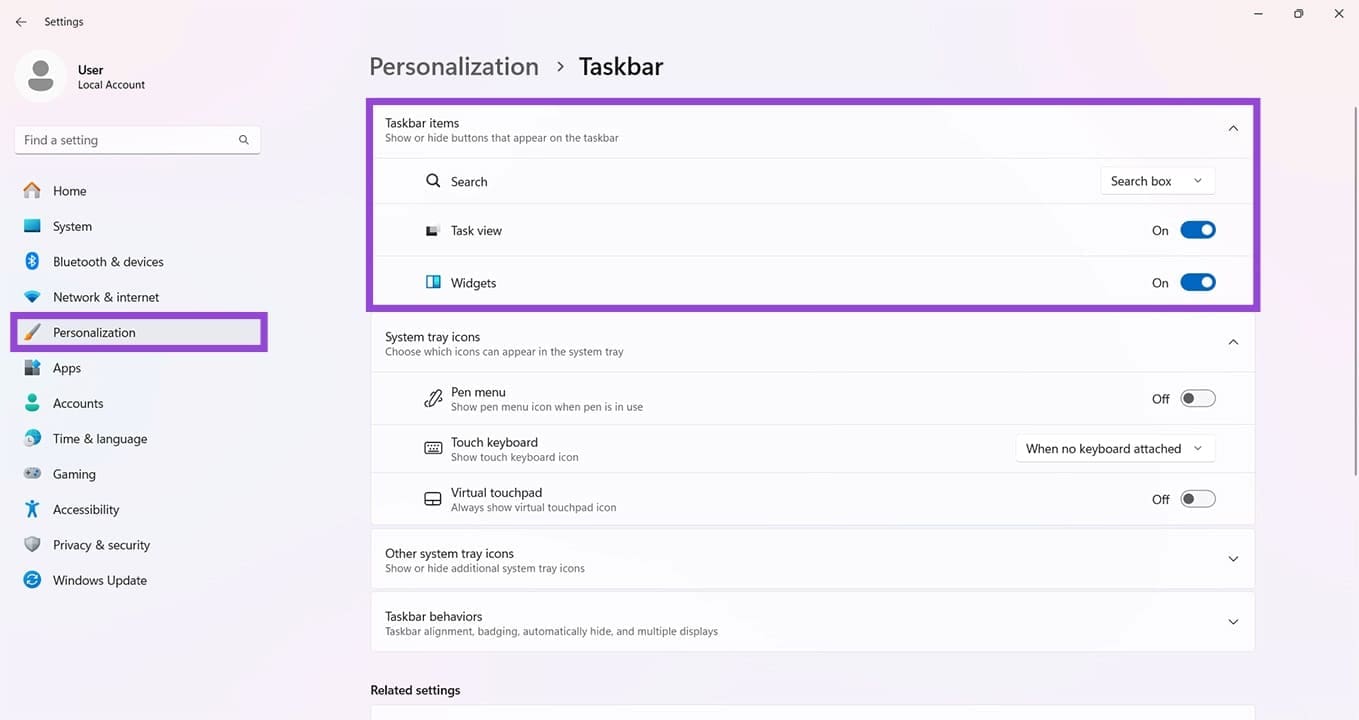
Step 2. In Taskbar items, toggle the visibility of the Widgets and Task View by dragging the sliders to “Off.”
The Search Bar
Windows 10 users will be familiar with the Search bar. Windows 11’s settings offer three different versions of the bar to suit your tastes:
- Search Box – Allows you to begin a search by typing into the taskbar’s search box
- Search Icon and Label – Takes you to the search box in the Start menu
- Search Icon – A more minimalist version of the above
Finally, you can also choose to hide the Search option completely.
Applications
Running apps show up in the taskbar as they always have in Windows, but you can also add your own list of favorites to the taskbar for easy access:
- You can pin a shortcut or app directly to the taskbar by dragging and dropping it onto the bar, a feature reintroduced to Windows after a short absence.
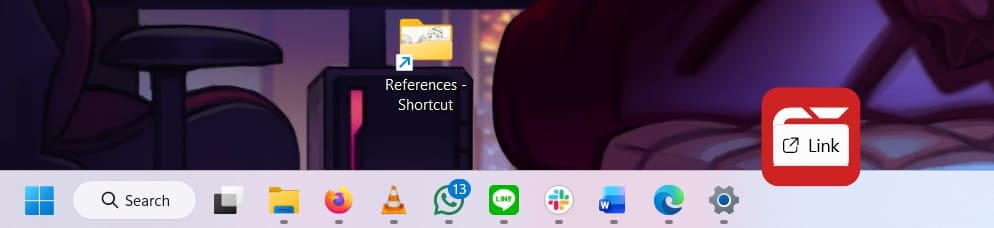
- Rearrange icons by clicking and dragging across the taskbar.
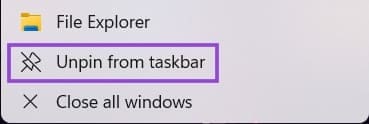
- Unpin icons by right-clicking them and choosing the “Unpin from the Taskbar’ option.
Unfortunately, individual files and folders cannot be added to the taskbar.
System Tray
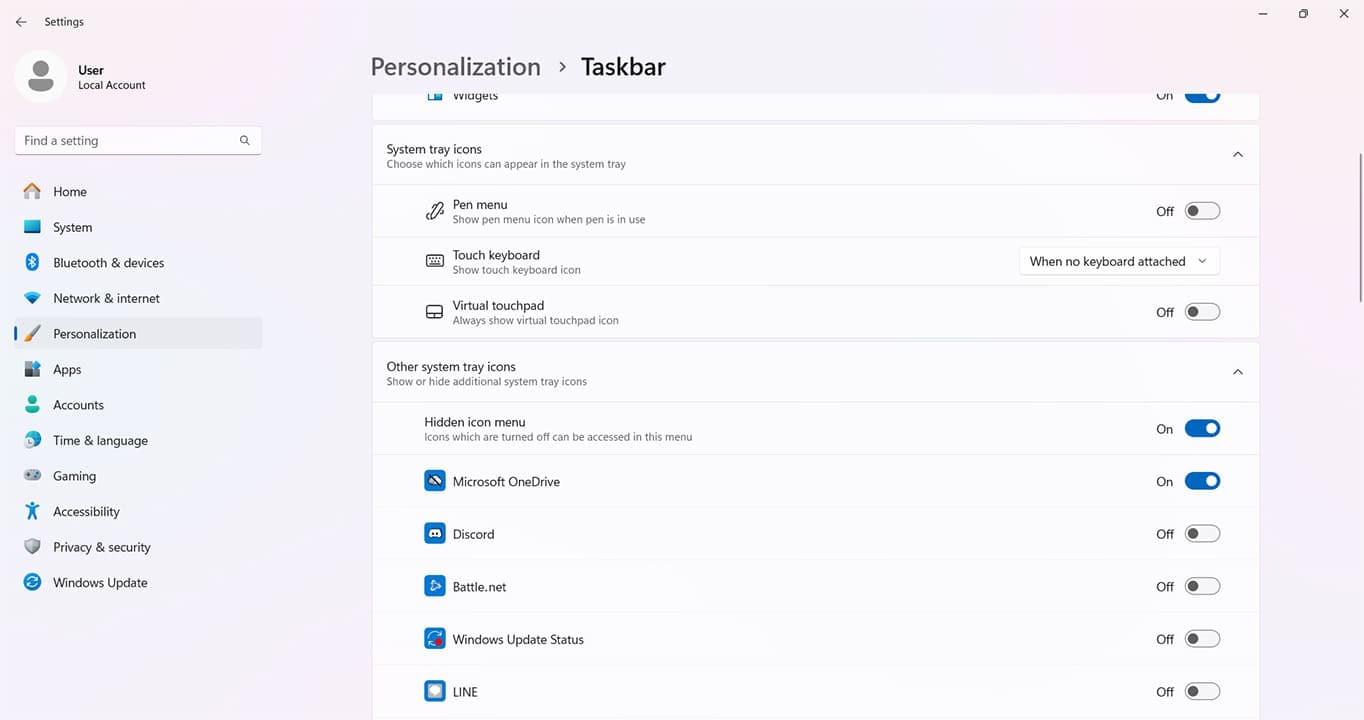
The system tray is still here and very editable. In the Settings, you can choose the icons that will appear by default in the tray when operating.
Taskbar Behaviors
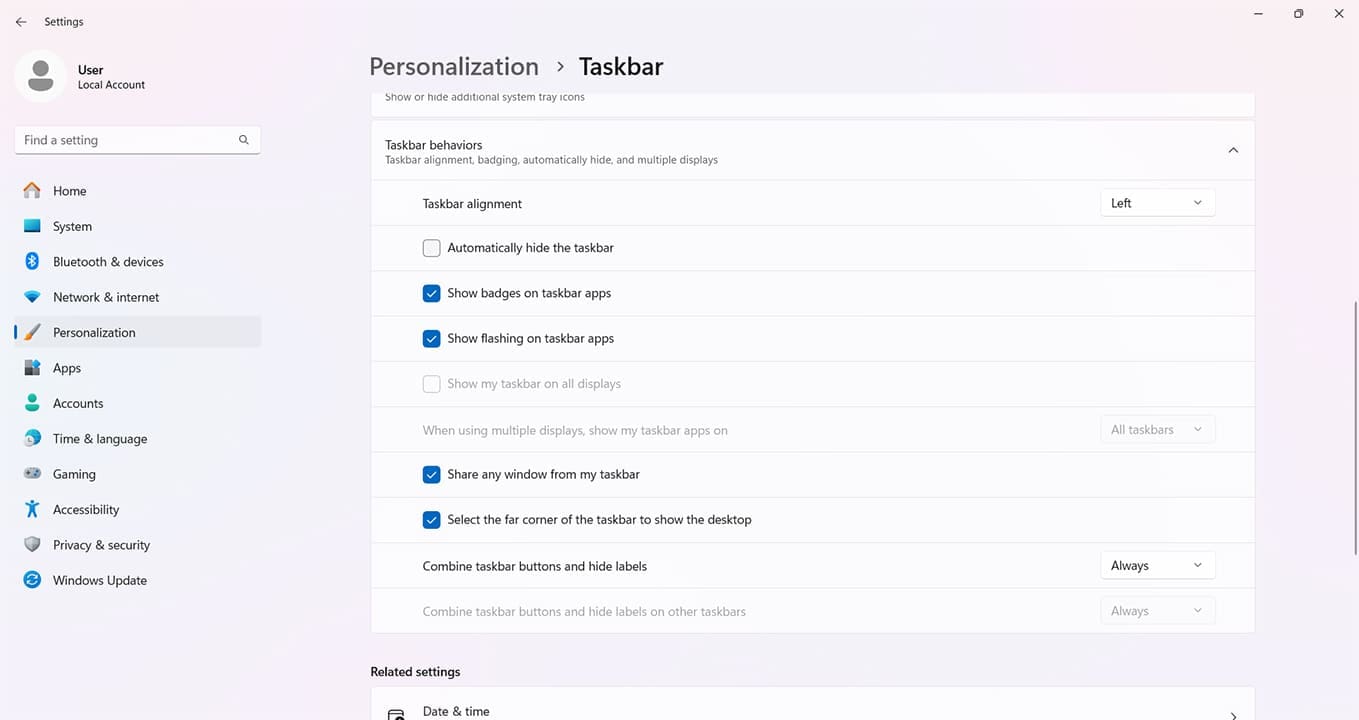
This final section contains general taskbar customizations. You can find this in Settings:
- You can use “Taskbar alignment” to change the overall alignment of all taskbar features to the left, right, or center.
- You can set the taskbar to be hidden until it is hovered over.
- Flashing apps that need attention can be enabled or disabled.
- You can enable the taskbar on multiple displays
There are a few other tweaks, but these are the main ones.
Was this helpful?
Last updated on 29 March, 2026
Read Next
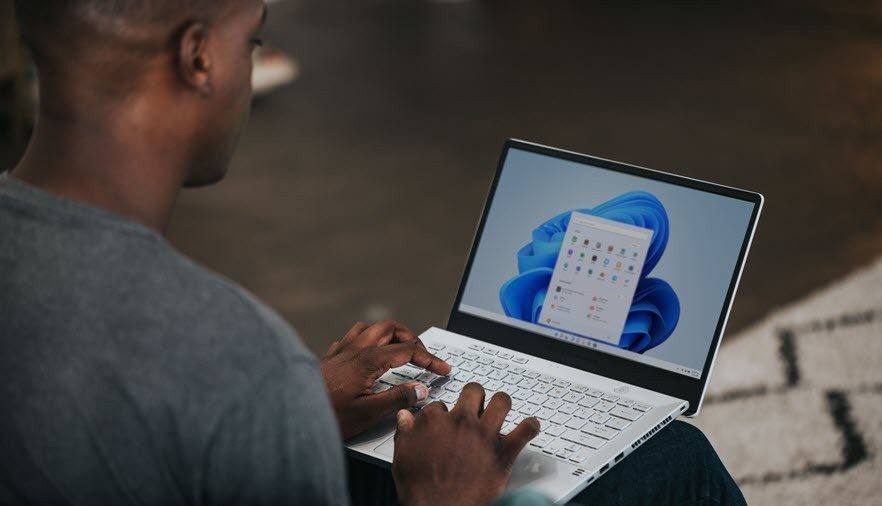 How to Get Windows 11-Like Taskbar in Windows 10
Method 1: Use Stardock Start11 As Windows doesn’t have a setting to make the taskbar look like Windows 11, you can only rely on third-party apps like Stardock Start11.
How to Get Windows 11-Like Taskbar in Windows 10
Method 1: Use Stardock Start11 As Windows doesn’t have a setting to make the taskbar look like Windows 11, you can only rely on third-party apps like Stardock Start11.
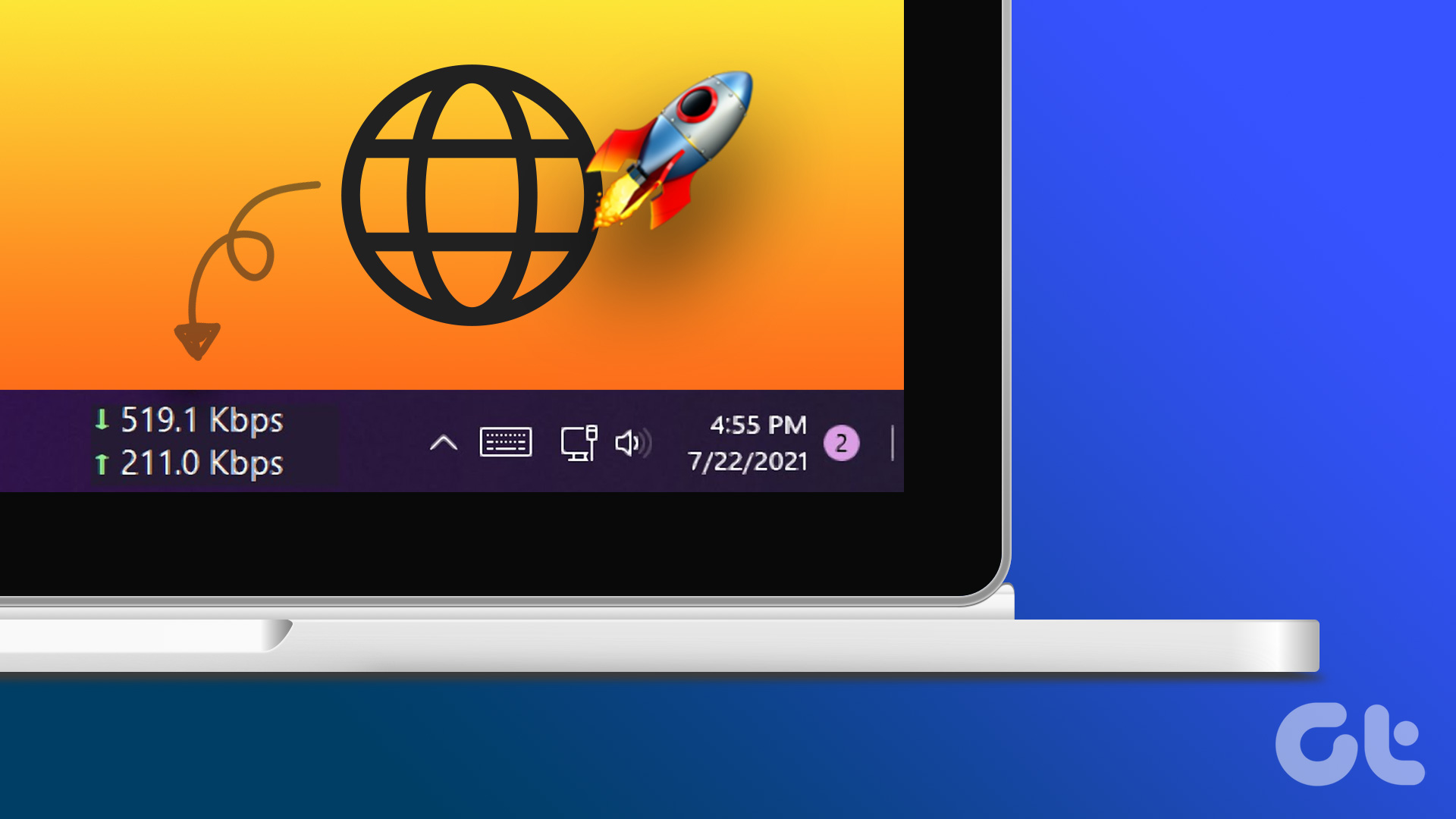 How to Display Internet Speed on Taskbar in Windows
https://youtu.be/m62gwMYvYVk Download Internet Speed Meter for Windows for Real-Time Monitoring To show internet speed in the taskbar on Windows, you will have to download a dedicated app known as NetSpeedMonitor.
How to Display Internet Speed on Taskbar in Windows
https://youtu.be/m62gwMYvYVk Download Internet Speed Meter for Windows for Real-Time Monitoring To show internet speed in the taskbar on Windows, you will have to download a dedicated app known as NetSpeedMonitor.
 7 Best Ways to Fix App Icons Not Showing in Taskbar on Windows 10
Don't you just love loading up your Windows 10 PC with all the amazing apps?
7 Best Ways to Fix App Icons Not Showing in Taskbar on Windows 10
Don't you just love loading up your Windows 10 PC with all the amazing apps?
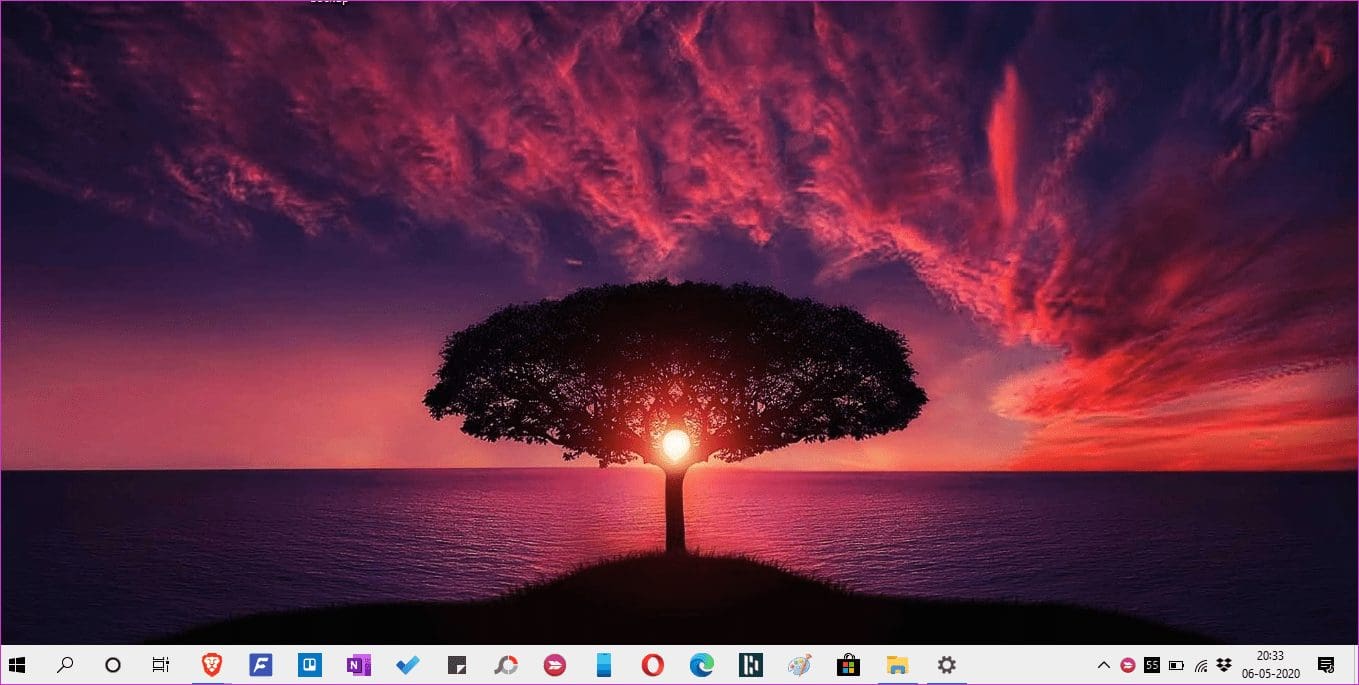 Top 4 Ways to Fix Taskbar Turned White Issue in Windows 10
Most of us click on the Taskbar to access frequently used apps, services, view time, and so on.
Top 4 Ways to Fix Taskbar Turned White Issue in Windows 10
Most of us click on the Taskbar to access frequently used apps, services, view time, and so on.
 How to Fix Windows 10 Invisible Taskbar Icons Issue
Pinning the frequently used apps to the taskbar is quite helpful.
How to Fix Windows 10 Invisible Taskbar Icons Issue
Pinning the frequently used apps to the taskbar is quite helpful.
 How to Get Back a Missing OneDrive Icon on Windows 10 Taskbar
The OneDrive icon on the Windows 10 system tray isn’t just another meaningless icon.
How to Get Back a Missing OneDrive Icon on Windows 10 Taskbar
The OneDrive icon on the Windows 10 system tray isn’t just another meaningless icon.
 How to Change Taskbar Color in Windows 11
Changing the taskbar color is a simple yet effective way to add your touch to the digital canvas.
How to Change Taskbar Color in Windows 11
Changing the taskbar color is a simple yet effective way to add your touch to the digital canvas.
 Can’t Pin Apps to Taskbar – Windows 11
How many pinned apps do you have on your taskbar?
Can’t Pin Apps to Taskbar – Windows 11
How many pinned apps do you have on your taskbar?
The article above may contain affiliate links which help support Guiding Tech. The content remains unbiased and authentic and will never affect our editorial integrity.