


Method 1. Download Microsoft Teams Attendance During the Meeting
If you would like to grab your meeting attendance while your meeting is ongoing, then you can take the steps below:
Step 1: Join the meeting and wait for participants to join.
Step 2: Click on Show participants under meeting controls.
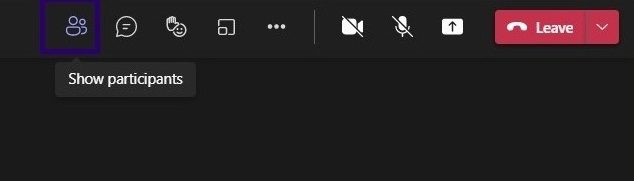
Step 3: Go to Participants and click on the ellipsis or downward-pointing arrow.

Step 4: Click on Download attendee list, and Microsoft Teams should download the list in CSV format.

Step 5: Go to your Downloads folder in File Explorer and look for the file name meeting AttendanceList.
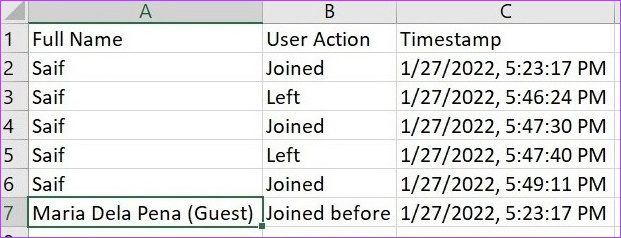
Step 6: Double-click on it to open the file. Usually, the file should contain the names of the attendees, their join times, and then the leave time of each attendee. Should an attendee join the meeting before the organizer, their join time should tally with the organizer’s join time.
Method 2. Download Microsoft Teams Attendance After the Meeting
Most people prefer to attend after the meeting for several reasons. The first is that doing it during the meeting can be pretty distracting. So you can wait until the meeting is over to gather the list.
Another reason is that you want to know who stayed until the end of the meeting. Remember that getting the meeting attendance report during the meeting only captures information until you download the report. That said, there are two ways to get your meeting attendance on Microsoft Teams after a meeting.
Get Meeting Attendance Using the Meeting Invite
Before explaining the steps, you should note that you cannot use this if you schedule a meeting through a Channel. Check the steps below to find out how to download meeting attendance through the meeting invite:
Step 1: Launch Microsoft Teams and click on the Calendar icon.

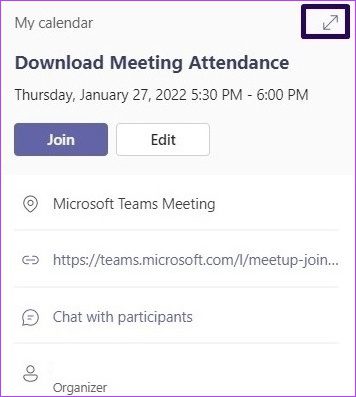
Step 2: Click on the meeting in your calendar.

Step 3: Click on the pop-out icon.
Step 4: Click on the downward-pointing arrow beside Attendance.
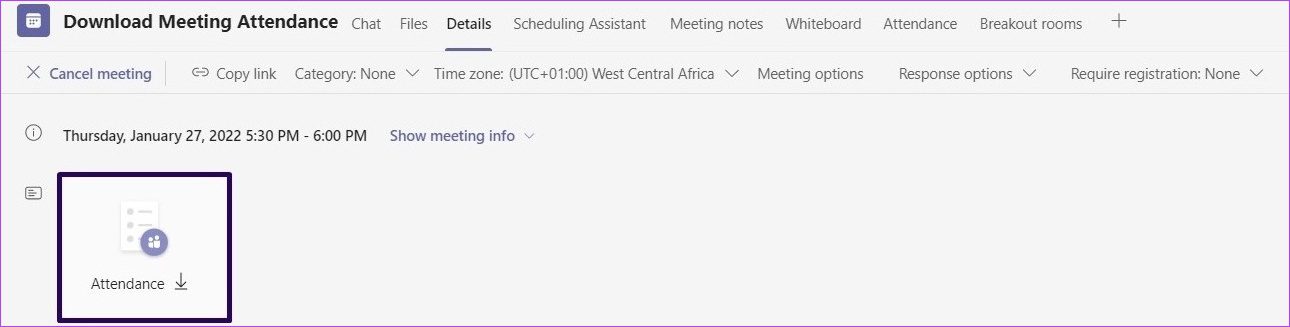
You can also download the meeting attendance from the Attendance tab, which is beside the Meeting details. If the meeting is recurring, select the report you need to view and download.
Download Meeting Attendance Using the Meeting Chat
After a meeting ends, the meeting attendance is made available in the meeting chat. You could use this method if the channel were used to create a meeting. To download your meeting attendance, take these steps:
Step 1: Launch Microsoft Teams and click on the Chat icon.
Step 2: Scroll through your chats for the meeting chat, or if the meeting was created from a channel, click on Posts.
Step 3: You should see a tile labeled Attendance Report in the chat area. Click on the downward-pointing arrow beside this report to download your meeting attendance.

Was this helpful?
Last updated on 12 August, 2024
1 Comment
Leave a Reply
Read Next
 How to Add Skype Meeting to Outlook Meeting Invite (and Cool Tricks)
There's no denying the fact that Microsoft Outlook and Outlook Web are solid email managers.
How to Add Skype Meeting to Outlook Meeting Invite (and Cool Tricks)
There's no denying the fact that Microsoft Outlook and Outlook Web are solid email managers.
 3 Ways to Fix Can’t Record Meeting in Microsoft Teams
Preliminary Fixes Ensure you have a Microsoft 365 license: It is crucial to have the appropriate Microsoft 365 license.
3 Ways to Fix Can’t Record Meeting in Microsoft Teams
Preliminary Fixes Ensure you have a Microsoft 365 license: It is crucial to have the appropriate Microsoft 365 license.
 4 Ways to Fix Microsoft Teams Meeting Add-in Won’t Appear in Outlook for Windows
Fix 1: Enable the Teams Add-In A common reason the Microsoft Teams meeting option may disappear from Outlook is if you have accidentally disabled the related add-in.
4 Ways to Fix Microsoft Teams Meeting Add-in Won’t Appear in Outlook for Windows
Fix 1: Enable the Teams Add-In A common reason the Microsoft Teams meeting option may disappear from Outlook is if you have accidentally disabled the related add-in.
 How to Know Who Removed You From a Meeting in Microsoft Teams
‘Someone just removed you from the meeting’ — Does that message sound familiar?
How to Know Who Removed You From a Meeting in Microsoft Teams
‘Someone just removed you from the meeting’ — Does that message sound familiar?
 How to Remove Microsoft Teams Meeting From Outlook Invite
Turn off Team Meetings in Outlook Calendar Outlook Calendar is seamlessly integrated into Outlook.
How to Remove Microsoft Teams Meeting From Outlook Invite
Turn off Team Meetings in Outlook Calendar Outlook Calendar is seamlessly integrated into Outlook.
 How to Find Zoom Meeting Password on Mobile and PC
Were you trying to join a Zoom meeting when you were shown a ‘Enter Zoom meeting password’ pop-up?
How to Find Zoom Meeting Password on Mobile and PC
Were you trying to join a Zoom meeting when you were shown a ‘Enter Zoom meeting password’ pop-up?
 How to Show Profile Picture Instead of Video in Zoom Meeting
https://youtu.be/n6ihTbONm_I Keep Picture Instead of Video or Name in Zoom on PC It’s not rocket science to show your picture in Zoom.
How to Show Profile Picture Instead of Video in Zoom Meeting
https://youtu.be/n6ihTbONm_I Keep Picture Instead of Video or Name in Zoom on PC It’s not rocket science to show your picture in Zoom.
 How to Show Meeting Duration in Zoom
How to See Duration or Remaining Time in Zoom Meetings Desktop By default, Zoom doesn’t enable meeting duration.
How to Show Meeting Duration in Zoom
How to See Duration or Remaining Time in Zoom Meetings Desktop By default, Zoom doesn’t enable meeting duration.
The article above may contain affiliate links which help support Guiding Tech. The content remains unbiased and authentic and will never affect our editorial integrity.

I do not care that one must be this or that to be a part of what I read. I m in.