Typing in a long and complicated Wi-Fi password again and again gets frustrating. They’re not short or simple to remember, so people are turning to alternatives like QR codes. A quick scan of these allows people to join the network instantly.
Windows doesn’t offer a built-in way to generate a QR code but you can use free tools to do it yourself.
How to Generate and Display a Wi-Fi QR Code on Windows
Find Your Wi-Fi Network Information
Before you can make a QR code, you need your Wi-Fi details.
Step 1. Press Windows + R to open the Run window.
Step 2. Type ‘cmd’ and press Enter.

Step 3. Type the following command:
netsh wlan show profiles
This shows a list of saved Wi-Fi networks. Find the one you want.

Step 4. Type the next command:
netsh wlan show profile name=”YOUR_WIFI_NAME” key=clear
Replace YOUR_WIFI_NAME with the network name.

Step 5. Scroll down to Security Settings.
Step 6. Write down the network name, password (under Key Content) and security type.

Create the Wi-Fi QR Code
Once you have all the information, you can add it to a QR code.
Step 1. Open a web browser and search for a free Wi-Fi QR code generator.
Step 2. Enter your information.
Step 3. Click ‘Generate.’

The generator should give you the option to export the QR or save it as an image to your computer.

Display the QR Code on Your Screen
Once you have the QR code, you can easily display it for anyone who needs access. Here are some ideas:
Use Windows Photos App
Step 1. Right-click the QR code image.

Step 2. Choose ‘Open with’ > ‘Photos.’
Step 3. Maximize the window to display it clearly.

Keep it open in a visible place for your guests to see when they arrive.
Set as Desktop Background
Right-click the image file and select ‘Set as background’. As long as the computer remains open, the QR code will be visible.

Recommended Online QR Code Generators
Though many free QR code generators can be found online, we’ve selected a few reliable options for your convenience.
QiFi

- This QR code generator was built specifically for Wi-Fi QR codes.
- No data is stored or sent to a server so it’s very secure.
- It has a straightforward, user-friendly interface for entering your information.
QR Code Monkey

- This generator offers advanced customization such as colors or logos.
- It supports high-res PNG and vector downloads.
- It’s better suited for QR codes used by brands.
GoQR

- GoQR supports multiple QR code types.
- It offers quick generation with basic design options.
- You can download the QR code in multiple formats.
Was this helpful?
Last updated on 28 June, 2025
Read Next
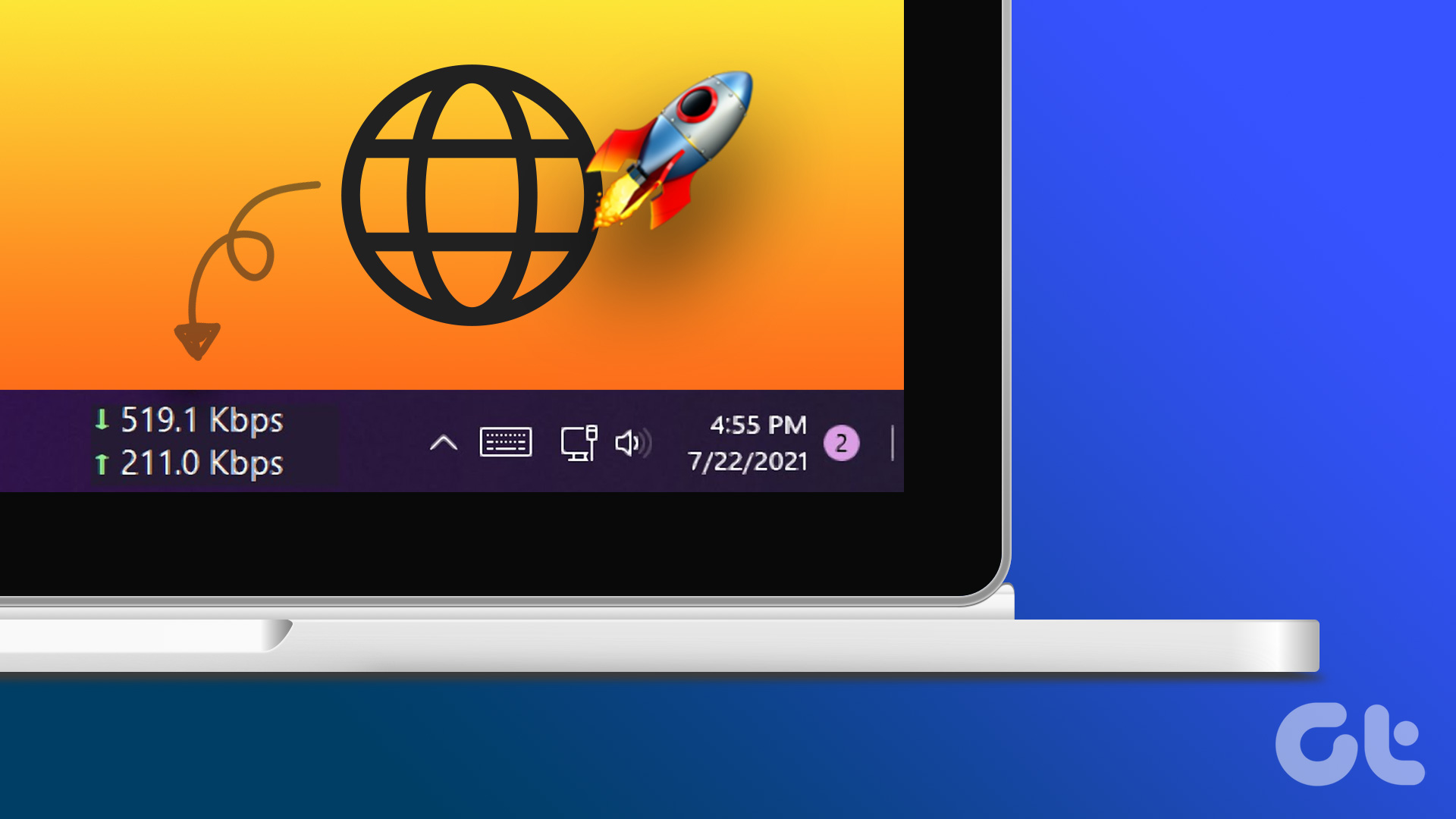 How to Display Internet Speed on Taskbar in Windows
https://youtu.be/m62gwMYvYVk Download Internet Speed Meter for Windows for Real-Time Monitoring To show internet speed in the taskbar on Windows, you will have to download a dedicated app known as NetSpeedMonitor.
How to Display Internet Speed on Taskbar in Windows
https://youtu.be/m62gwMYvYVk Download Internet Speed Meter for Windows for Real-Time Monitoring To show internet speed in the taskbar on Windows, you will have to download a dedicated app known as NetSpeedMonitor.
 How to Reset Display Settings to Default on Windows 10
Often a software update might end up messing up your display settings on a Windows 10 PC.
How to Reset Display Settings to Default on Windows 10
Often a software update might end up messing up your display settings on a Windows 10 PC.
 5 Ways to Fix Computer Turns on but No Display on Windows 11
Basic Fixes: Ensure the monitor is turned on: If you're using an external monitor or if your laptop's monitor has an external power switch, ensure it is turned on before
5 Ways to Fix Computer Turns on but No Display on Windows 11
Basic Fixes: Ensure the monitor is turned on: If you're using an external monitor or if your laptop's monitor has an external power switch, ensure it is turned on before
 5 Fixes When Wireless Display Feature is Not Working on Windows 11
Basic Fixes: Ensure your devices support Miracast and Wi-Fi Direct protocol: One essential prerequisite for using the wireless display feature on Windows 11 is that all your devices, including your
5 Fixes When Wireless Display Feature is Not Working on Windows 11
Basic Fixes: Ensure your devices support Miracast and Wi-Fi Direct protocol: One essential prerequisite for using the wireless display feature on Windows 11 is that all your devices, including your
 6 Best Ways to Adjust the Display Brightness on Windows 11
Whether you're working late into the night or working outdoors, having the perfect brightness level on your Windows machine can make all the difference.
6 Best Ways to Adjust the Display Brightness on Windows 11
Whether you're working late into the night or working outdoors, having the perfect brightness level on your Windows machine can make all the difference.
 4 Ways to Open Display Settings in Windows 11
Basic Ways: By right-clicking on the desktop: One of the easiest ways to open display settings in Windows 11 is to right-click on any empty space on your desktop and
4 Ways to Open Display Settings in Windows 11
Basic Ways: By right-clicking on the desktop: One of the easiest ways to open display settings in Windows 11 is to right-click on any empty space on your desktop and
 3 Fixes for Display Connection Might Be Limited Error on Windows
Try Basic Fixes Rule out any compatibility issues: Only computers with USB-C ports that support DisplayPort alternate modes can transmit video and audio signals.
3 Fixes for Display Connection Might Be Limited Error on Windows
Try Basic Fixes Rule out any compatibility issues: Only computers with USB-C ports that support DisplayPort alternate modes can transmit video and audio signals.
 How to Fix Display Resolution Greyed out on Windows 11
Basic Fixes: Restart the computer: Rebooting is effective because minor bugs may trigger the problem, and a reboot often kills the problematic services or processes.
How to Fix Display Resolution Greyed out on Windows 11
Basic Fixes: Restart the computer: Rebooting is effective because minor bugs may trigger the problem, and a reboot often kills the problematic services or processes.
The article above may contain affiliate links which help support Guiding Tech. The content remains unbiased and authentic and will never affect our editorial integrity.