

Method 1: Using PowerShell
Step 1: Press the Windows key, type PowerShell, and click Run as Administrator. In the prompt, select Yes.
Step 2: Type or copy and paste the below command and press Enter.
dism /Online /Get-ProvisionedAppxPackages | Select-String PackageName | Select-String xbox

Step 3: Again, type or copy and paste the following command and hit Enter.
dism /Online /Get-ProvisionedAppxPackages | `

Select-String PackageName | `

Select-String xbox | `

ForEach-Object {$_.Line.Split(':')[1].Trim()} | `

ForEach-Object { dism /Online /Remove-ProvisionedAppxPackage /PackageName:$_}

Step 4: To remove Xbox packages, copy and paste the below command and press Enter.
Get-ProvisionedAppxPackage -Online | `

Where-Object { $_.PackageName -match "xbox"} | `

ForEach-Object { Remove-ProvisionedAppxPackage -Online -AllUsers -PackageName $_.PackageName }
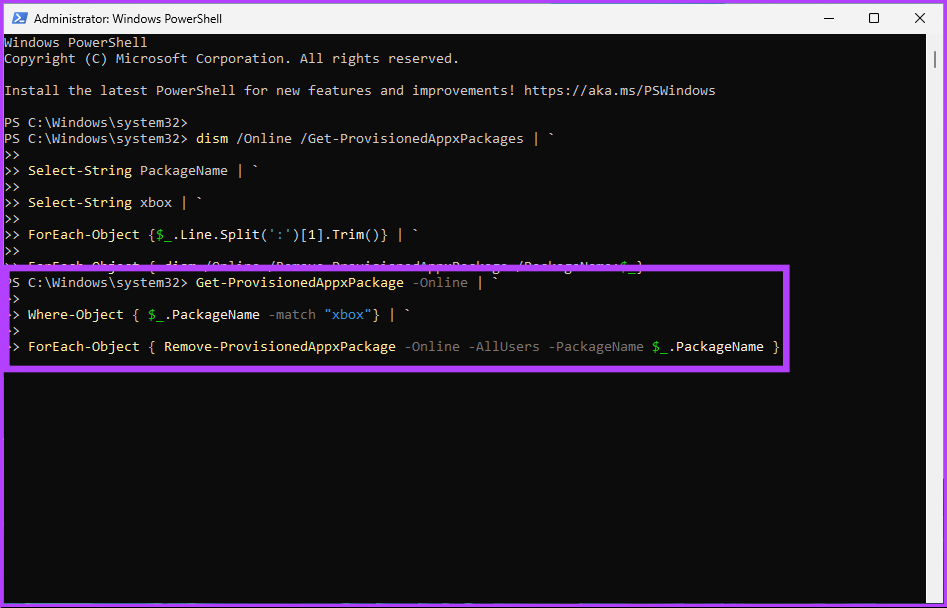
With this, you have successfully disabled the Xbox Game Bar from your Windows 11 machine.
Method 2: Using Registry Editor
Step 1: Press the Windows key, type Registry Editor, and click Run as Administrator. In the prompt, select Yes.
Step 2: In the top address bar, enter the below-mentioned address, and press Enter.
Computer\HKEY_CURRENT_USER\SOFTWARE\Microsoft\Windows\CurrentVersion\ GameDVR

Step 3: Under the GameDVR folder, select the AppCaptureEnabled option from the right pane.
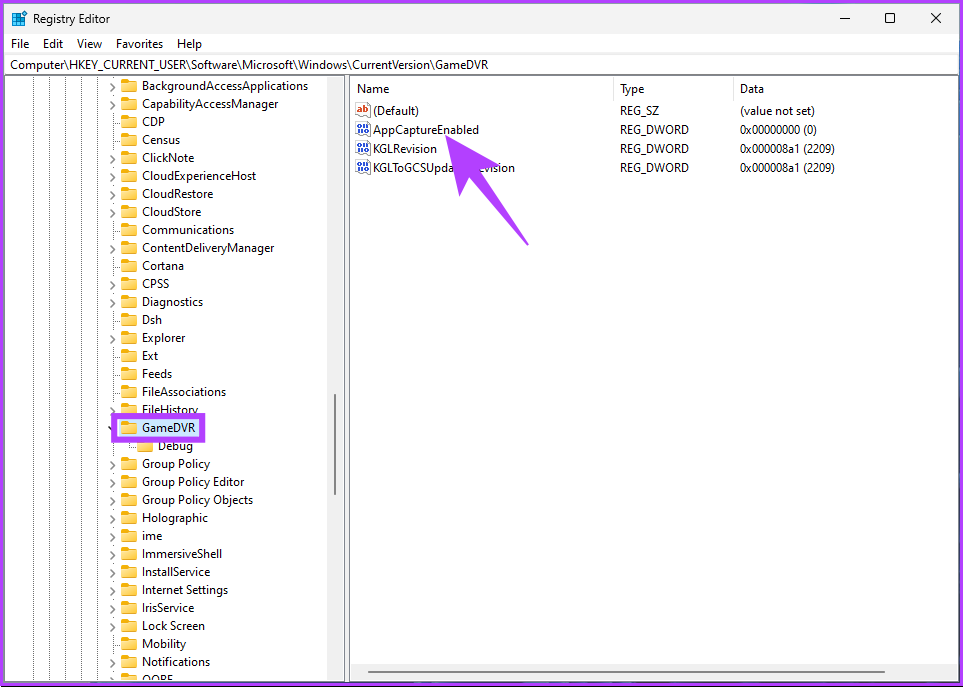
Step 4: Double-click the AppCaptureEnabled option, type 0 in the Value data field, and press OK.

Finally, reboot the system to implement the changes. That’s it. The Xbox Game Bar on your Windows 11 PC is disabled without any issues. If this method is too long and complicated for you, move to the next one.
Method 3: Using Group Policy
The Group Policy Editor is only available for Windows 11 Pro and Enterprise versions. If you are using Windows 11 Home Edition, you can skip this method.
Step 1: Press the Windows keys, type gpedit, and click Open.
Step 2: Select Computer Configuration under Local Computer Policy.
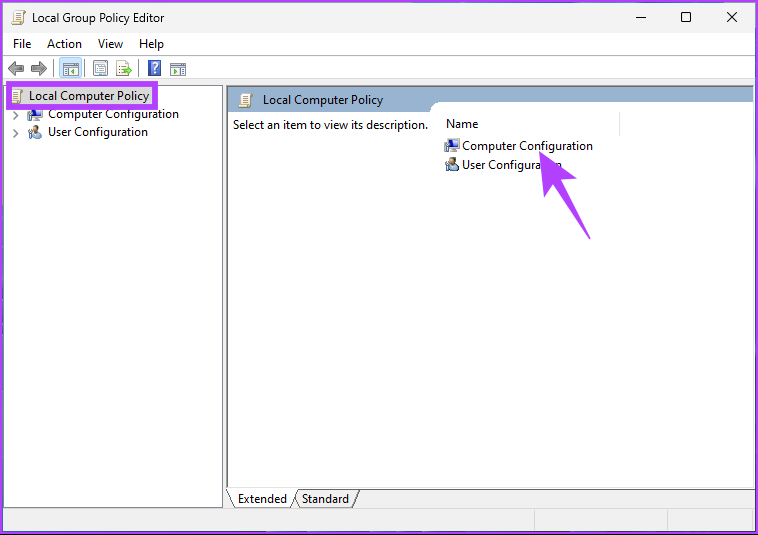
Step 3: In the right pane, double-click on Administrative Templates.
Step 4: Select Windows Components.

Step 5: Under Windows Components, select Windows Game Recording and Broadcasting.
Step 6: Under Windows Game Recording and Broadcasting, locate the Enables or disables Windows Game Recording and Broadcasting option on the right and double-click.

Step 7: In the new window, select Disabled. Finally, click on Apply > OK.
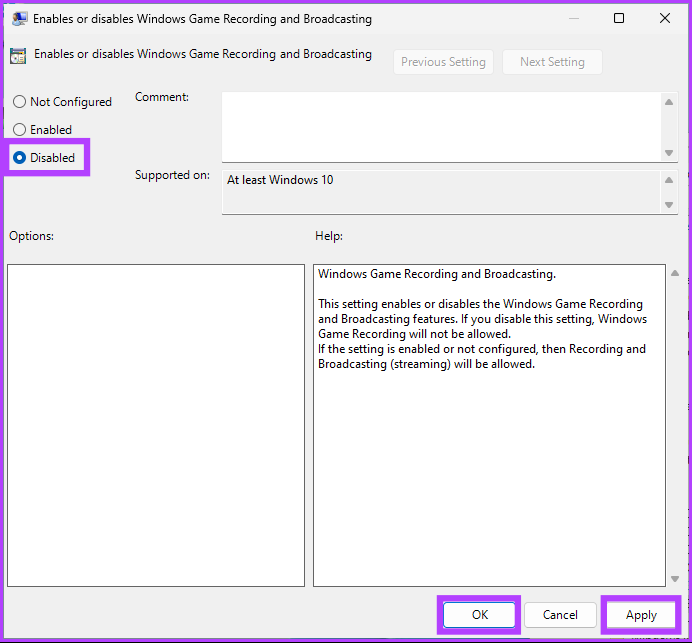
There you go. Now, all you need to do is restart Windows. Once it boots back up, the Xbox Game Bar will be disabled.
FAQs on Disabling Xbox Game Bar on Windows 11
Yes, disabling the Xbox Game Bar on Windows 11 can improve FPS (frames per second) while gaming. The overlay takes up system resources and may impact performance. By disabling it, you can free up some resources and see an improvement.
Enabling the Xbox Game Bar on Windows 11 may consume some system resources, including CPU and RAM, potentially slowing down your PC. However, the intensity of the impact will depend on your system hardware specifications and the games you play.
Was this helpful?
Last updated on 02 September, 2024
2 Comments
Leave a Reply
Read Next
 5 Ways to Fix Xbox Game Bar Not Working on Windows 11
Fix 1: Enable Xbox Game Bar in Windows Settings If you can't launch the Xbox Game Bar from your connected game controller on Windows 11, head to Windows Settings to
5 Ways to Fix Xbox Game Bar Not Working on Windows 11
Fix 1: Enable Xbox Game Bar in Windows Settings If you can't launch the Xbox Game Bar from your connected game controller on Windows 11, head to Windows Settings to
 4 Best Ways to Record Screen Without Xbox Game Bar on Windows 11
The Xbox Game Bar on your Windows 11 computer is a good built-in tool for screen recording.
4 Best Ways to Record Screen Without Xbox Game Bar on Windows 11
The Xbox Game Bar on your Windows 11 computer is a good built-in tool for screen recording.
 8 Fixes for Microphone Not Working in Xbox Game Bar on Windows 11
Basic Fixes Reconnect the external microphone: Plug out the external connected microphone, wait a few seconds, and reconnect it.
8 Fixes for Microphone Not Working in Xbox Game Bar on Windows 11
Basic Fixes Reconnect the external microphone: Plug out the external connected microphone, wait a few seconds, and reconnect it.
 How to Solve Windows 10 Game Bar Not Working and Other Common Issues
With the recent Windows 10 version 1809 update, Microsoft pushed a bunch of improvements to the Xbox Game Bar.
How to Solve Windows 10 Game Bar Not Working and Other Common Issues
With the recent Windows 10 version 1809 update, Microsoft pushed a bunch of improvements to the Xbox Game Bar.
 6 Ways to Fix Xbox App Not Opening in Windows 11
Fix 1.
6 Ways to Fix Xbox App Not Opening in Windows 11
Fix 1.
 5 Ways to Fix Xbox App Won’t Let Me Log in on Windows 11
Fix 1: Ensure Xbox Services Are Running The Xbox app for Windows relies on certain background services to work on your computer.
5 Ways to Fix Xbox App Won’t Let Me Log in on Windows 11
Fix 1: Ensure Xbox Services Are Running The Xbox app for Windows relies on certain background services to work on your computer.
 6 Ways to Fix Xbox Games Installation Stuck on Windows
Try These Fixes First Restart the Xbox app: You can close the Xbox app and try installing the apps again.
6 Ways to Fix Xbox Games Installation Stuck on Windows
Try These Fixes First Restart the Xbox app: You can close the Xbox app and try installing the apps again.
 8 Ways to Fix Windows Search Bar Is Missing Issue
Windows 10 came with a lot of tweaks under the hood.
8 Ways to Fix Windows Search Bar Is Missing Issue
Windows 10 came with a lot of tweaks under the hood.
The article above may contain affiliate links which help support Guiding Tech. The content remains unbiased and authentic and will never affect our editorial integrity.
Why does EVERY game bar guide spread the misinformation that the setting named “Allow your controller to open Game Bar” will disable Windows Game Bar?
It’s written CLEAR AS DAY in the description, all this setting does is disable your game controller’s XBOX-button from opening game bar (is same as pressing WinKey+G). Nothing more than that.
I absolutely promise you that you did not disable Game Bar by turning off this setting, and it’s very simple to prove that it’s still enabled! Go ahead, I dare you… turn that setting off and then press Winkey+G….. OMG! What!!?? Game Bar still opens?!
LOL yep.
You cannot “disable” game bar, it must be uninstalled with powershell and then it will likely return with Windows Updates.
You’re absolutely right. The setting “Allow your controller to open Game Bar” only prevents your game controller’s Xbox button from launching the Game Bar, not from disabling it entirely. Thanks for pointing this out! I’ve updated the article to clarify this and correct any misinformation.