

Call Recording Laws and Regulations Across the World
Before you record a phone call, it’s important to obtain consent from the opposite party since it can be a breach of their privacy. In fact, in some regions worldwide, recording calls is illegal. In the US, for example, several states allow call recording based on the consent of just one party, which is yourself, as long as you are involved in the conversation. However, some states require you to have consent from both parties.
If you are present in regions where the consent of the other party isn’t mandatory, you can follow this guide to get rid of the call recording announcement. However, if the consent of both parties is essential as per your country’s/state’s laws, we urge you to retain the announcement. Or, you could ask for the consent of the other party at the beginning of the call.
Regardless of which region you’re in, it’s best to respect the other person’s privacy and let them know that you’re recording the call.
How to Disable the Call Recording Announcement on Google Phone App
Method 1: Using the Native In-App Toggle
With a recent update to the Phone app, Google has allowed the call recording announcement to be replaced by a simple beep. You can use this to remove the warning at the start of each recording. However, this option is currently available only in certain regions. So, check if you can spot the option by following these steps –
Step 1: Open the Phone app. Tap on the three-dot menu at the top-right and select Call recording.
Step 2: Enable the toggle next to Play audio tone instead of disclaimer. Tap on Agree when prompted.
Now, you’ll only hear a feeble tone while recording calls. If you don’t find this option on your phone, don’t worry. There’s a workaround.
Method 2: Using a Third-Party App
If the native feature isn’t available, you will have to resort to using a third-party app from the Play Store. Here’s a detailed guide to do so.
Step 1: Download and install the TTSLexx app from the Play Store.
Step 2: Now, head to the Settings app on your phone. Navigate to the System option. Select Languages & input and choose Text-to-speech output.


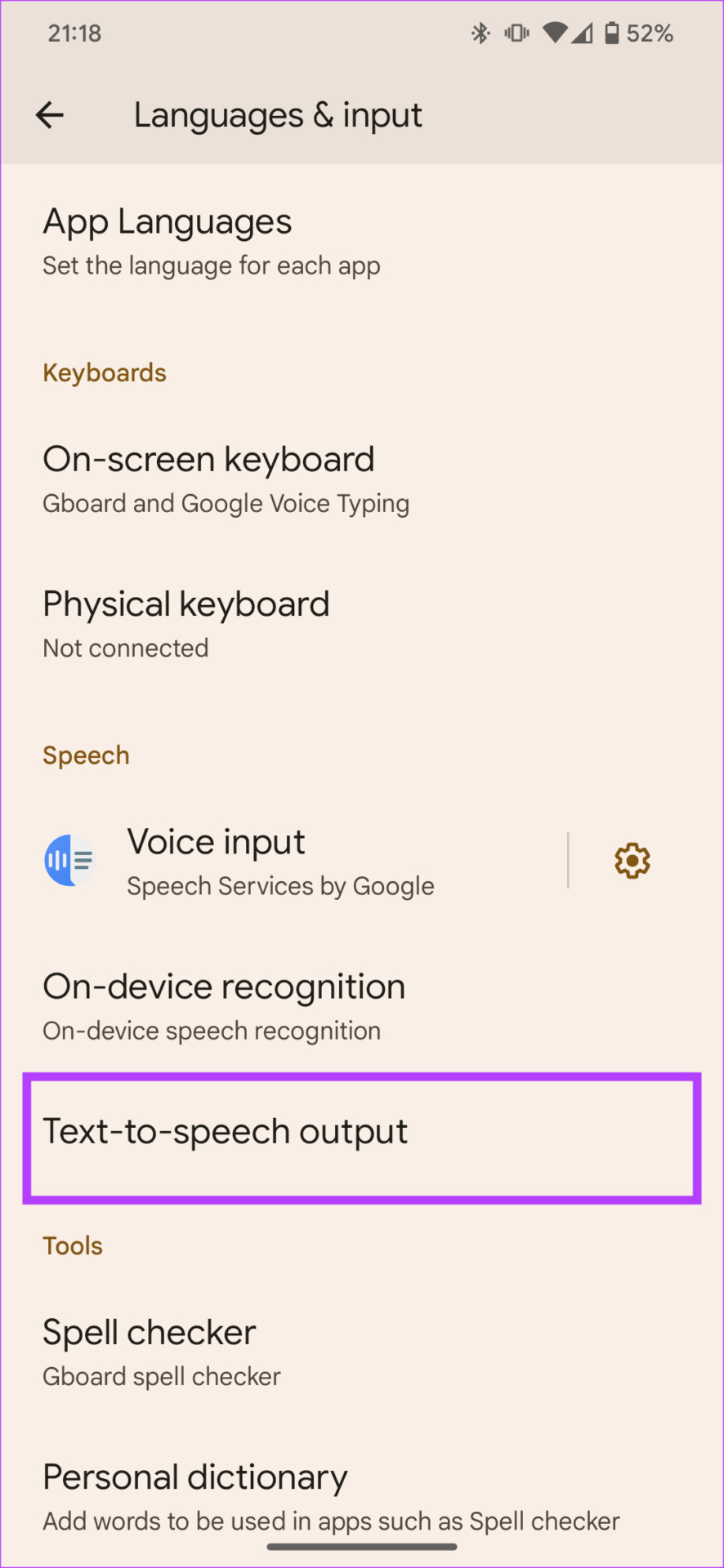
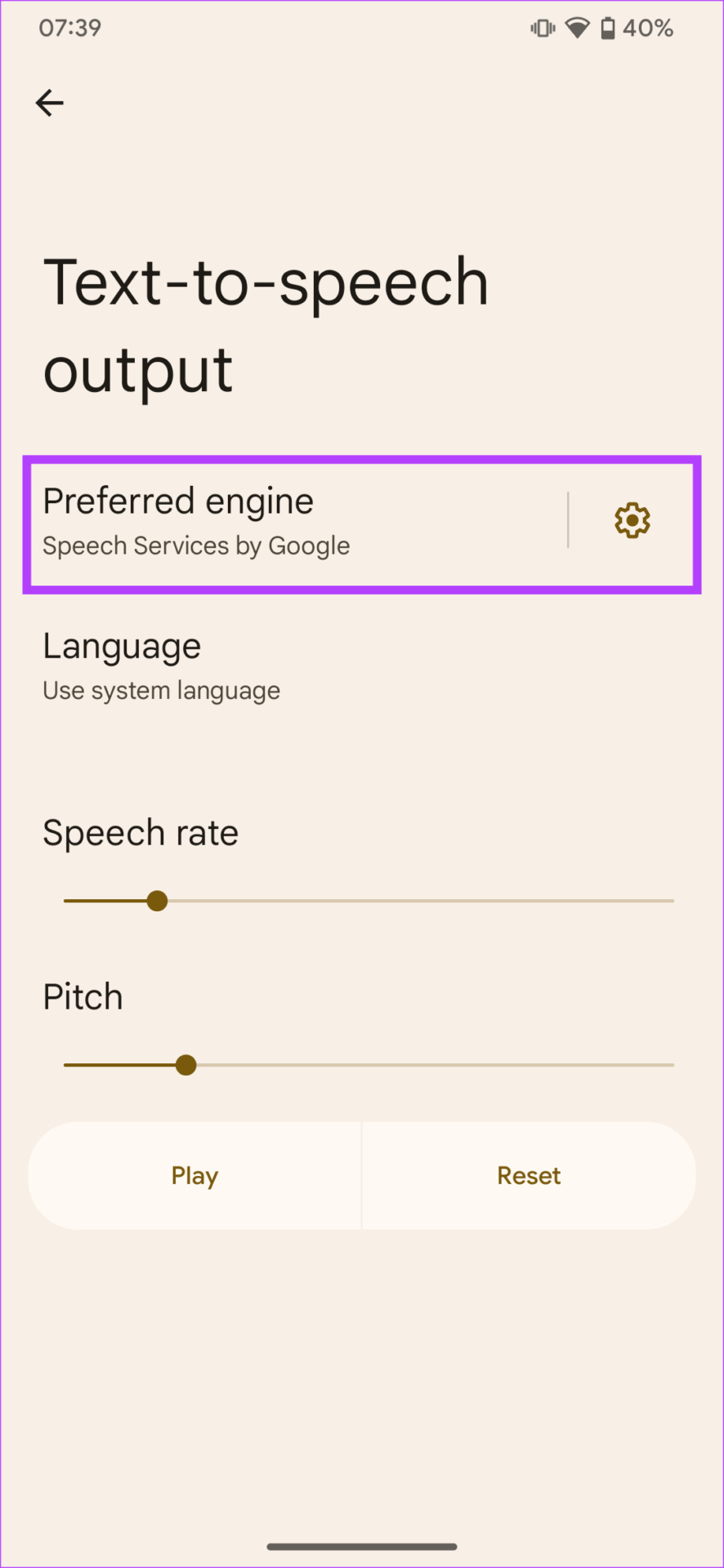
Step 3: Tap on Preferred engine and change it to TTSLexx. Select OK to save changes.


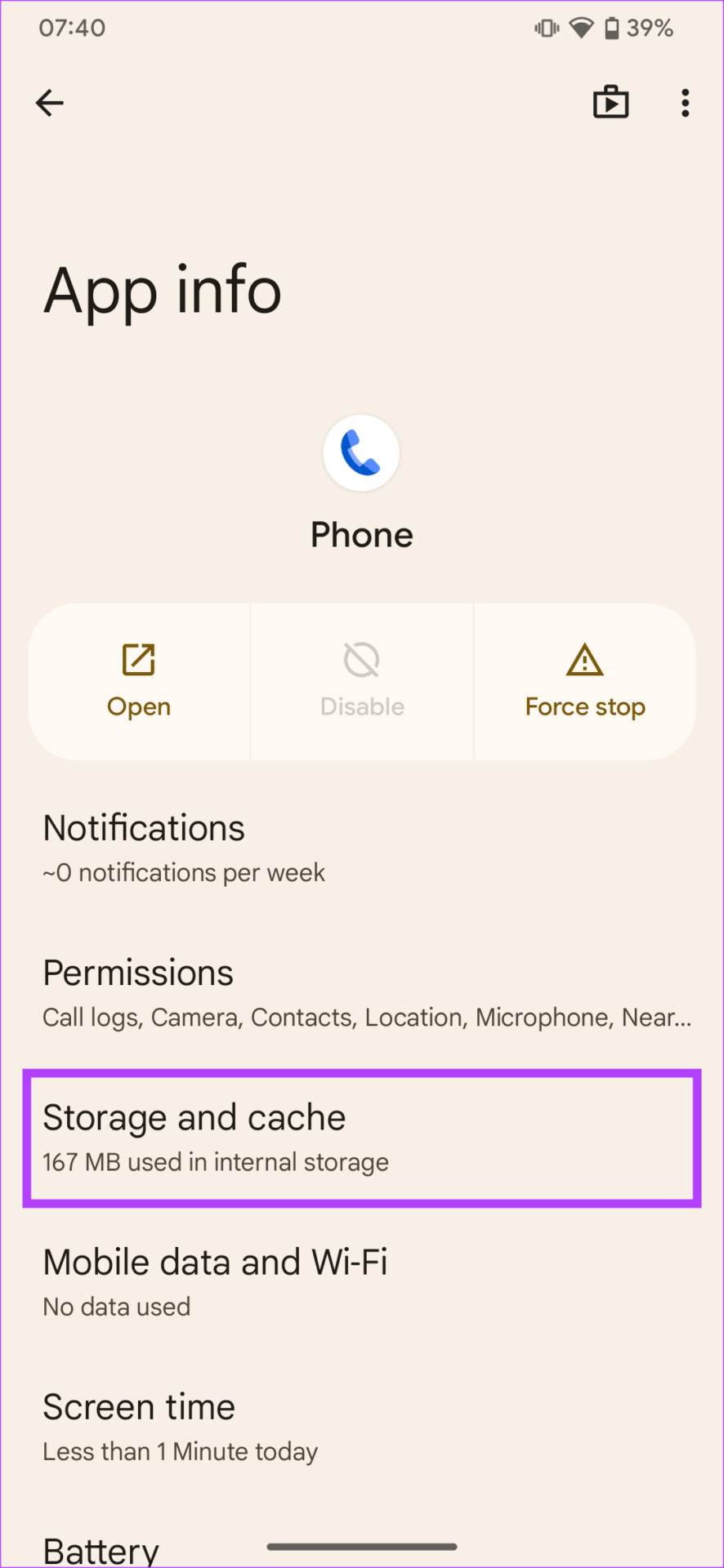
Step 4: Now, long-press on the Phone app in your app drawer. Select the App info button.
Step 5: Head over to Storage & cache. First, tap on Clear cache and then choose Clear storage.


Try recording a call now and the announcement should be gone.
Also Read: 4 ways to fix call recorder not recording incoming voice on Android
How to Re-enable the Call Recording Announcement on Google Dialer
If you disabled the recording announcement option and want to reverse this, fret not. It is possible to re-enable the announcement after use. Follow the steps below:
Note: If you followed Method 1 in the previous step, all you have to do is turn off the toggle next to Play audio tone instead of disclaimer.
Step 1: Head to the Settings app on your phone. Navigate to the System option. Select Languages & input and choose Text-to-speech output.
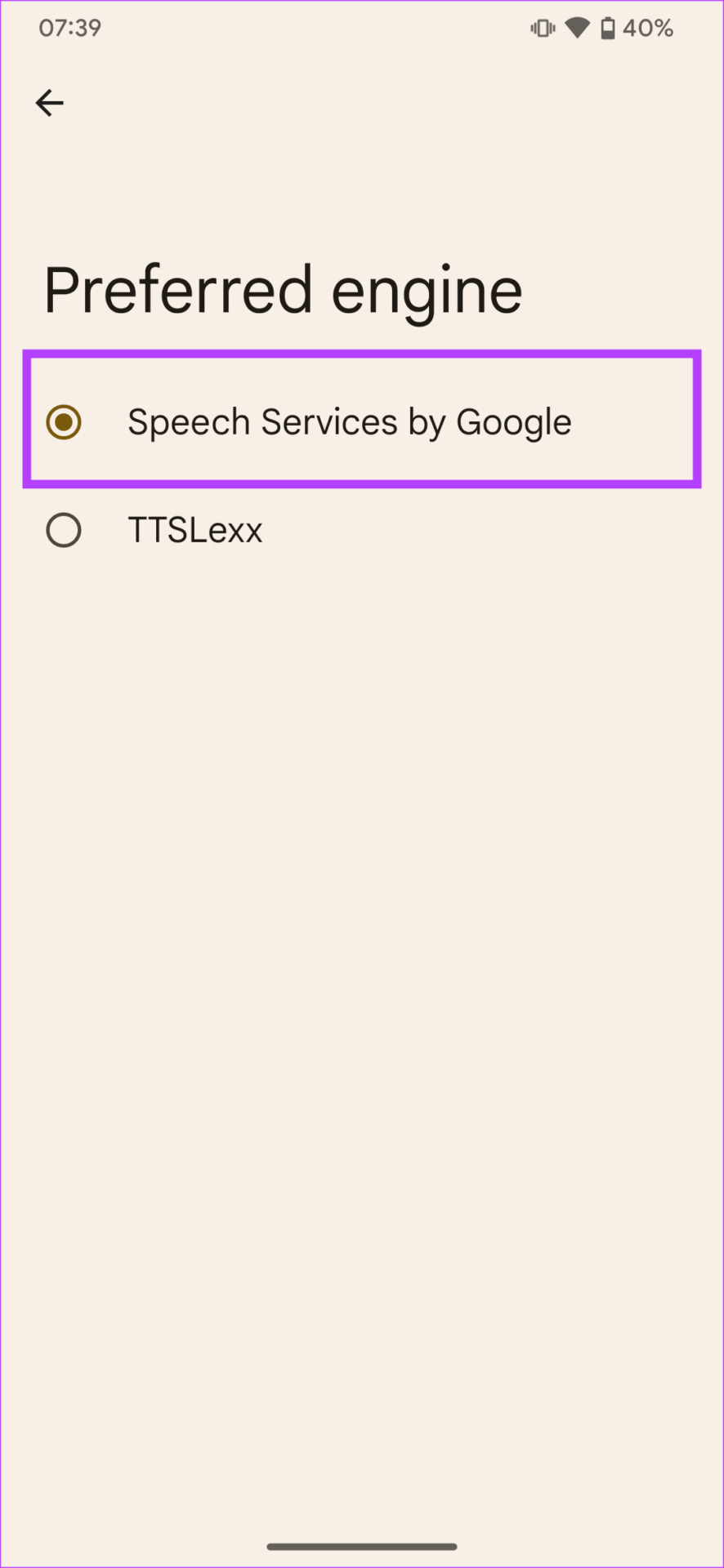
Step 2: Tap on Preferred engine and change it to Speech Services by Google.
FAQs for Google Dialer Call Recording Without Announcement
As mentioned earlier, the legalities surrounding call recording depend on your region. Be sure to check out your local laws.
As long as your phone has the Google Dialler app and the call recording functionality, this trick will work.
Was this helpful?
Last updated on 29 August, 2024
4 Comments
Leave a Reply
Read Next
 4 Ways to Fix Call Recorder Not Recording Incoming Voice on Android
Basic Fixes: Check the Android version: To use call recording features, your Android phone must run Android version 9 and above.
4 Ways to Fix Call Recorder Not Recording Incoming Voice on Android
Basic Fixes: Check the Android version: To use call recording features, your Android phone must run Android version 9 and above.
 How to Fix Call Recording Not Working on Samsung Galaxy Phones
Basic Fixes: Restart Samsung Galaxy phone: Rebooting your Samsung Galaxy phone is one of the effective ways to troubleshoot common problems.
How to Fix Call Recording Not Working on Samsung Galaxy Phones
Basic Fixes: Restart Samsung Galaxy phone: Rebooting your Samsung Galaxy phone is one of the effective ways to troubleshoot common problems.
 Normal Call vs. WhatsApp Call: What’s the Difference?
Comparison Table of Normal vs.
Normal Call vs. WhatsApp Call: What’s the Difference?
Comparison Table of Normal vs.
 Top 7 Ways to Fix Samsung Galaxy Watch Not Recording Sleep
Samsung’s Galaxy Watch lineup is feature-packed with useful health-tracking functions.
Top 7 Ways to Fix Samsung Galaxy Watch Not Recording Sleep
Samsung’s Galaxy Watch lineup is feature-packed with useful health-tracking functions.
 3 Ways to Fix Screen Recording Not Working on iPhone and iPad
Basic Fixes Restart iPhone: Restarting your iPhone may resolve any software glitches preventing screen recording.
3 Ways to Fix Screen Recording Not Working on iPhone and iPad
Basic Fixes Restart iPhone: Restarting your iPhone may resolve any software glitches preventing screen recording.
 3 Ways to Fix the “Recording Stopped” Error in Snipping Tool for Windows 11
Try Basic Fixes Disable screen projection: The Snipping Tool may sometimes have trouble recording the screen if you are using multiple displays.
3 Ways to Fix the “Recording Stopped” Error in Snipping Tool for Windows 11
Try Basic Fixes Disable screen projection: The Snipping Tool may sometimes have trouble recording the screen if you are using multiple displays.
 3 Fixes if GeForce Experience Not Recording Game Audio in Windows 11
Common Fixes Close and restart GeForce Experience - Click the Arrow button in the system tray notifications area and right-click the NVIDIA icon to select Exit.
3 Fixes if GeForce Experience Not Recording Game Audio in Windows 11
Common Fixes Close and restart GeForce Experience - Click the Arrow button in the system tray notifications area and right-click the NVIDIA icon to select Exit.
 How to Blur a Video or Screen Recording on iPhone
https://youtu.be/iSiDI3GPpKM Method 1: Use WhatsApp to Blur a Part of Video on iPhone If you don’t want to install a dedicated app to blur something in video on an iPhone,
How to Blur a Video or Screen Recording on iPhone
https://youtu.be/iSiDI3GPpKM Method 1: Use WhatsApp to Blur a Part of Video on iPhone If you don’t want to install a dedicated app to blur something in video on an iPhone,
The article above may contain affiliate links which help support Guiding Tech. The content remains unbiased and authentic and will never affect our editorial integrity.

NOT WORKING
How to check the call recording, from which recording announcement was disabled by ttslex app
This is nice. It worked perfectly fine on my device with stock android 11.
Doesn’t work on Android 13 , miui 14