Method 1: Delete WhatsApp Backup From iCloud
iCloud allows you to delete individual app data from its backup. Here’s how you can remove your WhatsApp backup from it:
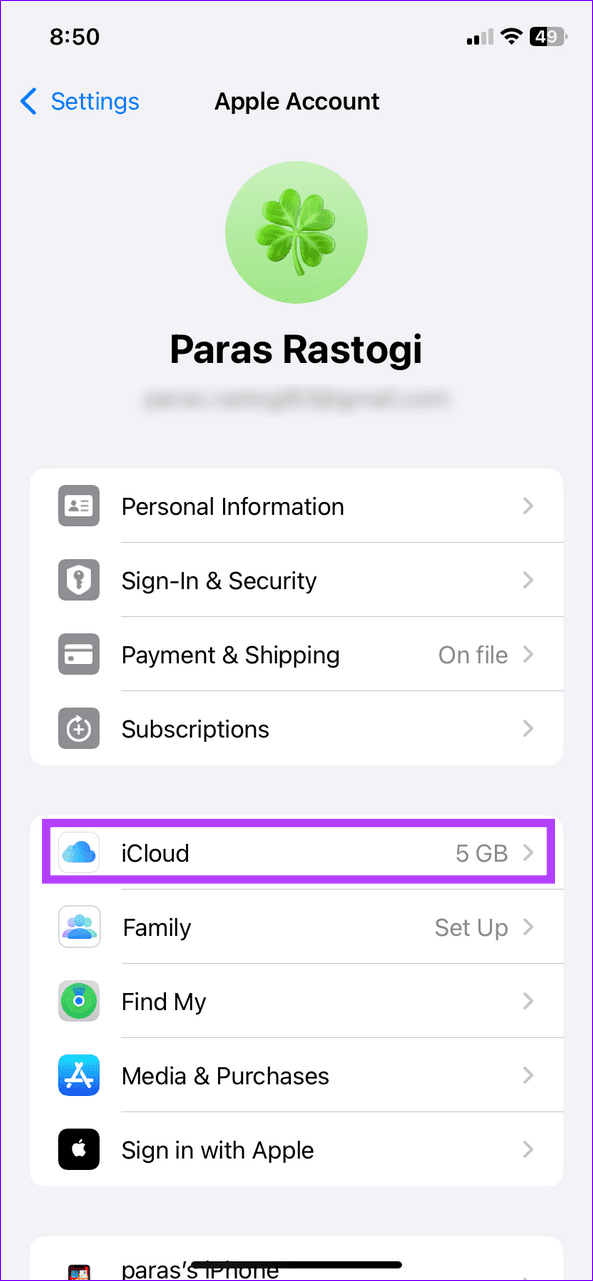
Step 1: Open the Settings app, tap your Apple Account banner, and select iCloud.

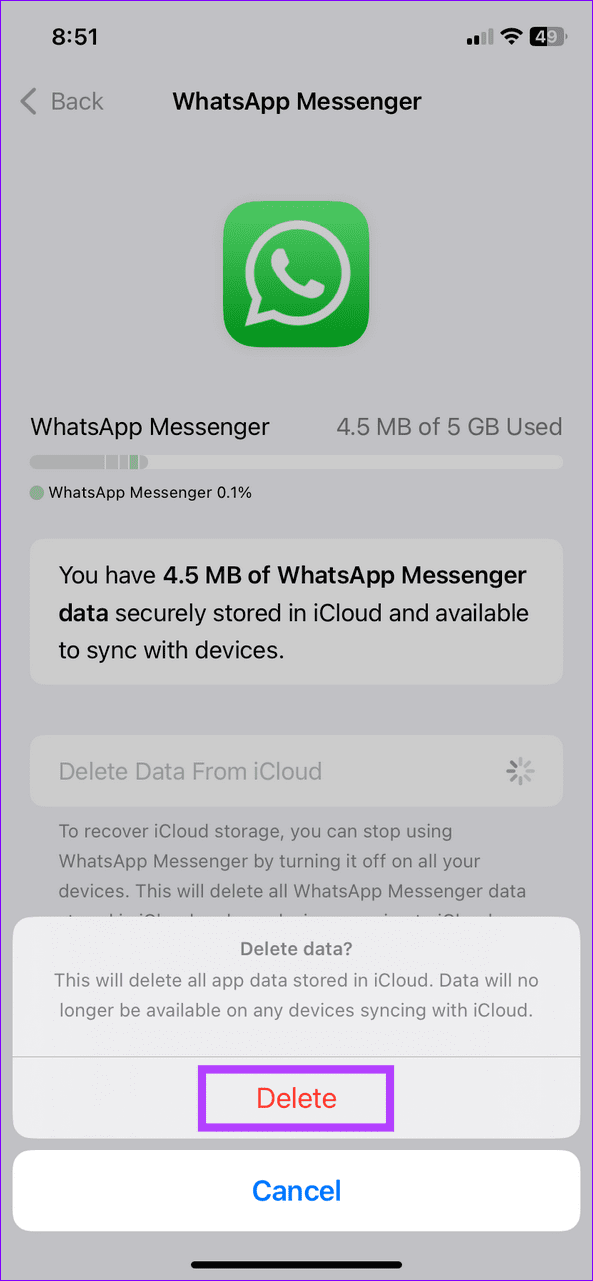
Step 2: Select Storage and tap WhatsApp Messenger.


Step 3: Tap Delete Data from iCloud and select Delete when prompted to confirm it.

Method 2: Turn off WhatsApp Sync for iCloud
Removing WhatsApp data from iCloud can become tedious every few months. Instead, you can turn off the WhatsApp sync for your iCloud backup to restrict WhatsApp from syncing its data to iCloud.
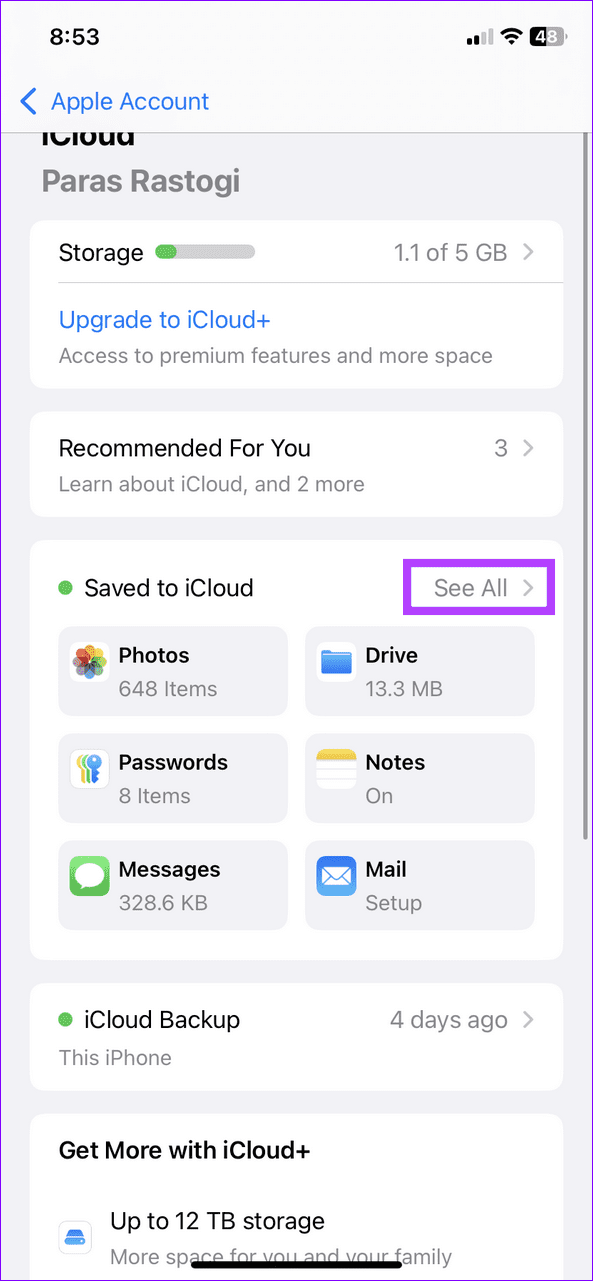
Step 1: Select your Apple Account banner under iPhone Settings and tap iCloud.


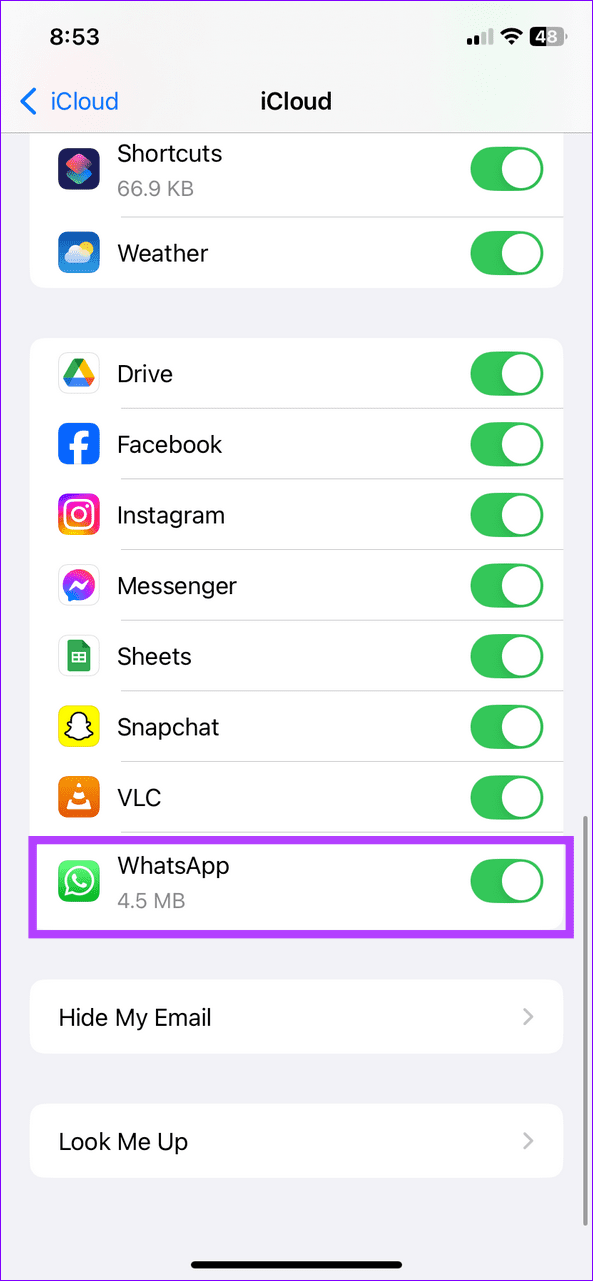
Step 2: Tap See All next to Saved to iCloud, scroll down, and toggle off WhatsApp to disable its sync.
Method 3: Disable Chat Backup in WhatsApp
If you don’t wish to upload your WhatsApp backup data to iCloud, head to the Chat backup settings in WhatsApp to turn it off.
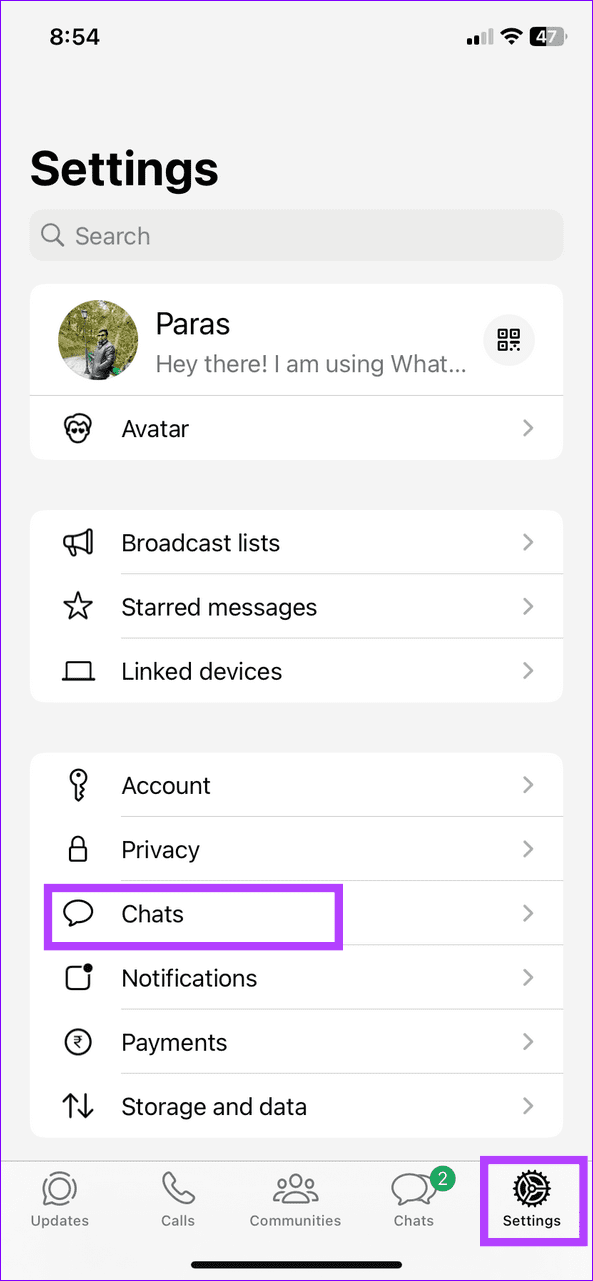
Step 1: Open WhatsApp, tap the Gear icon at the bottom right to open Settings, and select Chats > Chat backup.


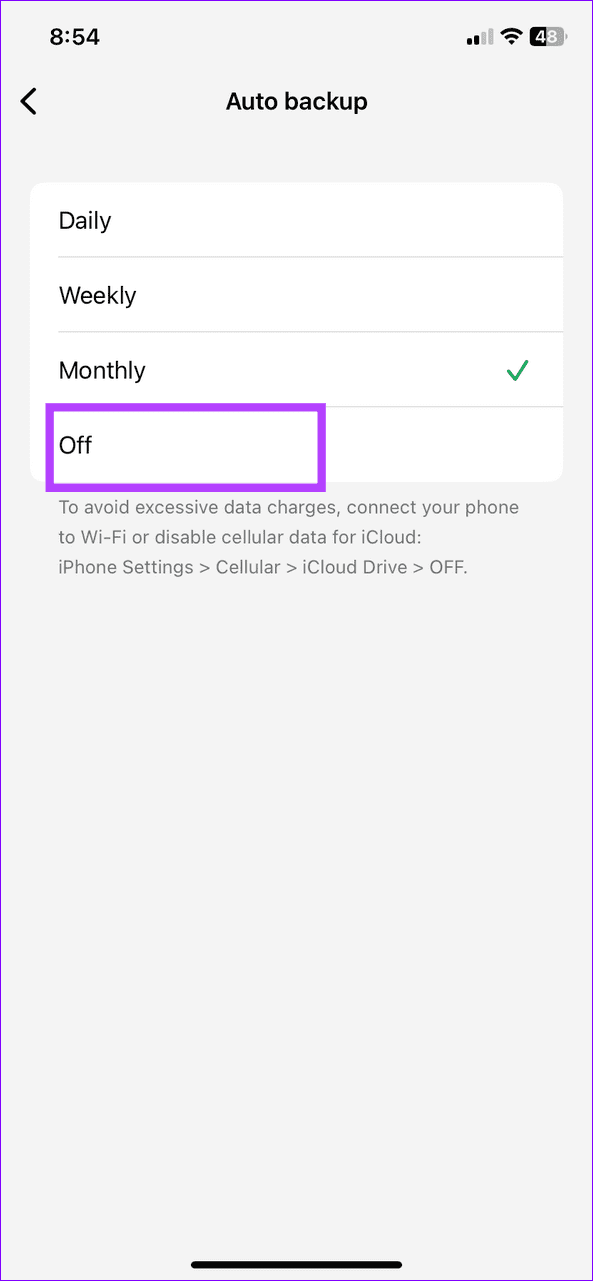
Step 2: Select Auto backup and set it to Off.

Method 4: Prevent WhatsApp Sync to iCloud Drive
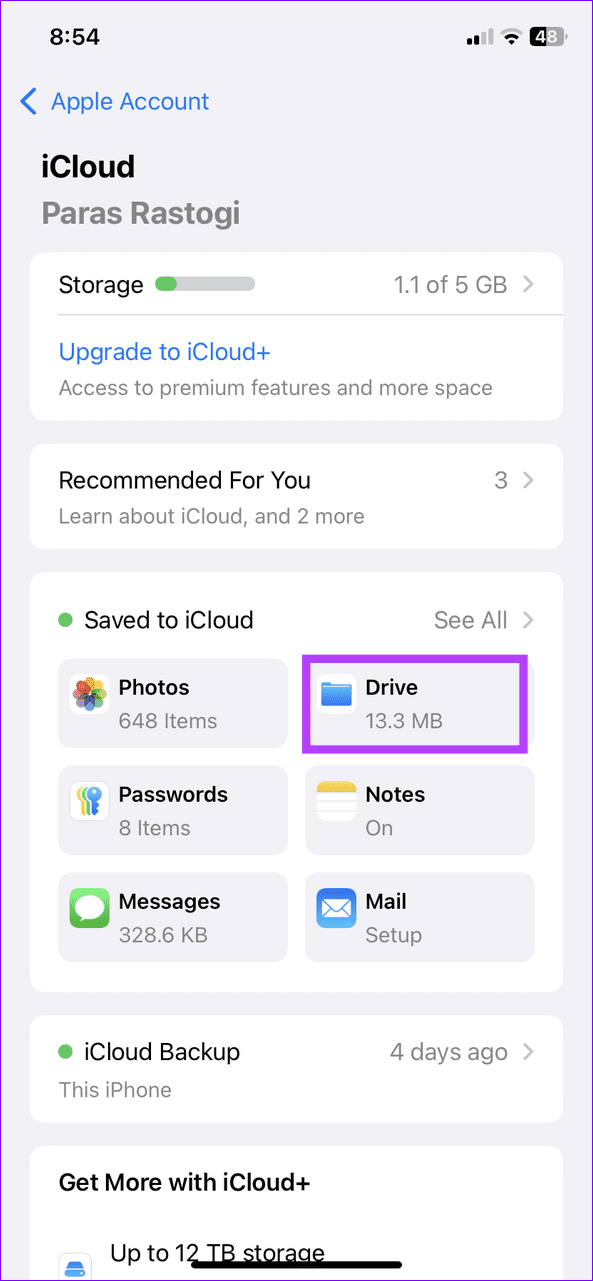
By default, WhatsApp can store its data (e.g. documents, notes, favorites, etc.) on your iCloud Drive to keep you updated across all Apple devices. If you’ve limited iCloud storage, turn it off using these easy steps:
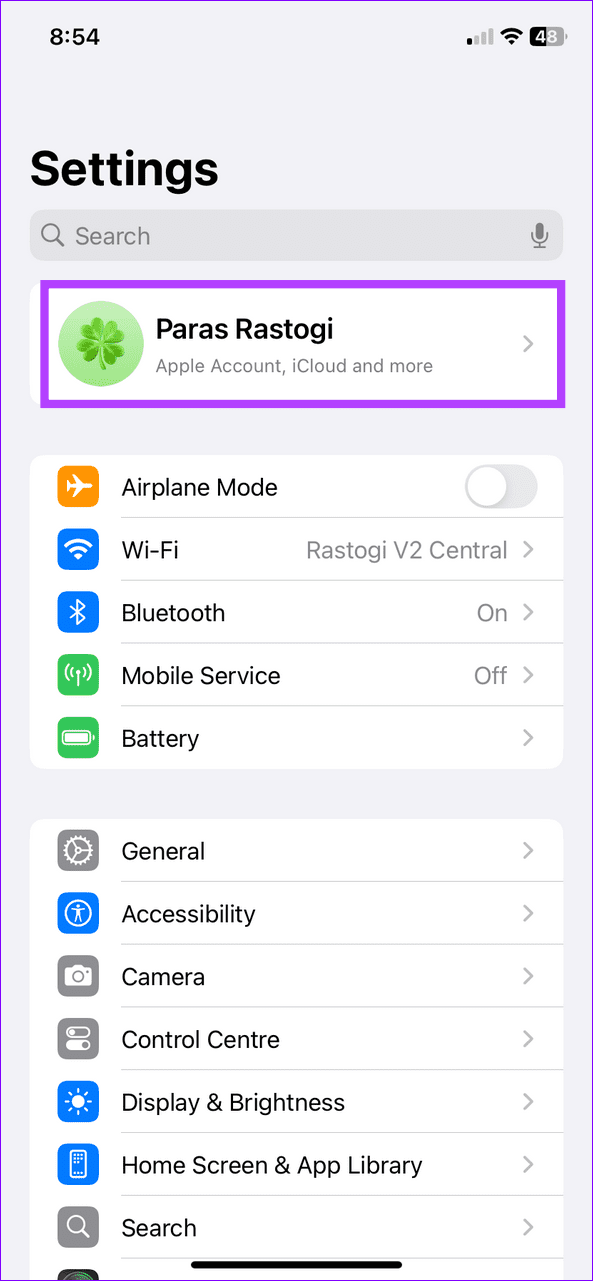
Step 1: Open iPhone settings, select your Apple Account banner, and tap iCloud.

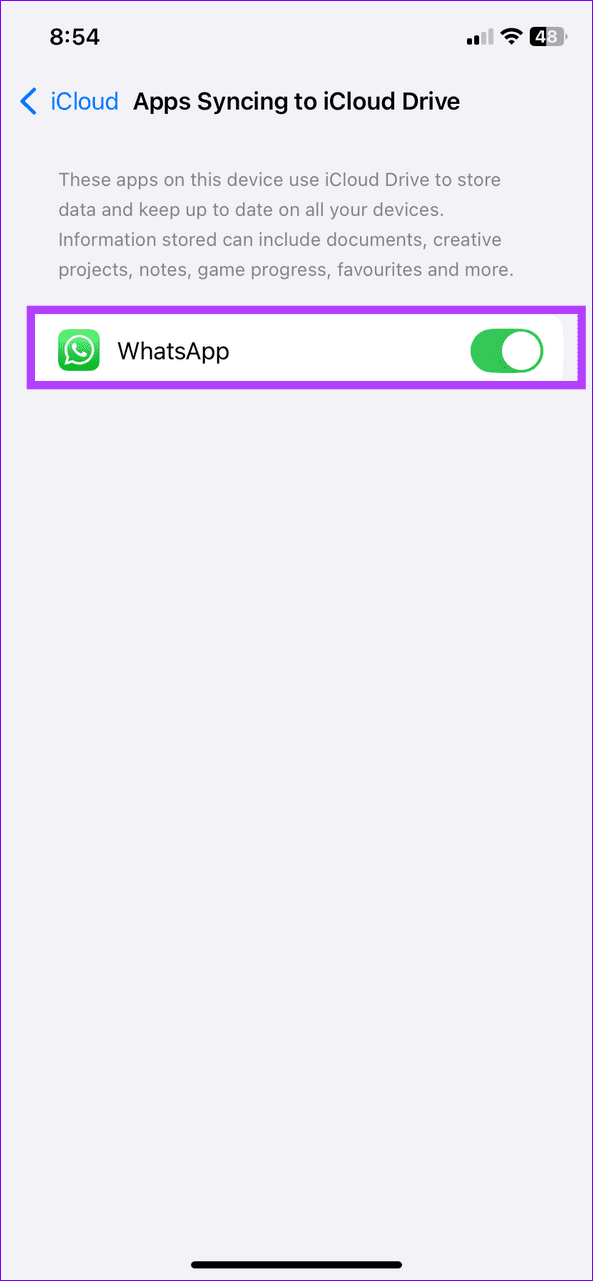
Step 2: Select Drive under Saved to iCloud, tap Apps Syncing to iCloud Drive, and disable the WhatsApp toggle.

Reduce WhatsApp Backup Data Size in iCloud
When you send or receive a plethora of videos on WhatsApp, its backup size bumps significantly, which can quickly exhaust your iCloud storage. Thankfully, WhatsApp provides an option to exclude videos from its backup, reducing its overall size.
Step 1: Open Chats settings in WhatsApp and tap Chat backup.
Step 2: Disable the Include videos toggle to reduce the WhatsApp data size for the next iCloud backup.


Was this helpful?
Last updated on 20 August, 2024
Read Next
 6 Ways to Clear iCloud Storage That Is Full on iPhone and iPad
Method 1: Turn Off iCloud Photos Turning off iCloud Photos will turn off all subsequent backups to iCloud.
6 Ways to Clear iCloud Storage That Is Full on iPhone and iPad
Method 1: Turn Off iCloud Photos Turning off iCloud Photos will turn off all subsequent backups to iCloud.
 iCloud vs OneDrive: Which Cloud Storage Is Better on iOS
iCloud has been an integral part of the iOS and Mac ecosystem.
iCloud vs OneDrive: Which Cloud Storage Is Better on iOS
iCloud has been an integral part of the iOS and Mac ecosystem.
 How to Delete Photos from Google Photos But Not From iCloud
How Do Google Photos and iCloud Work Both Apple Photos and Google Photos act as a medium to show you the photos on your phone.
How to Delete Photos from Google Photos But Not From iCloud
How Do Google Photos and iCloud Work Both Apple Photos and Google Photos act as a medium to show you the photos on your phone.
 What Happens When You Disable and Delete Photos from iCloud
I would be lying if I said cloud photo-storage services are easy to understand.
What Happens When You Disable and Delete Photos from iCloud
I would be lying if I said cloud photo-storage services are easy to understand.
 5 Fixes for ‘WhatsApp Couldn’t Complete Backup’ Error on Android and iPhone
Fix 1: Initiate Backup Manually At times, minor network or app-related issues can interrupt the WhatsApp backup process and throw the "Couldn't complete backup" error.
5 Fixes for ‘WhatsApp Couldn’t Complete Backup’ Error on Android and iPhone
Fix 1: Initiate Backup Manually At times, minor network or app-related issues can interrupt the WhatsApp backup process and throw the "Couldn't complete backup" error.
 How to Reduce WhatsApp Storage on iPhone
Method 1: Manage WhatsApp Storage on iPhone WhatsApp lets you manage the storage it occupies on your iPhone, with the help of a detailed breakdown.
How to Reduce WhatsApp Storage on iPhone
Method 1: Manage WhatsApp Storage on iPhone WhatsApp lets you manage the storage it occupies on your iPhone, with the help of a detailed breakdown.
 How to Transfer WhatsApp Messages to New Phone Without Backup
Note Before Transfering WhatsApp Chat History You can transfer All chats - Personal messages, media files, documents, etc.
How to Transfer WhatsApp Messages to New Phone Without Backup
Note Before Transfering WhatsApp Chat History You can transfer All chats - Personal messages, media files, documents, etc.
 Why Is My iPhone Backup Size Too Large
How to Check iCloud Storage and Backup Apple iPhone takes a backup of the phone and stores it on iCloud, the company’s proprietary cloud service that uses Google servers.
Why Is My iPhone Backup Size Too Large
How to Check iCloud Storage and Backup Apple iPhone takes a backup of the phone and stores it on iCloud, the company’s proprietary cloud service that uses Google servers.
The article above may contain affiliate links which help support Guiding Tech. The content remains unbiased and authentic and will never affect our editorial integrity.