How to Remove Empty Pages Using the Google Docs Mobile App
Although the Google Docs mobile app does not have as many options as the desktop version, it still gets the job done. So, let us have a look at 2 easy ways that can help you in getting rid of a page on the Google Docs mobile app.
Method 1: Using the Delete Button
The first and most basic way to delete a blank page in the Google Docs mobile app is by selecting and deleting the page from your document. Here’s how to do it.
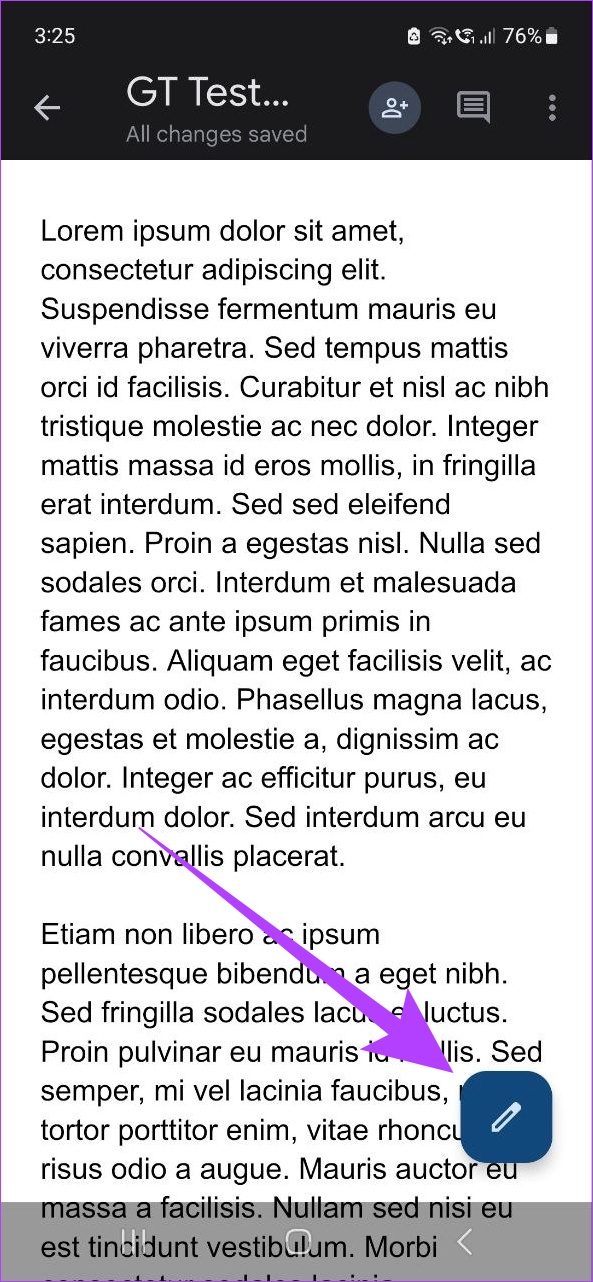
Step 1: Open the Google Docs app. Go to your document and tap the pencil icon.
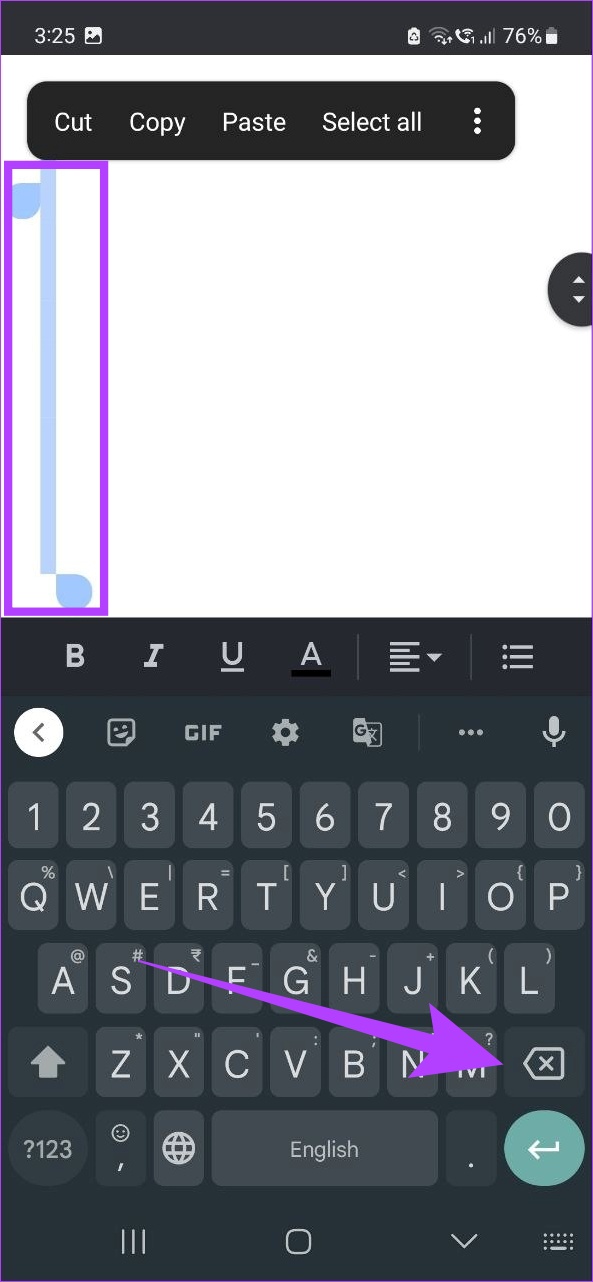
Step 2: Select the space you wish to delete and tap the delete button.
Method 2: Edit Document Margins (iPhone only)
Exclusive to iOS, you can now change your document’s margins on your mobile. This way, you can remove any extra spaces in the doc that might’ve been caused due to larger margins. Here’s how to do it.
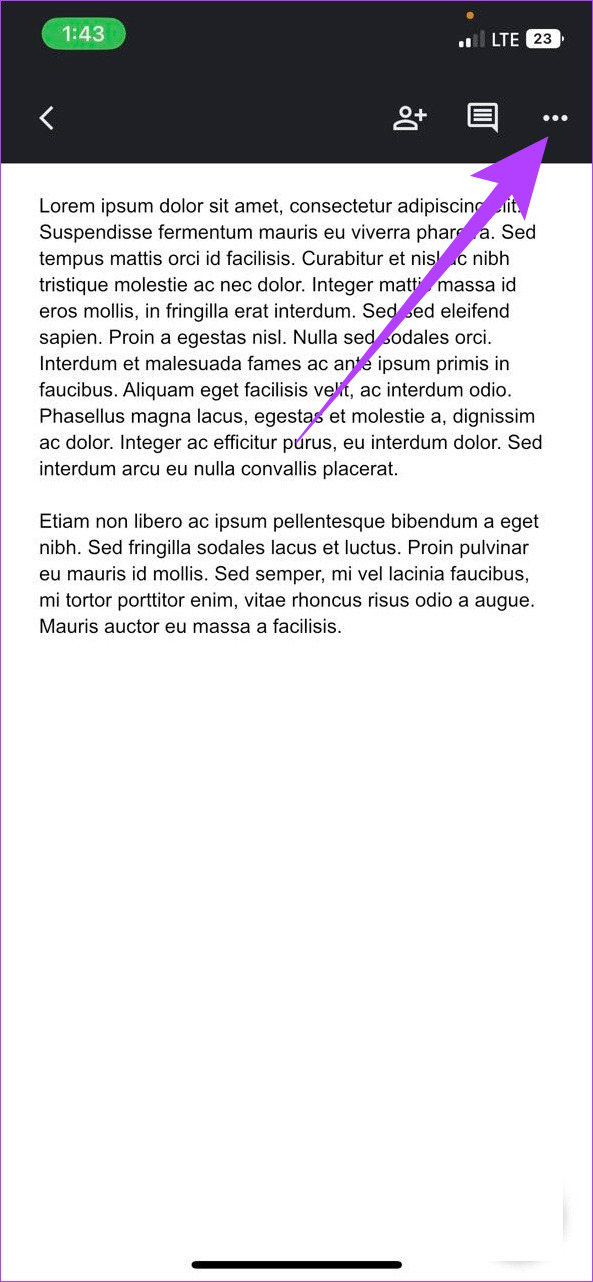
Step 1: Go to Google Docs, open the document, and tap the pencil icon. Tap the menu icon.

Step 2: Tap on Page setup followed by Margins. Select the margin you want.

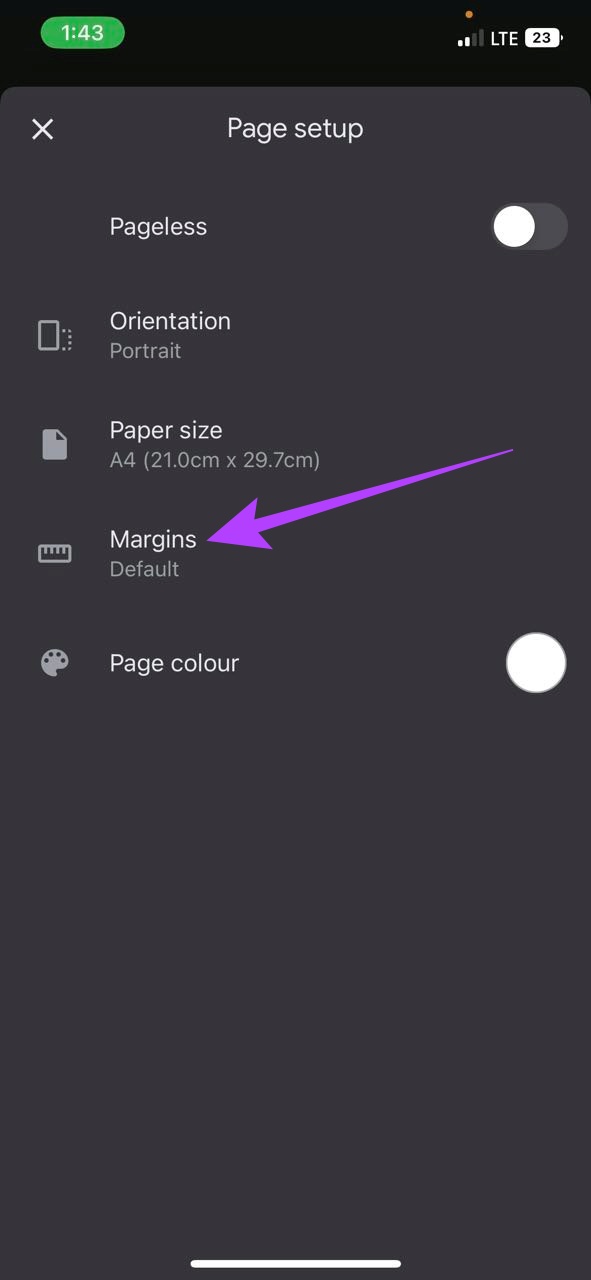

Once the margins are adjusted, the blank space will disappear from the document in Google Docs.
How to Delete a Blank Page in Google Docs Web App
From using the Delete key to adjusting page breaks and even changing margins, let’s have a look at how you can get rid of a blank page using the Google Docs web app.
Method 1: Using the Delete Option
If your Google Docs blank page won’t delete even after repeatedly using the Backspace key, then using the Delete key might just do the trick. To do this, select the area and hit delete. Here’s how.
Step 1: Go to Google Docs and open the relevant document. Go to the top of the page.
Step 2: Hold your cursor and select the entire page or till where you want to delete.
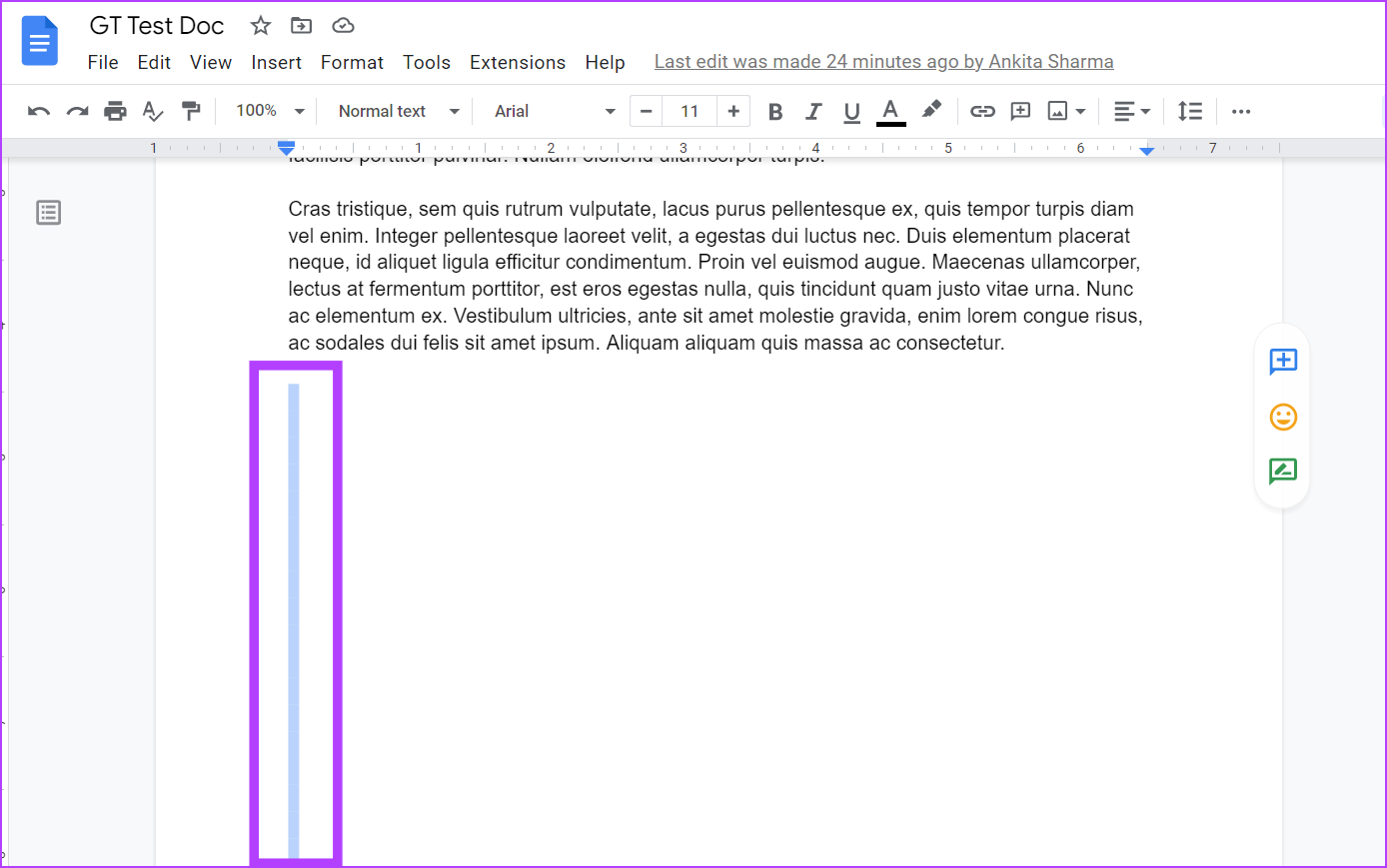
Press the Delete key on your keyboard to delete the blank page. Repeat this process if you want to delete any additional pages.
Method 2: Change Custom Spacing Settings
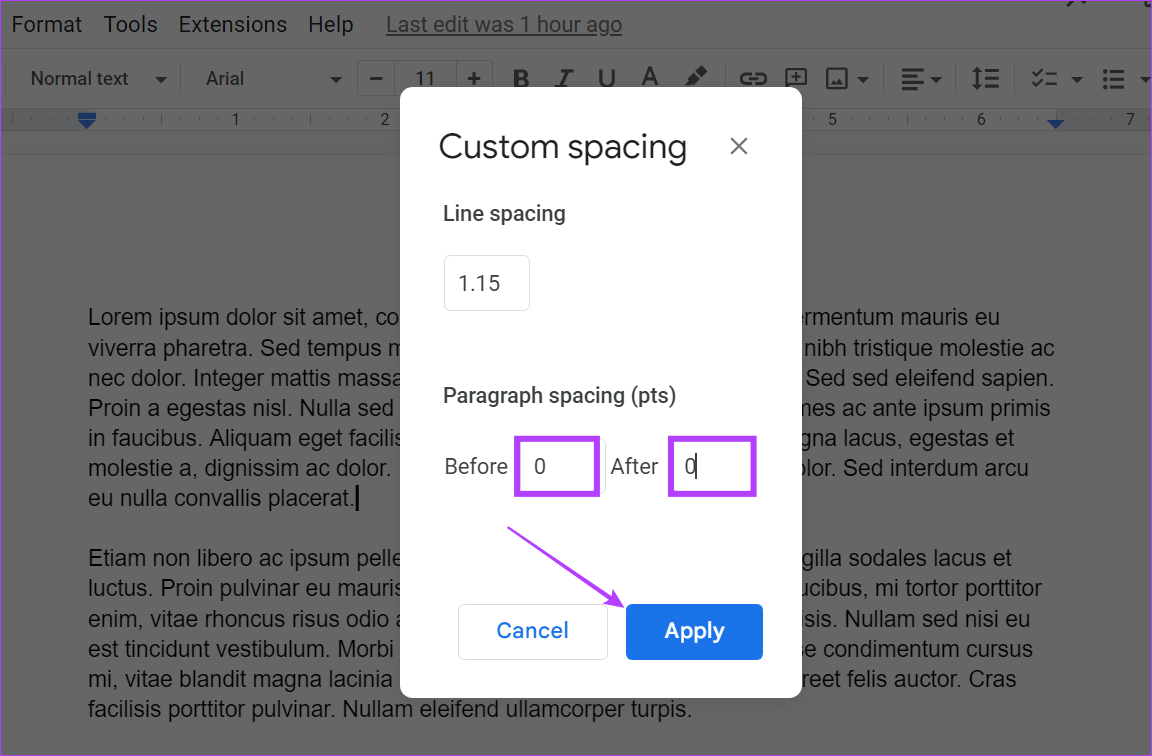
Sometimes, Google Docs can add a set amount of space after every paragraph. This can also end up creating an extra blank page in the document. To prevent this, simply set the custom spacing value to zero. Follow these steps to do it.
Step 1: Open Google Docs, go to your document, and click on Format. Go to Line & paragraph spacing and click on Custom spacing.

Step 2: Under Paragraph spacing, ensure the Before and After values are at 0. Click on Apply.
Method 3: Delete Unwanted Page Breaks
In Google Docs, page breaks are blank spaces sans text that can be used to end any page. However, this can also end up creating extra blank spaces in the document. To get rid of this, follow these steps.
Step 1: Open Google Docs, go to your document, and click on View. Uncheck Show print layout to make the page break visible.
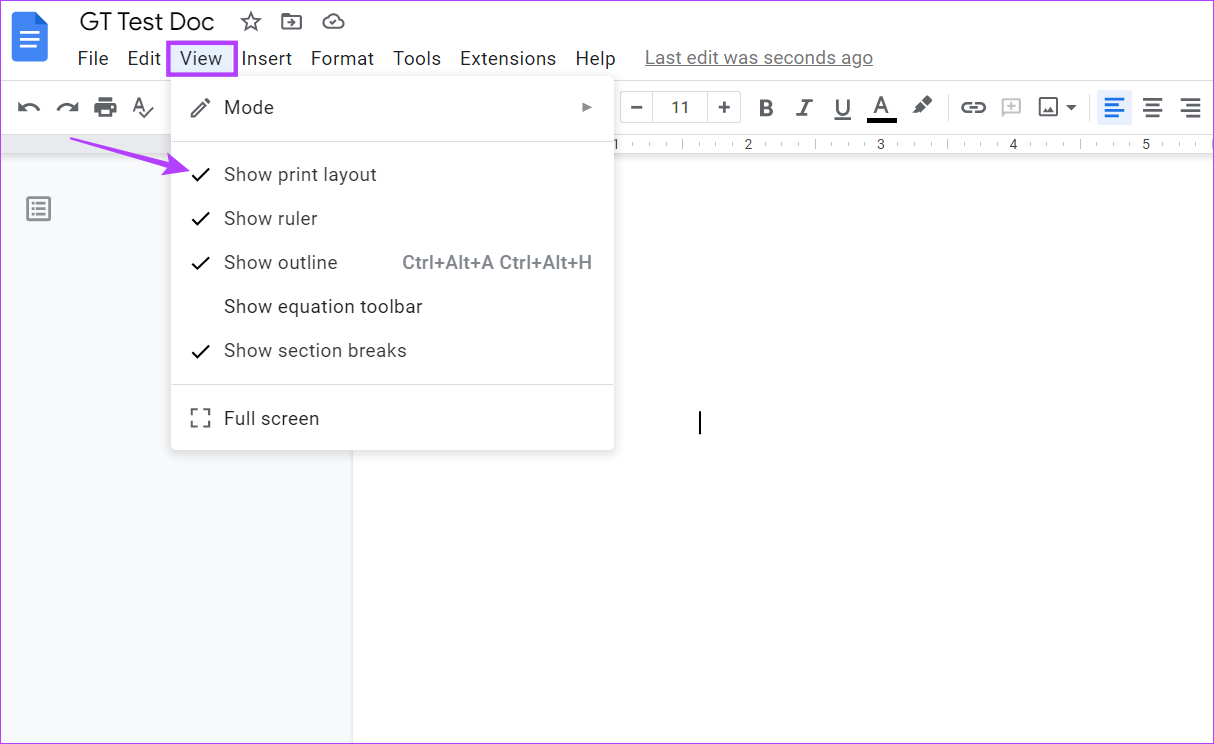
Step 2: Place your cursor just above the page break, select the area, and hit the Delete or the Backspace key on your keyboard.
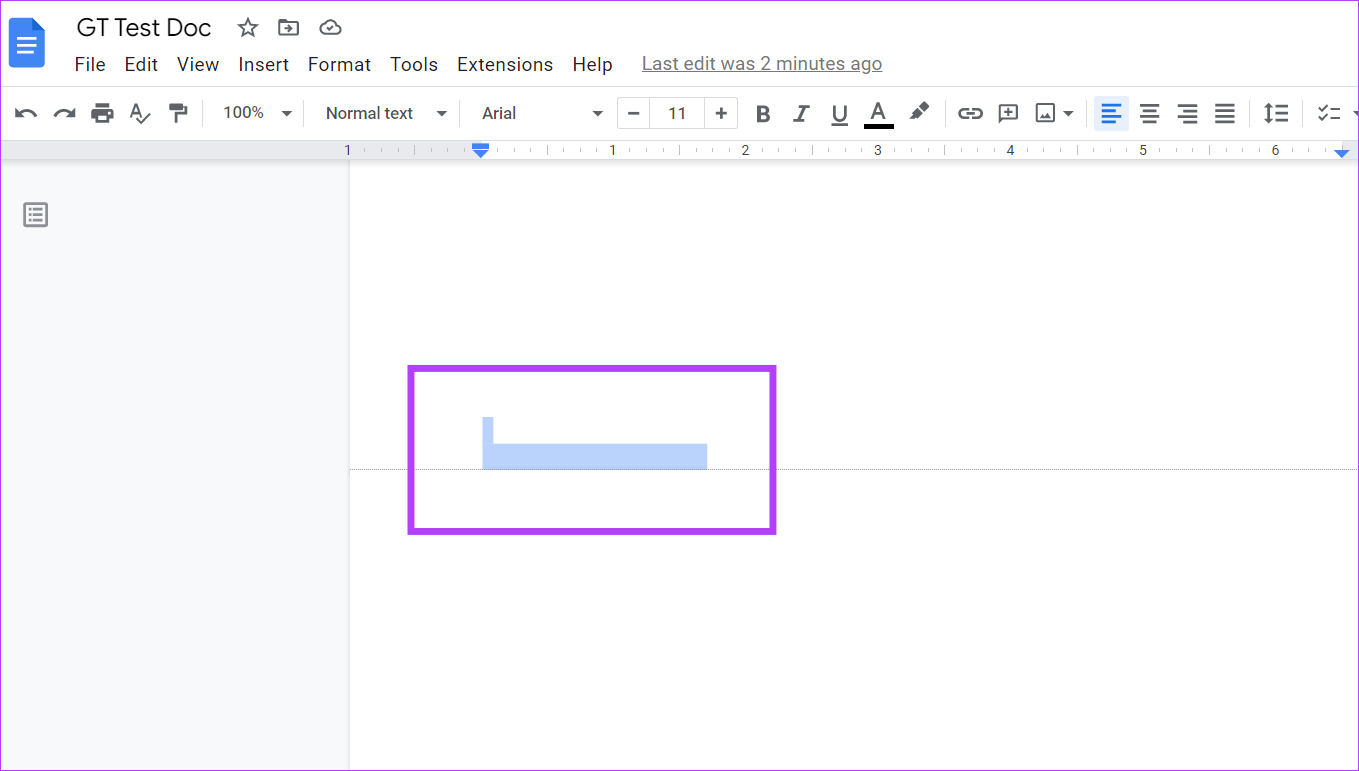
Once the page break is deleted, the blank space will go away as well. If you have any text after the page break, it will also be aligned with the rest of the text.
Method 4: Change Document Margins
While margins stop your text from merging with the document boundaries, super-long margins can end up leaving extra blank spaces. To fix this, change the margin settings in Google Docs. Please note doing this will change the margins for the entire document. Here’s how to do it.
Step 1: Open the document in Google Docs and click on File. Click on Page setup.
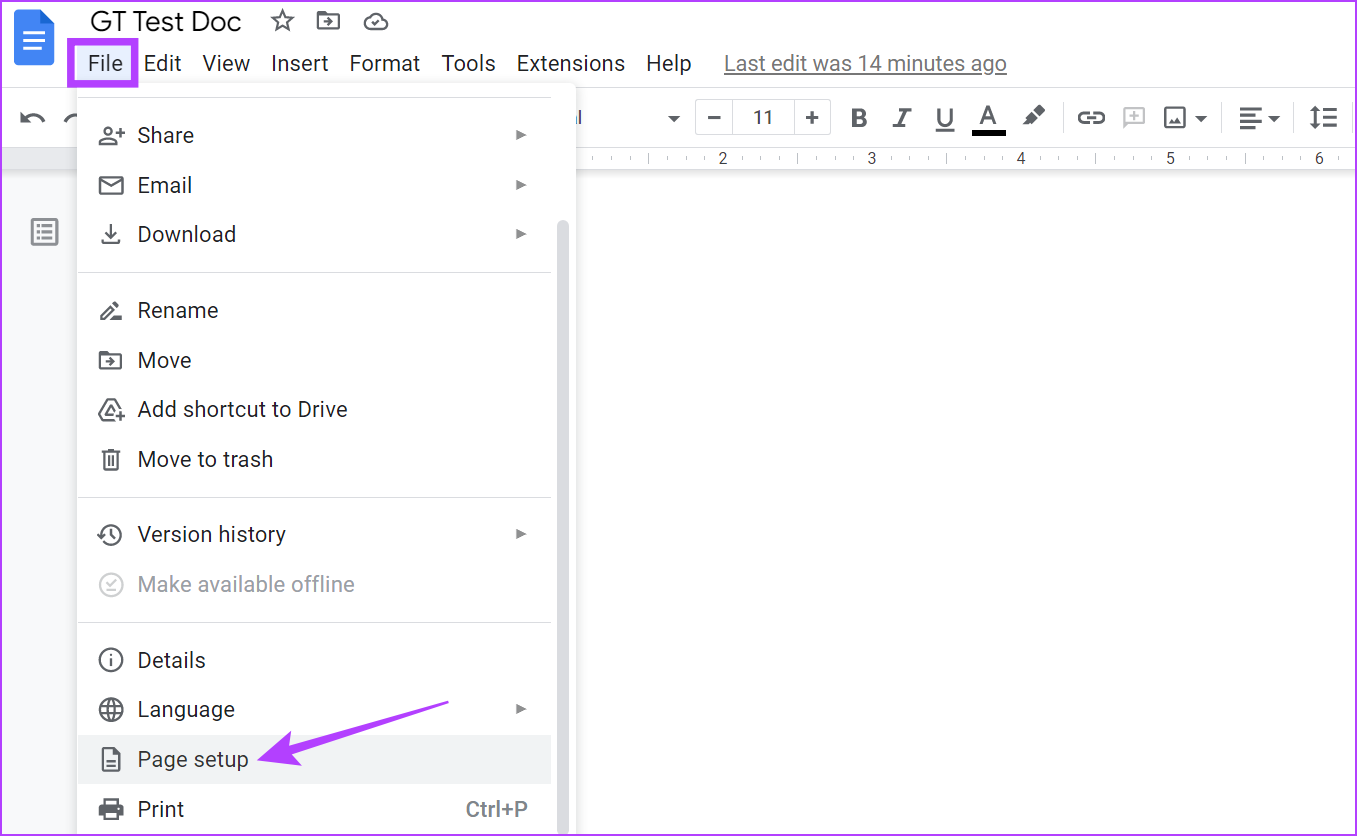
Step 2: Under Margins, change all the values to 1 or below. Click on OK.
Tip: You can also click on Set as default to make this the default margin setting for all future documents. This will not affect your previous documents.

All the unwanted margins will now be removed. You can also go through our guide to know more about changing margins on Google Docs.
Method 5: Clear Document Formatting
If nothing else works, you can simply clear all document formatting, making it go back to its default settings. This way, if the blank page is caused because of a setting, it will go away once the formatting is cleared. Follow the below steps to do it.
Step 1: Open the relevant document in Google Docs and click on Format. Select Clear formatting.

Method 6: Check for Hidden Tables
You can have blank pages in a document if it has tables with invisible borders. These hidden tables can push your document text after the table, thus creating a big blank space in between. To make sure this doesn’t happen, check for hidden tables on Google Docs using the below steps.
Step 1: Open the relevant document and select the empty space using your cursor. Click on the table.
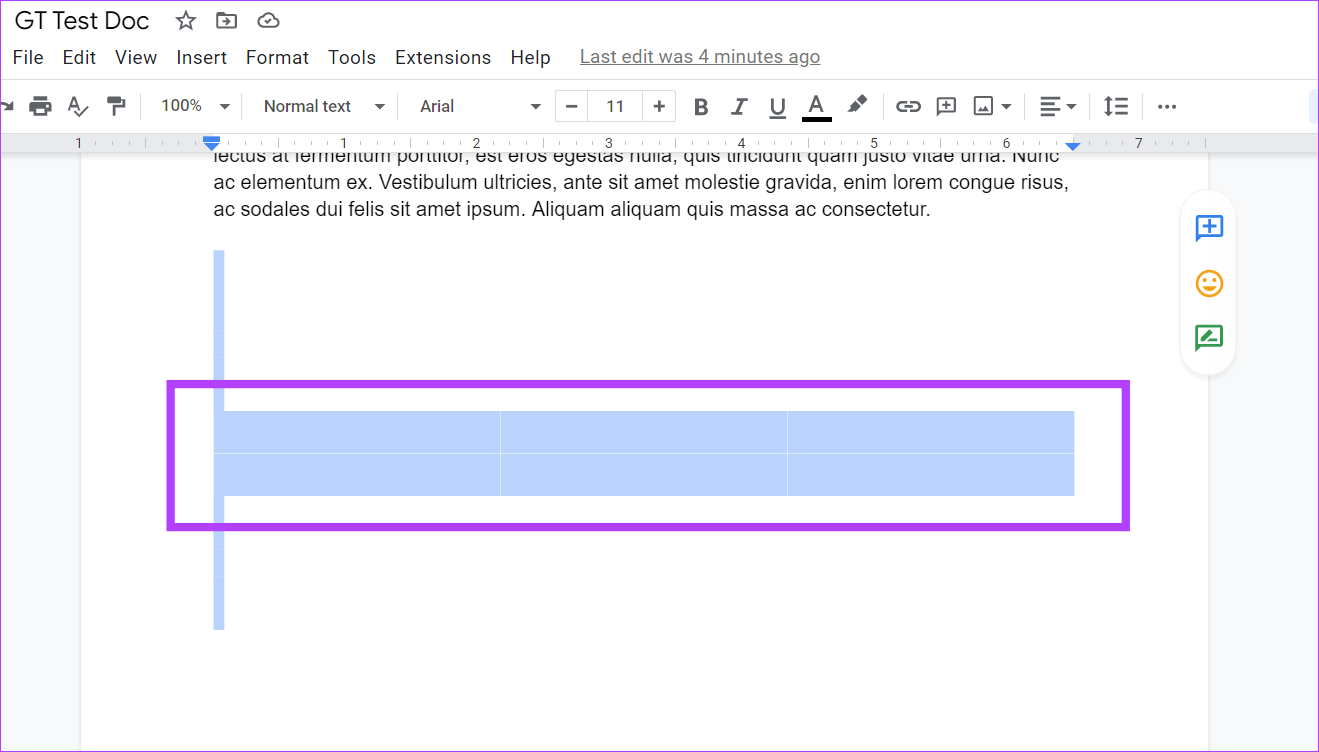
Step 2: From the Table properties panel, change the Table border size and color to make the table visible.

If there is indeed a hidden table, this will make it visible. To delete it, select the table and hit the Delete key on your device’s keyboard.
Method 7: Scan for Section Breaks
While section breaks can help in improving the overall document formatting, they can also create big blank spaces. So, if you don’t remember whether you’ve used a section break in your current document, follow these steps to make it visible in the document and then delete it.
Step 1: Open the document in Google Docs and click on View. Ensure the Show section breaks option is checked.

You will now be able to see all section breaks. If visible, click at the end of the paragraph above the section break and use the Delete key on your keyboard to remove it.
FAQs
Yes, simply select all the pages you want to delete and press the Backspace or Delete key on your keyboard. This will delete all the selected pages at once.
Apart from pressing ctrl + z (undo option), you can go to the document version history, select the document version with the deleted page, and restore it. This will recover the deleted page.
You can go back to your previous margin settings. From the menu bar, click on File and click on Page setup. Enter your previous margin values and click on OK. This will reset the margin to its previous values.
Was this helpful?
Last updated on 29 July, 2024
Read Next
 5 Ways to Fix Google Chrome Showing Untitled Blank Page
Basic Fixes: Close and restart Chrome: Temporary browser glitches can cause Chrome to show an untitled blank page.
5 Ways to Fix Google Chrome Showing Untitled Blank Page
Basic Fixes: Close and restart Chrome: Temporary browser glitches can cause Chrome to show an untitled blank page.
 3 Ways to Delete Blank or Extra Pages in Word
The Easiest Way to Delete a Page on Microsoft Word All you need to do is select the text or content on the page and hit the Backspace or Delete
3 Ways to Delete Blank or Extra Pages in Word
The Easiest Way to Delete a Page on Microsoft Word All you need to do is select the text or content on the page and hit the Backspace or Delete
 How to Create a Different Header and Footer for Each Page in Google Docs
Add Different Headers and Footers for Pages in Google Docs First, you must add a section break and cut the link between successive sections by unchecking the 'Link to previous'
How to Create a Different Header and Footer for Each Page in Google Docs
Add Different Headers and Footers for Pages in Google Docs First, you must add a section break and cut the link between successive sections by unchecking the 'Link to previous'
 How to Make a Cover Page in Google Docs
Add an Attractive Cover Page From Google Templates Google Docs has many templates for making an effective cover page.
How to Make a Cover Page in Google Docs
Add an Attractive Cover Page From Google Templates Google Docs has many templates for making an effective cover page.
 Why Do You See Blank Thumbnails on Netflix?
1.
Why Do You See Blank Thumbnails on Netflix?
1.
 Why Is My YouTube Home Screen Blank and How to Fix It
Why Is Your YouTube Homepage Blank Here are a few of the reasons your YouTube homepage is currently blank: Watch History is off for the selected YouTube account.
Why Is My YouTube Home Screen Blank and How to Fix It
Why Is Your YouTube Homepage Blank Here are a few of the reasons your YouTube homepage is currently blank: Watch History is off for the selected YouTube account.
 How to Send a Blank Message on WhatsApp
Sending long-winded messages has become a thing of the past.
How to Send a Blank Message on WhatsApp
Sending long-winded messages has become a thing of the past.
 Top 9 Ways to Fix Microsoft Excel Opening a Blank Document
Microsoft Excel remains an integral part of many businesses and enterprises.
Top 9 Ways to Fix Microsoft Excel Opening a Blank Document
Microsoft Excel remains an integral part of many businesses and enterprises.
The article above may contain affiliate links which help support Guiding Tech. The content remains unbiased and authentic and will never affect our editorial integrity.