Method 1: Using the Clipboard Tab
The easiest and quickest way to empty clipboard history in Windows is through the Clipboard tab. Access the history section of the clipboard and use the Clear All button to remove the stored items. Here’s a step-by-step explanation to do that:
Step 1: Press the Windows + V keyboard shortcut to open the Clipboard Tab.
Step 2: Click the Clear all button.
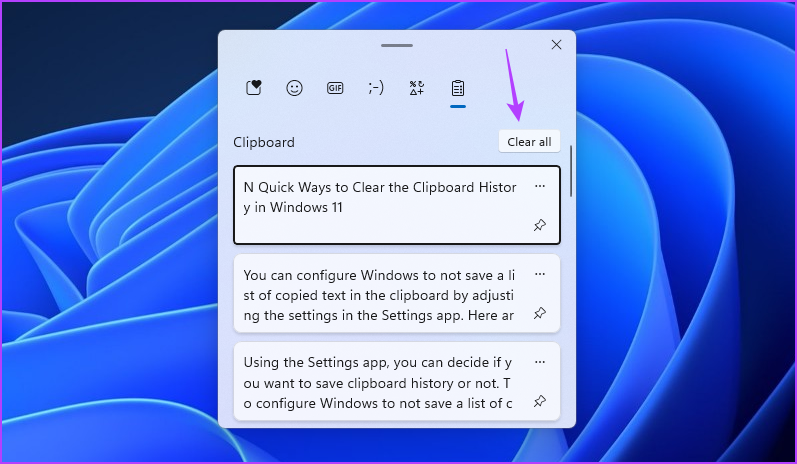
If you want to clear an individual text, click the three dots next to that text and click the Trash icon.

Method 2: Using the Settings App
Another quick way to clear your clipboard history in Windows is by utilizing the Settings app. Windows offers a dedicated section in the Settings app that lets you configure different system features, including the clipboard. To access that feature and delete clipboard data, follow the below instructions:
Step 1: Press the Windows key to open the Start Menu.
Step 2: Type Settings in the search bar and press Enter. Alternatively, press the Windows + I keyboard shortcut to launch the Settings app.

Step 3: Choose System from the left sidebar and Clipboard from the right pane.

Step 4: Click the Clear button next to Clear clipboard data.

You can configure Windows not to save a list of copied text in the clipboard by adjusting its settings in the Settings app. Here are the steps to follow:
Step 1: Open the Settings app, choose System from the left sidebar and Clipboard from the right pane.
Step 2: Disable the toggle for Clipboard history.

Method 3: Using Command Prompt and Windows PowerShell
Command Prompt and Windows PowerShell are the most popular Windows command-line utilities. Usually, these tools are used to perform advanced system tasks like removing corrupt files, but if you know the drill, you can also use them to clear the clipboard in Windows. To do so, follow these steps:
Step 1: Press the Windows key to open the Start Menu.
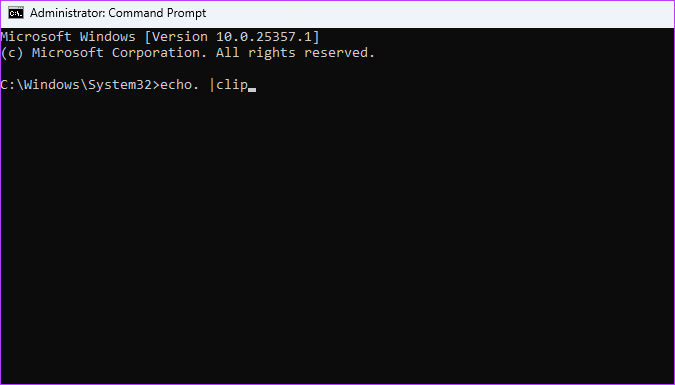
Step 2: Type Command Prompt in the search bar and choose Run as administrator.

Step 3: Type the following command in the elevated Command Prompt window and press Enter.
echo. |clip
If you prefer Windows PowerShell over Command Prompt, here’s how to use it to empty the clipboard:
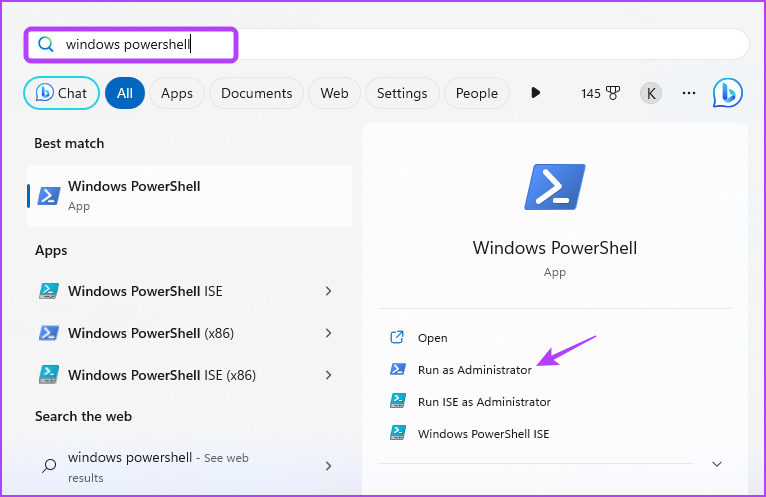
Step 1: Open the Start Menu, type Windows PowerShell, and choose Run as administrator from the right pane.
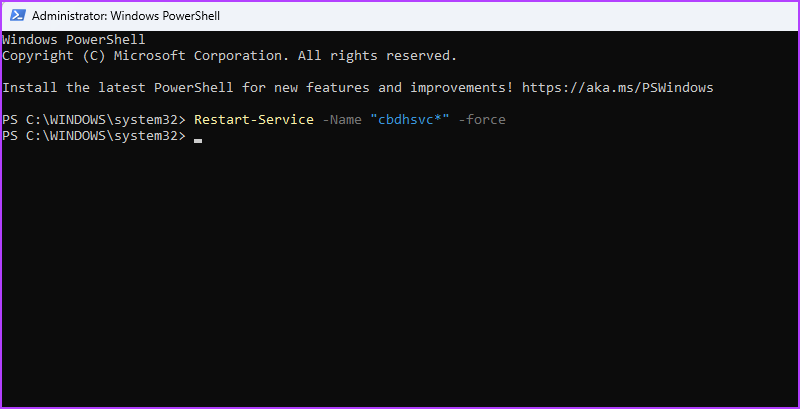
Step 2: In the elevated PowerShell window, type the following command and press Enter:
Restart-Service -Name "cbdhsvc*" -force
Was this helpful?
Last updated on 30 July, 2024
Read Next
 2 Ways to Check Clipboard History on Mac
Method 1: Default Clipboard Step 1: Open Finder on Mac, go to Edit in the menu bar, and choose Show Clipboard.
2 Ways to Check Clipboard History on Mac
Method 1: Default Clipboard Step 1: Open Finder on Mac, go to Edit in the menu bar, and choose Show Clipboard.
 How to Check and Recover Clipboard History on Android
Method 1: Check and Recover Clipboard History Using Gboard One of the easiest ways to view and recover your clipboard history on an Android device is by using Gboard, the
How to Check and Recover Clipboard History on Android
Method 1: Check and Recover Clipboard History Using Gboard One of the easiest ways to view and recover your clipboard history on an Android device is by using Gboard, the
 4 Ways to Clear Windows Defender Protection History
Method 1: Using File Explorer Like many applications, Windows Defender stores the Protection History log on your computer as an accessible file.
4 Ways to Clear Windows Defender Protection History
Method 1: Using File Explorer Like many applications, Windows Defender stores the Protection History log on your computer as an accessible file.
 How to Fix Windows Clipboard Not Working on Windows 10
Basic Fixes Update Windows: Before starting, make sure that you're running the latest version of Windows.
How to Fix Windows Clipboard Not Working on Windows 10
Basic Fixes Update Windows: Before starting, make sure that you're running the latest version of Windows.
 How to Clear File Explorer Search History in Windows 10
File Explorer on Windows 10 keeps track of all your searches to make it easy for you to search for the same files again.
How to Clear File Explorer Search History in Windows 10
File Explorer on Windows 10 keeps track of all your searches to make it easy for you to search for the same files again.
 How to Clear All Activity History on Windows 11
Method 1: Clear Activity History for Your Account Microsoft collects your activity history to improve the cross-device experience and provide relevant suggestions.
How to Clear All Activity History on Windows 11
Method 1: Clear Activity History for Your Account Microsoft collects your activity history to improve the cross-device experience and provide relevant suggestions.
 What Is Clipboard in Windows 10 and How to Use It: A Complete Guide
You must have used copy-paste functionality at least once whether you own a smartphone, tablet, or computer.
What Is Clipboard in Windows 10 and How to Use It: A Complete Guide
You must have used copy-paste functionality at least once whether you own a smartphone, tablet, or computer.
 4 Ways to Fix Unable to Clear History in Safari for iPhone
Fix 1: Disable Web Content Restrictions The Screen Time feature on your iPhone lets you apply content restrictions and block inappropriate websites.
4 Ways to Fix Unable to Clear History in Safari for iPhone
Fix 1: Disable Web Content Restrictions The Screen Time feature on your iPhone lets you apply content restrictions and block inappropriate websites.
The article above may contain affiliate links which help support Guiding Tech. The content remains unbiased and authentic and will never affect our editorial integrity.