Method 1: Visit the Installation Folder
Browsing the .NET Framework installation folder on Windows 11 is a nifty trick to check its version details. Go to the File Explorer app to get started.
Step 1: Press the Windows + E shortcut to open the File Explorer app, copy-paste the path below into the address bar, and press Enter.
C:\Windows\Microsoft.NET\Framework

Step 2: Open the folder starting with the initial v4.0 and right-click any .dll file to access its Properties.

Step 3: Select the Details tab > locate the Product Version to identify the .NET Framework version installed on your PC.

Method 2: Use the Registry Editor
In addition to visiting the installation directory, you can open the Registry Editor to check the .NET Framework Version details on Windows 11.
Step 1: Press the Windows + R shortcut to open the Run dialog, type regedit, and press Enter.

Step 2: Approve the UAC prompt, paste the following path in the navigation bar, and hit Enter to navigate.
HKEY_LOCAL_MACHINE\SOFTWARE\Microsoft\NET Framework Setup\NDP
Step 3: Expand the v4 key in the list under NDP, select Client, and double-click Version to identify the installed .NET Framework Version.

Method 3: Using Command Prompt
If you can’t determine the Framework Version using the Registry Editor, open Command Prompt and execute the query to know the precise details.
Step 1: Press the Windows key, search CMD, and click Run as administrator.

Step 2: Copy-paste the following command and press Enter to know the version details.
reg query "HKLM\SOFTWARE\Microsoft\Net Framework Setup\NDP\v4\Client" /v Version

Method 4: Check the .NET Framework Version Using Terminal
Like Command Prompt, you can utilize the Get-child cmdlet in Windows PowerShell to view all .NET Framework versions installed on your PC.
Step 1: Press the Windows key, search PowerShell, and click Run as Administrator.

Step 2: Copy-paste the following command and press Enter to view all installed versions.
Get-ChildItem 'HKLM:\SOFTWARE\Microsoft\NET Framework Setup\NDP' -Recurse | Get-ItemProperty -Name version -EA 0 | Where { $_.PSChildName -Match '^(?!S)\p{L}'} | Select PSChildName, version

FAQs
The latest .NET Framework version is 4.8, available for Windows 10 and 11.
Windows 11 automatically updates the .NET Framework Version with Windows Updates. Alternatively, you can manually download and install the latest version from Microsoft.
Press the Windows Key > search Turn Windows Features on or off > select your desired .NET Framework to enable it.
Was this helpful?
Last updated on 22 May, 2024
Read Next
 3 Ways to Check App Version on iPhone and Android
How to Find App Version on iPhone Method 1: From Settings Step 1: Open Settings on your iPhone.
3 Ways to Check App Version on iPhone and Android
How to Find App Version on iPhone Method 1: From Settings Step 1: Open Settings on your iPhone.
 How to Download ORCA MSI Editor Standalone Version
How to Download and Install the ORCA MSI Editor Downloading the standalone MSI installer file is quite difficult.
How to Download ORCA MSI Editor Standalone Version
How to Download and Install the ORCA MSI Editor Downloading the standalone MSI installer file is quite difficult.
 4 Ways to Fix ‘Your Device Isn’t Compatible With This Version’ on Android
Fix 1: Update Android Version The app you are trying to download may not be compatible with an older version of Android OS.
4 Ways to Fix ‘Your Device Isn’t Compatible With This Version’ on Android
Fix 1: Update Android Version The app you are trying to download may not be compatible with an older version of Android OS.
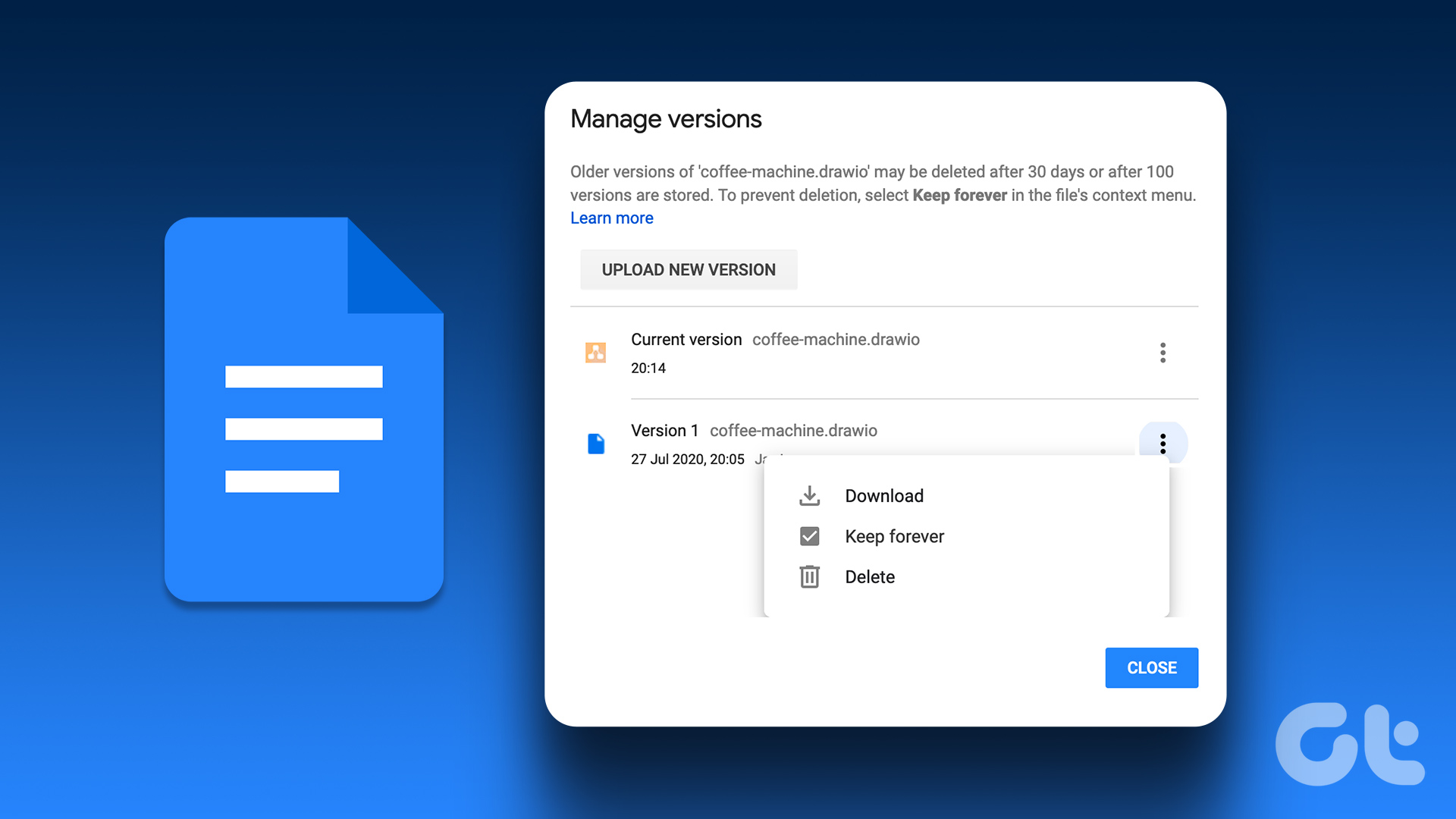 How to View and Manage Version History in Google Docs
Google Docs automatically saves previous document versions as you work on it.
How to View and Manage Version History in Google Docs
Google Docs automatically saves previous document versions as you work on it.
 How to Use Version History in Microsoft Excel
How to View Version History in Microsoft Excel for PC or Mac Accessing an older version of an Excel workbook on your PC or Mac only takes a few steps.
How to Use Version History in Microsoft Excel
How to View Version History in Microsoft Excel for PC or Mac Accessing an older version of an Excel workbook on your PC or Mac only takes a few steps.
 How to Update Android Auto to the Latest Version
Over the years, there have been several debates to answer which is the better driving interface, Android Auto or Apple CarPlay.
How to Update Android Auto to the Latest Version
Over the years, there have been several debates to answer which is the better driving interface, Android Auto or Apple CarPlay.
 5 Ways to Check RAM Type in PC on Windows 10 and Windows 11
Method 1: Check the PC or Laptop Model From the Manufacturer's Site If you use a pre-built rig from a PC maker or have a laptop, the first course of
5 Ways to Check RAM Type in PC on Windows 10 and Windows 11
Method 1: Check the PC or Laptop Model From the Manufacturer's Site If you use a pre-built rig from a PC maker or have a laptop, the first course of
 Top 3 Ways to Check iPhone Battery Cycles in Windows and Mac
If your iPhone has iOS 11.3 or later installed, you can easily check battery health with a brief dive into the Battery section of the Settings app.
Top 3 Ways to Check iPhone Battery Cycles in Windows and Mac
If your iPhone has iOS 11.3 or later installed, you can easily check battery health with a brief dive into the Battery section of the Settings app.
The article above may contain affiliate links which help support Guiding Tech. The content remains unbiased and authentic and will never affect our editorial integrity.