Change Desktop and Taskbar Icons on Windows 11
Let’s start with the Desktop icons. You can use the Settings app on Windows 11 to change the icons for the Computer, User’s Files, Network, Recycle Bin, and Control Panel. Here’s how.
Step 1: Open the Start menu and click the gear icon to launch the Settings app.
Step 2: Go to the Personalization tab on your left and select Themes.
Step 3: Scroll down to the Related settings section and open Desktop icon settings.
Step 4: Select the Desktop icon you wish to modify and click on Change Icon.

Step 5: In the Change Icon window, select a new icon from the available options. Alternatively, use the browse button to locate any custom icons downloaded from a third-party website.
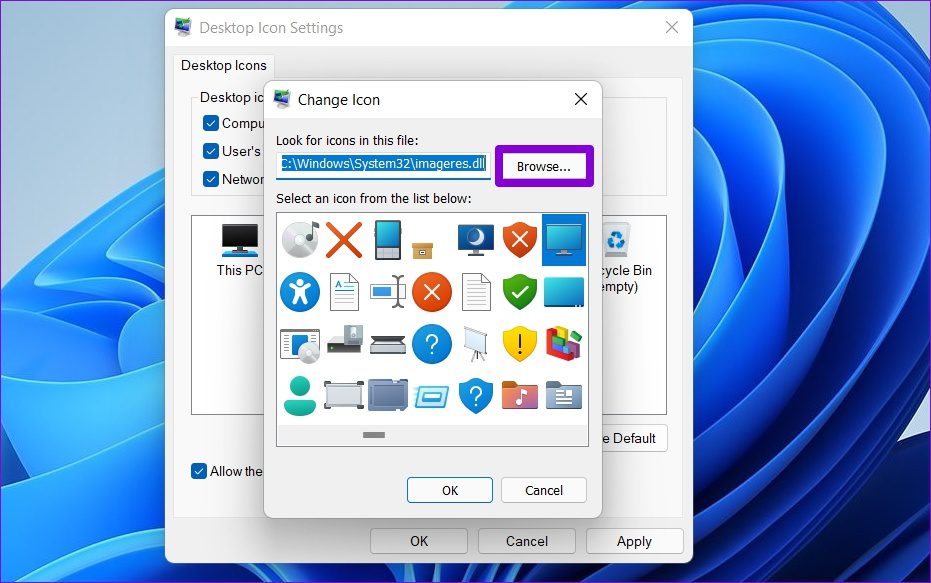
Step 6: Once selected, click on OK.
Step 7: Click on Apply, followed by OK to save changes.
Note that if you want to change the icon of a desktop shortcut, you must access its properties. Here’s how to go about it.
Step 1: Right-click on the desktop icon > select Properties.
Step 2: Under the Shortcut tab, click on Change Icon.

Step 3: Select a new icon and click on OK.
Step 4: Hit Apply to save changes.
You can replicate the steps to change the icon of a program pinned to Taskbar by accessing its Properties, too. The steps are similar to those outlined above.
How to Change Folder Icons on Windows 11
Apart from desktop and taskbar icons, Windows also lets you change folder icons in File Explorer. The process is similar to changing the desktop shortcut icons. Here’s how.
Step 1: Press Windows key + E to launch the File Explorer.
Step 2: Right-click on the desired folder and open its Properties.
Step 3: Switch to the Customize tab and click on Change Icon.

Step 4: Select a new icon for the Folder and hit OK.
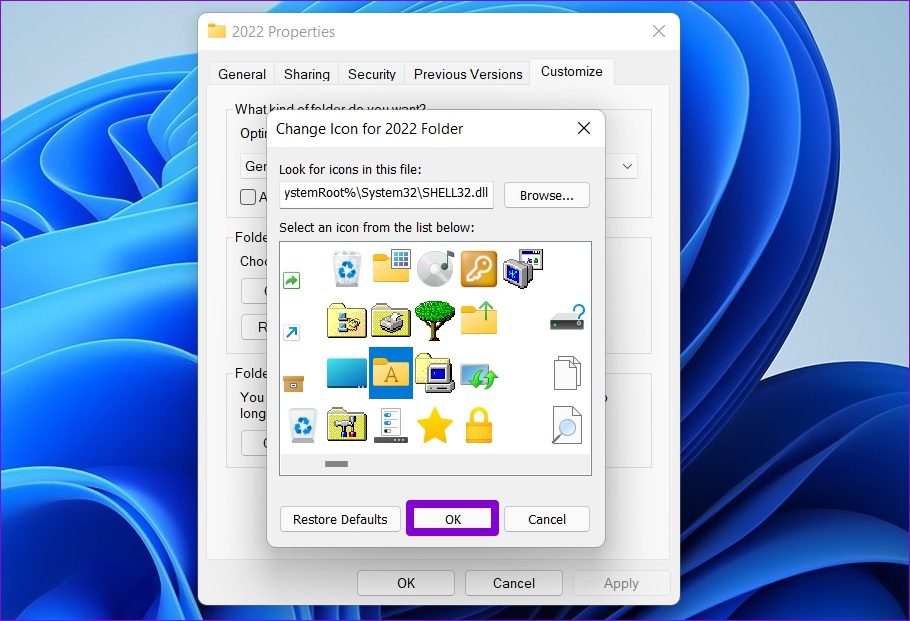
Step 5: Lastly, click on Apply to save changes.
Was this helpful?
Last updated on 26 July, 2024
Read Next
 How to Fix Windows 10 Invisible Taskbar Icons Issue
Pinning the frequently used apps to the taskbar is quite helpful.
How to Fix Windows 10 Invisible Taskbar Icons Issue
Pinning the frequently used apps to the taskbar is quite helpful.
 How to Hide and Unhide Some Desktop Icons on Windows 10
You might want to hide some apps icons from your Windows PC if you share them with your family or kids.
How to Hide and Unhide Some Desktop Icons on Windows 10
You might want to hide some apps icons from your Windows PC if you share them with your family or kids.
 2 Ways to Resize the Taskbar Icons in Windows 11
Method 1: Resize the Taskbar Icons Using Registry Editor Since there is no direct option to resize the taskbar icons, you must edit certain registry values to get this effect.
2 Ways to Resize the Taskbar Icons in Windows 11
Method 1: Resize the Taskbar Icons Using Registry Editor Since there is no direct option to resize the taskbar icons, you must edit certain registry values to get this effect.
 How to Fix Desktop Icons Disappearing on Windows 11
Basic Fixes Run a malware scan: Malware is a common source of corruption that may lead to this icon issue.
How to Fix Desktop Icons Disappearing on Windows 11
Basic Fixes Run a malware scan: Malware is a common source of corruption that may lead to this icon issue.
 6 Ways to Fix Icons Missing From Start Menu on Windows 11
Fix 1: Restart Windows Explorer Windows Explorer process is responsible for providing the graphical interface for several utilities, including the Start menu.
6 Ways to Fix Icons Missing From Start Menu on Windows 11
Fix 1: Restart Windows Explorer Windows Explorer process is responsible for providing the graphical interface for several utilities, including the Start menu.
 How to Fix Taskbar Icons Missing on Windows 11
Windows 11's new Taskbar looks great and feels modern, but it's not as perfect as it used to be.
How to Fix Taskbar Icons Missing on Windows 11
Windows 11's new Taskbar looks great and feels modern, but it's not as perfect as it used to be.
 How to Make Desktop Icons Smaller on Windows 11
Are you looking to customize your Windows 11 desktop?
How to Make Desktop Icons Smaller on Windows 11
Are you looking to customize your Windows 11 desktop?
 4 Ways to Ungroup Taskbar Icons in Windows 11
Taskbar is an integral part of a Windows computer since it offers a quick access to your most-used applications.
4 Ways to Ungroup Taskbar Icons in Windows 11
Taskbar is an integral part of a Windows computer since it offers a quick access to your most-used applications.
The article above may contain affiliate links which help support Guiding Tech. The content remains unbiased and authentic and will never affect our editorial integrity.