

Unless you constantly have your Windows computer set to mute, you’ll have noticed that every notification is accompanied by a bright, audible sound. Some of these are chimes, some are short melodies, and others are alarms, prompting you to take notice, for example, when your laptop battery is dying.
If you’re tired of hearing the same sounds all the time, you can actually change event sounds in Windows 11 by heading into the Control Panel section of your computer. It’s a very simple process, and there are literally dozens of sounds you can choose from to assign to different events.
Read on to discover how to change Windows event sounds and customize your Windows experience.
Change Event Sounds in Windows 11: Step-by-Step Guide
Step 1. Go to your Windows search bar at the bottom of your home screen and type “Control Panel.”

Step 2. Click “Open,” then “Hardware and Sound.”

Step 3. Look for the Sound option. Under this, you should be able to see “Change system sounds.” Click here.

Step 4. You will now see a list of Windows program events, such as calendar reminders and battery-related alerts. For this example, the user is changing the sound for the critical battery alarm.
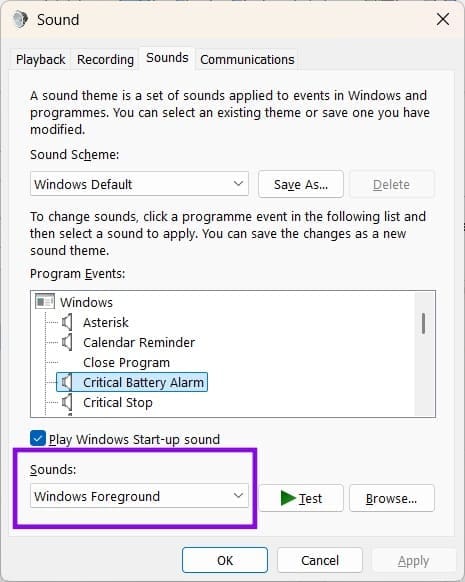
Step 5. Click the drop-down menu under “Sounds” to see the available sounds for the selected event. You’ll now see a long list of possible sounds to choose from. Click the one you want to apply.

Step 6. Press “Test,” which will play the sound you’ve chosen. If you’re happy with this, press “Apply.” Or you can go back into the list and try a different sound. There are dozens to choose from. Once you’ve applied the sound changes you want to make, press “OK” to close this window.

Note: You can only change Windows event sounds, not sounds controlled by games or third-party apps. Also, if your laptop or desktop has sounds built in that are independent of Windows, such as “power on” beeps or chimes, you can’t adjust these either.
Pro Tip: Before you make your changes, take a note of what the default sound is. That way, if you want to change any of the sounds back, you can restore them individually without resetting your other Windows settings. For a quieter experience, you can also select “No Sounds” under the Sound Scheme, which will turn all notification sounds off. You can change this back at any time.
Was this helpful?
Last updated on 08 September, 2026
Read Next
 How to Change or Disable Notification Sounds in Windows 11
How to Change the Default Notification Sound in Windows 11 If you’re going to hear the notification sound all day, you might as well change it to something you like.
How to Change or Disable Notification Sounds in Windows 11
How to Change the Default Notification Sound in Windows 11 If you’re going to hear the notification sound all day, you might as well change it to something you like.
 How to Find and Fix Windows 10 Making Random Sounds
Recently, when I was working on my Windows 10 laptop, I heard some random ding sounds coming from the speaker.
How to Find and Fix Windows 10 Making Random Sounds
Recently, when I was working on my Windows 10 laptop, I heard some random ding sounds coming from the speaker.
 4 Ways to Fix iPhone App Notification Sounds Not Working
Basic Fixes: Check your iPhone's speaker: If your iPhone's speaker grill is damaged, it might not play notification sounds.
4 Ways to Fix iPhone App Notification Sounds Not Working
Basic Fixes: Check your iPhone's speaker: If your iPhone's speaker grill is damaged, it might not play notification sounds.
 4 Ways to Fix Notification Sounds Not Working on iPad
Basic Fixes: Reboot iPad: Sometimes, a simple fix like rebooting the iPad will bring back the notification sound.
4 Ways to Fix Notification Sounds Not Working on iPad
Basic Fixes: Reboot iPad: Sometimes, a simple fix like rebooting the iPad will bring back the notification sound.
 How to Set Different Notifications Sounds for Different Apps on Android Phones
With so many apps installed on our phones, a barrage of notifications is bound to confuse us.
How to Set Different Notifications Sounds for Different Apps on Android Phones
With so many apps installed on our phones, a barrage of notifications is bound to confuse us.
 How to Set Custom Notification Sounds for Different Apps on Samsung Galaxy Phones
How to Set Different Notification Sounds for Different Apps You can change app sounds through the phone's Settings app.
How to Set Custom Notification Sounds for Different Apps on Samsung Galaxy Phones
How to Set Different Notification Sounds for Different Apps You can change app sounds through the phone's Settings app.
 3 Ways to Change Priority Levels for Programs on Windows 10 and Windows 11
When Should You Change the Priority Level of a Program By default, Windows 11 assigns different priority levels to each process based on its importance.
3 Ways to Change Priority Levels for Programs on Windows 10 and Windows 11
When Should You Change the Priority Level of a Program By default, Windows 11 assigns different priority levels to each process based on its importance.
 6 Ways to Fix Unable to Change Sign-in PIN on Windows
Fix 1: Disconnect Work or School Account One of the most common reasons Windows may prevent you from changing your sign-in PIN is if you've linked your work or school
6 Ways to Fix Unable to Change Sign-in PIN on Windows
Fix 1: Disconnect Work or School Account One of the most common reasons Windows may prevent you from changing your sign-in PIN is if you've linked your work or school
The article above may contain affiliate links which help support Guiding Tech. The content remains unbiased and authentic and will never affect our editorial integrity.

