


Adding iCloud to File Explorer
Step 1: Install the iCloud app from the Microsoft Store and sign in using your Apple ID or account.
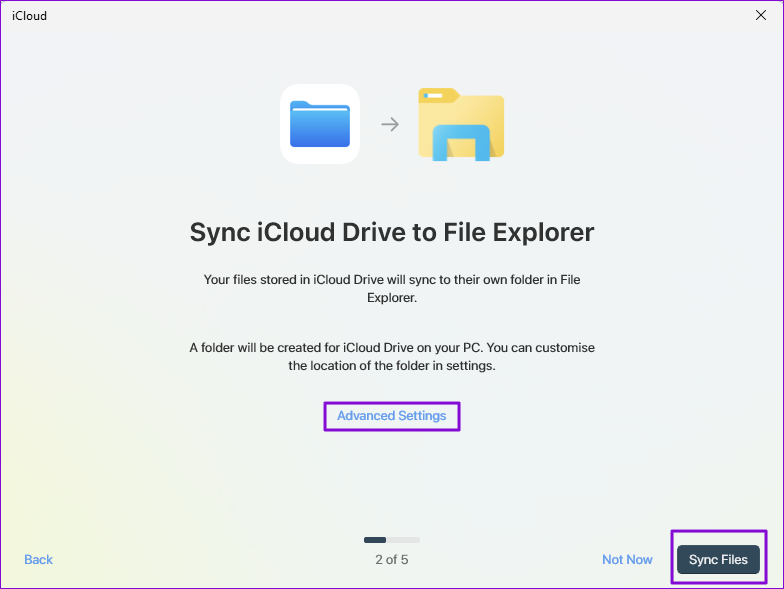
Step 2: During the setup, you will be prompted with multiple integrations, one of which will be to Sync iCloud Drive to File Explorer. Click on Sync Files or Advanced Settings to change the location.
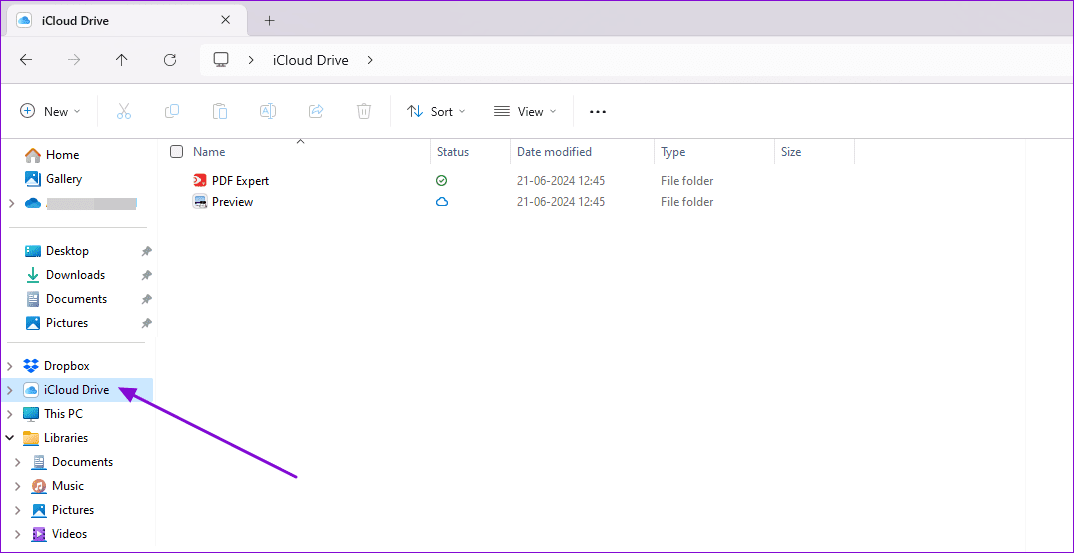
Step 3: Once complete, iCloud will download the files, which you can easily access through File Explorer.
Adding or Moving Files to the iCloud Drive on File Explorer
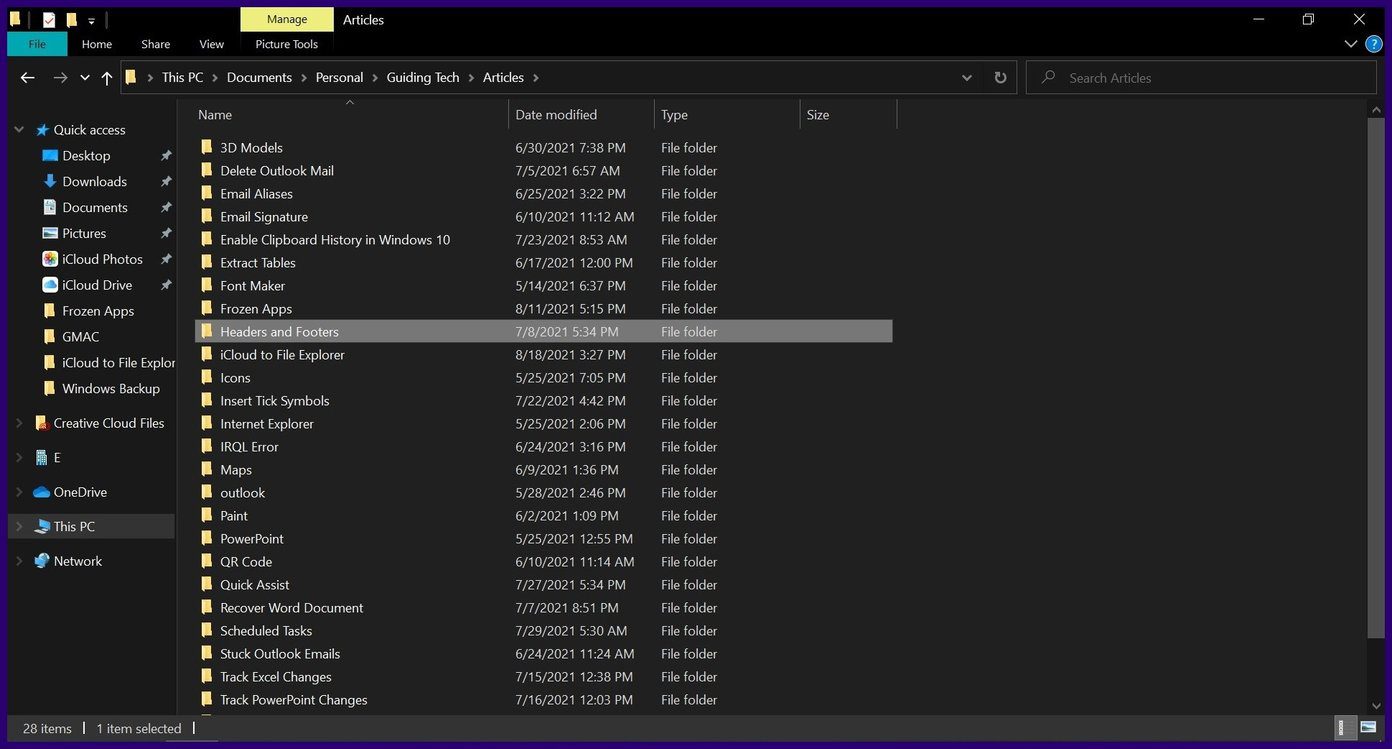
Step 1: Select the files to be added to the iCloud Drive from your PC.
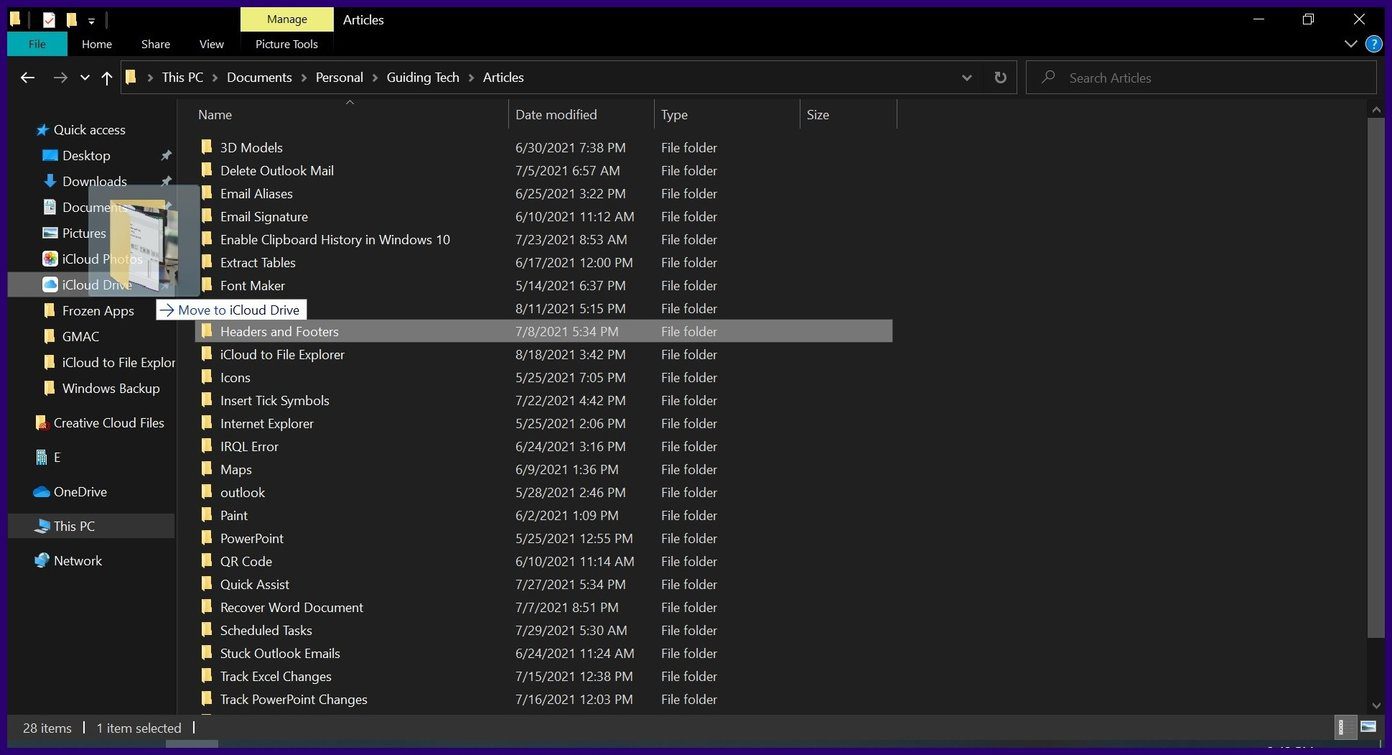
Step 2: Drag the files to the pinned icon for iCloud Drive and drop them there. Alternatively, copy and paste the files into the iCloud Drive for Windows.
Managing iCloud Storage Space From Windows
By default, iCloud users get 5GB of free storage space. However, this might not be enough to use your iCloud across multiple devices. You can delete files/folders to free up space or expand your storage.
Step 1: Launch the iCloud app and scroll to find the iCloud section. Then, click on Manage.

Step 2: From the new dialog box, you can see the items consuming your storage space. For some, you will have a direct delete option. For Photos, Mail, etc., you must go to iCloud to manage them.

Step 3: If you need more space, you can always use the Add Storage option, and subscribe to a plan of higher storage capacity.

Was this helpful?
Last updated on 09 July, 2024
2 Comments
Leave a Reply
Read Next
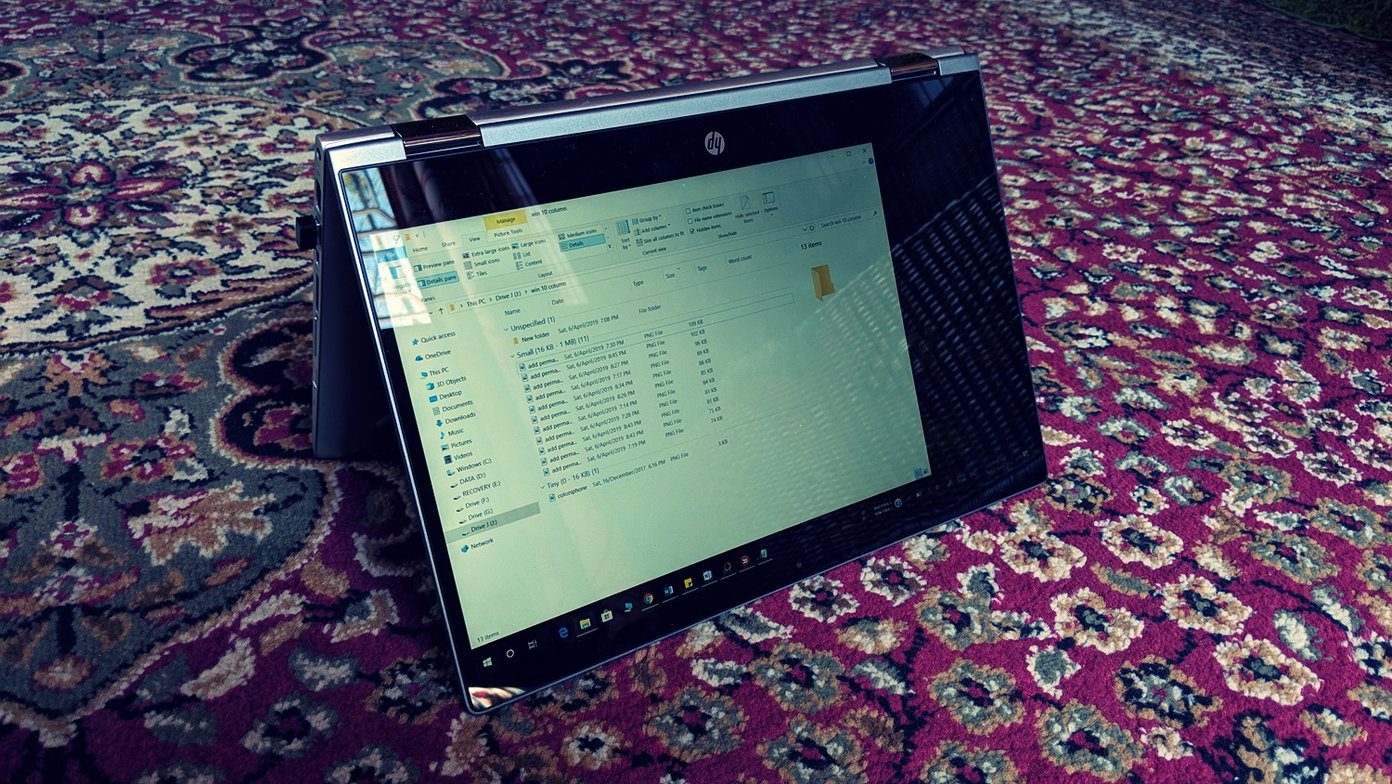 How to Add Columns Permanently to All Folders in Windows 10 File Explorer
File Explorer in Windows usually shows just a few columns such as name, date, and type.
How to Add Columns Permanently to All Folders in Windows 10 File Explorer
File Explorer in Windows usually shows just a few columns such as name, date, and type.
 How to Add File Explorer and Folders to Taskbar in Windows 11
How to Add File Explorer to Taskbar in Windows 11 The Taskbar in Windows 11 has the File Explorer icon pinned to the Taskbar by default.
How to Add File Explorer and Folders to Taskbar in Windows 11
How to Add File Explorer to Taskbar in Windows 11 The Taskbar in Windows 11 has the File Explorer icon pinned to the Taskbar by default.
 Top 8 Ways to Fix File Explorer Not Opening on Windows 10
File Explorer is an integral part of Windows 10 OS.
Top 8 Ways to Fix File Explorer Not Opening on Windows 10
File Explorer is an integral part of Windows 10 OS.
 5 Ways to Fix File Explorer Search Not Working on Windows 11
Basic Fixes Perform a clean boot: An installed PC software may conflict with the File Explorer app, causing the search issue.
5 Ways to Fix File Explorer Search Not Working on Windows 11
Basic Fixes Perform a clean boot: An installed PC software may conflict with the File Explorer app, causing the search issue.
 4 Ways to Select Multiple Files on Windows File Explorer
Method 1: Select All Files Using CTRL + A Once a folder is open and you press the CTRL + A key combination, all the files will be selected.
4 Ways to Select Multiple Files on Windows File Explorer
Method 1: Select All Files Using CTRL + A Once a folder is open and you press the CTRL + A key combination, all the files will be selected.
 4 Ways to Fix File Explorer Not Working on Windows 11
Try Basic Fixes Scan for malware: It's possible that a malicious virus has affected your PC, disrupting regular operations on Windows 11.
4 Ways to Fix File Explorer Not Working on Windows 11
Try Basic Fixes Scan for malware: It's possible that a malicious virus has affected your PC, disrupting regular operations on Windows 11.
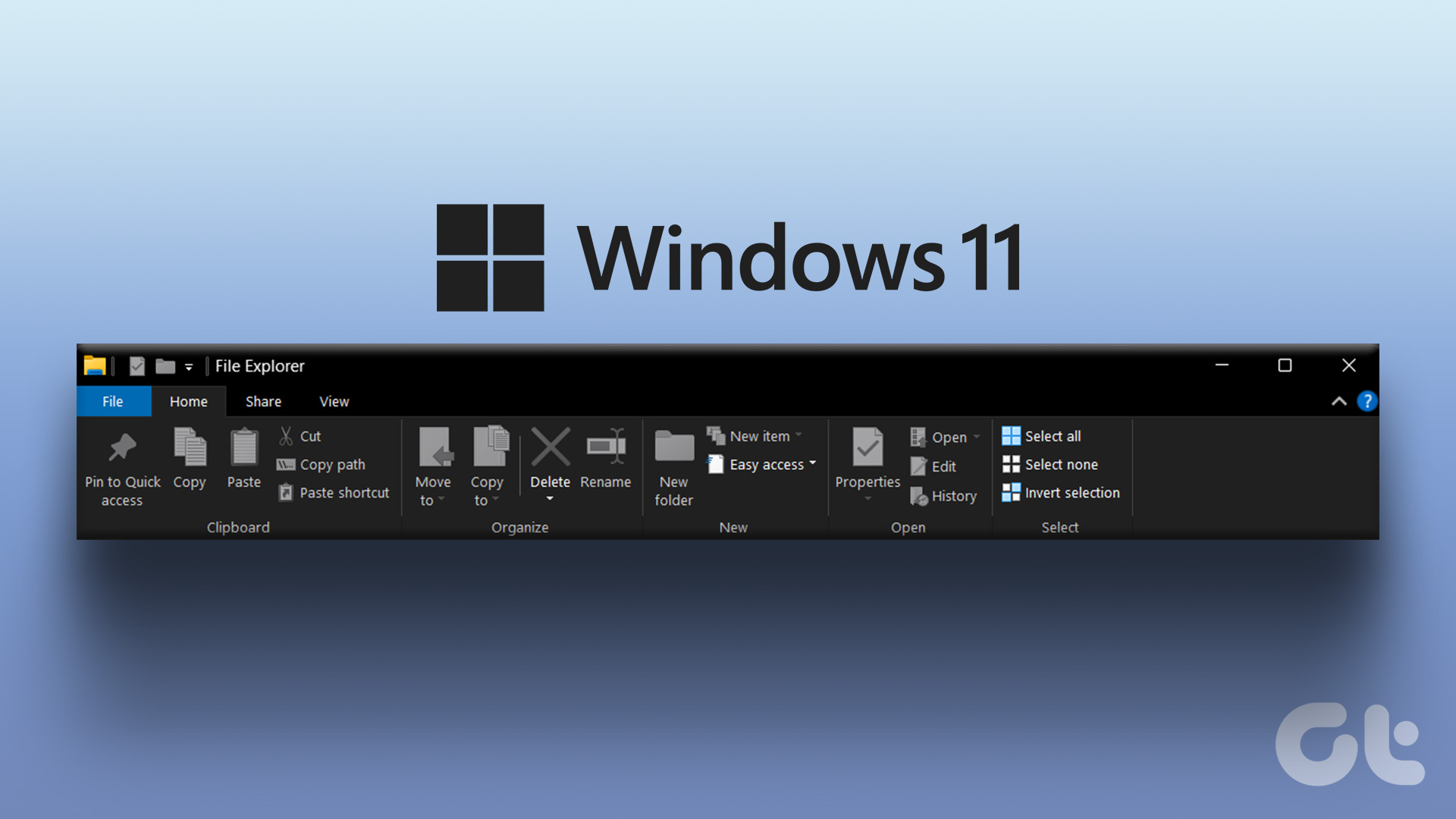 How to Restore the Classic File Explorer Ribbon in Windows 11
Method 1: Using Control Panel This method temporarily restores the old classic ribbon in File Explorer.
How to Restore the Classic File Explorer Ribbon in Windows 11
Method 1: Using Control Panel This method temporarily restores the old classic ribbon in File Explorer.
 4 Fixes When the Windows File Explorer Stuck at ‘Working on It’
Basic Fixes: Update Windows: It's nice to start with a Windows Update since this will fix minor glitches that may trigger the problem.
4 Fixes When the Windows File Explorer Stuck at ‘Working on It’
Basic Fixes: Update Windows: It's nice to start with a Windows Update since this will fix minor glitches that may trigger the problem.
The article above may contain affiliate links which help support Guiding Tech. The content remains unbiased and authentic and will never affect our editorial integrity.


I really would love to know how to get my photos, music, contacts into my computer
“Once complete, iCloud will download the files which you can easily access through File Explorer.” No! … I DON’T want 2 physical copies of the same file in TWO locations (whether their “synched” or not), i.e. in iCloud AND on my Windows PC. All I want is a link in File Explorer to my iCloud drive. And it doesn’t appear that the iCloud app provides this (IMO pretty straightforward & simple) option/capability.