How to Change Name and Picture on Google Meet on Mobile Devices
Your Google Meet account is linked to your Google account, so you must change the name (and profile picture) on your Google account directly. Doing so will change your name and picture across all the other Google services, such as Google Drive, Google Photos, Gmail, etc. Here is how:
Step 1: Open the Google Meet app.
Step 2: Tap the hamburger icon > tap Settings.


Step 3: Tap your account > Your info, privacy, and security.
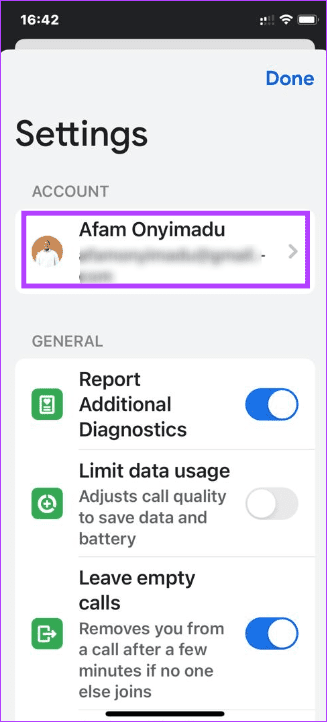

Step 4: On your Google account page, tap Personal info > your profile picture to proceed to change the image, or tap your Name to edit the name.

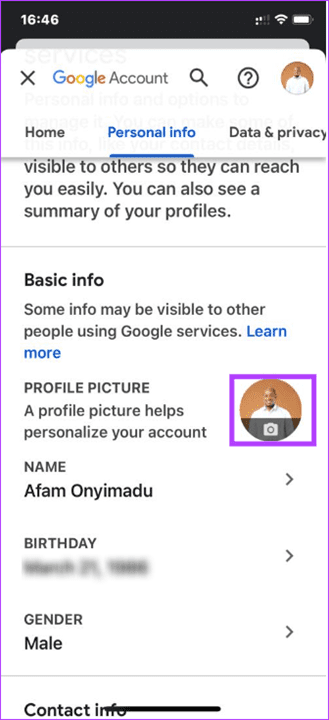
Step 5: Tap on your old picture > select a new image.
Alternatively, you may use the steps below, but they work only on Android devices:
Step 1: Open Settings on your Android phone > scroll down and tap Google.
Step 2: Tap on Manage your Google account.

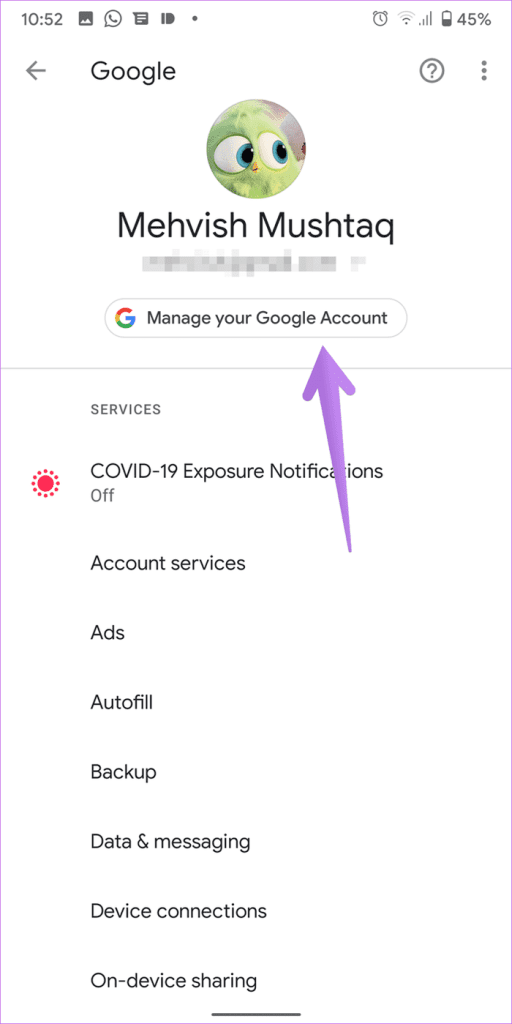
You will be taken to your Google account page. From there, you may continue from Step 4 above to update your profile image and name.
How to Change Name and Picture on Google Meet on PC
As mentioned above, you must change the name directly in the Google account settings. You may navigate to your Google account from Google Meet, as shown below.
Step 1: Open Google Meet on your browser and log in with your Google account.
Step 2: Click on the profile picture icon at the top right and select Manage your Google Account under your account.
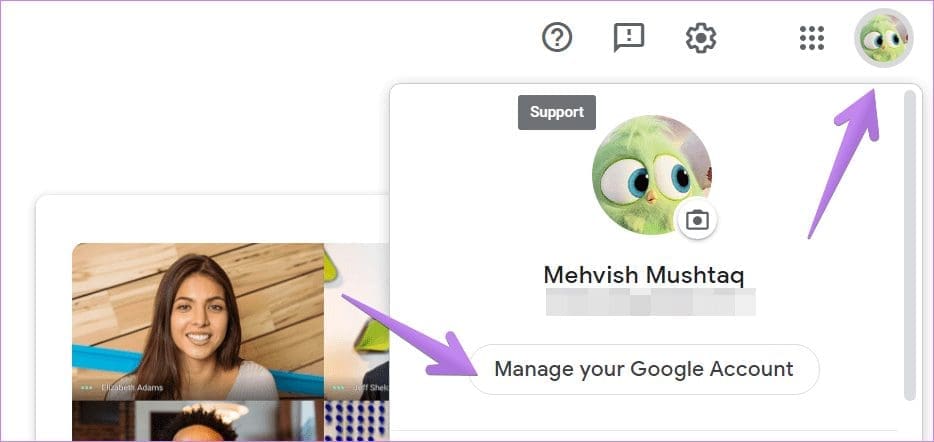
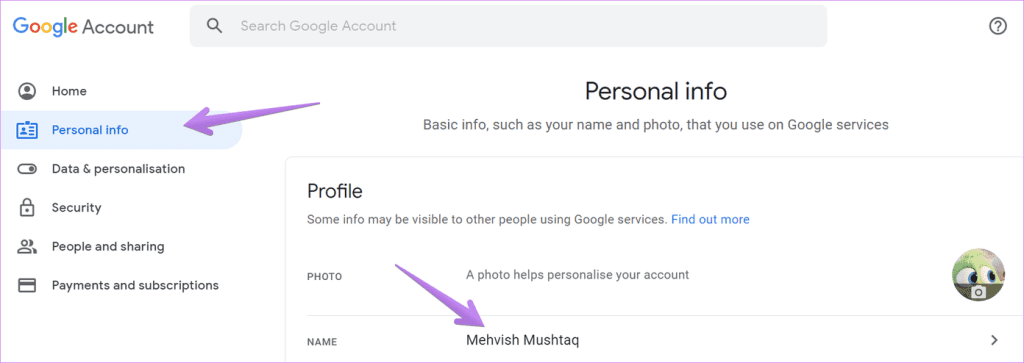
Step 3: Under your profile, click on Personal info from the sidebar > Name.
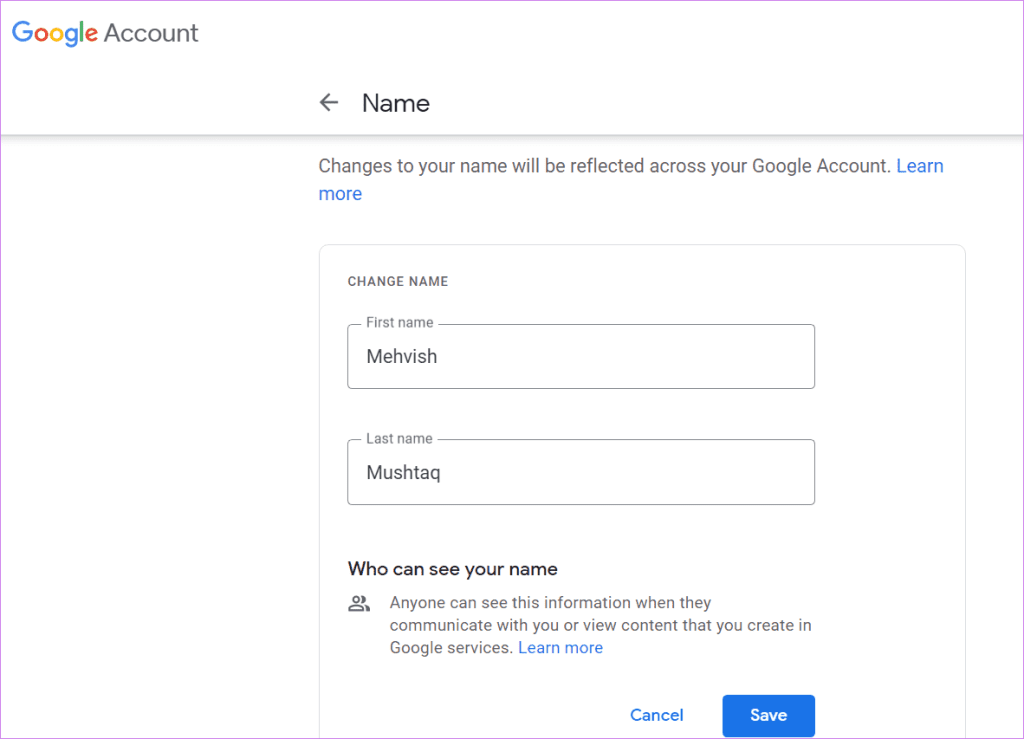
Step 4: Under the boxes, enter your first and last name > click on Save. Then, open Google Meet, and you will see your new name.
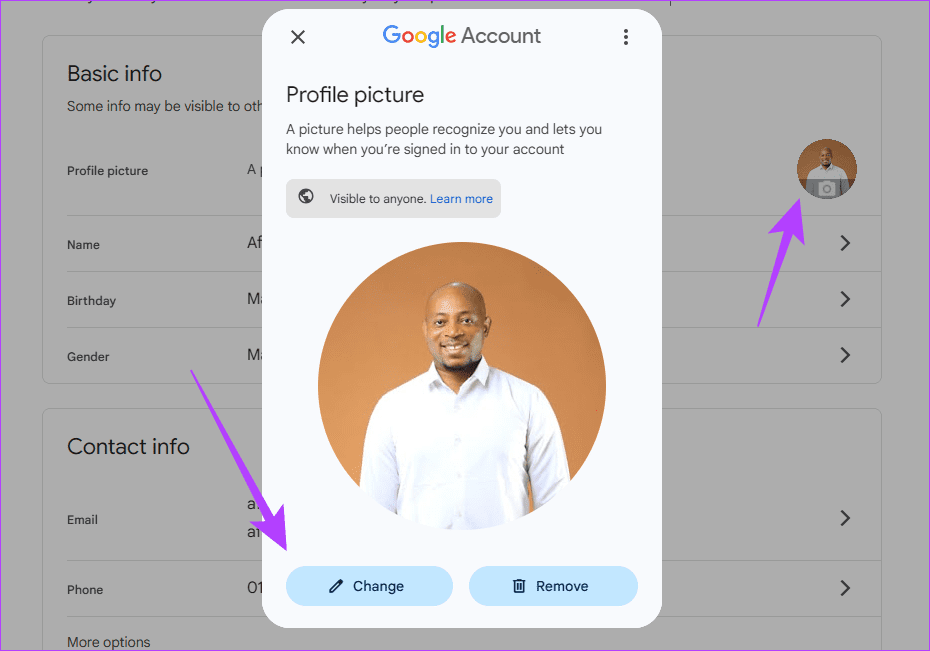
Step 5: Return to the Personal Info page > click your profile image > Change > select a new image.
Pro Tip: Find out how to hide and unhide yourself on Google Meet
Alternatively, navigate to the Google Personal info page and continue with Step 3 to change the name and image.
Was this helpful?
Last updated on 26 August, 2024
Read Next
 4 Ways to Fix the iPhone Picture-in-Picture Not Working
Before you begin, try restarting your iPhone, and update the app you are trying to use picture-in-picture with, to the latest version.
3 Ways to Fix Prime Video Picture-in-Picture Not Working on Android and iPhone
Basic Fixes Restart Prime Video: Restart the Prime Video app and your smartphone to eliminate bugs and glitches.
4 Ways to Fix the iPhone Picture-in-Picture Not Working
Before you begin, try restarting your iPhone, and update the app you are trying to use picture-in-picture with, to the latest version.
3 Ways to Fix Prime Video Picture-in-Picture Not Working on Android and iPhone
Basic Fixes Restart Prime Video: Restart the Prime Video app and your smartphone to eliminate bugs and glitches.
 3 Fixes for Picture-in-Picture Not Working in Telegram
Basic Fixes Force quit and relaunch Telegram: This will give the app a fresh start on your iPhone or Android phone.
3 Fixes for Picture-in-Picture Not Working in Telegram
Basic Fixes Force quit and relaunch Telegram: This will give the app a fresh start on your iPhone or Android phone.
 What Is WhatsApp Profile Picture Size and How to Add Any Picture to It
What’s the Best Size for a WhatsApp profile Picture While WhatsApp has opened up to many new features, from sharing HD photos to screen sharing, it remains stringent on its
What Is WhatsApp Profile Picture Size and How to Add Any Picture to It
What’s the Best Size for a WhatsApp profile Picture While WhatsApp has opened up to many new features, from sharing HD photos to screen sharing, it remains stringent on its
 2 Ways to Turn on Picture in Picture on Microsoft Edge
Method 1: Use the Inbuilt PiP Option in Microsoft Edge Picture-in-Picture (PiP) mode was officially released in Microsoft Edge with the stable release of Microsoft Edge version 78.
2 Ways to Turn on Picture in Picture on Microsoft Edge
Method 1: Use the Inbuilt PiP Option in Microsoft Edge Picture-in-Picture (PiP) mode was officially released in Microsoft Edge with the stable release of Microsoft Edge version 78.
 3 Ways to Fix Picture-In-Picture Not Working in Facebook Messenger
Common Fixes Restart device - Long-press the physical Power button and tap Reboot to restart Android.
3 Ways to Fix Picture-In-Picture Not Working in Facebook Messenger
Common Fixes Restart device - Long-press the physical Power button and tap Reboot to restart Android.
 How to Enable or Disable Picture-in-Picture Mode on iPhone and iPad
Enable Automatic Picture-in-Picture Mode on iPhone and iPad If your iPhone or iPad doesn't automatically open videos in Picture-in-Picture mode when quitting to the Home screen, it's likely that your
How to Enable or Disable Picture-in-Picture Mode on iPhone and iPad
Enable Automatic Picture-in-Picture Mode on iPhone and iPad If your iPhone or iPad doesn't automatically open videos in Picture-in-Picture mode when quitting to the Home screen, it's likely that your
 Top 6 Fixes for Facetime Picture-in-Picture Not Working on iPhone & iPad
With the Picture-in-Picture (PiP) mode, multitasking is easy on iPhone and iPad.
Top 6 Fixes for Facetime Picture-in-Picture Not Working on iPhone & iPad
With the Picture-in-Picture (PiP) mode, multitasking is easy on iPhone and iPad.
The article above may contain affiliate links which help support Guiding Tech. The content remains unbiased and authentic and will never affect our editorial integrity.