Note: Changing settings on your desktop automatically syncs to your mobile device, so you don’t have to follow the same methods on your mobile device as you would on your desktop.
Method 1: Block the User You Want to Hide Your IG Posts From
It is pretty easy to block someone on Instagram; when you do, they can’t view your profile, posts, or stories. This can be helpful if you’re trying to keep your content private from someone specific.
On Desktop
Step 1: Go to Instagram from your preferred browser and log in to your account.
Step 2: Navigate to the account you want to block by searching or using the feed.

Step 3: Once on their profile, tap the Options (three-dot icon) button.

Step 4: From the pop-up, choose Block.
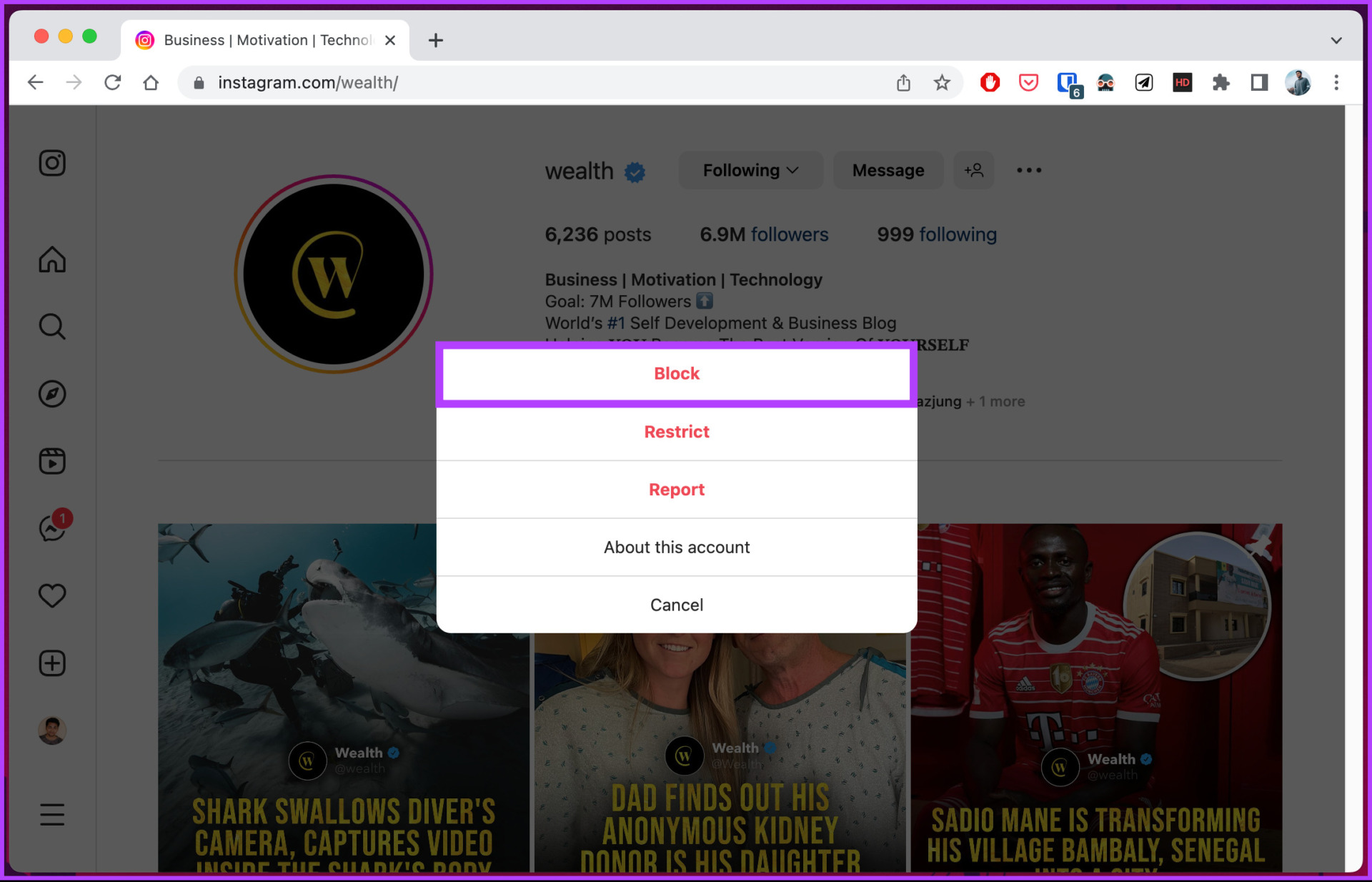
Step 5: In the confirmation window, select Block.
That’s it. You have blocked the user from accessing your Instagram account. If you don’t have desktop access or use Instagram on a mobile device, check out the following method.
On Instagram Mobile App
While you can follow the steps from the desktop method on your mobile device to block someone on Instagram, there’s another method as well to do so on the iOS or Android app.
Step 1: Launch the Instagram app.
Step 2: Navigate to your profile from the bottom navigation bar.
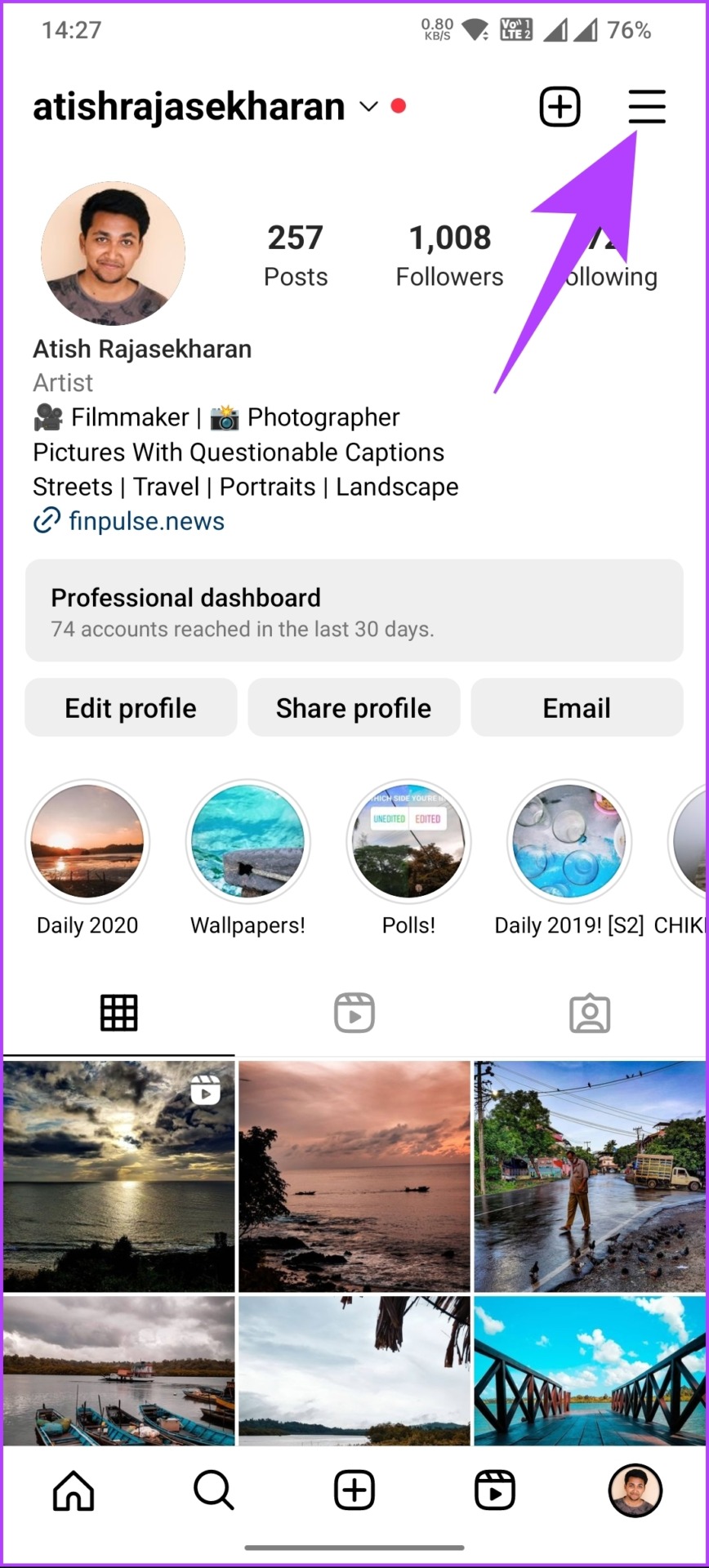
Step 3: In the profile, tap on the hamburger menu and select Settings.
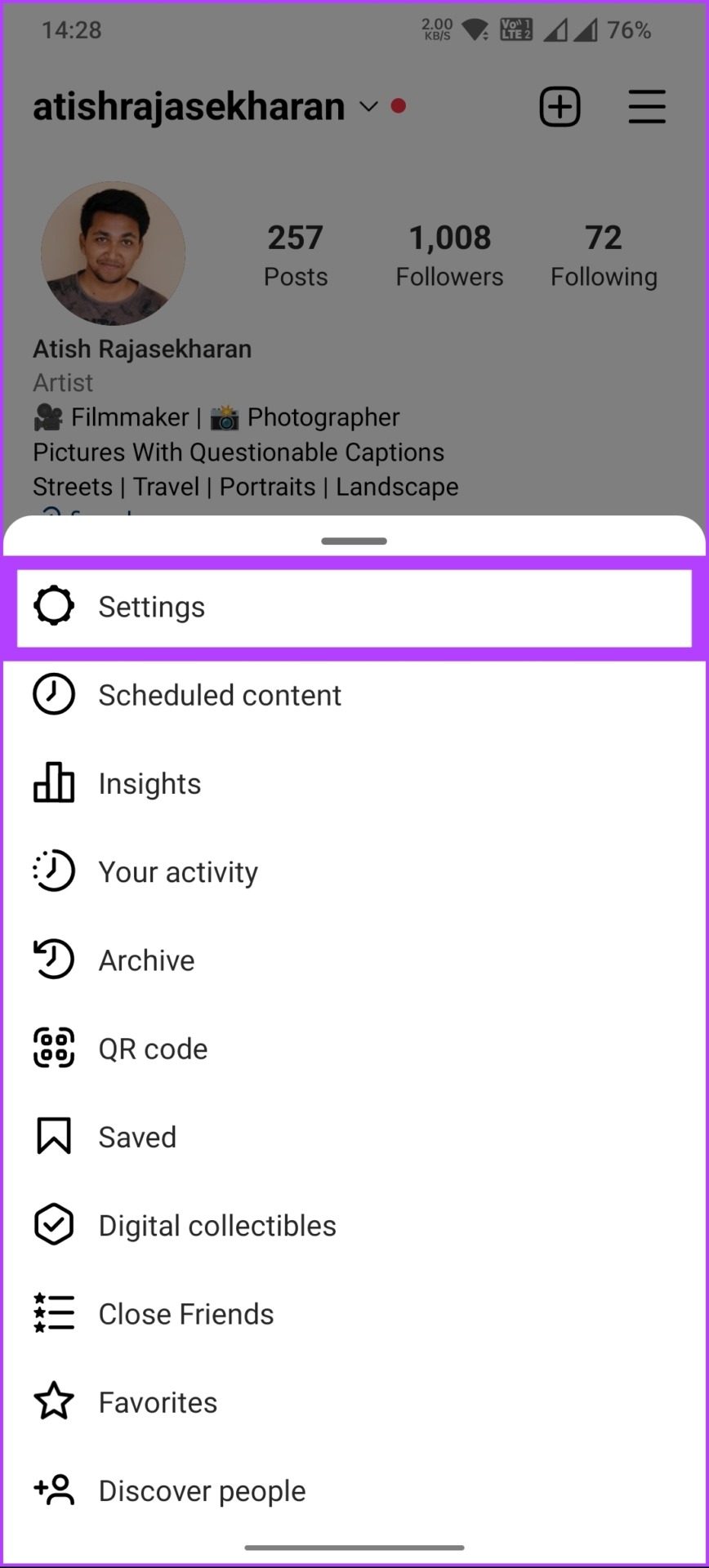
Step 4: In the Settings screen, choose Privacy.
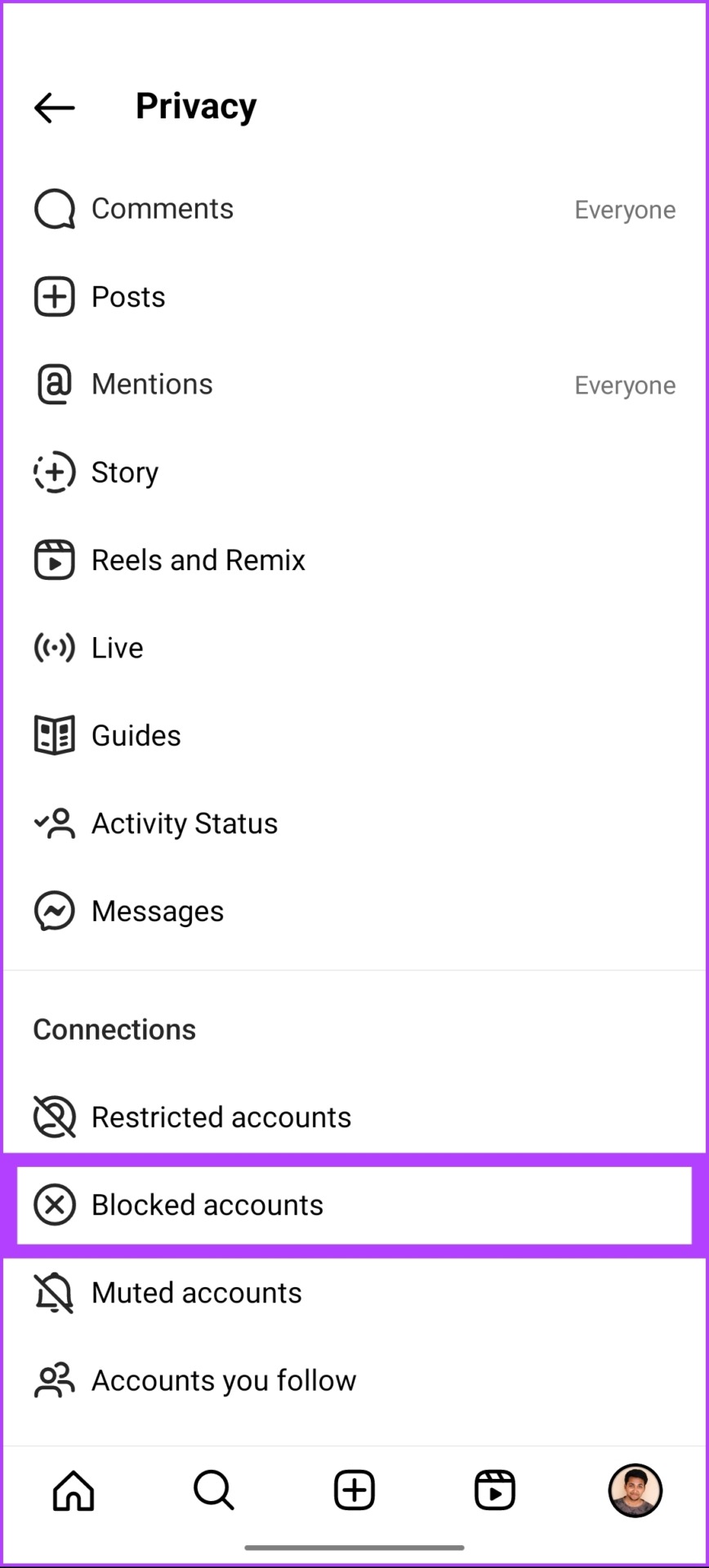
Step 5: On the next screen, scroll down and choose Blocked accounts under Connections.
You will see a list of blocked accounts (if there are any). You can tap on the Unblock button to quickly unblock someone on Instagram.
However, if you want to block someone, follow the below steps.

Step 6: Tap the + (plus) button at the top right corner.
Step 7: Choose the account you want to block and tap the Block button next to it.
Note: You can search the account from the top for quick access.
Step 8: In the Block [Username]? prompt, choose Block [Username] and select Block.
Note: If you would like to block the additional accounts that this particular account owns or will create in the future, select the Block [Username] and other accounts they may have or create option.

![choose Block [Username] and select Block](https://www.guidingtech.com/wp-content/uploads/How-to-Hide-Posts-From-Someone-on-Instagram_11.jpg)
With this, the account gets blocked, never to be seen again on Instagram until you unblock it, paving the way to hide posts from someone on Instagram. If you don’t want to block but still want to hide posts from someone on Instagram, check out the next method.
Also Read: 9 Instagram privacy settings that you should know
Method 2: Make Your Instagram Account Private and Remove the Follower
Note: Business profiles cannot make their accounts private. To make your business profile private, switch back to a personal profile. We have comprehensively covered how to turn off a business account on Instagram.
On Desktop
Step 1: Go to Instagram from your preferred browser and log in to your account.
Step 2: Click on the More button at the bottom left corner.
Step 3: From the expanded menu, select Settings.

Step 4: Under Settings, go to Privacy and security.
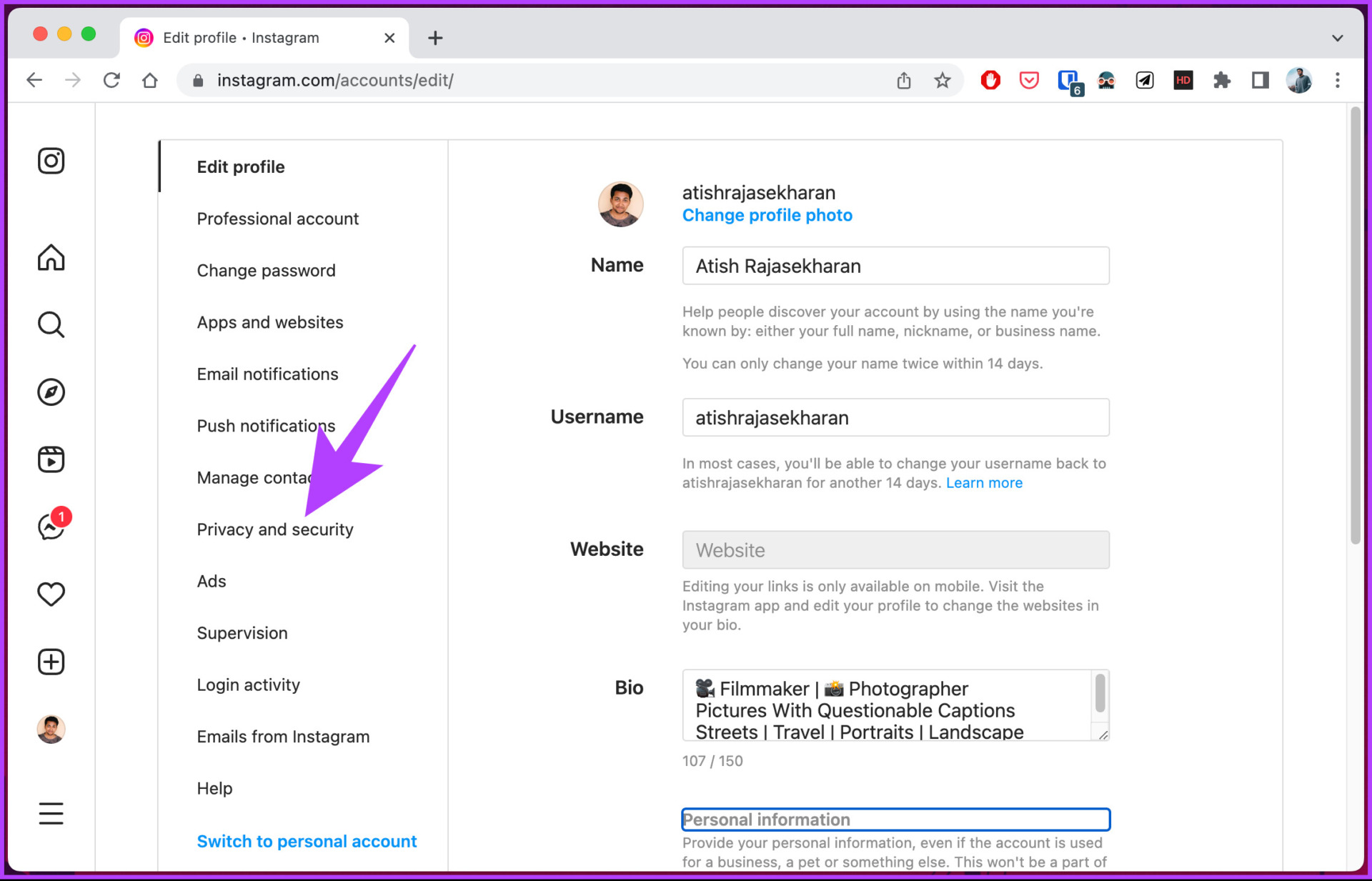
Step 5: On the right pane, under Account privacy, check the box for Private account.

Step 6: From the Switch to private account pop-up, select Switch to private.

Now that you have switched your account to private. It is time to remove the follower you want to hide your posts from. Continue with the below steps.
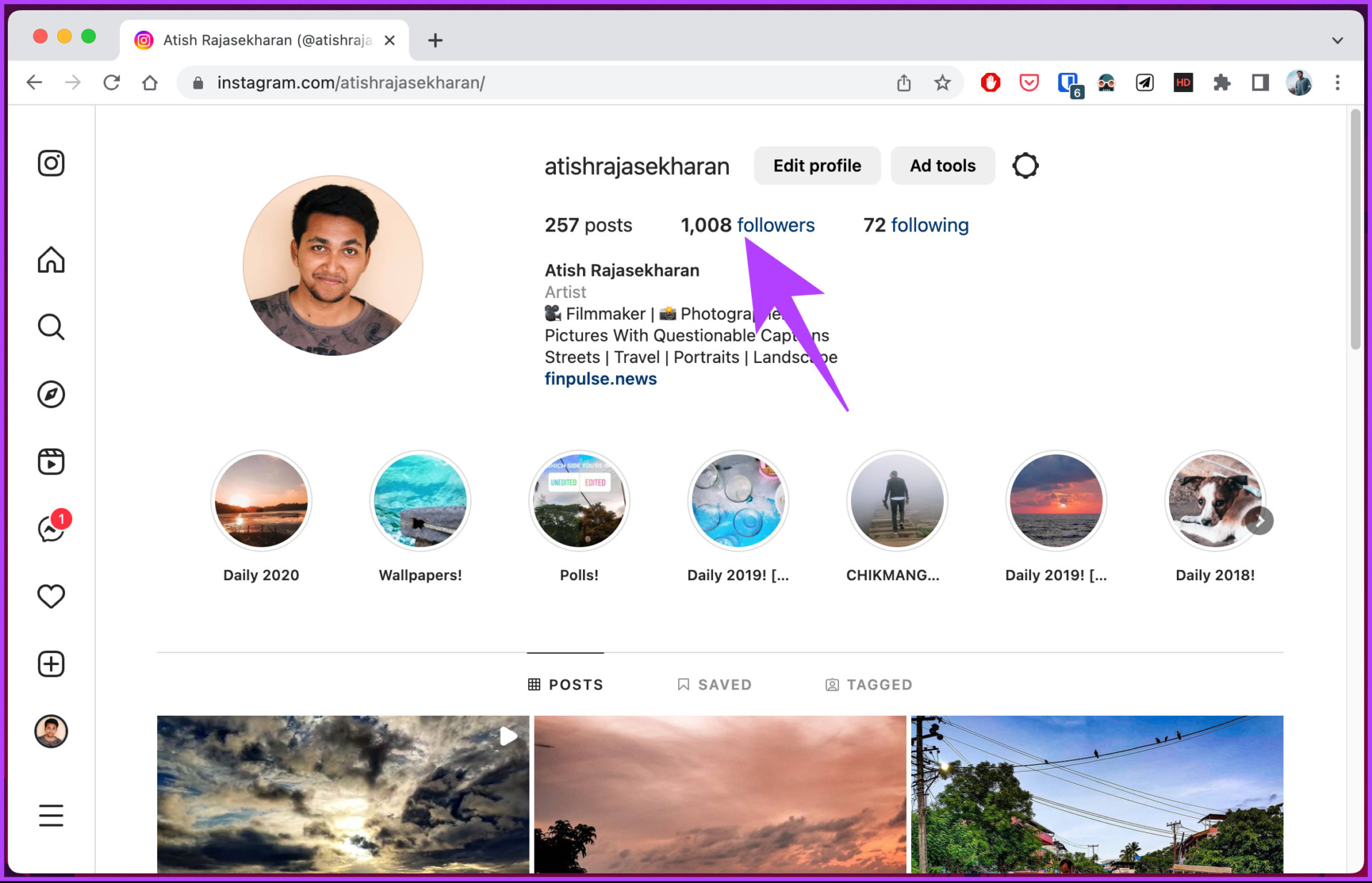
Step 7: Go to your profile from the left pane and click on Followers.
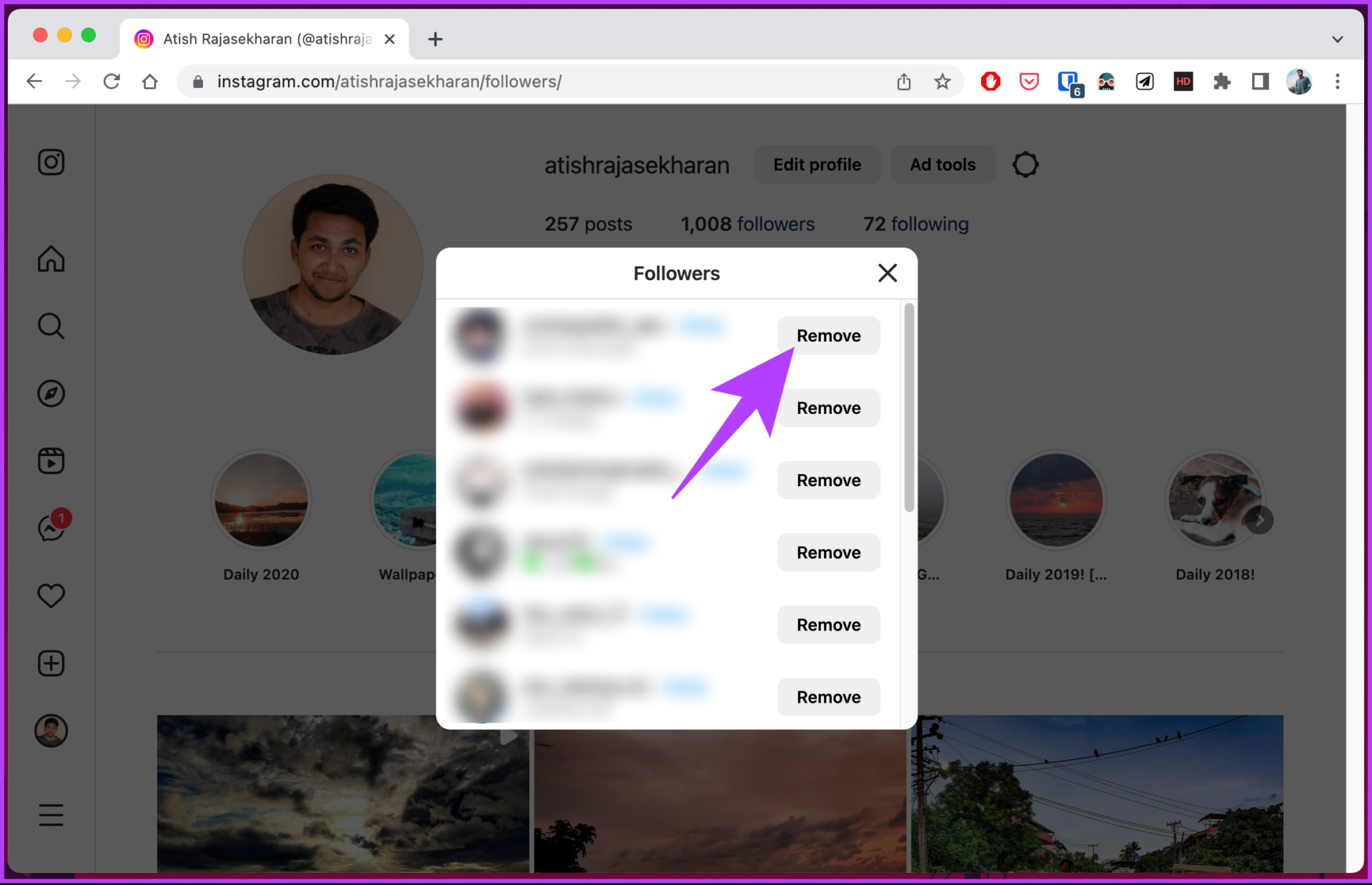
Step 8: From the list of followers, click Remove next to the user you want to hide your post from.
There you go. You have successfully made your account private and removed it from your followers list. If you are on a mobile device, follow the below-mentioned steps.
On Mobile
Step 1: Launch the Instagram app.
Step 2: Navigate to your profile from the bottom navigation bar.
Step 3: In the profile, tap on the hamburger menu and select Settings.
Step 4: In the Settings screen, choose Privacy.
Step 5: Under Privacy, toggle on the Private account option.
Step 6: From the Switch to private account?, tap on the Switch to Private button.


Now that you have turned your account private, it is time to remove the users you don’t want to see your posts, reels, or stories.
Step 7: Go to your profile from the bottom navigation and tap on Followers. From the list of followers, tap Remove.

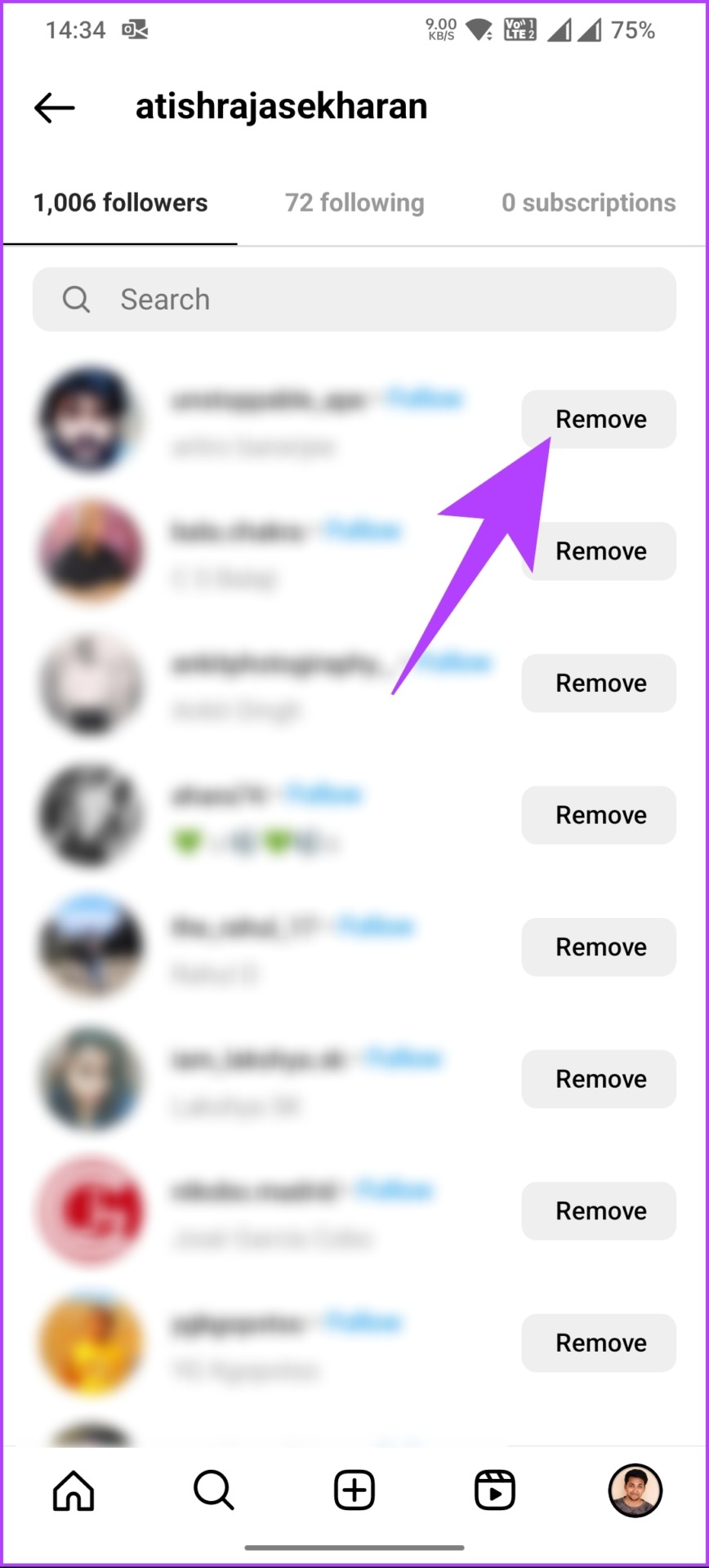
Step 9: From the bottom sheet, select Remove to confirm.
There you have it. Your account is now private; only your followers can see your posts, reels, and stories. If you want to hide your stories from specific people following you on Instagram, move on to the next method.
Method 3: Hide Your Instagram Stories From Someone
To begin, it is essential to realize that there is a difference between hiding a story and blocking someone. Blocking someone prevents them from seeing your profile or posts. If you don’t want them to see your posts, check out the abovementioned methods.
However, follow the steps below if it’s just the stories you hide from them.
On Desktop
Step 1: Go to Instagram from your preferred browser and log in to your account.
Step 2: Click on the More button in the bottom left corner.
Step 3: From the expanded menu, select Settings.
Step 4: Under Settings, go to Privacy and security.
Step 5: From the list of options, click on Edit story settings from the right pane.
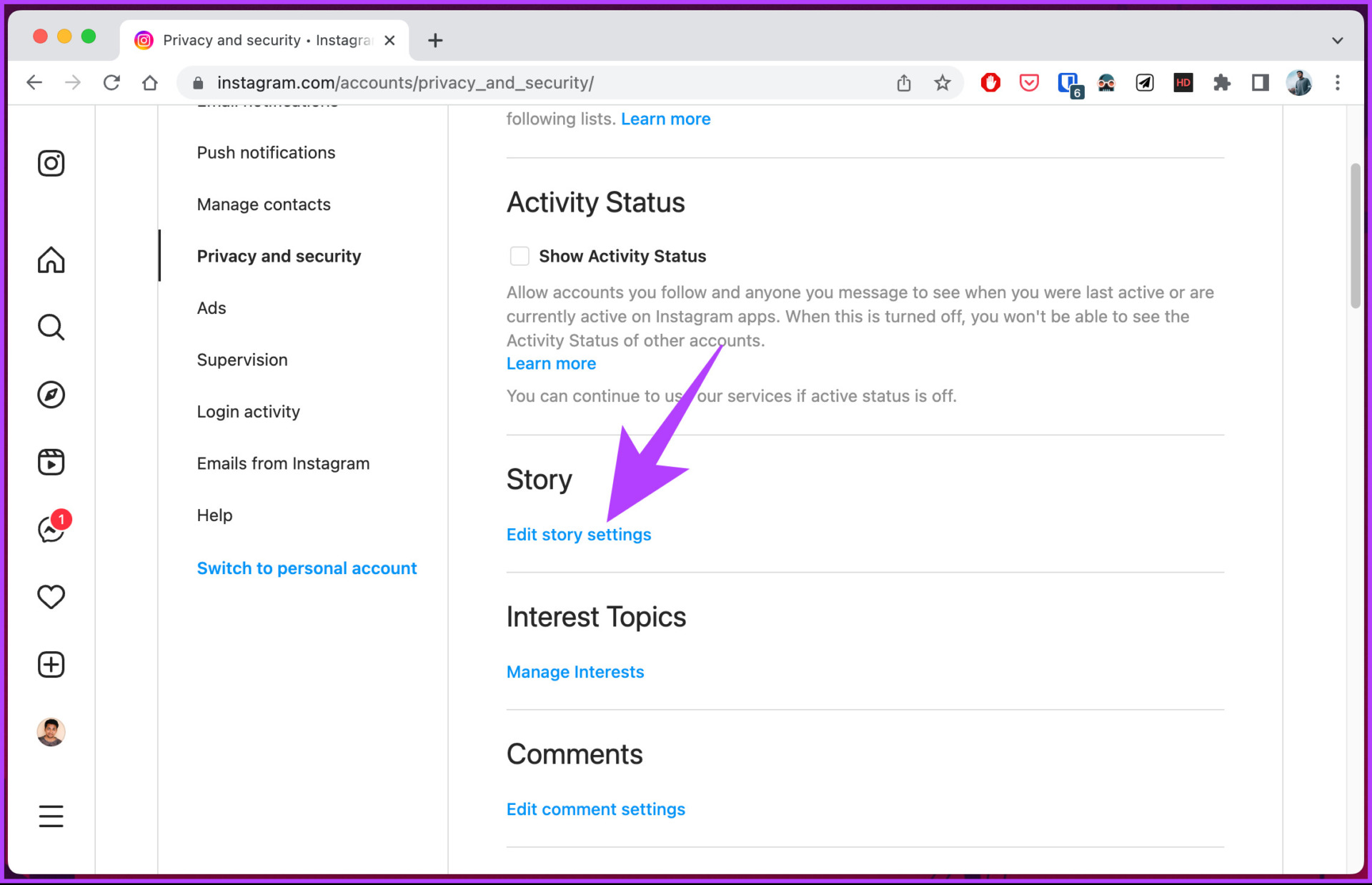
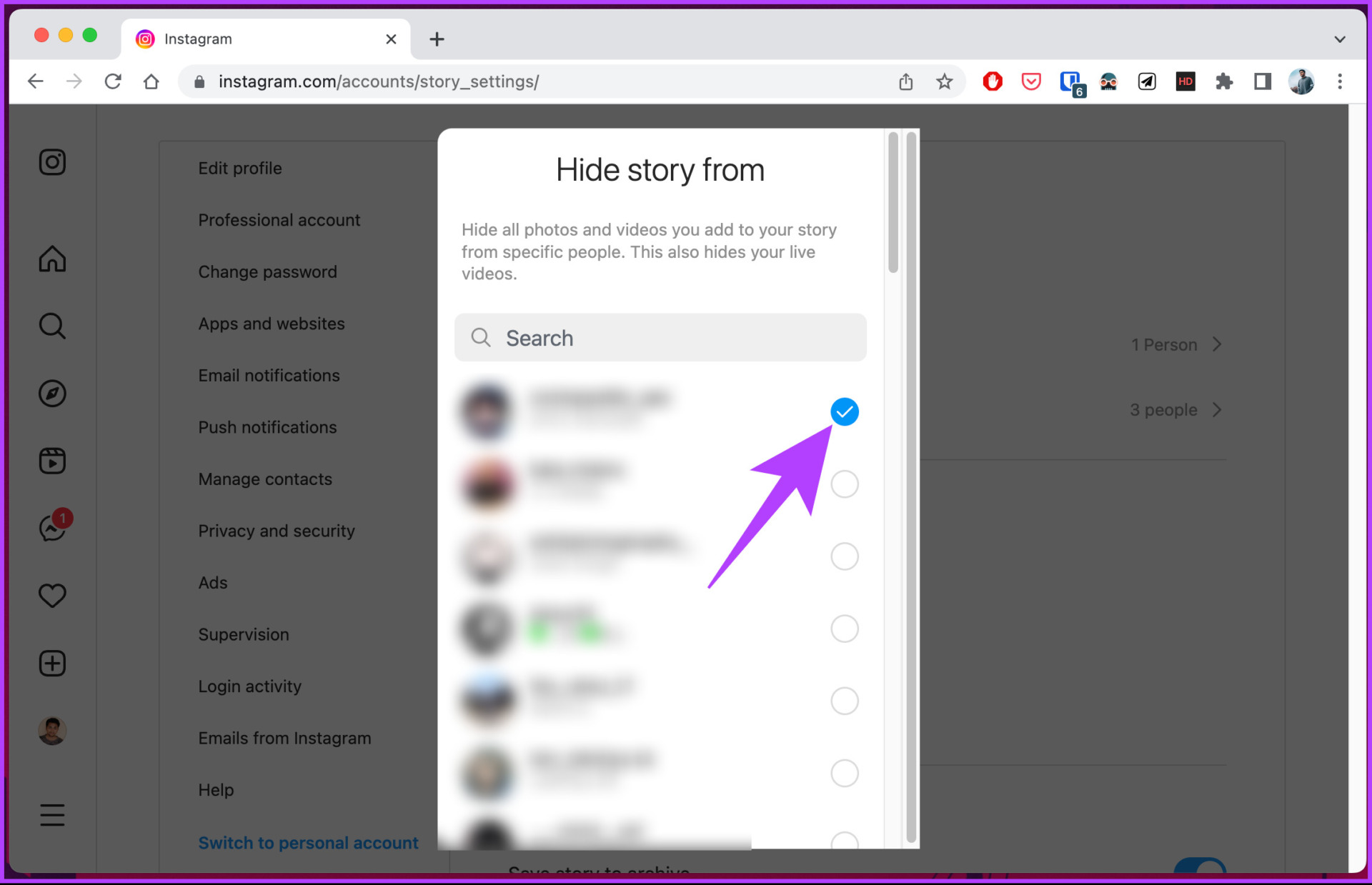
Step 6: In the Story Settings, click on [N] people next to ‘Hide story from.’

Step 7: Select the account you want to hide the story from displaying in the pop-up.
Note: You can also search for the account you want to hide from the search box.
Additionally, you can also choose people to hide your story from, as you’re looking at who’s seen it. Tap the three-dot icon to the right of their name, select Hide your story and tap Hide.
On Android or iOS App
Step 1: Launch the Instagram app.
Step 2: Navigate to your profile from the bottom navigation bar.
Step 3: In the profile, tap on the hamburger menu at the top right.
Step 4: From the bottom sheet, select Settings.
Step 5: In the Settings screen, choose Privacy.
Step 6: Under Privacy, go to Story.

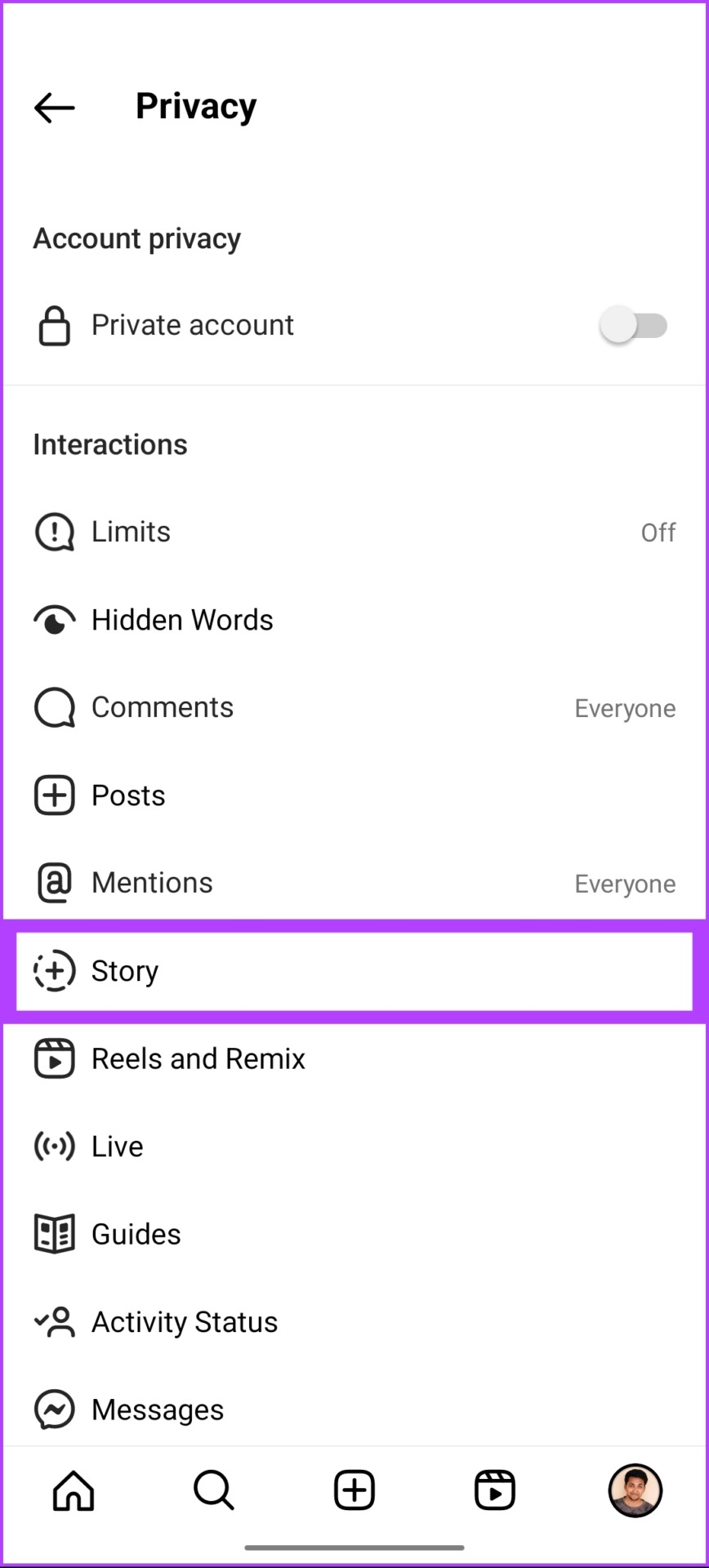
Step 7: In the Story screen, under Viewing, tap the number of people next to Hide story from.
Step 8: From the list of people, select the ones you want to hide your story from.


There you go. You have added users you don’t want to view your stories on Instagram. If you have any queries, check out the FAQ section below.
FAQs on Hiding Posts From Someone on Instagram
Yes, you can hide an Instagram post from one person without blocking by using the Restrict feature. Open the Instagram app > go to the profile you want to restrict > tap on the following button > from the bottom sheet, select Restrict > choose Restrict account button.
It is important to note that the person you are restricting or unrestricting will not be notified.
Yes, you can follow someone and yet hide their posts from appearing on your feed using the Mute feature. We have covered it comprehensively in our guide on how Instagram Mute works; check it out.
No, if you hide someone on Instagram, they can’t see your posts and stories. However, if you had already shared your story with them before hiding them, they might still see it until your story expires or is deleted.
By knowing how to hide posts from someone on Instagram, you can effectively control who sees your content, maintain your privacy, and enjoy a more secure and personalized social media experience.
Was this helpful?
Last updated on 06 August, 2024
Read Next
 How to Unhide Posts on Reddit and What Happens When You Hide Them
No matter which social media platform you are on, there will be some loose ends in content moderation, and Reddit has it too - it lets you hide posts that
How to Hide All Posts on Facebook From Public or Friends
How to Hide Past Posts on Facebook The good news is that you can manage the visibility of previously posted content.
How to Unhide Posts on Reddit and What Happens When You Hide Them
No matter which social media platform you are on, there will be some loose ends in content moderation, and Reddit has it too - it lets you hide posts that
How to Hide All Posts on Facebook From Public or Friends
How to Hide Past Posts on Facebook The good news is that you can manage the visibility of previously posted content.
 How to Get Notifications When Someone Posts on Facebook
Information overload is a significant issue on social media platforms, and Facebook is no exception.
How to Get Notifications When Someone Posts on Facebook
Information overload is a significant issue on social media platforms, and Facebook is no exception.
 How to Hide a Story from Someone on Snapchat
Snapchat on iOS and Android uses a similar UI.
How to Hide a Story from Someone on Snapchat
Snapchat on iOS and Android uses a similar UI.
 How to Hide Story From Someone on Facebook
Method 1.
How to Hide Story From Someone on Facebook
Method 1.
 How to Hide Active Status From Someone on Facebook Messenger
Hide Active Status From a Particular Person on Messenger Although Facebook offers native Messenger apps on iOS, Android, Windows, and Mac, the ability to hide active status from one person
How to Hide Active Status From Someone on Facebook Messenger
Hide Active Status From a Particular Person on Messenger Although Facebook offers native Messenger apps on iOS, Android, Windows, and Mac, the ability to hide active status from one person
 3 Ways to Fix Instagram Not Loading New Posts on Your Phone
Basic Fixes: Ensure your Instagram account is not blocked/suspended: If you use Instagram excessively for several hours or take too many actions quickly, the service may temporarily block you.
3 Ways to Fix Instagram Not Loading New Posts on Your Phone
Basic Fixes: Ensure your Instagram account is not blocked/suspended: If you use Instagram excessively for several hours or take too many actions quickly, the service may temporarily block you.
 9 Ways to Fix Videos Freezing on Instagram Stories and Posts
Ever since apps like Dubsmash and TikTok popularized short videos, popular social media apps have come up with alternatives for posting short-form content.
9 Ways to Fix Videos Freezing on Instagram Stories and Posts
Ever since apps like Dubsmash and TikTok popularized short videos, popular social media apps have come up with alternatives for posting short-form content.
The article above may contain affiliate links which help support Guiding Tech. The content remains unbiased and authentic and will never affect our editorial integrity.