Widgets can be a very useful thing. Just a click or a glance, and you can easily access handy information. That said, Microsoft has heard the complaints that its own widgets have been a little too intrusive and is making plans to tone things down and clean things up. In this article, we’ll be looking at the changes being made to Windows 11 widgets.
Too Much of a Good Thing
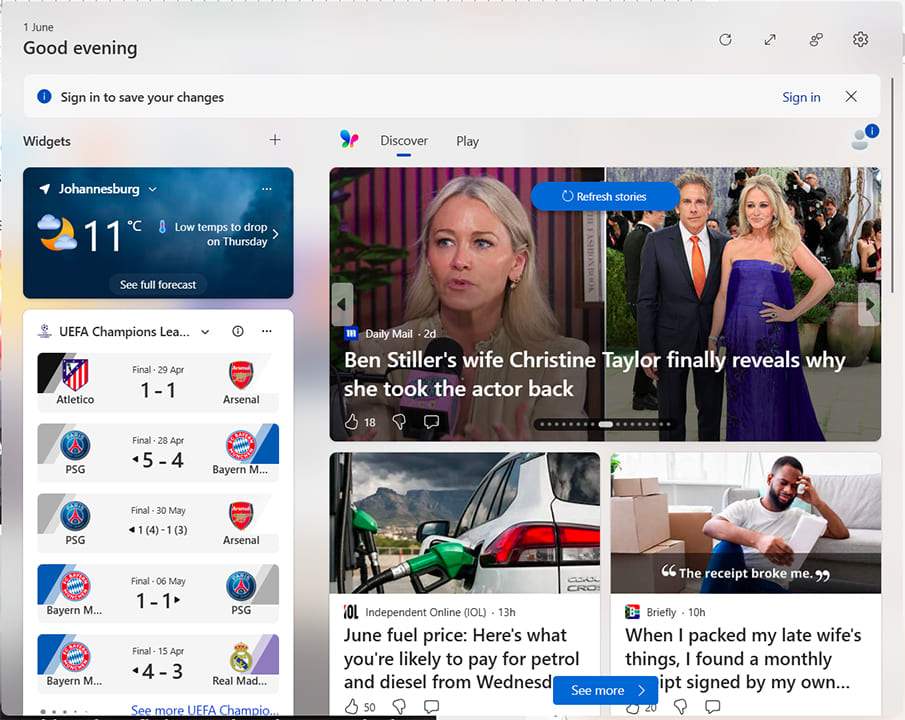
When Microsoft itself admits that its own widgets can be overwhelming, then you know things have gotten serious. The plan to streamline widgets and listen to user feedback is part of the overall approach of Microsoft. Windows K2, which this falls under, is an ongoing series of sweeping changes, announced to improve the overall user experience for Windows and counteract the negative sentiment that’s been circling the tech giant of late.
How Windows 11 Widgets Are Changing
While widgets aren’t being removed from the operating system, its menu is being toned down significantly. While the bulk of these changes have only been part of a preview build and available to those on the Insiders Program, some have already been rolled out to normal users. It should be only a matter of time before the rest do too.
Let’s take a look at the four main changes:
Opening Into Widgets
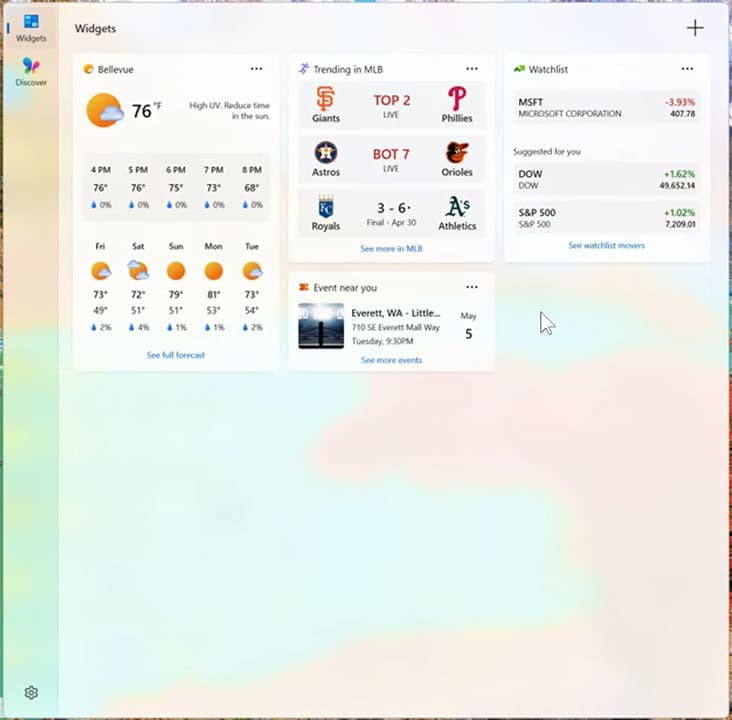
Anyone opening the widgets menu will tell you it’s more than a little overwhelming. A large part of that is the MSN news feed, taking up most of the menu. Thankfully, the new changes have moved the widgets to their own dedicated tab, with the Copilot Discover feed in the main view. By default, when you first open the menu, you will now be taken to the widgets you have chosen to add, drastically reducing clutter and visual overload.
Limiting Notification Alerts in the Taskbar
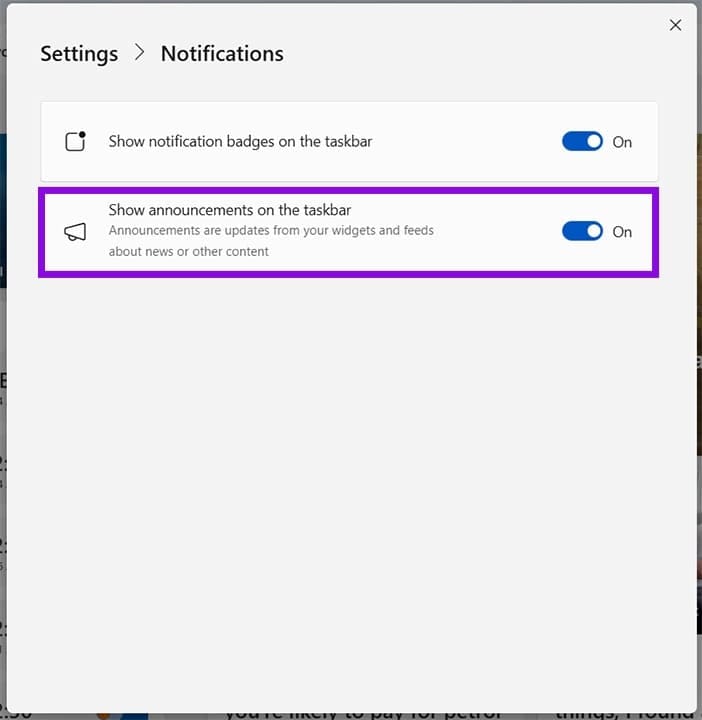
A change that you might already notice on your PC is one that limits the widget notifications that pop up from the taskbar. Here’s how to access it:
Step 1. Open the widgets menu and click “Settings.”
Step 2. Click on “Notifications.”
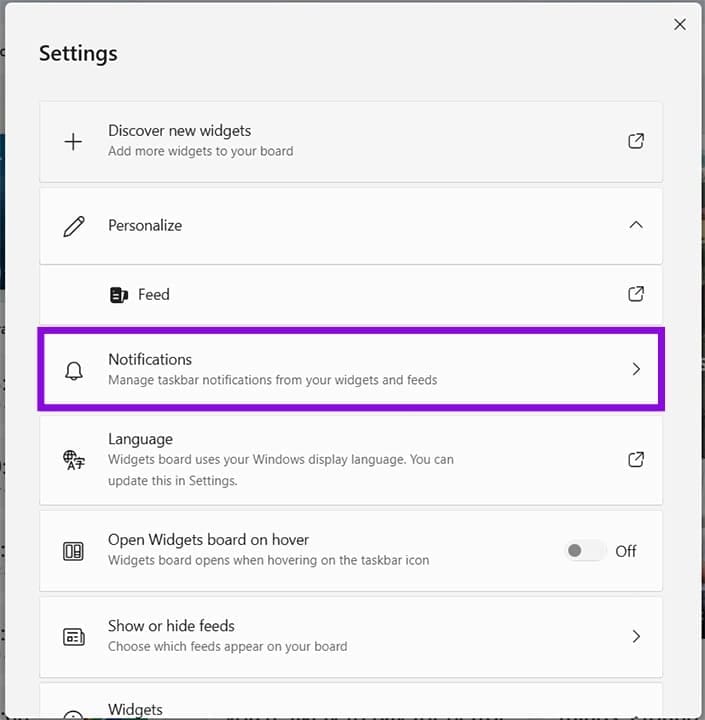
Step 3. If it isn’t already, toggle “Show announcements on the taskbar” to “Off.”
Optional Badge Notifications
Another taskbar change is the new choice to toggle off notification badges. This can eliminate the sometimes-distracting dots, symbols, and numbers that hover over taskbar icons. They can be disabled in the same menu as the notification alerts above.
Open on Hover
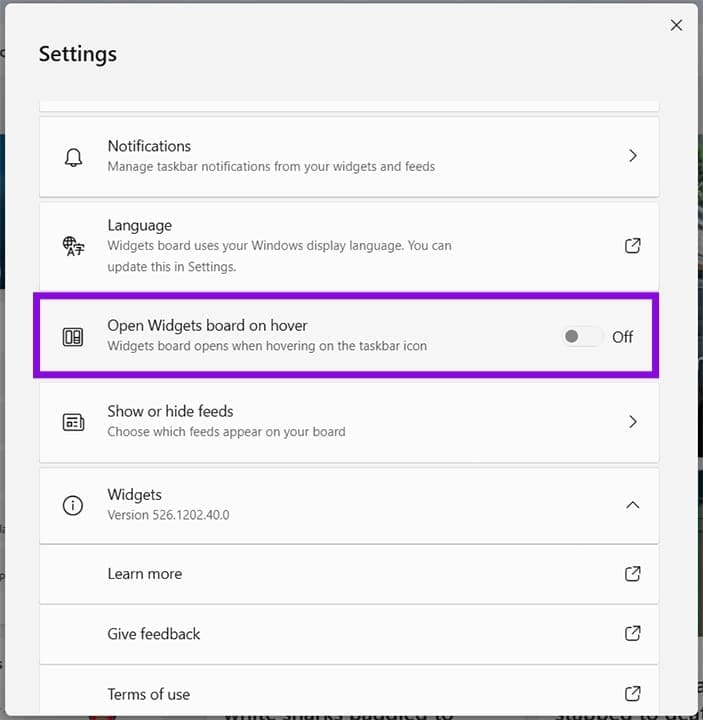
A big problem for some in the visual overload of widgets was how the whole menu opened on a mouse hover. This has now been disabled by default and already rolled out to normal users. Widgets will stay closed until actively clicked on. Here’s how to toggle this feature:
Step 1. Open the widgets menu and then “Settings.”
Step 2. Toggle the “Open Widgets board on hover” between “On” and “Off” as you prefer.
Disable Windows 11 Widgets
If you want the widgets in your taskbar off completely, there’s still a way to make this happen. Here’s how to disable Windows 11 widgets from your taskbar:
Step 1. Right-click the taskbar and select “Taskbar settings” from the context menu.
Step 2. Under the “Taskbar items” subgroup, toggle “Widgets” to “Off.”
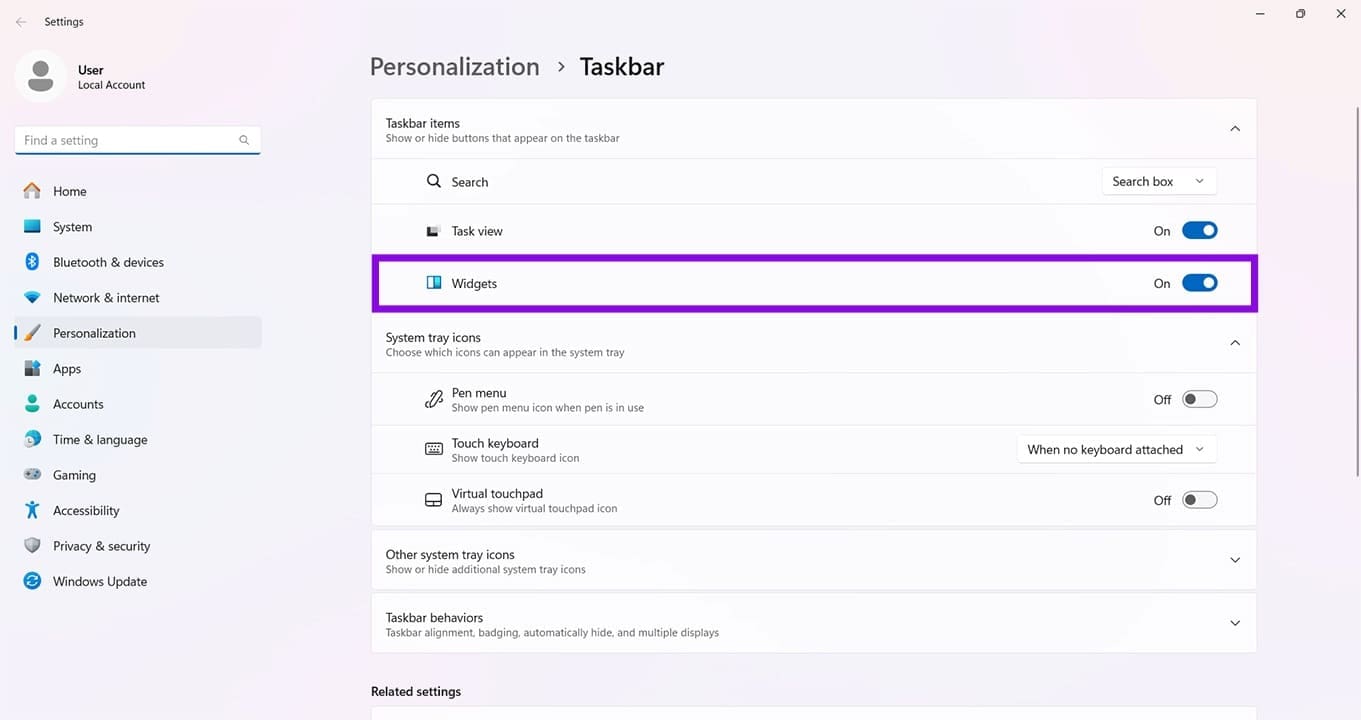
Step 3. The widgets menu should now be removed from your taskbar.
Was this helpful?
Last updated on 06 June, 2026
Read Next
 4 Ways to Fix Widgets Not Working on Windows 11
1.
4 Ways to Fix Widgets Not Working on Windows 11
1.
 Three Best Windows 11 Widgets You’re Not Using
When Windows 11 came out, it streamlined the existing widgets into an easy-to-view screen with a dedicated taskbar icon.
Three Best Windows 11 Widgets You’re Not Using
When Windows 11 came out, it streamlined the existing widgets into an easy-to-view screen with a dedicated taskbar icon.
 5 Ways to Fix MIUI Widgets Not Working Issue
Basic Fixes Restart device: Restart your MIUI device to fix temporary bugs and glitches.
5 Ways to Fix MIUI Widgets Not Working Issue
Basic Fixes Restart device: Restart your MIUI device to fix temporary bugs and glitches.
 4 Ways to Fix Widgets Not Updating on Android
Fix 1: Re-Add the Widget Removing and re-adding the widget on Android has seemed to work well while fixing widget-related issues.
3 Ways to Fix iPhone Widgets Not Updating
Common Fixes Open the widget's app - This will refresh the widget to fetch new data from its app.
4 Ways to Fix Widgets Not Updating on Android
Fix 1: Re-Add the Widget Removing and re-adding the widget on Android has seemed to work well while fixing widget-related issues.
3 Ways to Fix iPhone Widgets Not Updating
Common Fixes Open the widget's app - This will refresh the widget to fetch new data from its app.
 6 Ways to Fix Widgets Not Working or Loading on Mac
Basic Fixes Restart Your Mac: Start with a simple restart.
6 Ways to Fix Widgets Not Working or Loading on Mac
Basic Fixes Restart Your Mac: Start with a simple restart.
 How to Add or Edit the Smart Stack of Widgets on iPhone
What Is a Smart Stack of Widgets on iPhone?
How to Add or Edit the Smart Stack of Widgets on iPhone
What Is a Smart Stack of Widgets on iPhone?
 How to Remove Widgets From iPhone Lock Screen
Your lock screen widgets help you see all the latest app information at a glance and add extra functionality to your iPhone.
How to Remove Widgets From iPhone Lock Screen
Your lock screen widgets help you see all the latest app information at a glance and add extra functionality to your iPhone.
The article above may contain affiliate links which help support Guiding Tech. The content remains unbiased and authentic and will never affect our editorial integrity.