Types of iPhone Data You Can Back Up to Google Drive
Before we begin, it’s important to note that there are only three types of iPhone data you can back up to Google Drive: photos (and videos), contacts, and calendar events.
You can also backup your files to Google Drive directly using the Files app on your iPhone, but you’ll have to do it manually. To ensure you have enough space, read our guide on what counts and what doesn’t with Google Drive storage.
How to Back Up iPhone Data to Google Drive Manually
Let’s first take a look at how you can back up photos, videos, contacts, and calendar events natively via the Google Drive app.
Step 1: Download Google Drive from the App Store and open it.
Step 2: Tap the three horizontal lines in the top left corner and head to Settings > Backup.


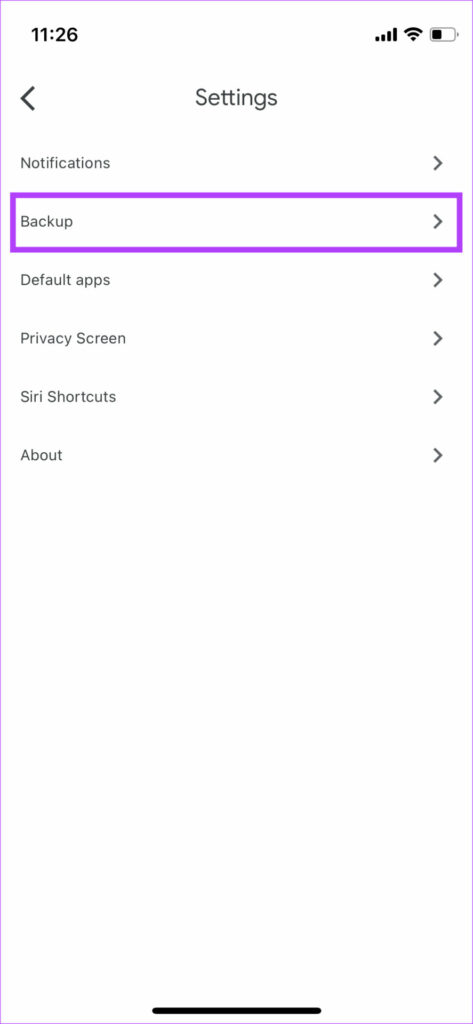
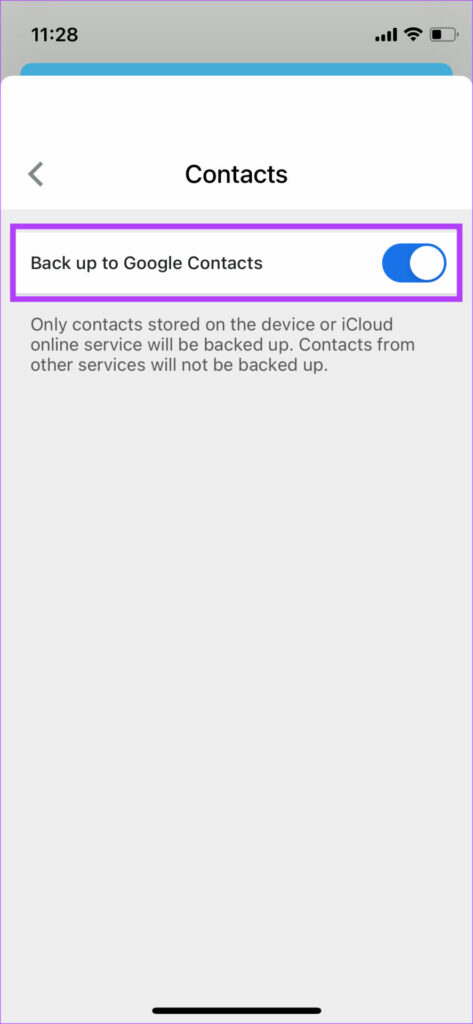
Step 3: This is where you will be asked to choose what data you want to backup. Select Contacts and enable the Back up to Google Contacts toggle.

Step 4: Return to the previous menu, select Calendar events and enable the toggle.


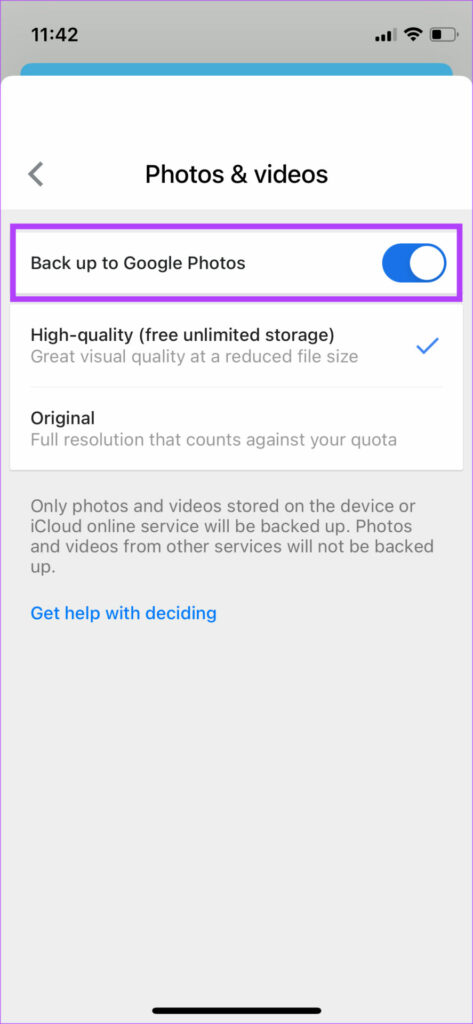
Step 5: Finally, select Photos & videos and enable the toggle. You can choose your preferred quality from this menu.
Step 6: Tap the Start Backup button.

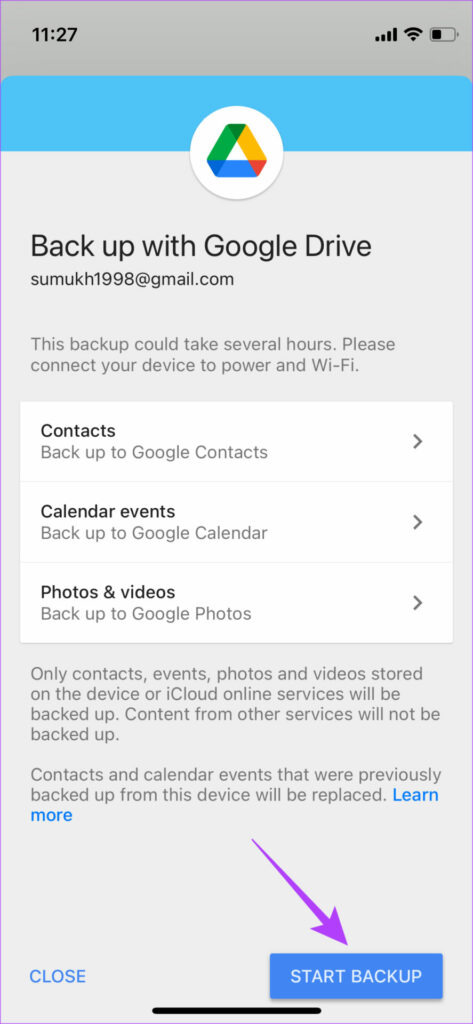
That’s pretty much it. Your iPhone data will be backed up to Google Drive. You can access your backed-up photos and videos via Google Photos, contacts via Google Contacts, and calendar events via Google Calendar.
How to Back Up Files and Folders on Your iPhone to Google Drive
You may have some important files that you’ve downloaded on your iPhone. While there’s no straightforward way to back up those files to Google Drive, there’s a neat little trick within the Files app that allows you to do this. Here’s how it works.
Step 1: Open the Files app on your iPhone.
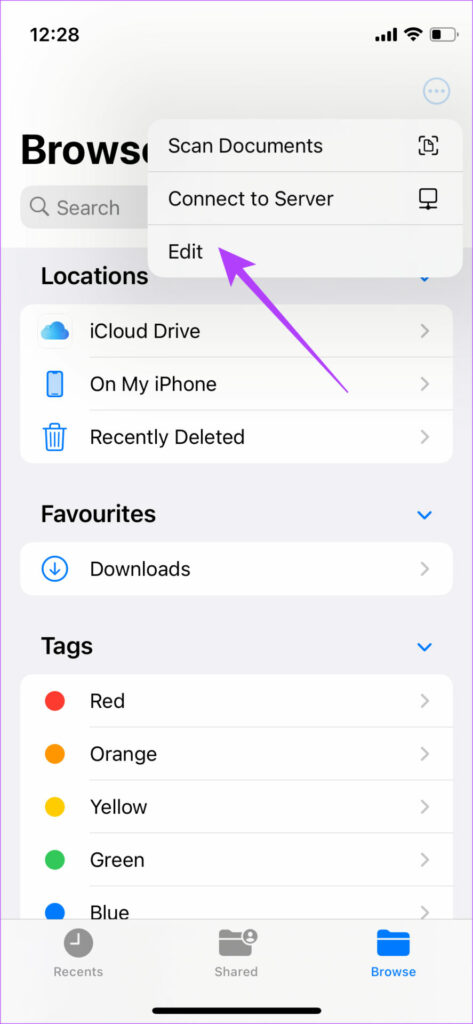
Step 2: Tap the three dots in the top-right corner and select Edit.
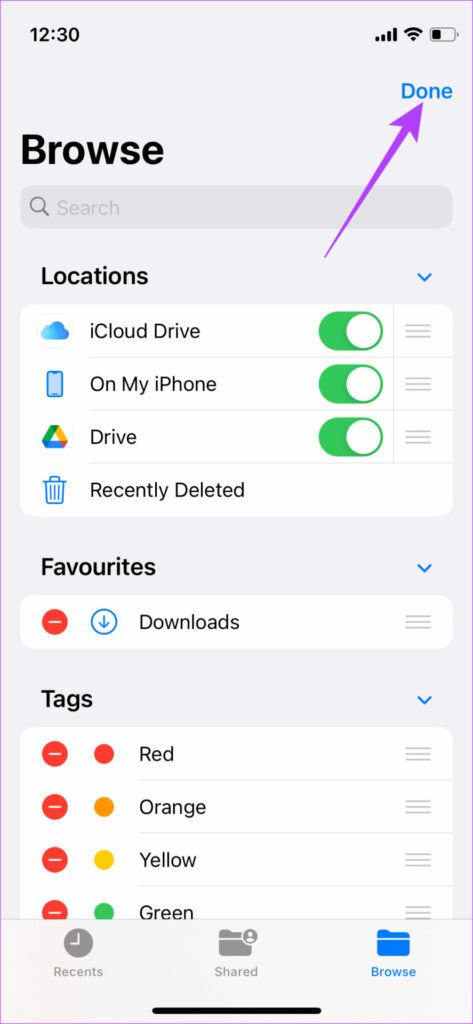
Step 3: Toggle on the Drive option under Locations. Then, hit Done.
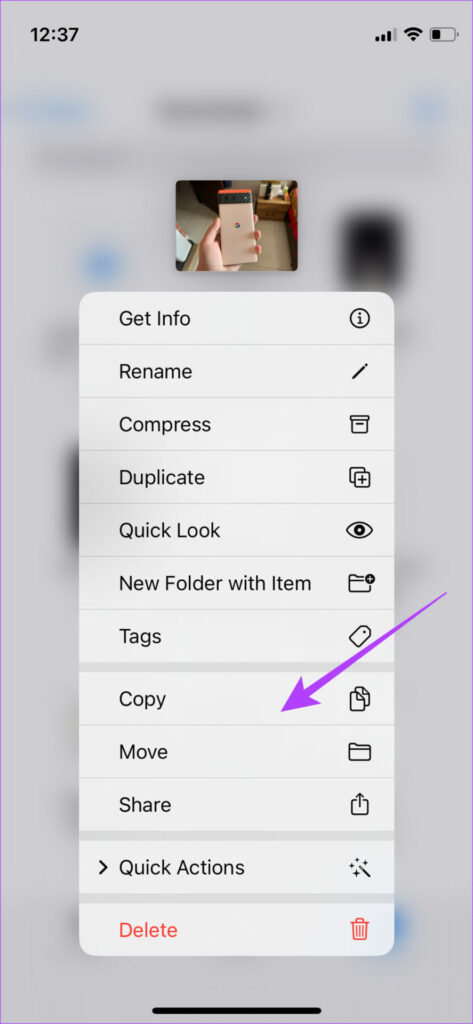
Step 4: Now, navigate to the file(s) you want to back up. Tap and hold the file you want to back up and select Copy.
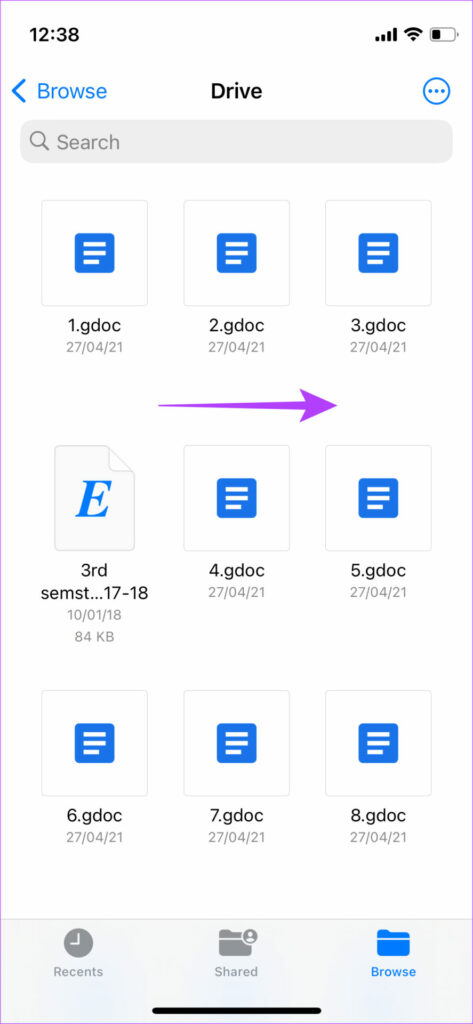
Step 5: Go to the main screen on the Files app and choose the Drive option you added under Locations.

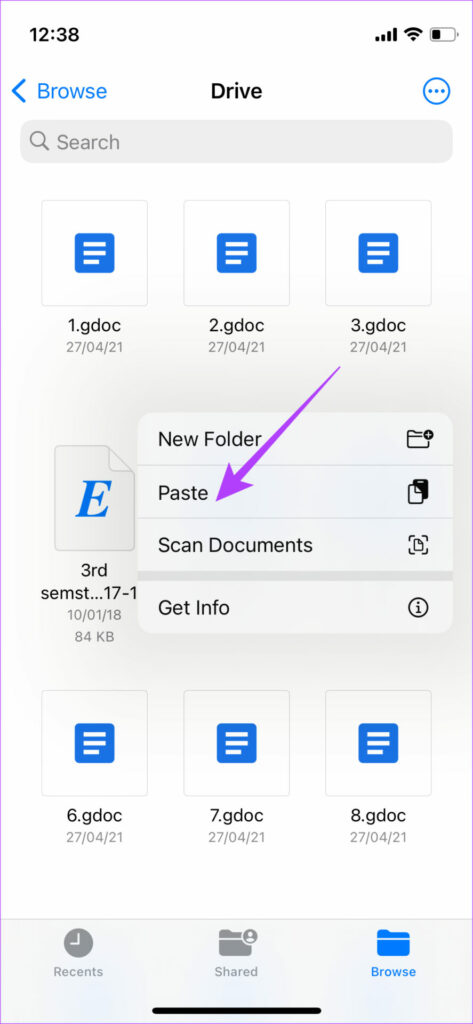
Step 6: Tap and hold on to any blank space to bring up more options and select Paste.
Note: You can also use the Google Photos app to back up your photos and videos manually, but we don’t recommend it. This is because you need to keep the app open on your iPhone throughout the process while also ensuring that your iPhone’s display doesn’t turn off. This isn’t practical since you can’t use your iPhone for hours.
Was this helpful?
Last updated on 04 September, 2024
Read Next
 A Guide to Syncing iPhone Contacts to Google Account
Here's a guide to syncing iPhone contacts to your Google Account.
A Guide to Syncing iPhone Contacts to Google Account
Here's a guide to syncing iPhone contacts to your Google Account.
 How to Create Google Forms on Mobile: A Beginner’s Guide
Google Forms is the go-to option for many people when it comes to creating digital forms.
How to Create Google Forms on Mobile: A Beginner’s Guide
Google Forms is the go-to option for many people when it comes to creating digital forms.
 Google Drive Sharing Permissions Explained: A Detailed Guide
Types of Sharing Permissions in Google Drive When you're not sharing the file/folder it is set to Restricted, i.e., only you can view and edit the file.
Google Drive Sharing Permissions Explained: A Detailed Guide
Types of Sharing Permissions in Google Drive When you're not sharing the file/folder it is set to Restricted, i.e., only you can view and edit the file.
 Google Drive Storage Guide: What Counts and What Doesn’t
Google Drive offers a lot of what other cloud services don’t — free storage.
Google Drive Storage Guide: What Counts and What Doesn’t
Google Drive offers a lot of what other cloud services don’t — free storage.
 Google Photos Link Sharing Permissions and Settings Explained: A Detailed Guide
Recently, a controversial post appeared on the internet that said ‘photos in Google Photos are semi-public,’ which is both true and false.
Google Photos Link Sharing Permissions and Settings Explained: A Detailed Guide
Recently, a controversial post appeared on the internet that said ‘photos in Google Photos are semi-public,’ which is both true and false.
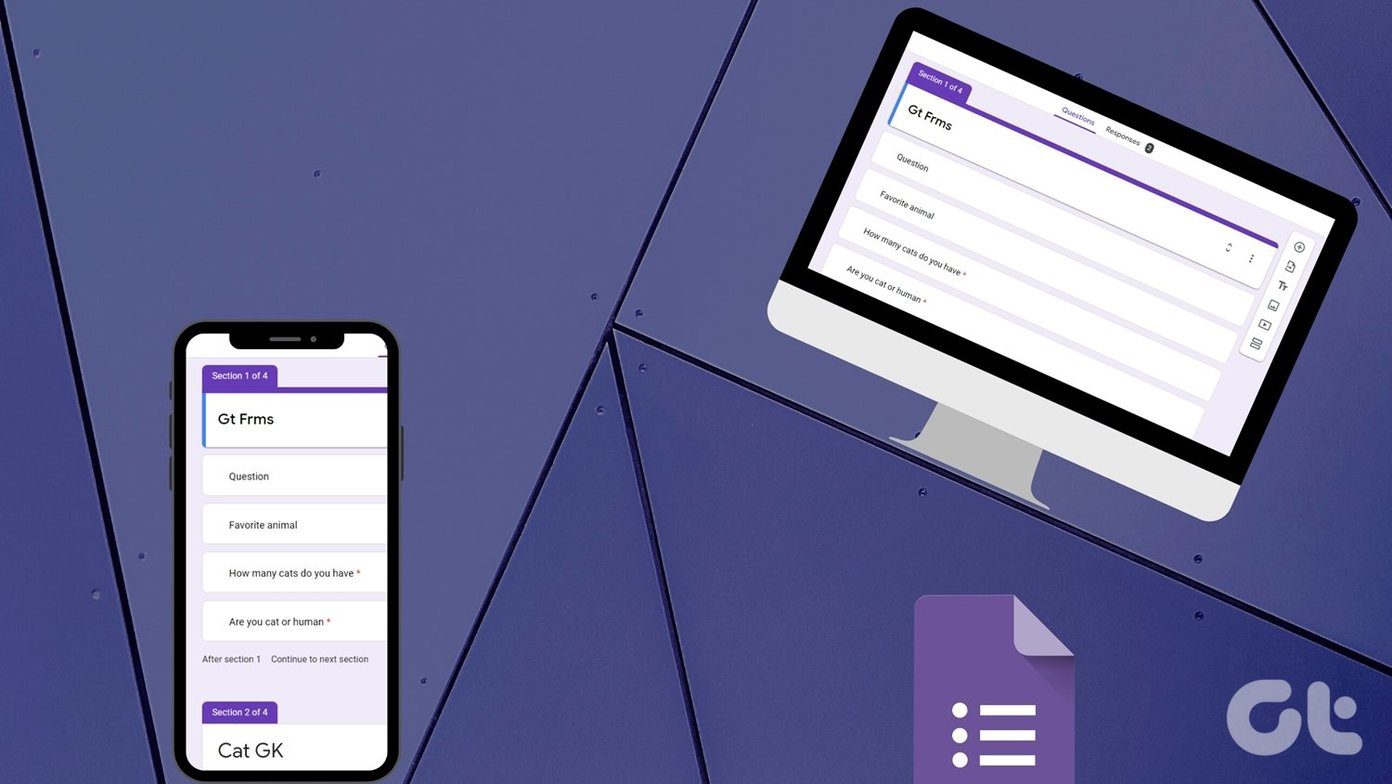 A Complete Guide to Using Sections in Google Forms
If you work a lot with Google Forms, you probably have to create, edit, move, or perform other manipulations on form sections.
A Complete Guide to Using Sections in Google Forms
If you work a lot with Google Forms, you probably have to create, edit, move, or perform other manipulations on form sections.
 What Happens When You Send a Google Drive Link: A Complete Guide
Understanding Google Drive File Sharing Settings Sharing a Google Drive link allows users to access the file or a folder.
What Happens When You Send a Google Drive Link: A Complete Guide
Understanding Google Drive File Sharing Settings Sharing a Google Drive link allows users to access the file or a folder.
 How to Hyperlink in Google Docs: A Detailed Guide
Hyperlinks help connect one document with another.
How to Hyperlink in Google Docs: A Detailed Guide
Hyperlinks help connect one document with another.
The article above may contain affiliate links which help support Guiding Tech. The content remains unbiased and authentic and will never affect our editorial integrity.