Basic Fix:
- Connect from an app or an alternative platform: Connecting from an alternative platform, such as your mobile device, maybe an easy workaround for the problem.
Fix 1: Set a Profile Picture for Zoom
You may face the problem because you haven’t set up a Zoom profile picture. The best way to set a profile picture for Zoom is to use its website. The same picture will sync to all the connected devices where you are logged in to Zoom.
Step 1: Log into Zoom on a web browser.
Step 2: Click the Profile tab on the left pane > click the profile picture edit icon.
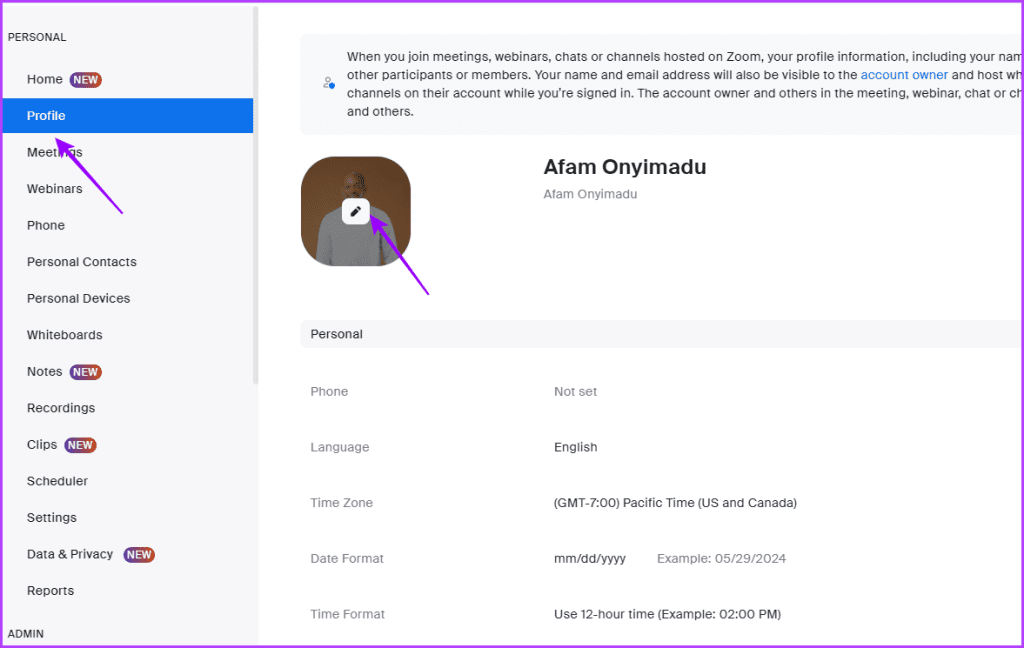
Step 3: Upload a new profile picture.
Now, this new picture should work across devices when you use Zoom.
Pro Tip: If you find it difficult to navigate the Zoom website’s mobile version on your phone, look for a setting called Desktop site and enable it. Check browsers that support desktop sites on mobile.
Fix 2: Disable Hide Participant Profile Pictures
Zoom introduced the Hide participants’ profile picture setting for the meeting host because people forget to switch Zoom accounts. So, when you click on an invitation link, you join through the previously logged-in account, which could be your kids. This setting may hide your profile and needs to be turned off.
Step 1: Log into Zoom on a web browser.
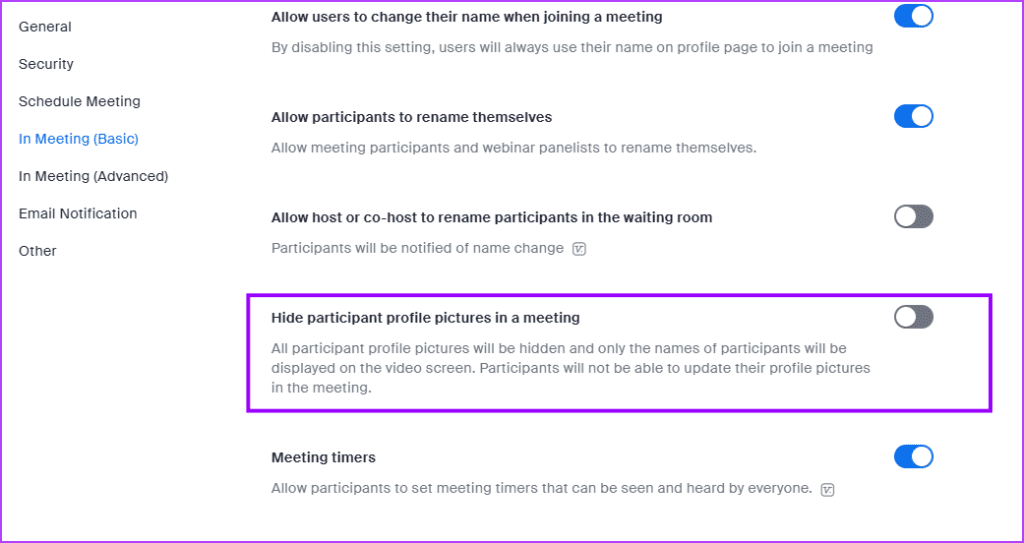
Step 2: Click on Settings from the left sidebar. Go to the Meeting tab > click on In Meeting (Basic).

Step 3: Scroll down and disable Hide participant profile pictures in a meeting.
Fix 3: Log in and Stay Signed in
The above problem mostly happens if you do not log in to Zoom when you join a meeting. Sometimes, you may log in from the browser, not the app, or vice versa. That’s why your profile picture isn’t showing up. When you do not sign in, the Zoom system takes you as a guest user.
Follow these steps to log in and stay signed in.
Step 1: Visit the Zoom sign-in page on your web browser.
Step 2: Enter your username and password > check the box for Stay signed in > click on Sign in. Now, join a Zoom meeting.

If you use the desktop app, follow these steps:
Step 1: Open the Zoom Desktop app > click Sign In instead of Join a Meeting.

Step 2: Enter your login details. Then, check the box for Keep me signed in.

Pro Tip: To verify whether you are logged in on the Zoom desktop, click on the profile picture icon. If you see your email ID under your name, you are logged in. Verify whether it’s the correct account. Use the Switch Account and Sign Out options at the bottom to log out from the account.
If you have joined a Zoom meeting without logging in, hover over the Zoom icon. You will see two Zoom windows. Click on the first window to see the option to Sign In. Log in with your Zoom details.

Pro Tip: Know how to find a Zoom meeting and password on mobile and desktop.
Was this helpful?
Last updated on 17 July, 2024
Read Next
 How to Use Beauty Filter in Zoom Meetings
Use Beauty Filter in Zoom App on Desktop On Mac Step 1: Open the Zoom app on your Mac and go to Settings.
How to Use Beauty Filter in Zoom Meetings
Use Beauty Filter in Zoom App on Desktop On Mac Step 1: Open the Zoom app on your Mac and go to Settings.
 How to Use Notes in Zoom Meetings on Mobile and Desktop
How to Use Zoom Notes in Meetings on Desktop Before we get started, ensure that you have installed the latest version of the Zoom app on your Mac or Windows
How to Use Notes in Zoom Meetings on Mobile and Desktop
How to Use Zoom Notes in Meetings on Desktop Before we get started, ensure that you have installed the latest version of the Zoom app on your Mac or Windows
 How to Add Zoom Meetings to Outlook Calendar and Google Calendar
How to Add Zoom Meetings to Google Calendar The easiest way is using the Zoom for Google Workspace Google calendar add-on.
How to Add Zoom Meetings to Outlook Calendar and Google Calendar
How to Add Zoom Meetings to Google Calendar The easiest way is using the Zoom for Google Workspace Google calendar add-on.
 What Is WhatsApp Profile Picture Size and How to Add Any Picture to It
What’s the Best Size for a WhatsApp profile Picture While WhatsApp has opened up to many new features, from sharing HD photos to screen sharing, it remains stringent on its
What Is WhatsApp Profile Picture Size and How to Add Any Picture to It
What’s the Best Size for a WhatsApp profile Picture While WhatsApp has opened up to many new features, from sharing HD photos to screen sharing, it remains stringent on its
 How to Show Profile Picture Instead of Video in Zoom Meeting
https://youtu.be/n6ihTbONm_I Keep Picture Instead of Video or Name in Zoom on PC It’s not rocket science to show your picture in Zoom.
How to Show Profile Picture Instead of Video in Zoom Meeting
https://youtu.be/n6ihTbONm_I Keep Picture Instead of Video or Name in Zoom on PC It’s not rocket science to show your picture in Zoom.
 4 Ways to Fix Instagram Not Showing Profile Picture
Basic Fixes Check internet connectivity: Ensure your device is connected to a Wi-Fi network or cellular data with good signal strength and an active plan.
4 Ways to Fix Instagram Not Showing Profile Picture
Basic Fixes Check internet connectivity: Ensure your device is connected to a Wi-Fi network or cellular data with good signal strength and an active plan.
 3 Fixes for Picture-in-Picture Not Working in Telegram
Basic Fixes Force quit and relaunch Telegram: This will give the app a fresh start on your iPhone or Android phone.
3 Fixes for Picture-in-Picture Not Working in Telegram
Basic Fixes Force quit and relaunch Telegram: This will give the app a fresh start on your iPhone or Android phone.
 5 Ways to Fix WhatsApp Profile Picture Not Showing
Basic Fixes Ask the other party to save your contact: Depending on the profile picture settings of the other party, you may not be able to view their DP if
5 Ways to Fix WhatsApp Profile Picture Not Showing
Basic Fixes Ask the other party to save your contact: Depending on the profile picture settings of the other party, you may not be able to view their DP if
The article above may contain affiliate links which help support Guiding Tech. The content remains unbiased and authentic and will never affect our editorial integrity.