


Basic Fixes:
- Check your internet connection: You should first check the internet connectivity on your Apple TV. For a glitch-free YouTube streaming experience, we recommend connecting to a 5GHz frequency band on your dual-band router.
- Check YouTube server status: If YouTube servers are down, none of the tricks will work to resolve the problem. You can visit Downdetector on your phone or desktop and confirm the problem. If so, wait for Google to fix the server-side issues from their end.
- Restart the YouTube app and Apple TV: You can completely close the YouTube app on Apple TV and relaunch to try using it again. Similarly, your Apple TV unit can also act weird at times. Rebooting the Apple TV is an effective way to troubleshoot such streaming glitches.
Fix 1: Uninstall Unwanted Apps
If your Apple TV has insufficient storage, you may face errors while streaming videos from YouTube. When this happens, you can uninstall any unwanted apps from your Apple TV to free up storage space. Here’s how to do it.
Step 1: Open the Settings app and select General.

Step 2: Select Manage Storage.
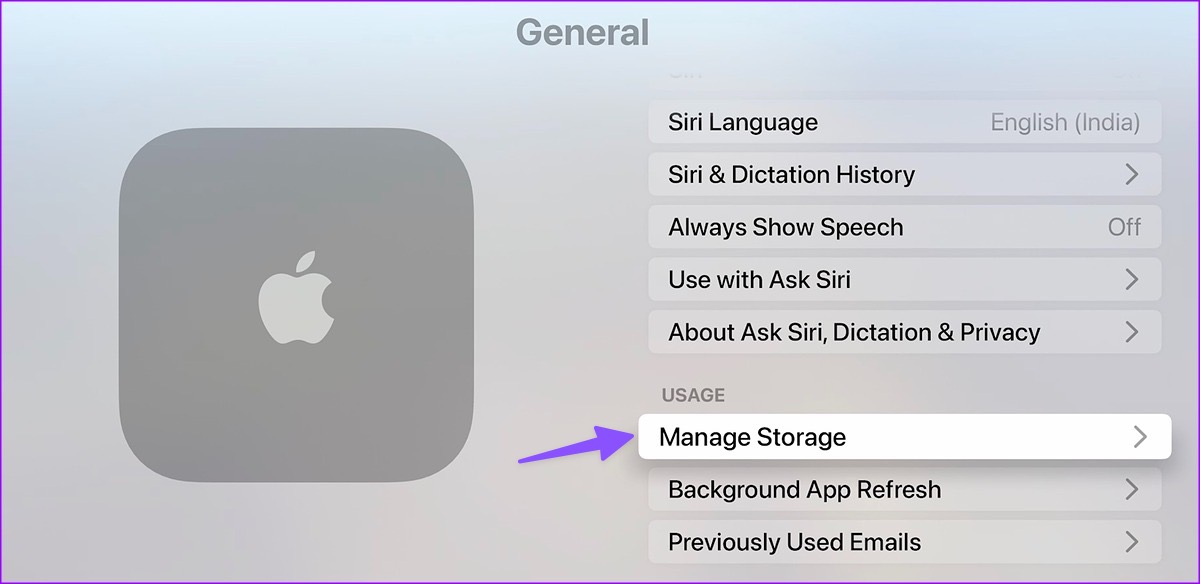
Step 3: Select the bin icon to delete any unnecessary apps.

Also Read: How to fix YouTube not playing 4K videos on Apple TV 4K
Fix 2: Authenticate Your YouTube Account Again
YouTube may not work on Apple TV if your account details are outdated. For instance, if you have changed your Google account password recently, you need to sign out from the YouTube account and log in again with updated details. Here’s how.
Step 1: Launch the YouTube app on your Apple TV and select your account from the sidebar. Select Sign out.
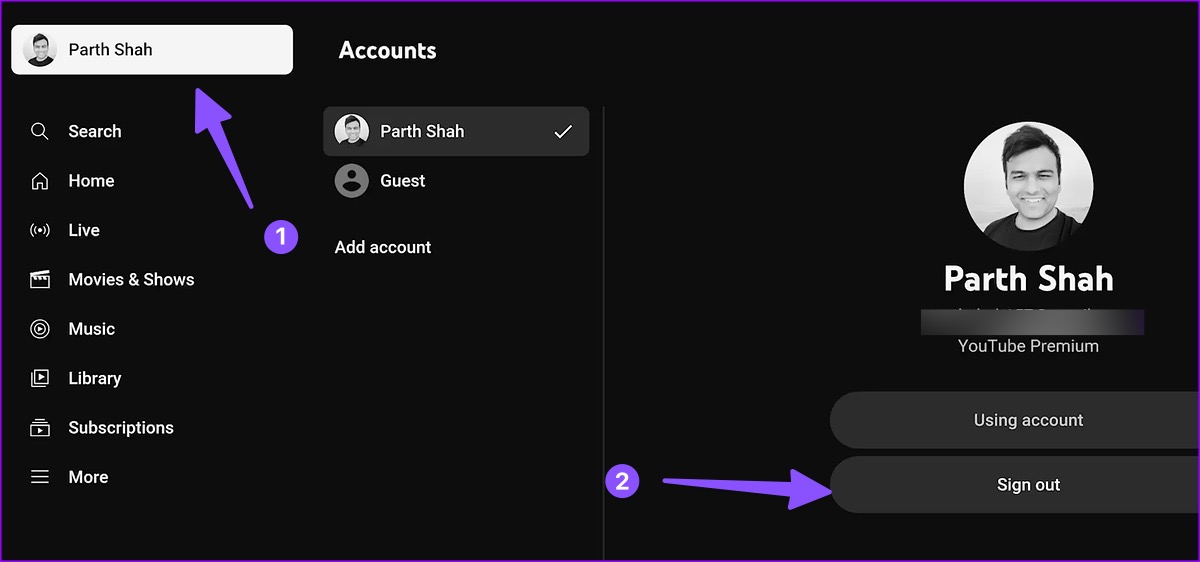
Once done, sign in again with your new account details and play YouTube videos without breaking a sweat.
Also Read: How to fix no sound in YouTube app on Apple TV
Fix 3: Uninstall and Reinstall YouTube on Apple TV
When none of the tricks helped resolve the YouTube not working with Apple TV problem, use the steps below to reinstall the app from scratch. This will delete any custom app settings that might be preventing it from working properly. Follow the below steps to do it.
Step 1: Long-press the YouTube icon till it starts to jiggle. Then, press the Options (triangle and two bars icon) key on the Apple TV remote.
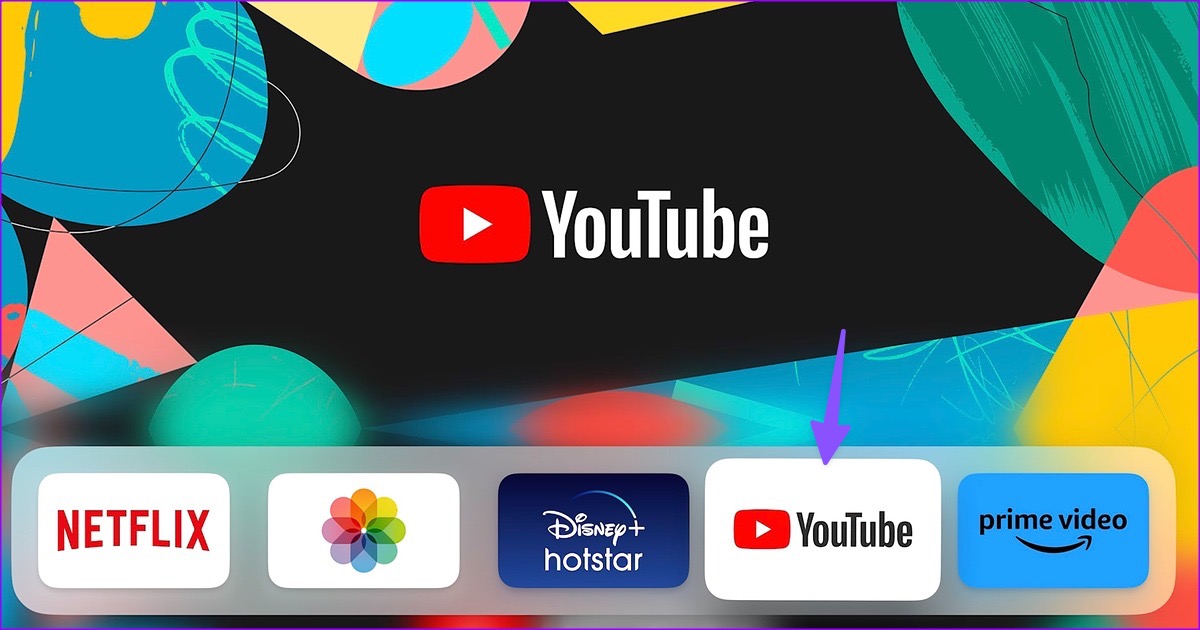
Step 2: Select Delete.

Once done, open the tvOS App Store. Download and install the YouTube app again. Then, try using it to see if the issue has been fixed on your Apple TV.
Was this helpful?
Last updated on 15 May, 2024
1 Comment
Leave a Reply
Read Next
 6 Ways Fix YouTube Music Not Working on Apple CarPlay
Whether you're team Android Auto or Apple CarPlay, we're all in for a long drive with blasting music.
6 Ways Fix YouTube Music Not Working on Apple CarPlay
Whether you're team Android Auto or Apple CarPlay, we're all in for a long drive with blasting music.
 YouTube and Jasmine: iPhone YouTube Apps Compared
As you surely know, YouTube is by far the most popular video sharing website out there, with its popularity only increasing even more with the arrival of mobile devices like
YouTube and Jasmine: iPhone YouTube Apps Compared
As you surely know, YouTube is by far the most popular video sharing website out there, with its popularity only increasing even more with the arrival of mobile devices like
 Top 4 Ways to Fix YouTube Not Working on iPad
Basic Fixes: Check Wi-Fi Connection: While using the Wi-Fi-only iPad, make sure it is connected to a working Wi-Fi connection.
Top 4 Ways to Fix YouTube Not Working on iPad
Basic Fixes: Check Wi-Fi Connection: While using the Wi-Fi-only iPad, make sure it is connected to a working Wi-Fi connection.
 3 Ways to Fix YouTube App Crashing or Not Working on iPhone
Try Basic Fixes Check iPhone storage status: Low storage can affect your iPhone's efficiency, subsequently leading the apps to crash or freeze, especially demanding apps.
3 Ways to Fix YouTube App Crashing or Not Working on iPhone
Try Basic Fixes Check iPhone storage status: Low storage can affect your iPhone's efficiency, subsequently leading the apps to crash or freeze, especially demanding apps.
 4 Cool Sites to Watch YouTube Videos Without YouTube
1.
4 Cool Sites to Watch YouTube Videos Without YouTube
1.
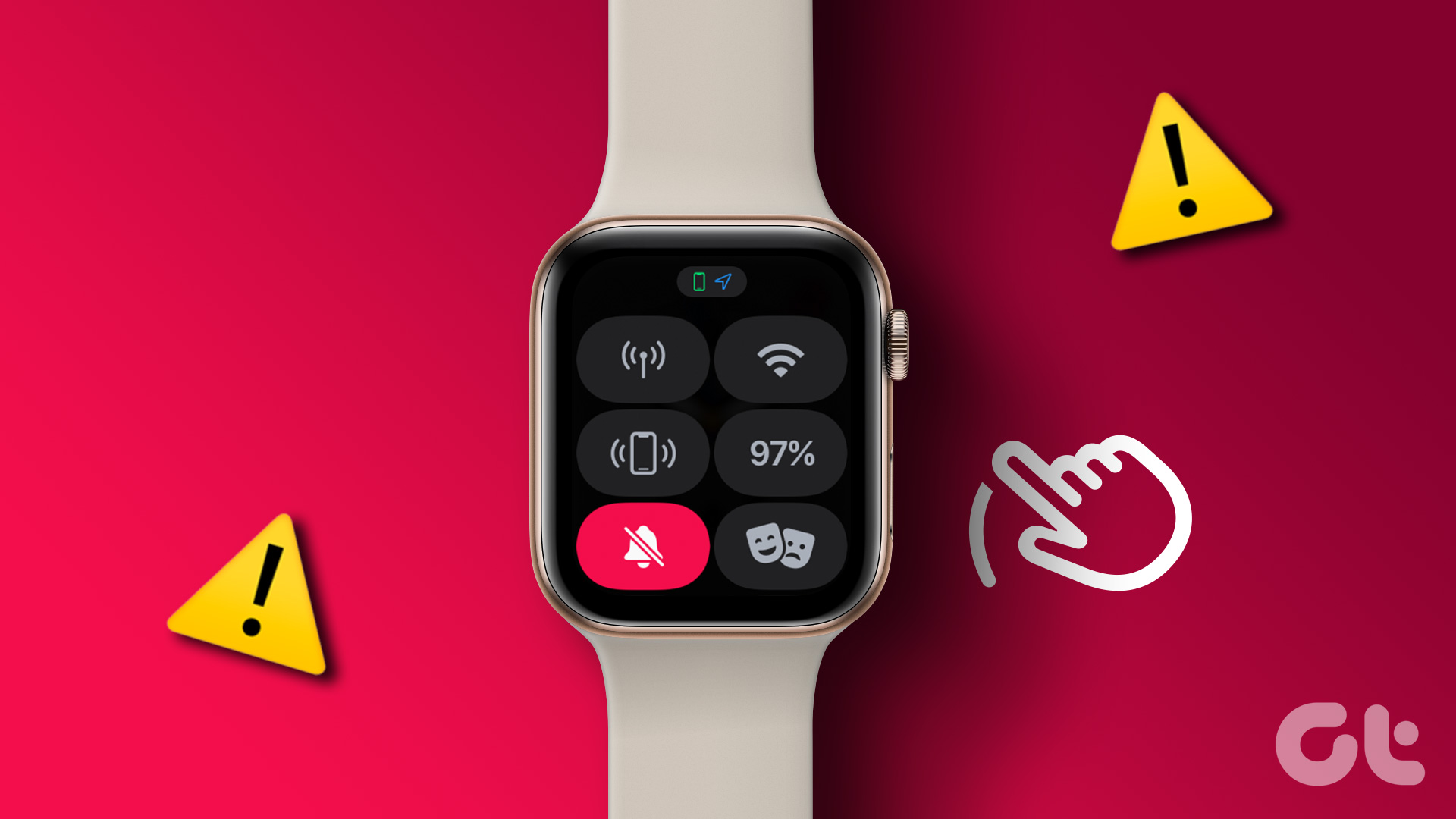 2 Ways to Fix Apple Watch Swipe Up Not Working
Try Basic Fixes Force restart the Apple Watch: Press and hold the side button along with the Apple Watch digital crown simultaneously for 10 seconds.
2 Ways to Fix Apple Watch Swipe Up Not Working
Try Basic Fixes Force restart the Apple Watch: Press and hold the side button along with the Apple Watch digital crown simultaneously for 10 seconds.
 3 Ways to Fix Apple Watch Always On Display Not Working
Basic Fixes Check if your Apple Watch supports Always On: Always On display is available on the Apple Watch Series 5,6,7,8,9 and Apple Watch Ultra 1st and 2nd gen.
3 Ways to Fix Apple Watch Always On Display Not Working
Basic Fixes Check if your Apple Watch supports Always On: Always On display is available on the Apple Watch Series 5,6,7,8,9 and Apple Watch Ultra 1st and 2nd gen.
 3 Ways to Fix Spotify Not Working on Apple Watch
Basic Fixes Ensure Apple Watch is connected: Make sure your Apple Watch is connected to your iPhone with an active internet connection.
3 Ways to Fix Spotify Not Working on Apple Watch
Basic Fixes Ensure Apple Watch is connected: Make sure your Apple Watch is connected to your iPhone with an active internet connection.
The article above may contain affiliate links which help support Guiding Tech. The content remains unbiased and authentic and will never affect our editorial integrity.
None of this worked for me. The only thing that did work is I added a profile for my roommate and switched to his and was able to login to both YouTube and YouTube tv. Then switched back to my profile and it works fine.