Fix 1: Repair and Reset the Windows Security App
Step 1: Press the Windows + I keyboard shortcut to open the Settings app.
Step 2: Choose Apps > select Installed Apps from the right pane.
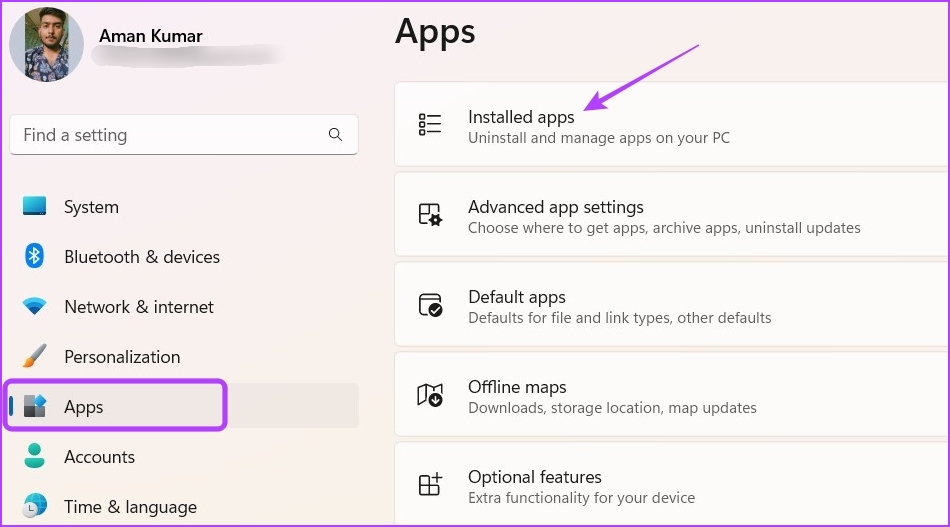
Step 3: Click three horizontal dots next to Windows Security and choose Advanced options.

Step 4: Click the Repair button.

Once the process completes, you will see a checkmark next to the Repair button. Check if the problem is fixed. If not, click the Reset button to reset the Windows Security app.
Fix 2: Remove Third-Party Security App
Sometimes, third-party apps interfere with the Windows Security app, causing the error to occur. To confirm, try disabling the third-party antivirus program. Once confirmed, uninstall the app, follow;
Step 1: Open the Start Menu, type Control Panel, and press Enter.
Step 2: Choose Uninstall a program.
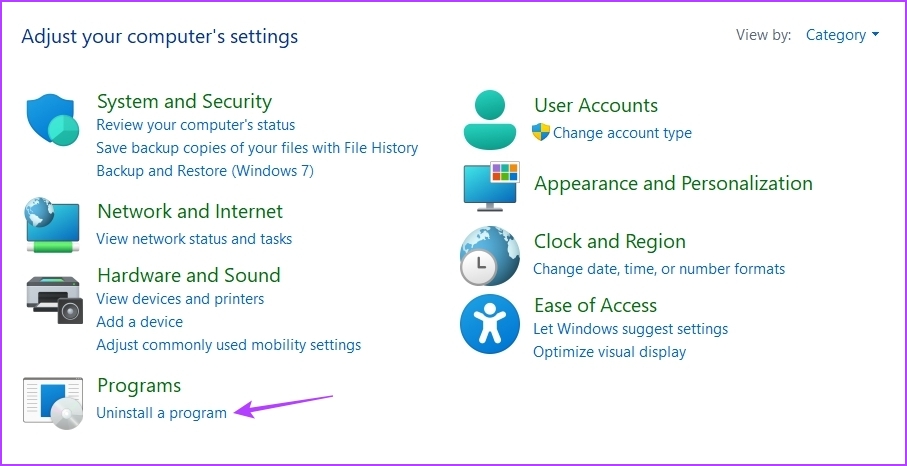
Step 3: Right-click on the third-party security app and choose Uninstall. Then, follow the on-screen instructions to complete the uninstallation process.

Are you still seeing the error message? If yes, reinstall and re-register the Windows Security app.
Fix 3: Reinstall and Re-Register the Windows Security App
Step 1: Launch the Start Menu, type Windows PowerShell, and choose Run as administrator from the right pane.
Step 2: Execute the following commands one by one.
Set-ExecutionPolicy Unrestricted

Get-AppXPackage -AllUsers | Foreach {Add-AppxPackage -DisableDevelopmentMode -Register “$($_.InstallLocation)\AppXManifest.xml”}

Set-ExecutionPolicy restricted

Was this helpful?
Last updated on 23 April, 2024
Read Next
 5 Ways to Fix Phone Link App Not Working on Windows 11
Fix 1: Enable Phone Link Features The Phone Link app allows you to enable or disable specific features for your linked devices.
5 Ways to Fix Phone Link App Not Working on Windows 11
Fix 1: Enable Phone Link Features The Phone Link app allows you to enable or disable specific features for your linked devices.
 4 Ways to Fix Phone Link App Not Working With iPhone
Basic Fixes: Close and reopen the Phone Link app: Closing and reopening any app helps to close all app functions and restart them.
4 Ways to Fix Phone Link App Not Working With iPhone
Basic Fixes: Close and reopen the Phone Link app: Closing and reopening any app helps to close all app functions and restart them.
 5 Fixes for “Word Experienced an Error Trying to Open the File” Error in Windows
Fix 1: Unblock Your Word File Microsoft Word may fail to open a document if it has been altered by third-party software.
5 Fixes for “Word Experienced an Error Trying to Open the File” Error in Windows
Fix 1: Unblock Your Word File Microsoft Word may fail to open a document if it has been altered by third-party software.
 How to Link Microsoft Your Phone App to iPhone on Windows
The good thing about Apple devices is that it’s easy to link them.
How to Link Microsoft Your Phone App to iPhone on Windows
The good thing about Apple devices is that it’s easy to link them.
 5 Fixes for Phone Link App Not Showing Notifications on Windows 11
Basic Fixes: Check Wi-Fi and Bluetooth settings: The Phone Link app uses both Bluetooth and Wi-Fi to help sync your phones with your Windows device. So, ensure your Wi-Fi connection is
5 Fixes for Phone Link App Not Showing Notifications on Windows 11
Basic Fixes: Check Wi-Fi and Bluetooth settings: The Phone Link app uses both Bluetooth and Wi-Fi to help sync your phones with your Windows device. So, ensure your Wi-Fi connection is
 5 Best Ways to Fix Can’t Open Files in OneDrive Error in Windows
People use OneDrive for storing and saving files in all formats.
5 Best Ways to Fix Can’t Open Files in OneDrive Error in Windows
People use OneDrive for storing and saving files in all formats.
 8 Ways to Fix ‘File Is Open in Another Program’ Error in Windows
Fix 1: Use Task Manager to Close the App The primary reason for the 'another program is currently using this file' error is that another program on your PC is
8 Ways to Fix ‘File Is Open in Another Program’ Error in Windows
Fix 1: Use Task Manager to Close the App The primary reason for the 'another program is currently using this file' error is that another program on your PC is
 5 Ways to Fix “No App Found to Open URL” Error on Android
Basic Fixes: Install Android updates: Bugs and glitches within Android on your phone can trigger such errors.
5 Ways to Fix “No App Found to Open URL” Error on Android
Basic Fixes: Install Android updates: Bugs and glitches within Android on your phone can trigger such errors.
The article above may contain affiliate links which help support Guiding Tech. The content remains unbiased and authentic and will never affect our editorial integrity.