

Fix 1: Use the “In Line With Text” Option for Wrap Text
A common reason images might not appear in your Word document is if you use a wrapping style other than “In Line with Text.” Right-click on the image box showing the error, go to Wrap Text, and select In Line with Text from the sub-menu to fix the problem.

Fix 2: Change the View Type
Using the Draft or Outline view in Word can also prevent the program from loading images or graphics. You can change the view type in Microsoft Word to see if that resolves the issue.
Open your Word document > click the View tab at the top > select the Print Layout or Web Layout option. After that, Word should display images.

Fix 3: Disable Picture Placeholders and Enable Drawings and Text Boxes
When you enable the picture placeholders option, Word replaces images and graphics in your documents with empty boxes. Microsoft Word may show errors like “This image cannot currently be displayed” or “This picture can’t be displayed” if you have restricted it from displaying drawings and text boxes. Here’s how to change that.
Step 1: Open Microsoft Word on your PC and click the File menu at the top left.
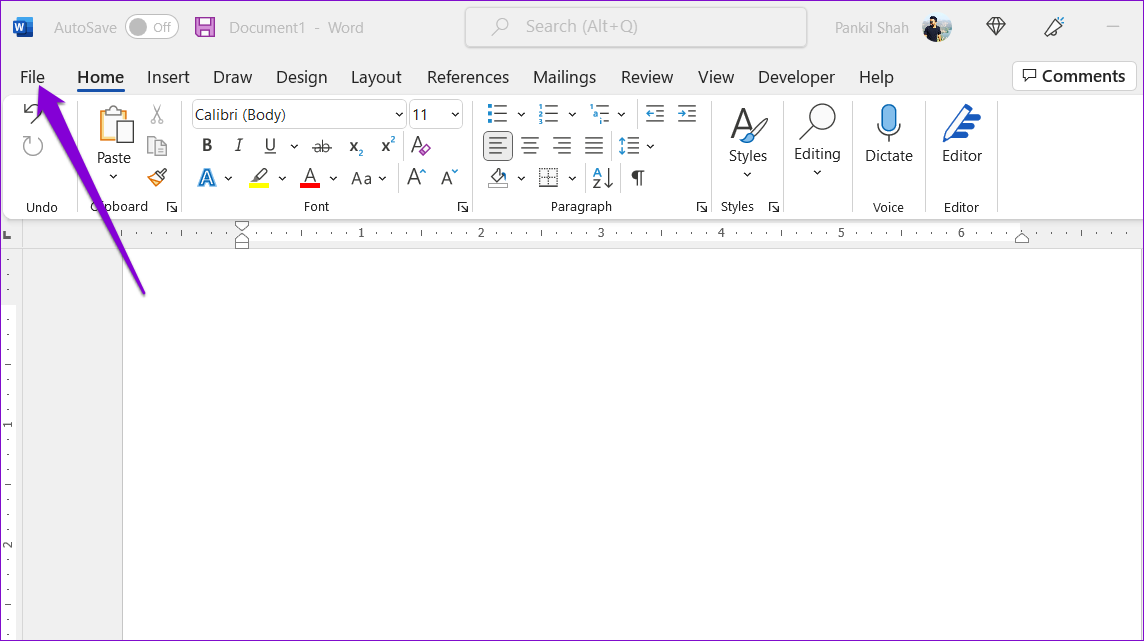
Step 2: Select Options from the left sidebar.
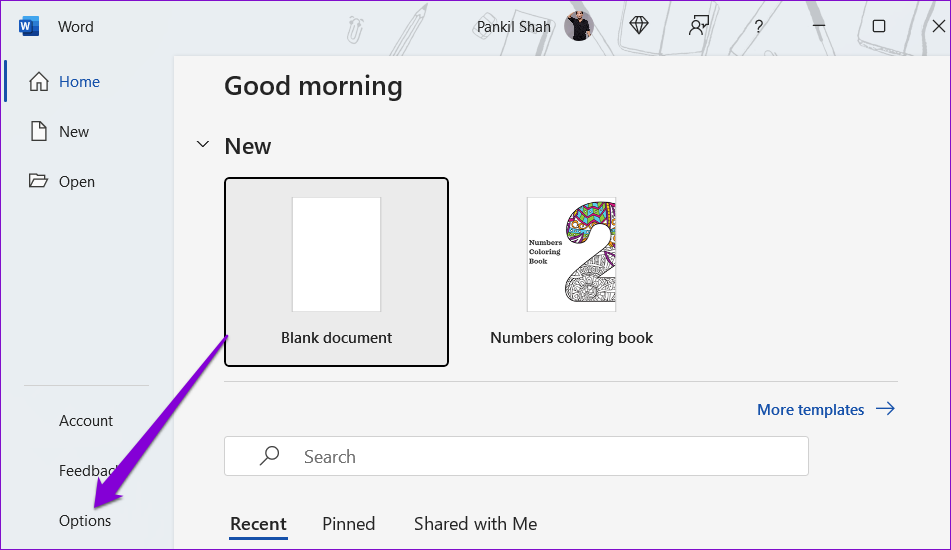
Step 3: In the Word Options window, switch to the Advanced tab from the sidebar > scroll down and uncheck the Show picture placeholders box.
Step 4: Check the box for Show drawings and text boxes on screen and click OK.

Fix 4: Disable Draft Quality
Enabling the draft quality option can result in Word loading your document in a simplified format. While this option helps you review the text without distractions, it also prevents Word from loading images in your document. To avoid that, use these steps to turn off draft quality.
Step 1: Open Microsoft Word on your PC and go to File > Options.
Step 2: In the Advanced tab, scroll to the Print section and uncheck Use draft quality. Then, click OK.

Fix 5: Repair the Problematic File
If the “This image cannot currently be displayed” error only appears in a specific document, there may be an issue with the Word file itself. You can use the built-in document repair option in Word to fix the problem.
Step 1: Open Microsoft Word and click the File menu at the top.
Step 2: Select Open from the left sidebar and click Browse.
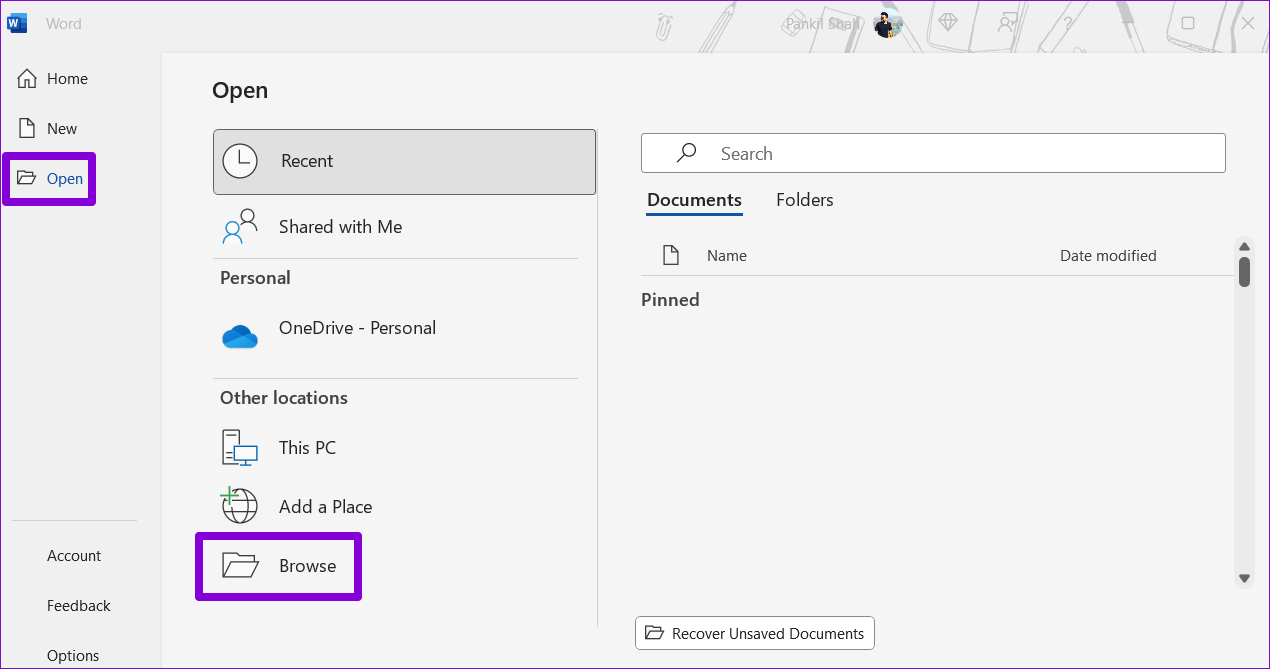
Step 3: Locate and select your Word file. Then, click the downward arrow next to Open and select Open and Repair.

Fix 6: Run the Office Repair Tool
If all else fails, some essential files related to Office apps may have become corrupted. So, you may also see this error in other Office apps. You can run the Office repair tool by following the steps below to fix this.
Step 1: Press the Windows + R keyboard shortcut to open the Run dialog box. Type appwiz.cpl in the box > press Enter.
Step 2: Locate and select the Microsoft Office suite on the list. Then, click the Change button at the top.
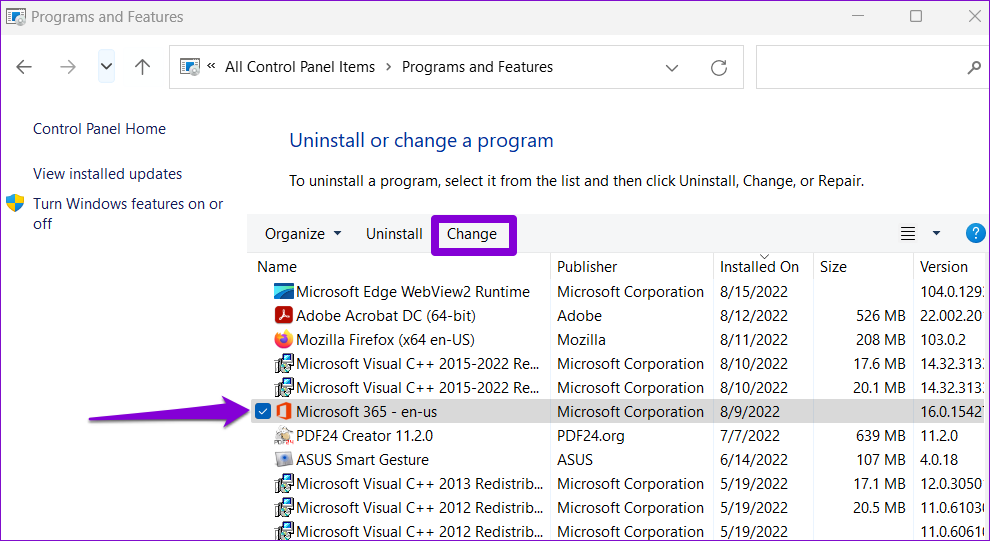
Step 3: Select Online Repair > hit Repair.

Was this helpful?
Last updated on 31 July, 2024
1 Comment
Leave a Reply
Read Next
 How to Fix Windows 10’s This Action Is Only Valid for Products That Are Currently Installed Error
Windows 10 users usually face the error 'This action is only valid for products that are currently installed' when working with a version of Office suite of apps.
How to Fix Windows 10’s This Action Is Only Valid for Products That Are Currently Installed Error
Windows 10 users usually face the error 'This action is only valid for products that are currently installed' when working with a version of Office suite of apps.
 How to Fix ‘There Are Currently No Power Options Available’ Error in Windows
Preliminary Fixes Check for Windows Update: Sometimes, the error can occur due to bugs or issues introduced in a previous Windows update.
How to Fix ‘There Are Currently No Power Options Available’ Error in Windows
Preliminary Fixes Check for Windows Update: Sometimes, the error can occur due to bugs or issues introduced in a previous Windows update.
 What Does Your Location Is Currently in Use Mean on Windows
Why Do Apps Track Your Location on Windows Weather, Maps, and news widgets frequently use your location to deliver astute results.
What Does Your Location Is Currently in Use Mean on Windows
Why Do Apps Track Your Location on Windows Weather, Maps, and news widgets frequently use your location to deliver astute results.
 How to Find Who Is Currently Logged Into Your Windows Computer
Method 1: Use the Start Menu The simplest and quickest method to view all the users who are currently logged in to Windows is through the Start menu.
How to Find Who Is Currently Logged Into Your Windows Computer
Method 1: Use the Start Menu The simplest and quickest method to view all the users who are currently logged in to Windows is through the Start menu.
 5 Fixes for “Word Experienced an Error Trying to Open the File” Error in Windows
Fix 1: Unblock Your Word File Microsoft Word may fail to open a document if it has been altered by third-party software.
5 Fixes for “Word Experienced an Error Trying to Open the File” Error in Windows
Fix 1: Unblock Your Word File Microsoft Word may fail to open a document if it has been altered by third-party software.
 5 Ways to Fix Sync Is Currently Experiencing Problems on Android
Basic Fixes: Check Google server status: If Google is experiencing issues in the backend, it might affect sync on your Android phone.
5 Ways to Fix Sync Is Currently Experiencing Problems on Android
Basic Fixes: Check Google server status: If Google is experiencing issues in the backend, it might affect sync on your Android phone.
 4 Fixes for “Cannot Send Audio Message At This Time” Error on iPhone
Basic Fixes Check internet connection: If you use Mobile Data for the Messages app, you might need better internet speeds in your current area.
4 Fixes for “Cannot Send Audio Message At This Time” Error on iPhone
Basic Fixes Check internet connection: If you use Mobile Data for the Messages app, you might need better internet speeds in your current area.
 6 Ways to Fix “The Set of Folders Cannot Be Opened” Error in Outlook for Windows
Fix 1: Reset the Navigation Pane Sometimes, Outlook may fail to load the navigation pane entirely and throw an error message that reads, "Cannot start Microsoft Outlook.
6 Ways to Fix “The Set of Folders Cannot Be Opened” Error in Outlook for Windows
Fix 1: Reset the Navigation Pane Sometimes, Outlook may fail to load the navigation pane entirely and throw an error message that reads, "Cannot start Microsoft Outlook.
The article above may contain affiliate links which help support Guiding Tech. The content remains unbiased and authentic and will never affect our editorial integrity.

Obviously, we needed a SEVENTH option for how to replace the “This image cannot currently be displayed” error.