


Try Basic Fixes
- Switch to Airplane Mode or Restart Devices: It will ensure the removal of temporary blocks that show up if the device is turned on for a long time.
- Update the Network Driver on the PC: Updating a compatible driver with the OS ensures the removal of any issues, especially bugs that cause problems.
Fix 1. Turn the Hotspot on and off
Step 1: Open Settings on your Android smartphone.
Step 2: Tap on Connection and Sharing > select Personal Hotspot or Mobile Hotspot.


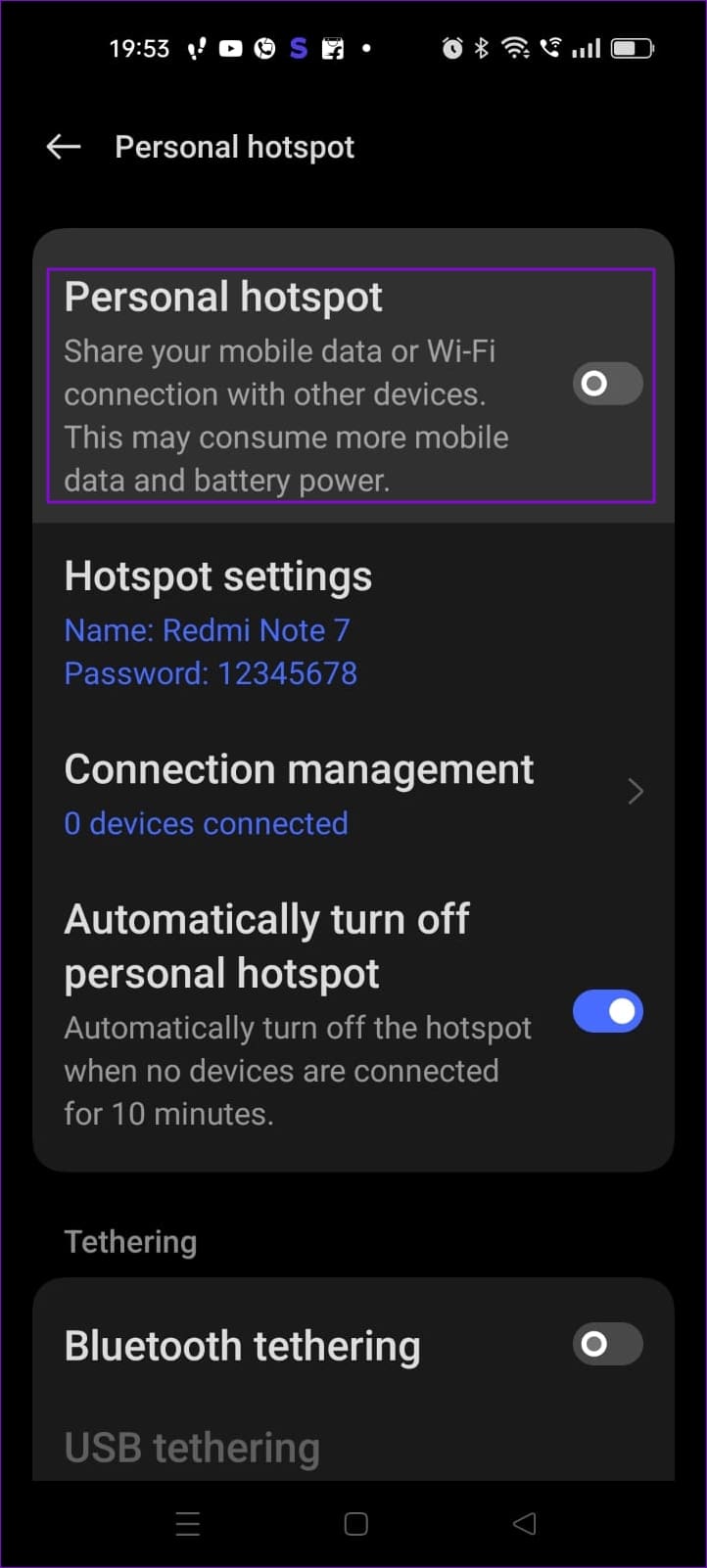
Step 3: Toggle off Mobile Hotspot to turn the hotspot off.
Step 4: Tap on the toggle to turn the hotspot back on. You can now connect your Windows laptop to your Android smartphone through the hotspot.
Fix 2. Ensure Your Device Is in the Hotspot Range
Often, we keep mobile at places that are farther from a laptop, and when it is at a range where it keeps disconnecting, these types of issues show up. Try moving closer to the smartphone. You can now connect to the hotspot. Also, ensure you have a stable internet connection on your smartphone.
Fix 3. Forget the Connection and Reconnect on PC
If the mobile hotspot configuration has changed for some reason, it’s best to remove it from the PC’s saved settings and reconnect.
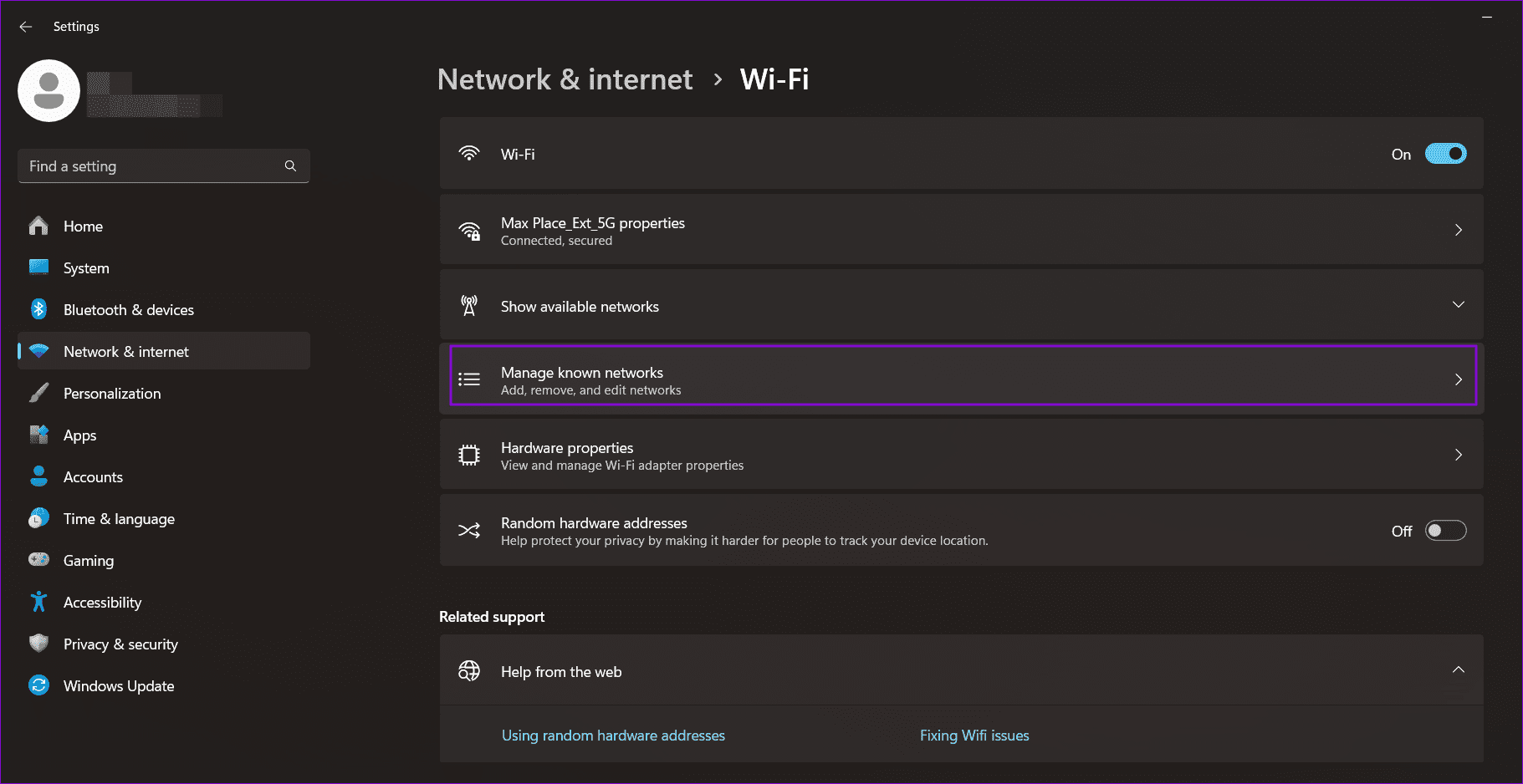
Step 1: Click on the Start icon on your Windows laptop and click on Settings.
Step 2: Go to Network & Internet > select Wi-Fi settings > Manage known networks.
Step 3: Now, click Forget next to the Wi-Fi name to forget the network.
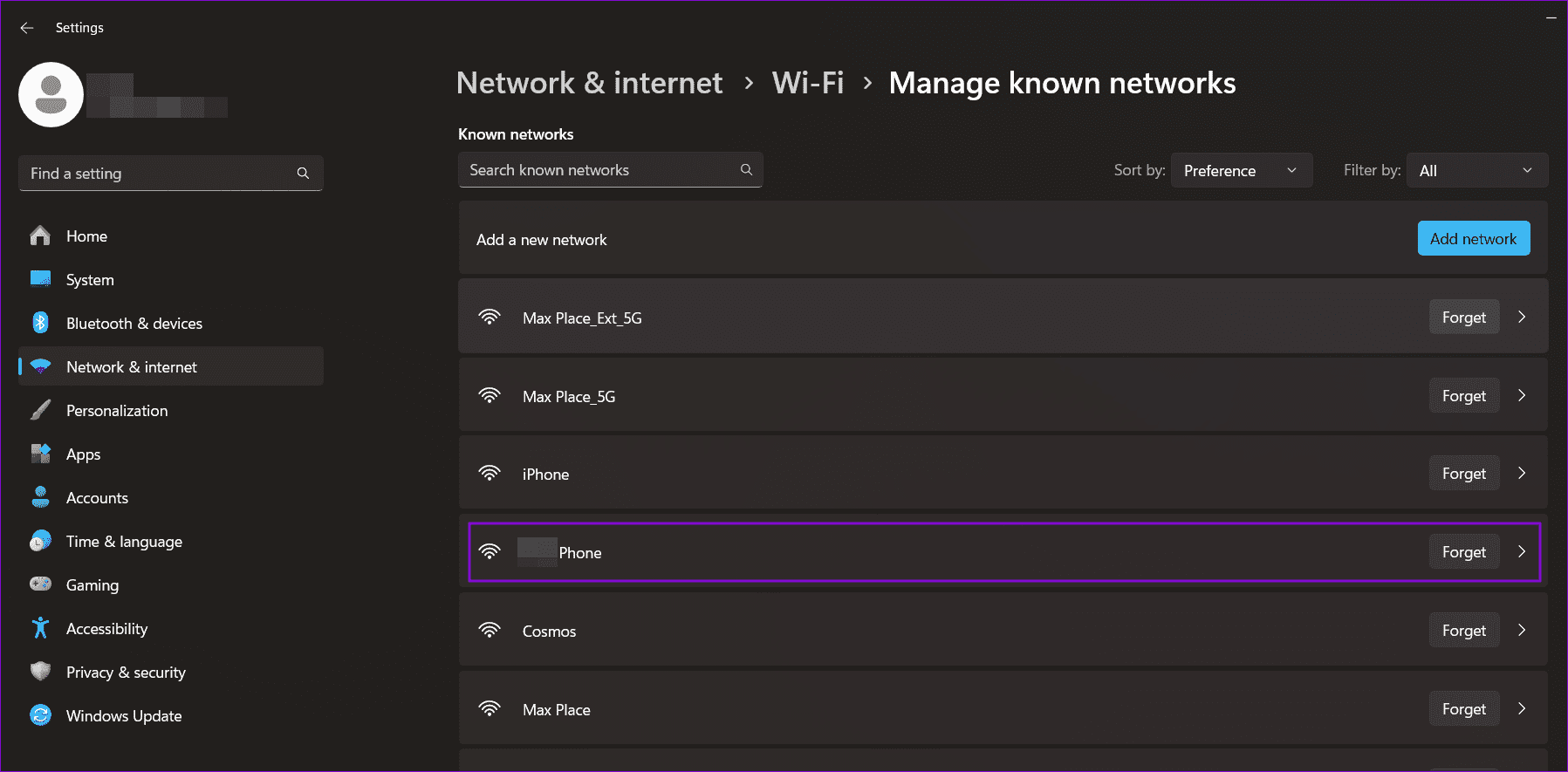
Step 4: Return to the Wi-Fi settings and re-connect to the hotspot by entering the password.
Fix 4. Reset Network Settings on the PC
Step 1: Open the Network & Internet settings on your laptop.
Step 2: Select Advanced Network Settings and click on Network Reset.
Step 3: Click Reset now and follow the on-screen instructions to reset the network settings.

Was this helpful?
Last updated on 28 August, 2024
Read Next
 Top 6 Ways to Fix Mac Not Connecting to Hotspot
Using a mobile hotspot is a great way to connect to the internet when away from a Wi-Fi network.
Top 6 Ways to Fix Mac Not Connecting to Hotspot
Using a mobile hotspot is a great way to connect to the internet when away from a Wi-Fi network.
 12 Best Fixes for Windows 10 Laptop Won’t Connect to iPhone Hotspot
I usually travel light with my Windows laptop and iPhone.
12 Best Fixes for Windows 10 Laptop Won’t Connect to iPhone Hotspot
I usually travel light with my Windows laptop and iPhone.
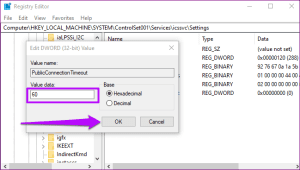 4 Ways to Fix Windows Mobile Hotspot Keeps Turning off
Fix 1: Disable Mobile Hotspot Power Saving Disable the power saving feature to prevent Windows from automatically turning off the hotspot when not in use.
4 Ways to Fix Windows Mobile Hotspot Keeps Turning off
Fix 1: Disable Mobile Hotspot Power Saving Disable the power saving feature to prevent Windows from automatically turning off the hotspot when not in use.
 7 Ways to Fix Mobile Hotspot Not Working on Windows 11
Try These Things First Turn off Bluetooth: Sometimes, the Bluetooth connection on your PC may interfere with the mobile hotspot.
7 Ways to Fix Mobile Hotspot Not Working on Windows 11
Try These Things First Turn off Bluetooth: Sometimes, the Bluetooth connection on your PC may interfere with the mobile hotspot.
 Top 7 Ways to Fix Android Mobile Hotspot Not Working
We are relying on mobile hotspot more than ever in the work from home situation.
Top 7 Ways to Fix Android Mobile Hotspot Not Working
We are relying on mobile hotspot more than ever in the work from home situation.
 4 Best Fixes for Windows 10 Mobile Hotspot Grayed Out
Basic Fixes Check network connection: Ensure there are no problems with network connectivity or the router/modem.
4 Best Fixes for Windows 10 Mobile Hotspot Grayed Out
Basic Fixes Check network connection: Ensure there are no problems with network connectivity or the router/modem.
 Top 9 Ways to Fix Mobile Hotspot Not Working on Samsung Galaxy Phones
Mobile hotspot comes in handy when your office or home Wi-Fi is facing an outage.
Top 9 Ways to Fix Mobile Hotspot Not Working on Samsung Galaxy Phones
Mobile hotspot comes in handy when your office or home Wi-Fi is facing an outage.
 How to Connect Amazon Echo to Mobile Hotspot
A working internet connection is essential for the proper functioning of a smart device like Amazon Echo.
How to Connect Amazon Echo to Mobile Hotspot
A working internet connection is essential for the proper functioning of a smart device like Amazon Echo.
The article above may contain affiliate links which help support Guiding Tech. The content remains unbiased and authentic and will never affect our editorial integrity.

