

Try Basic Fixes
- Sign in to the network: Although most public Wi-Fi networks are free to use, some require you to sign in with your email address or phone number and accept certain terms and conditions. If you’ve connected to such a network, your Android will display a notification asking you to sign in. Tap on that notification and follow the on-screen prompts to sign into your network.
- Test the Wi-Fi network on another device: Another thing you can do is try using the same Wi-Fi network on another device. If the internet does not work on any device, check if your internet plan has expired or if you’ve reached your monthly quota.
- Reconnect to the Wi-Fi network: This is a classic troubleshooting tip that almost always works. Disconnecting your phone from the Wi-Fi network and rejoining it will fix any issues caused by minor glitches or misconfigured settings.
Fix 1: Treat the Wi-Fi Network as Unmetered
If you have set the Wi-Fi network as metered, it can cause downloads and background internet activities to stop working on your Android. To avoid this, set your Wi-Fi network as an unmetered connection using these steps:
Step 1: Open the Settings app and navigate to Connections > Wi-Fi.
Step 2: Tap the gear icon next to your Wi-Fi network.


Step 3: Tap the View more option.
Step 4: Tap on Metered network and select Treat as unmetered.


Fix 2: Correct the Date and Time on Your Phone
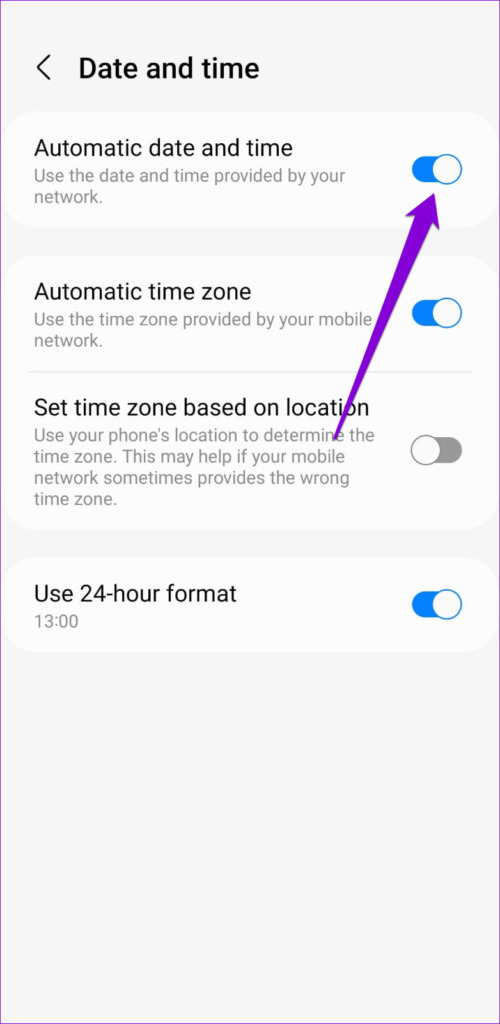
An incorrect date or time can also prevent Android and its apps from connecting to the internet. You can avoid such problems easily by configuring your phone to use the network-provided date and time.
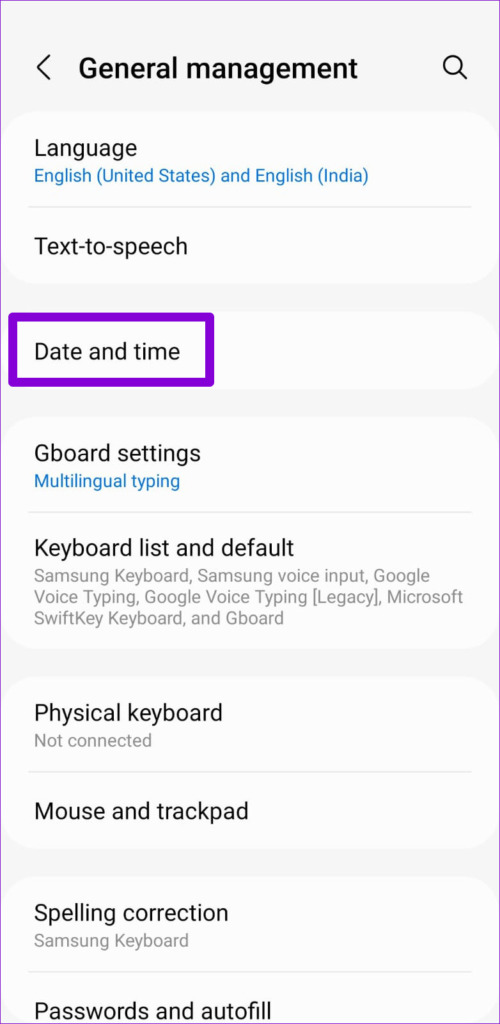
Step 1: Open the Settings app and head over to General management.
Step 2: Tap on Date and time and enable the toggle for Automatic date and time from the following screen.

Fix 3: Use Another DNS Server
Problems with the default DNS server on your Android can also cause the internet to stop working. Try switching to a different DNS server to see if that improves the situation.
Step 1: Open the Settings app on your phone and navigate to Connections.
Step 2: Tap on More connection settings and select Private DNS from the following menu.
Step 3: Select Private DNS provider hostname and type in a TLS hostname in the box. If you wish to use Google’s public DNS servers, for instance, type dns.google in the text field if you see the option for providing DNS provider hostname.
Step 4: Tap Save.


Fix 4: Reset Network Settings
If you still can’t connect to the internet, you can reset the network settings on your Android. This will revert all the network settings to their default values and fix any problems.
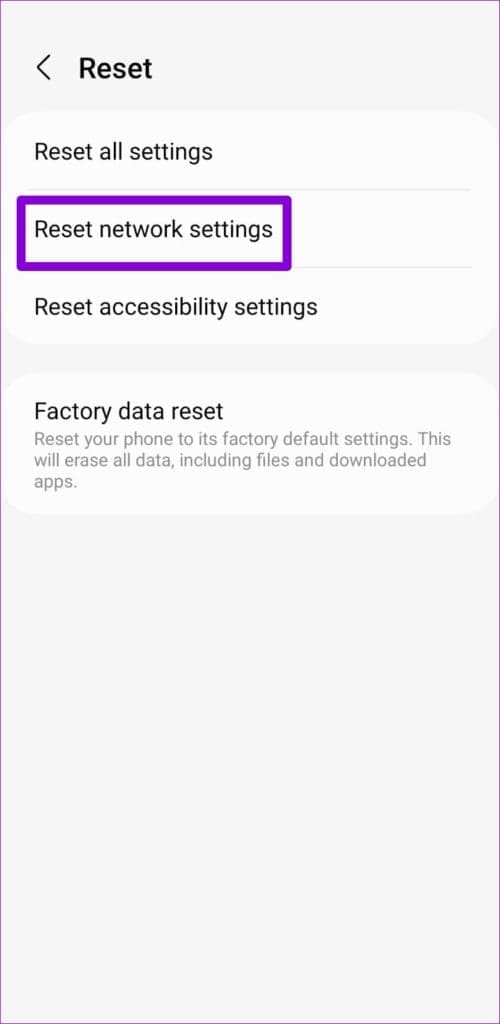
Step 1: Open the Settings app and go to General management > Reset.
Step 2: Tap Reset network settings and hit the Reset settings button to confirm.


Was this helpful?
Last updated on 26 July, 2024
5 Comments
Leave a Reply
Read Next
 Top 7 Ways to Fix Samsung Galaxy Phone Connected to Wi-Fi But No Internet
Most Samsung Galaxy phone users prefer a robust Wi-Fi connection to download large apps, games, TV shows, movies, and playlists from the likes of Netflix, Disney Plus, and Spotify.
Top 7 Ways to Fix Samsung Galaxy Phone Connected to Wi-Fi But No Internet
Most Samsung Galaxy phone users prefer a robust Wi-Fi connection to download large apps, games, TV shows, movies, and playlists from the likes of Netflix, Disney Plus, and Spotify.
 6 Ways to Fix iPad Connected to Wi-Fi but No Internet
Basic Fixes: Restart the router and iPad: Power off your iPad and Wi-Fi router.
6 Ways to Fix iPad Connected to Wi-Fi but No Internet
Basic Fixes: Restart the router and iPad: Power off your iPad and Wi-Fi router.
 4 Ways to Fix Wi-Fi Connected but No Internet on Windows 11
Common Fixes Let's begin with some basic solutions to fix the Wi-Fi connected but no internet issue on your Windows machine: Check your internet plan - If you have exceeded
4 Ways to Fix Wi-Fi Connected but No Internet on Windows 11
Common Fixes Let's begin with some basic solutions to fix the Wi-Fi connected but no internet issue on your Windows machine: Check your internet plan - If you have exceeded
 4 Fixes for iPhone Connected to Wi-Fi but Internet Not Working Issue
Basic Fixes: Restart the iPhone and modem: Long-press the power button and turn off your iPhone.
4 Fixes for iPhone Connected to Wi-Fi but Internet Not Working Issue
Basic Fixes: Restart the iPhone and modem: Long-press the power button and turn off your iPhone.
 How to Fix USB Connector Disconnected Notification on Android
Why Is My Phone Saying USB Connector Connected and Disconnected?
How to Fix USB Connector Disconnected Notification on Android
Why Is My Phone Saying USB Connector Connected and Disconnected?
 Top 5 Ways to Fix Bluetooth Headphones Connected but No Sound on Windows 10
On a usual day, you'd hook your wireless Bluetooth headphones to your PC to listen to a song.
Top 5 Ways to Fix Bluetooth Headphones Connected but No Sound on Windows 10
On a usual day, you'd hook your wireless Bluetooth headphones to your PC to listen to a song.
 How to Fix “Fire TV Stick Connected With Problems” Error
Basic Fixes: Restart the Fire TV Stick and router: Temporary connection problems can cause internet issues on your Fire TV Stick.
How to Fix “Fire TV Stick Connected With Problems” Error
Basic Fixes: Restart the Fire TV Stick and router: Temporary connection problems can cause internet issues on your Fire TV Stick.
 4 Ways to Fix Bluetooth Device Is Paired but Not Connected on Windows 11
Try Basic Fixes Toggle the airplane mode: Enabling and disabling the airplane mode is a quick way to refresh all wireless radios on your computer and resolve minor Wi-Fi, Bluetooth,
4 Ways to Fix Bluetooth Device Is Paired but Not Connected on Windows 11
Try Basic Fixes Toggle the airplane mode: Enabling and disabling the airplane mode is a quick way to refresh all wireless radios on your computer and resolve minor Wi-Fi, Bluetooth,
The article above may contain affiliate links which help support Guiding Tech. The content remains unbiased and authentic and will never affect our editorial integrity.

Followed all the steps but none of it didn’t work, easy as you had mentioned on the last part is not.
wonderful help, was pulling my hair out and no. 5 worked a treat, thank you
It is more important than ever to maintain a strong internet connection due to the development of smart home products, cloud gaming, and video streaming services. Before contacting your cable provider for service, look over our tips for the Internet not working.
Absolutely none of these suggestions have worked and I’m still internet-less on my cell phone but still connected to my network. Actually post a fix for this shit and stop leading people down false rabbit holes.
My WiFi was connected but no internet network