Fix 1: Remove OneNote Credentials From Credential Manager
The Credential Manager in Windows stores login details for all your apps. If you recently updated your Microsoft account password or Credential Manager data has become inaccessible, OneNote might keep showing the “Sign In Required” message.
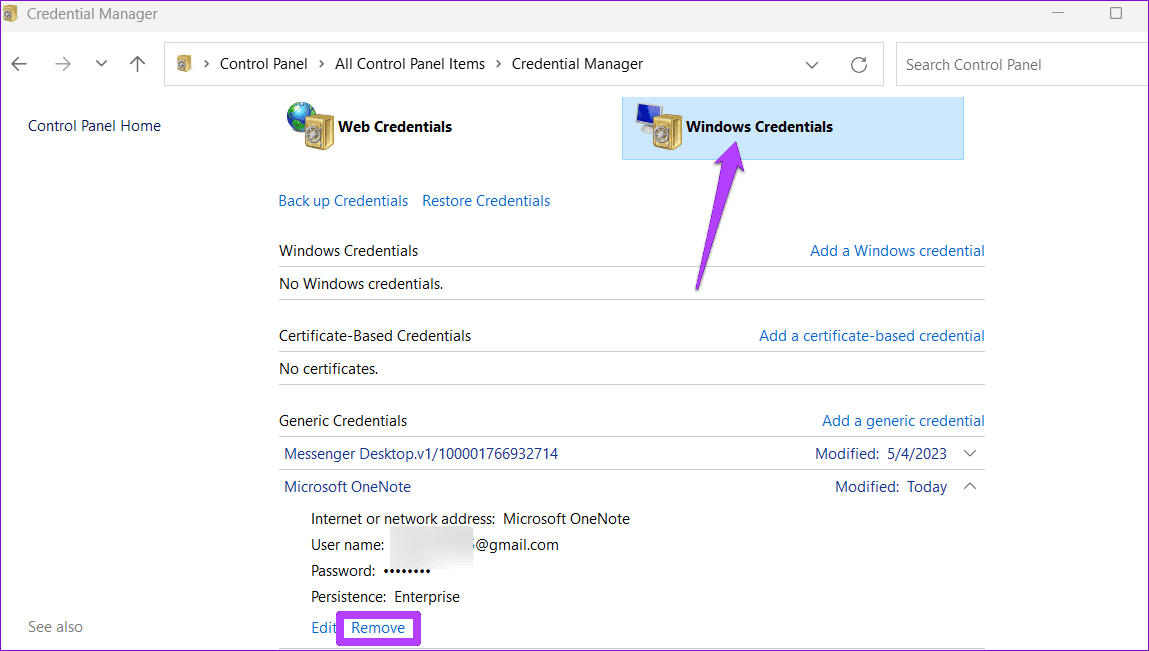
To fix this, remove your OneNote login details from the Credential Manager by following the steps below.
Step 1: Press the Windows key + R to open the Run dialog box. Type control /name Microsoft.CredentialManager and press Enter.
Step 2: Select Windows Credentials and locate Microsoft OneNote on the list. Then, click Remove.
Log into the OneNote app again and check if the issue is still there.
Fix 2: Clear OneNote Cache
Microsoft OneNote stores certain information locally on your computer to load quickly and serve you better. If this data becomes corrupt, OneNote may have trouble signing you in. Thankfully, it’s easy and safe to remove these cache files.
Step 1: Press the Windows key + R to open the Run dialog box. In the text field, type the following path and press Enter.
%localappdata%\Microsoft\OneNote\16.0\cache
Step 2: In the File Explorer window that opens, select all the files and click the trash icon at the top to delete them.

Fix 3: Repair or Reset the OneNote App
If you still can’t sign into OneNote, use the built-in app repair feature on Windows to fix the app. Here’s how.
Step 1: Press the Windows key + S to open the search menu, type OneNote in the search box, and select App settings.

Step 2: Click the Repair button. When the process is completed, a checkmark will appear next to it.
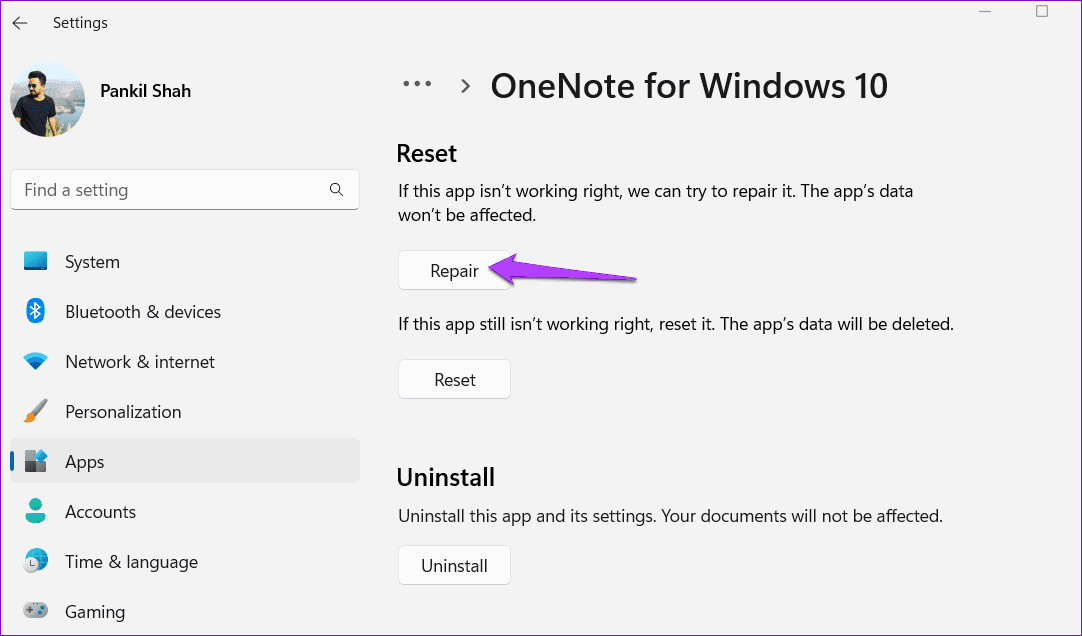
If you can’t sign into OneNote even after this, try resetting the app from the same menu. Afterward, head over to the Microsoft Store to update the OneNote app and sign into your account again.
Was this helpful?
Last updated on 08 May, 2024
Read Next
 6 Ways to Fix Unable to Change Sign-in PIN on Windows
Fix 1: Disconnect Work or School Account One of the most common reasons Windows may prevent you from changing your sign-in PIN is if you've linked your work or school
6 Ways to Fix Unable to Change Sign-in PIN on Windows
Fix 1: Disconnect Work or School Account One of the most common reasons Windows may prevent you from changing your sign-in PIN is if you've linked your work or school
 5 Ways to Fix Unable to Print From Microsoft Excel on Windows 11
Fix 1: Save Your Excel File in XPS Format and Try Again If Excel can't respond to print requests, save your file in the XPS format and try again.
5 Ways to Fix Unable to Print From Microsoft Excel on Windows 11
Fix 1: Save Your Excel File in XPS Format and Try Again If Excel can't respond to print requests, save your file in the XPS format and try again.
 4 Ways to Fix Microsoft Teams Keeps Asking to Sign in on Windows 10/11
Fix 1: Clear Teams Cache Microsoft Teams collects cache in the background to improve loading times and the overall app experience.
4 Ways to Fix Microsoft Teams Keeps Asking to Sign in on Windows 10/11
Fix 1: Clear Teams Cache Microsoft Teams collects cache in the background to improve loading times and the overall app experience.
 5 Fixes for Unable to Open Attachments in Microsoft Outlook on Windows
Fix 1: Check Attachment Handling Settings If Outlook is unable to open your email attachments, it may be because the file previewer option is disabled.
5 Fixes for Unable to Open Attachments in Microsoft Outlook on Windows
Fix 1: Check Attachment Handling Settings If Outlook is unable to open your email attachments, it may be because the file previewer option is disabled.
 4 Ways to Fix Microsoft Teams Sign-in Error
Preliminary Fixes Check Microsoft Teams servers: Microsoft Teams is infamous for server outrage.
4 Ways to Fix Microsoft Teams Sign-in Error
Preliminary Fixes Check Microsoft Teams servers: Microsoft Teams is infamous for server outrage.
 7 Top Ways to Fix OneNote Notebook Disappearing Error on Windows
Microsoft OneNote has gone through a number of iterations.
7 Top Ways to Fix OneNote Notebook Disappearing Error on Windows
Microsoft OneNote has gone through a number of iterations.
 7 Best Ways to Fix OneNote Won’t Let Me Type Error in Windows 10
Microsoft OneNote is one of the oldest note-taking apps and a key component of Microsoft's Office Suite.
7 Best Ways to Fix OneNote Won’t Let Me Type Error in Windows 10
Microsoft OneNote is one of the oldest note-taking apps and a key component of Microsoft's Office Suite.
 3 Ways to Fix OneNote Not Opening on Windows 11/10
Preliminary Fixes Close and reopen OneNote: Microsoft offers a quick-note feature on OneNote and keeps running the app in the background.
3 Ways to Fix OneNote Not Opening on Windows 11/10
Preliminary Fixes Close and reopen OneNote: Microsoft offers a quick-note feature on OneNote and keeps running the app in the background.
The article above may contain affiliate links which help support Guiding Tech. The content remains unbiased and authentic and will never affect our editorial integrity.