Basic Fixes:
- Check for hardware issues: Most mouse-related problems are associated with hardware failures. Cases of faulty cables, USB ports, or slots could result in the mouse working properly with your computer.
- Clean the mouse button using compressed air: The mouse buttons may have gathered debris, so cleaning or blowing compressed air may fix the problem.
- Use an alternate user profile: If your current user profile is corrupted, you may need a different one to fix the problem.
- Remove recently installed apps or drivers: If you notice a problem after installing new apps or drivers, uninstall them, as they may trigger the problem.
Fix 1: Set Your Primary Mouse Button to Left
A simple misconfiguration may cause the mouse’s left click to stop working. The Settings app allows you to reconfigure some of these. One of the most important things is ensuring the primary mouse action is set to the left. Follow the steps below.
Step 1: Press Windows + I to open Settings.
Step 2: Click Bluetooth & devices on the left pane > click Mouse on the right.

Step 3: Ensure the Primary mouse button is set to Left.

Fix 2: Run the SFC and DISM Commands
At times, running the SFC and DISM commands can fix the issue. This is because these scans will fix damaged or corrupted system and image files that may cause the mouse problem. Here’s how to scan and fix the problem.
Step 1: Press Windows + R to open the Run dialog, type cmd, and hit Ctrl + Shift + Enter to open a Command Prompt with admin rights.
Step 2: Type this command and press Enter.
sfc/scannow
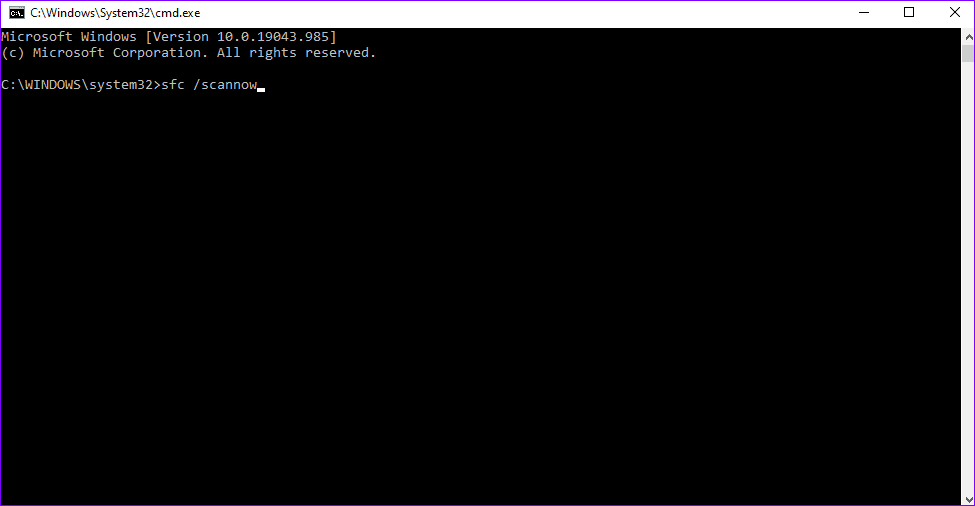
Step 3: Once the scanning process is complete, type exit, then press Enter to close the cmd window. Finally, restart your computer and confirm if the mouse works correctly.
Alternatively, run DISM commands to fix corrupt files. Here’s how to do it.
Step 1: Press Windows + R to open the Run dialog, type cmd, and hit Ctrl + Shift + Enter to open a Command Prompt with admin rights.
Step 2: Type the command below and hit Enter.
dism/online/cleanup-image/restorehealth

Step 3: Wait for the process to complete, restart your PC, and confirm if your mouse works properly.
Fix 3: Reinstall or Update Mouse Drivers
If your mouse runs on outdated or old features, you may experience issues with button functionalities. To resolve this issue, update mouse drivers to the latest versions. Here’s how:
Step 1: Press the Windows + X keys and select Device Manager.

Step 2: Expand Mice and other pointing devices, identify the mouse you are using, right-click on it, and click Update driver.

Step 3: On the next screen, choose Search automatically for drivers and follow the prompts to complete the process. Then, restart your device.
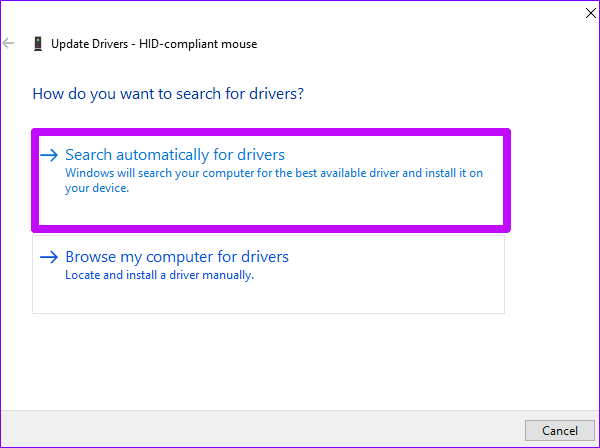
Alternatively, you may uninstall and reinstall the driver. Launch the Device Manager as you did above and follow the steps below.
Step 1: Expand Mice and other pointing devices, identify the mouse you are using, right-click on it, and click Uninstall device.
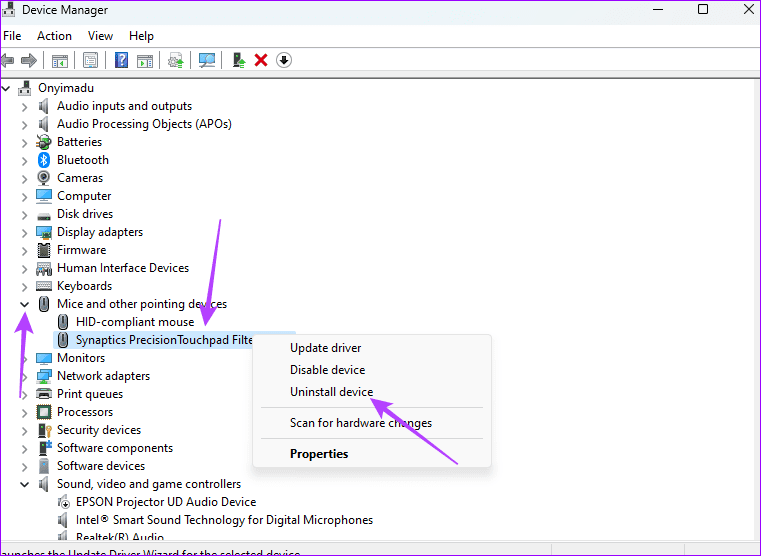
Step 2: Confirm your choice and restart the computer.
After you restart the computer, it should automatically install a new driver.
Fix 4: Enable Click-Lock
If you have issues holding the left button down, enabling the click-lock feature can fix this issue. By enabling click-lock, briefly pressing the left button will keep it down until you click it again.
Step 1: Press Windows + R to open the Run dialog, type control, and hit Enter to open the Control Panel.
Step 2: Select Hardware and Sound.

Step 3: Click Mouse under Devices and Printers.
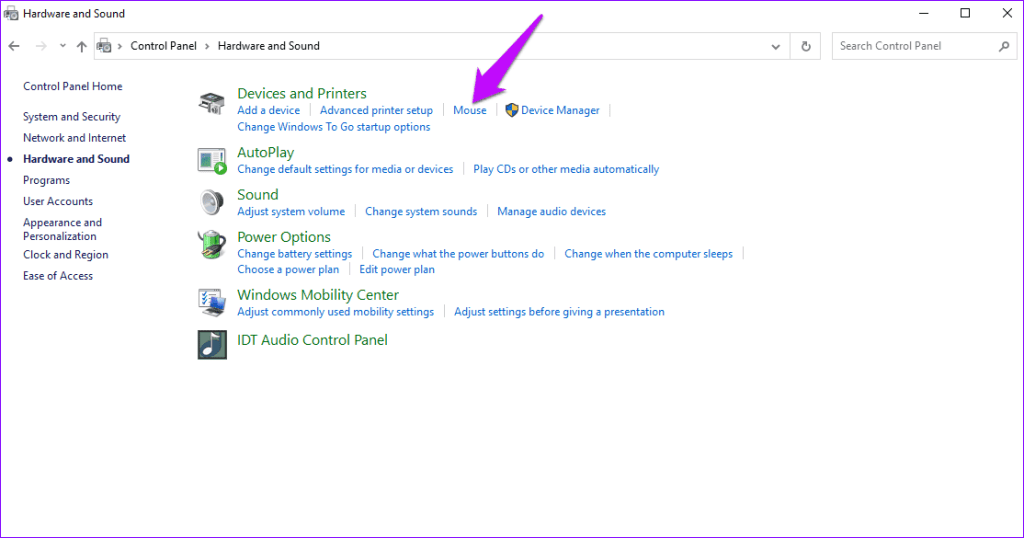
Step 4: Go to the Buttons tab and check the box for Turn on ClickLock.

Note: If the click-lock feature is enabled, it could also mean that this is the cause of the problem. In such a case, uncheck the click-lock feature and confirm if the left-click button works.
As a last resort, consider buying a new mouse.
Was this helpful?
Last updated on 28 May, 2024
Read Next
 Top 3 Touch Mouse Alternatives to Apple’s Magic Mouse
The Magic Mouse is useful for plenty of people, but some can get annoyed by its poor ergonomics.
Top 3 Touch Mouse Alternatives to Apple’s Magic Mouse
The Magic Mouse is useful for plenty of people, but some can get annoyed by its poor ergonomics.
 How to Enable or Disable Mouse Click Sound on Windows 11
Enable the Mouse Click Sound on Windows 11 If you're tired of your default mouse or trackpad click sound, setting a custom sound will enhance your navigation experience.
How to Enable or Disable Mouse Click Sound on Windows 11
Enable the Mouse Click Sound on Windows 11 If you're tired of your default mouse or trackpad click sound, setting a custom sound will enhance your navigation experience.
 3 Ways to Fix Mouse and Keyboard Not Working in Windows
Basic Fixes Restart PC: A simple restart can refresh the system memory, clear temporary glitches, and reload device drivers, fixing issues caused by outdated or corrupted files.
3 Ways to Fix Mouse and Keyboard Not Working in Windows
Basic Fixes Restart PC: A simple restart can refresh the system memory, clear temporary glitches, and reload device drivers, fixing issues caused by outdated or corrupted files.
 4 Ways to Fix Bluetooth Mouse Not Working with Windows 11
Basic Fixes: Ensure Bluetooth is turned on for both devices: A Bluetooth mouse has a physical switch to turn on or off the device.
4 Ways to Fix Bluetooth Mouse Not Working with Windows 11
Basic Fixes: Ensure Bluetooth is turned on for both devices: A Bluetooth mouse has a physical switch to turn on or off the device.
 5 Ways to Fix Mouse Scroll Not Working in Windows 11
Common Fixes Reconnect the mouse: Unplug your wired or wireless mouse connector and reconnect it after a few seconds.
5 Ways to Fix Mouse Scroll Not Working in Windows 11
Common Fixes Reconnect the mouse: Unplug your wired or wireless mouse connector and reconnect it after a few seconds.
 3 Ways to Fix Mouse Keeps Scrolling Automatically Windows 10 and Windows 11
https://youtu.be/1UZ3PWNr-lE Try Basic Fixes Disconnect and reconnect the mouse: Unplug your mouse cable or wireless adapter from your computer and reconnect it to a different port.
3 Ways to Fix Mouse Keeps Scrolling Automatically Windows 10 and Windows 11
https://youtu.be/1UZ3PWNr-lE Try Basic Fixes Disconnect and reconnect the mouse: Unplug your mouse cable or wireless adapter from your computer and reconnect it to a different port.
 Mouse Without Borders Not Working? 8 Ways to Solve It
The seamless flow between multiple computers with Mouse Without Borders is a productivity dream.
Mouse Without Borders Not Working? 8 Ways to Solve It
The seamless flow between multiple computers with Mouse Without Borders is a productivity dream.
 8 Best Ways to Fix Mouse Sensitivity Changes Randomly on Windows 10
While mice and keyboards help while working with desktop or laptop, the mouse gets finicky sometimes.
8 Best Ways to Fix Mouse Sensitivity Changes Randomly on Windows 10
While mice and keyboards help while working with desktop or laptop, the mouse gets finicky sometimes.
The article above may contain affiliate links which help support Guiding Tech. The content remains unbiased and authentic and will never affect our editorial integrity.