Basic Fixes
- Check network connection: If your device is not connected to the internet or has an issue, Telegram won’t download pictures to your gallery.
- Check storage space: If your iPhone or Android device doesn’t have enough storage space, it won’t be able to accommodate new photos that Telegram wants to save.
- Restart Telegram or Gallery app: Restart Telegram and the Gallery app to resolve temporary bugs and glitches.
- Update Telegram: Update the Telegram app for a bug-free experience.
Fix 1: Grant Storage Permissions (Android)
If you have denied the permission, Telegram will not be able to save photos to your gallery.
On Android
Go to Settings > Apps > select Telegram from the list. Go to Permissions > Storage > select Allow from the following menu.

On iPhone
Go to Settings > scroll down to find Telegram > go to Photos > tap on Full Access.


Also Read: How to find files downloaded from Telegram
Fix 2: Enable Save to Gallery
Telegram offers an option to save all the downloaded photos and videos to the Gallery. You must enable it from the Settings.
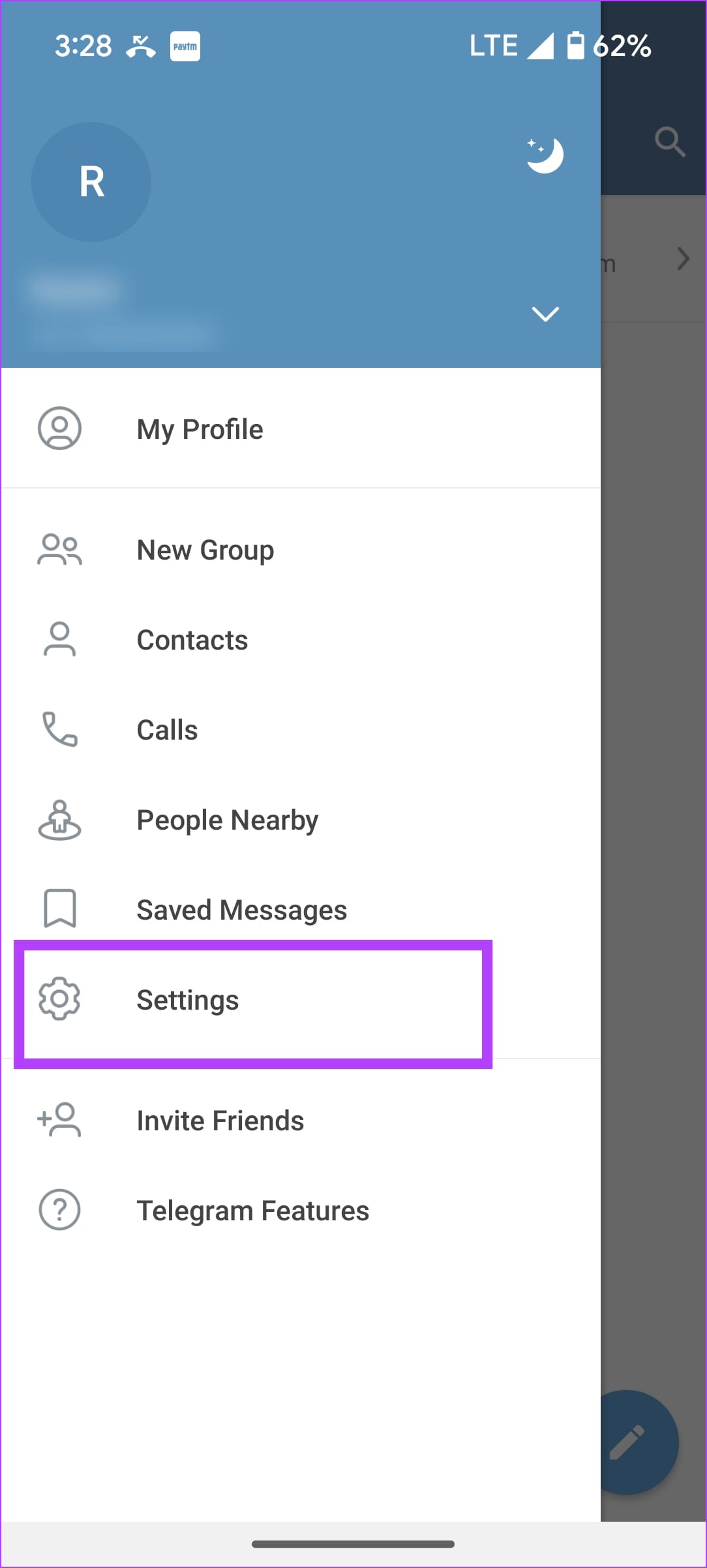
Step 1: Tap on the hamburger menu at the top right, and go to Settings.
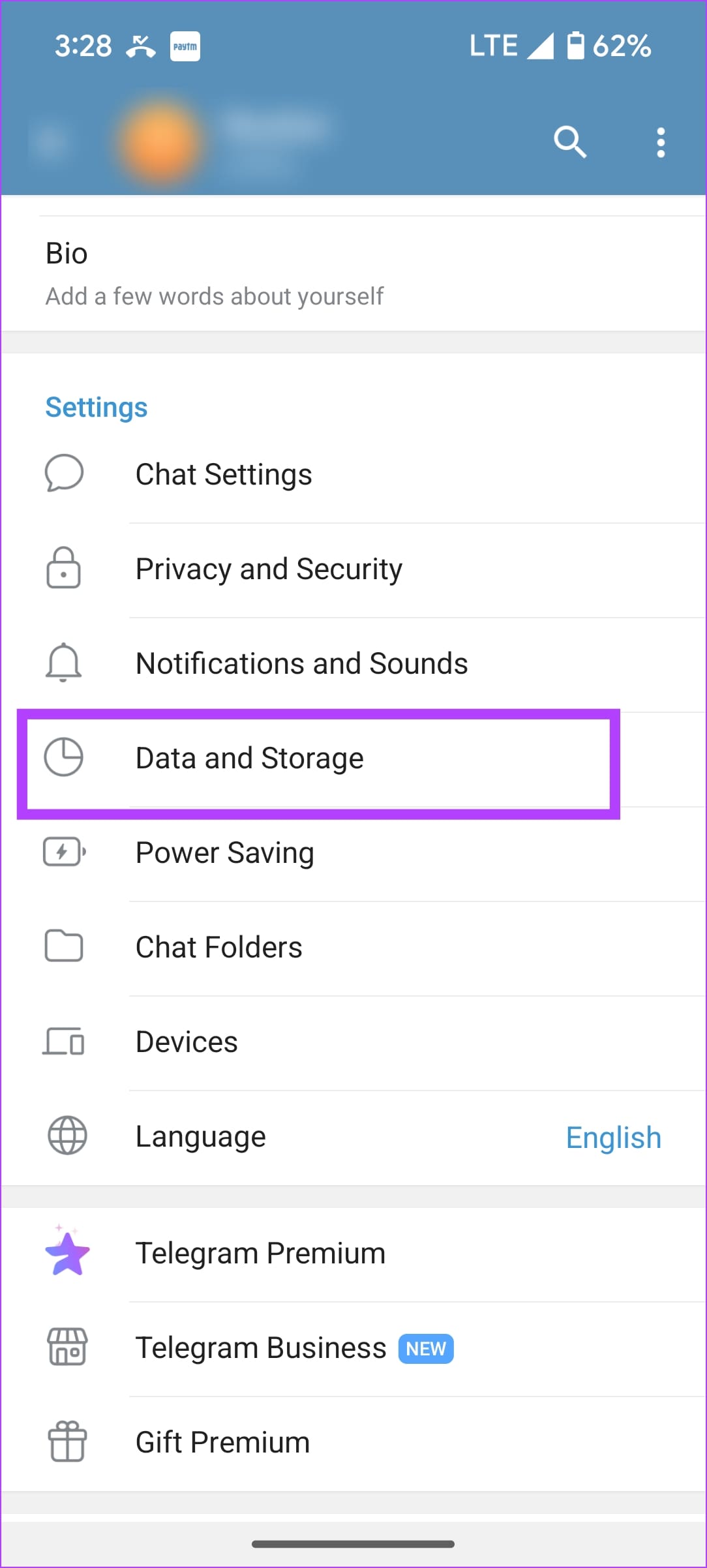
Step 2: Go to Data and Storage, and enable Save to Gallery for private chats, groups, and channels – depending on your preferences.

Fix 3: Manually Save Photos
If the Telegram photos still don’t appear in the phone gallery, you must manually save them from conversations.
Tap on the photo you want to save in the gallery. Then tap on the three-dot menu at the top and select Save to Gallery.

Was this helpful?
Last updated on 15 May, 2024
Read Next
 How to Solve Vertical Blue Lines Appearing on Laptop Screen
Check if the Error is Software or Hardware-based To fix the vertical blue lines on your laptop screen, you need to find the root cause.
How to Solve Vertical Blue Lines Appearing on Laptop Screen
Check if the Error is Software or Hardware-based To fix the vertical blue lines on your laptop screen, you need to find the root cause.
 How to Fix WhatsApp Photos and Videos Not Showing in Gallery
Why Are My Whatsapp Media Not Showing in Gallery on iPhone and Android?
How to Fix WhatsApp Photos and Videos Not Showing in Gallery
Why Are My Whatsapp Media Not Showing in Gallery on iPhone and Android?
 3 Ways to Fix Can’t Delete Photos from Android Gallery
Basic Fixes Check trash: If you delete photos from the gallery app and yet it doesn't clear storage, ensure you clear the trash as well.
3 Ways to Fix Can’t Delete Photos from Android Gallery
Basic Fixes Check trash: If you delete photos from the gallery app and yet it doesn't clear storage, ensure you clear the trash as well.
 How to Save WhatsApp Photos or Videos to Gallery on Any Device
How to Save WhatsApp Media on iPhone Save a Single Photo or Video WhatsApp lets you save photos or videos one by one to the gallery on your iPhone.
How to Save WhatsApp Photos or Videos to Gallery on Any Device
How to Save WhatsApp Media on iPhone Save a Single Photo or Video WhatsApp lets you save photos or videos one by one to the gallery on your iPhone.
 5 Best Gallery Apps With Hide Photos Option for Android
Many times, we want to hide some sensitive photos and videos from our phones.
5 Best Gallery Apps With Hide Photos Option for Android
Many times, we want to hide some sensitive photos and videos from our phones.
 What’s the Difference Between Google Photos and Gallery App on Android
Google Photos vs.
What’s the Difference Between Google Photos and Gallery App on Android
Google Photos vs.
 5 Ways to Fix Samsung Gallery App Not Syncing With OneDrive
Try Basic Fixes Update the Gallery app: Samsung regularly releases updates for the Gallery app to add new features, fix bugs, and enhance app performance.
5 Ways to Fix Samsung Gallery App Not Syncing With OneDrive
Try Basic Fixes Update the Gallery app: Samsung regularly releases updates for the Gallery app to add new features, fix bugs, and enhance app performance.
 10 Best Ways to Fix Samsung Gallery Not Showing All Pictures on Galaxy Phones
Samsung Galaxy phones have a default Gallery app to manage and edit media files.
10 Best Ways to Fix Samsung Gallery Not Showing All Pictures on Galaxy Phones
Samsung Galaxy phones have a default Gallery app to manage and edit media files.
The article above may contain affiliate links which help support Guiding Tech. The content remains unbiased and authentic and will never affect our editorial integrity.