


Basic Fixes:
- Allow anyone to call you: Telegram offers excellent privacy and security options. From the Settings, you can define who can and can’t reach you via Telegram calls. So, ensure you’ve allowed everyone to contact you.
- Disable Focus mode and DND: Focus mode and DND block calls and notifications to help you focus. So, if your Telegram calls are not ringing, you can disable Focus mode and DND. Then, check again.
- Check for Telegram app updates: Telegram calls not ringing on your iPhone can be due to an outdated app build. To fix this, go to the App Store and update Telegram to the latest version.
Fix 1: Enable iOS Call Integration
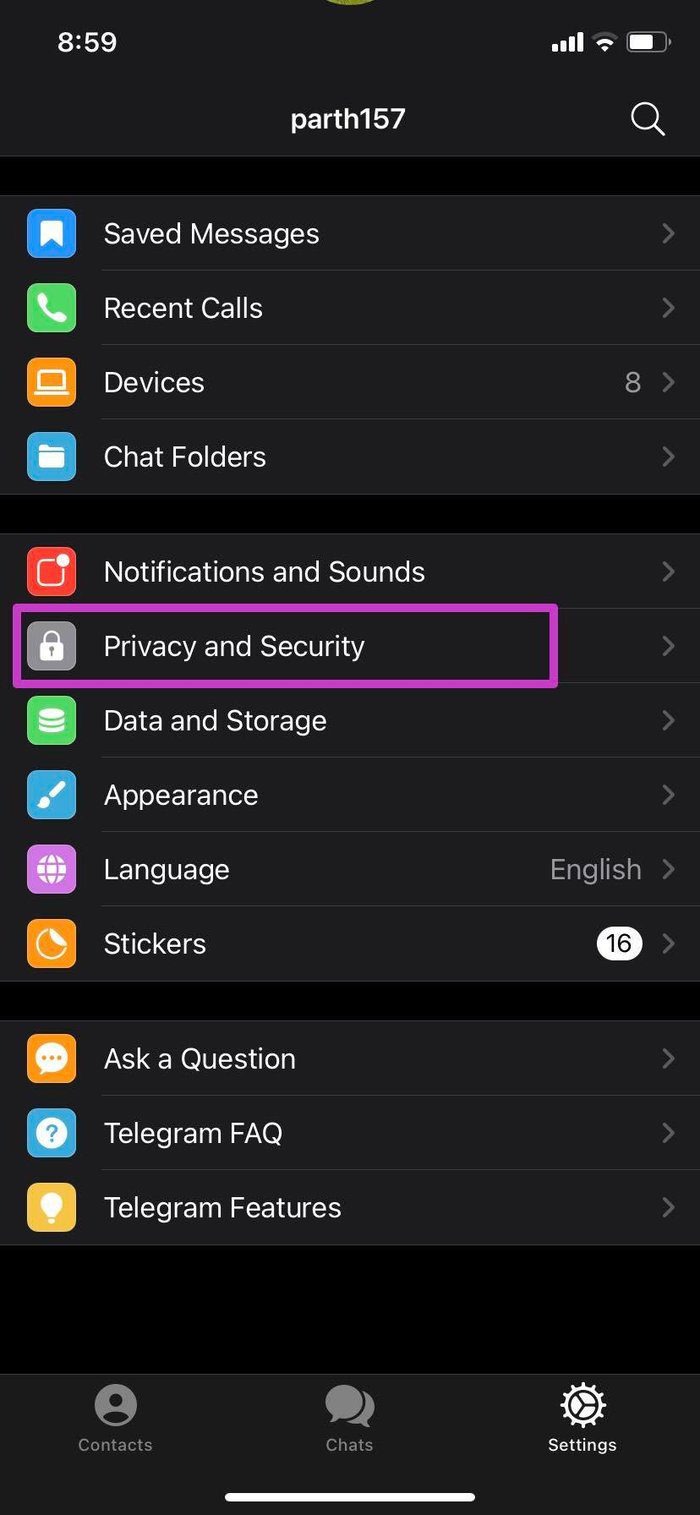
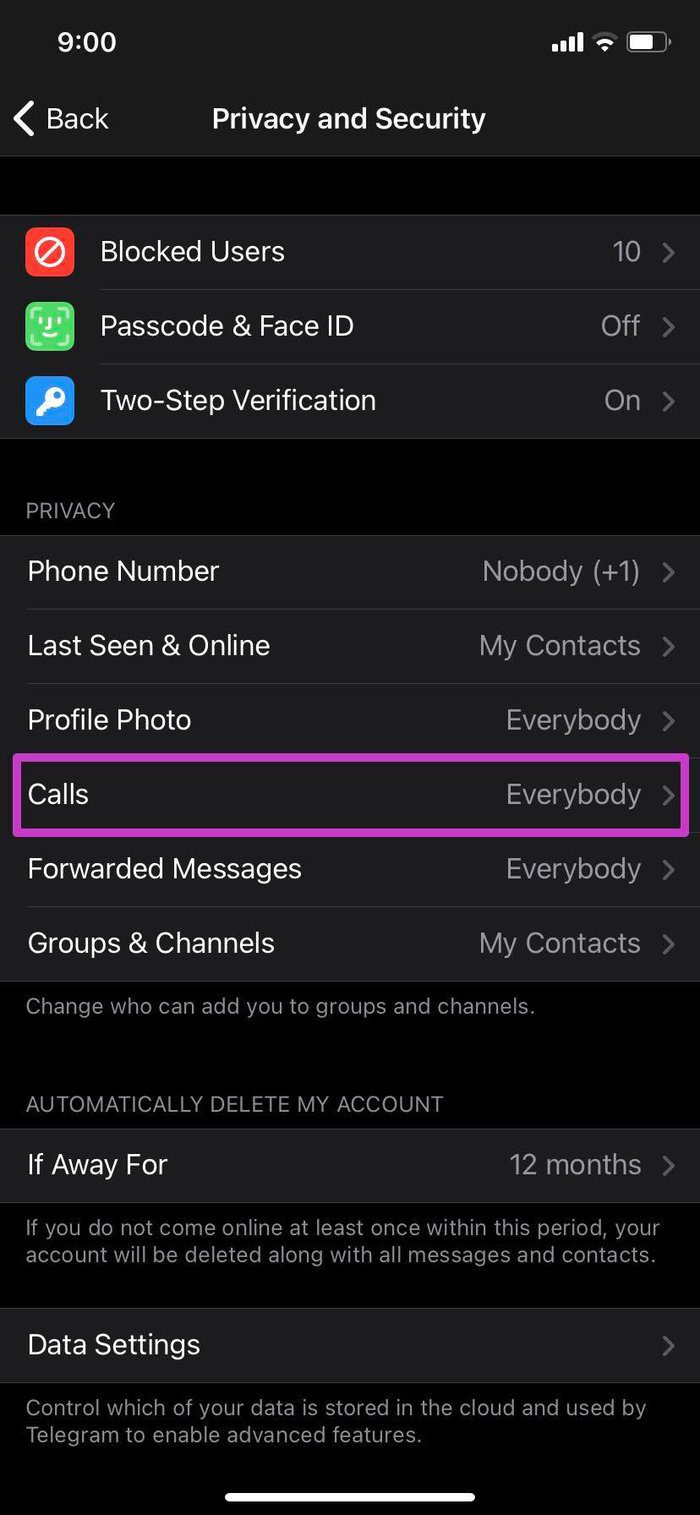
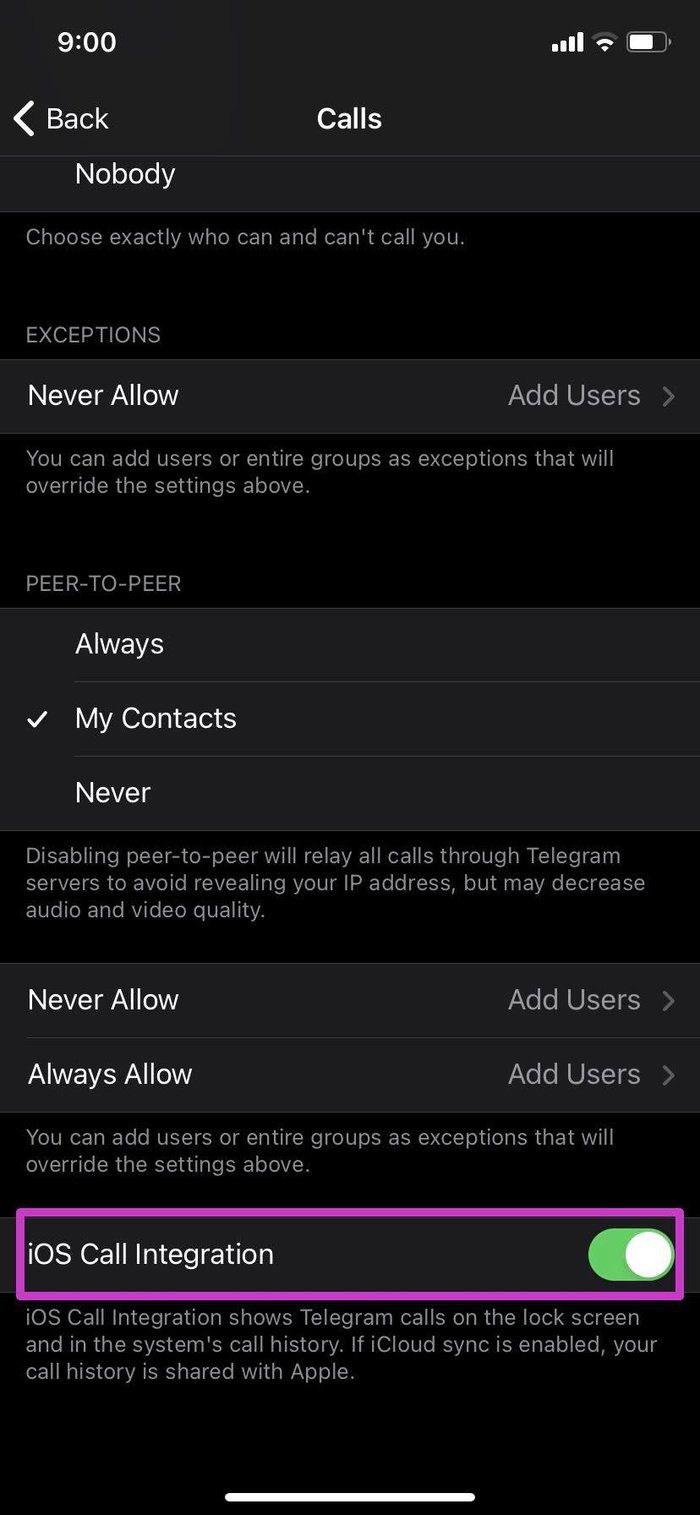
iOS allows third-party apps to integrate with the Phone app on your iPhone. Ensure the iOS Call Integration is enabled from Telegram Settings so that you can receive Telegram calls on the lock screen and see them in the system’s call history.
Step 1: Open Telegram > go to Settings.
Step 2: Navigate to Privacy and Security → Calls and enable the iOS Call Integration toggle.
Fix 2: Enable Background App Refresh
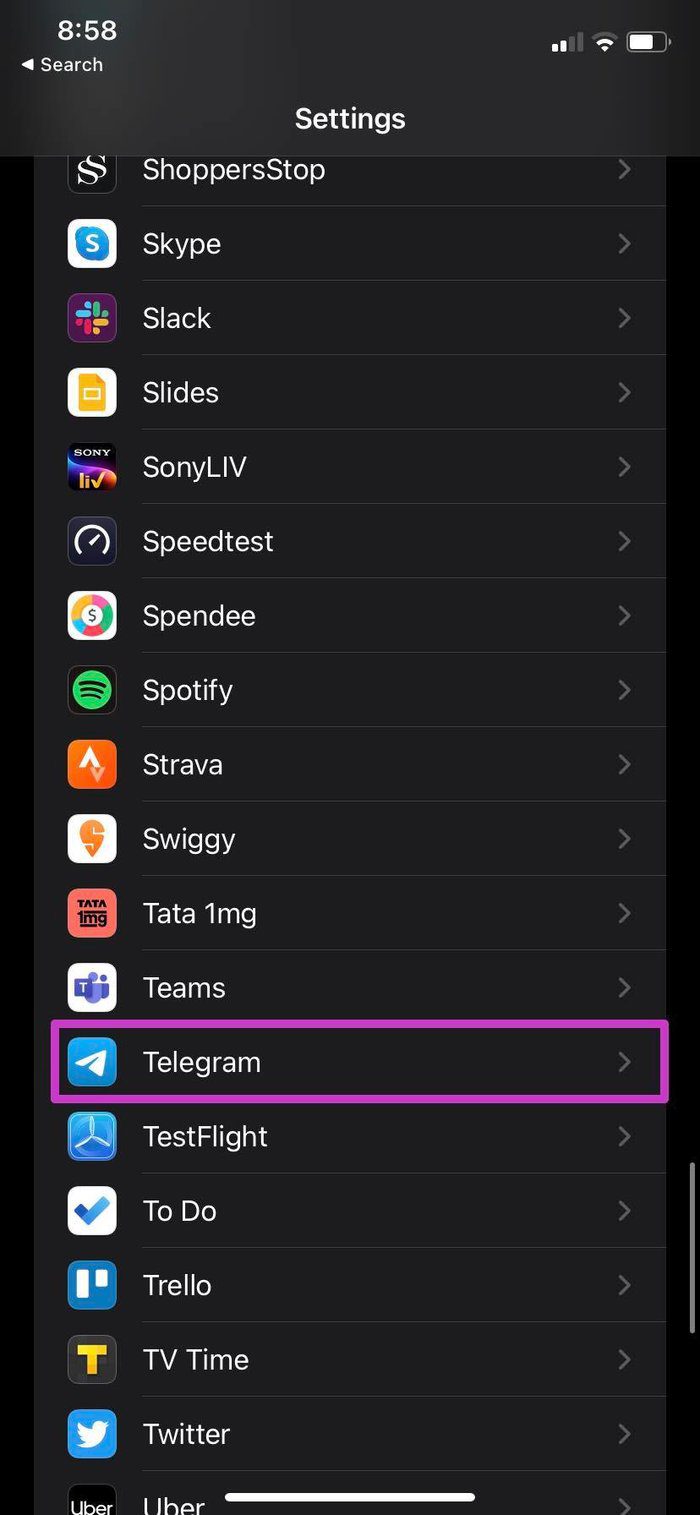
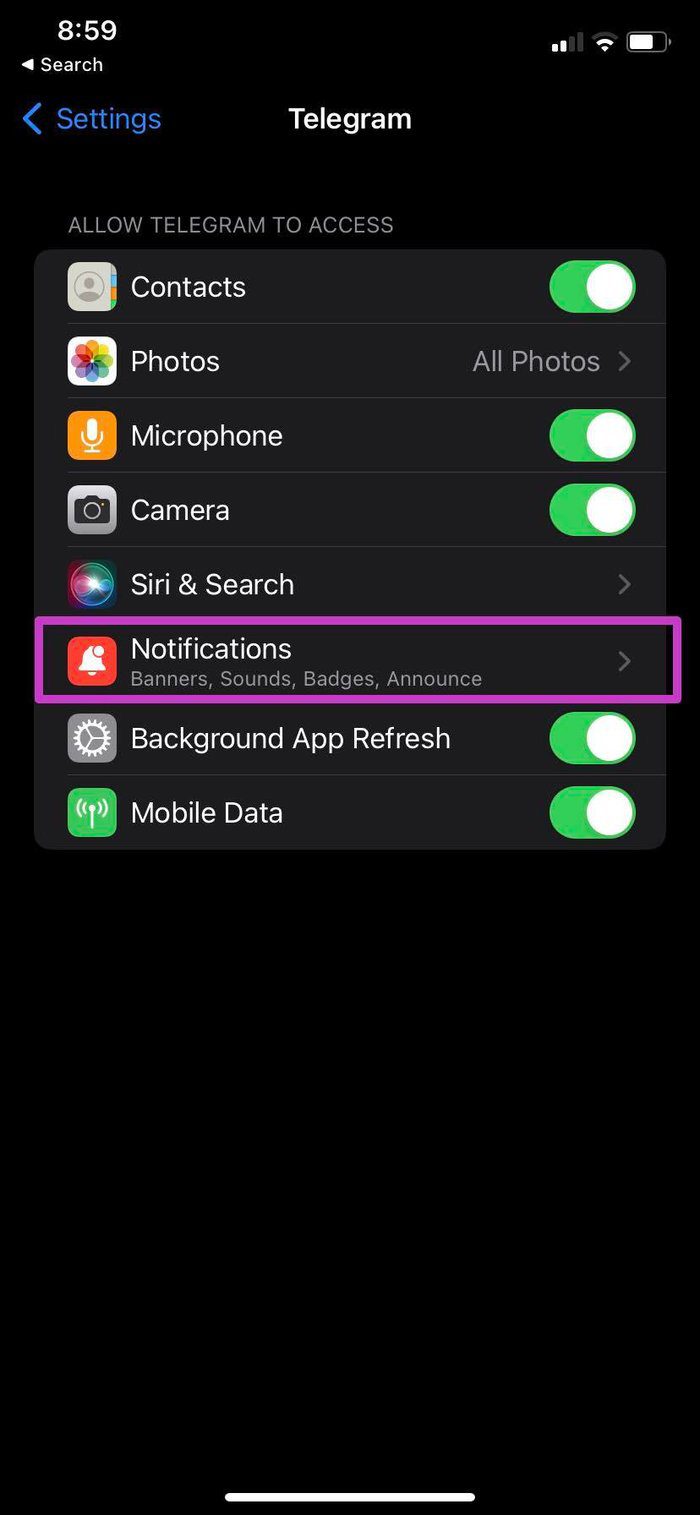
This is essential for apps running in the background to deliver new notifications, including messages and calls. If you have disabled background app refresh for Telegram, it’s time to enable it from Settings.
Step 1: Open the Settings app and tap on Telegram.
Step 2: Turn on the toggle for Background App Refresh.

Fix 3: Enable Mobile Data
Those using their iPhones on Wi-Fi might have disabled the Mobile Data toggle from the Telegram Settings menu. But occasionally, you might enable it when outside the Wi-Fi range or when the Wi-Fi on your iPhone isn’t working.
Step 1: Go to Settings → Telegram menu. Enable Mobile Data toggle.

Fix 4: Enable Sounds in Telegram
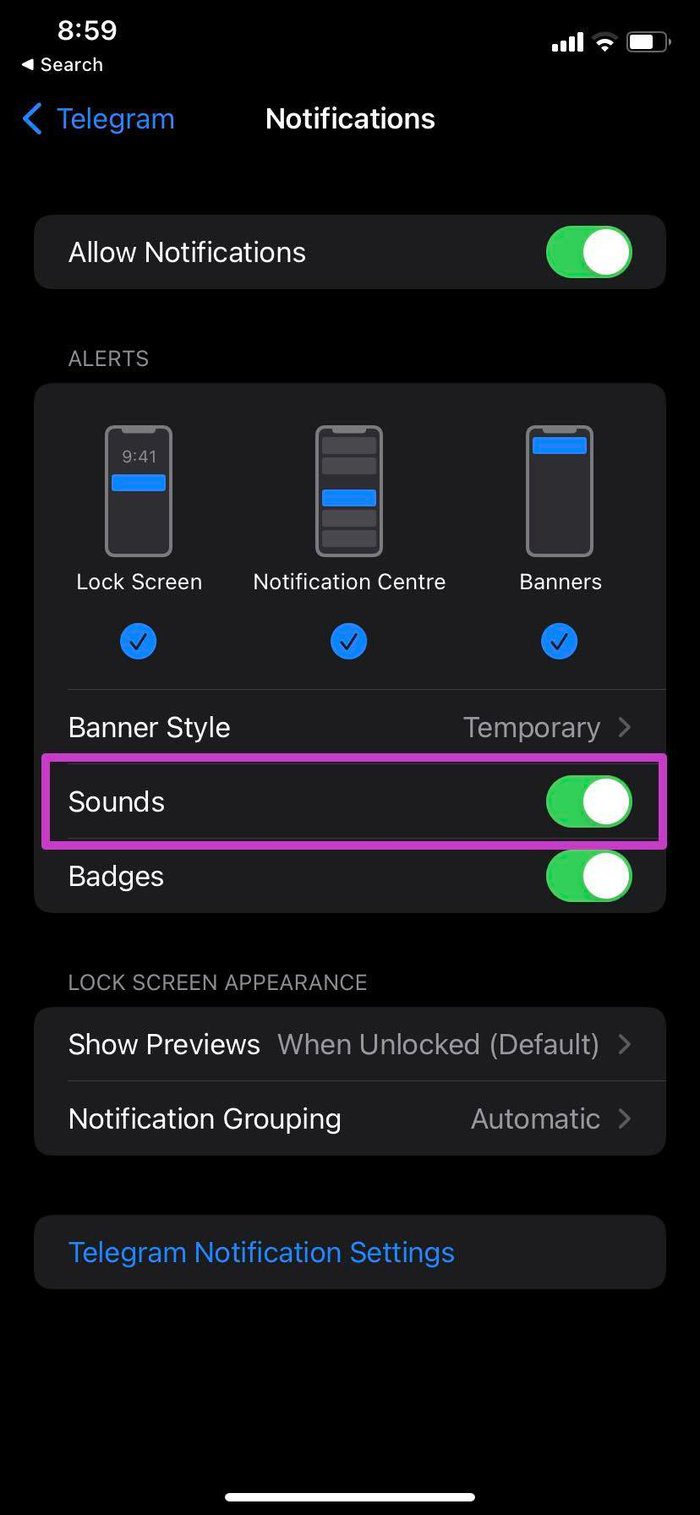
If Telegram calls do not ring on the iPhone, enable the Sound toggle from the Telegram Notifications menu. This will ensure you get sound notifications for your Telegram calls. Here’s how to do it.
Step 1: Go to Settings → Telegram. Here, tap on Notifications.
Step 2: Enable Sounds toggle from the following menu.
Fix 5: Disable Less Data for Calls
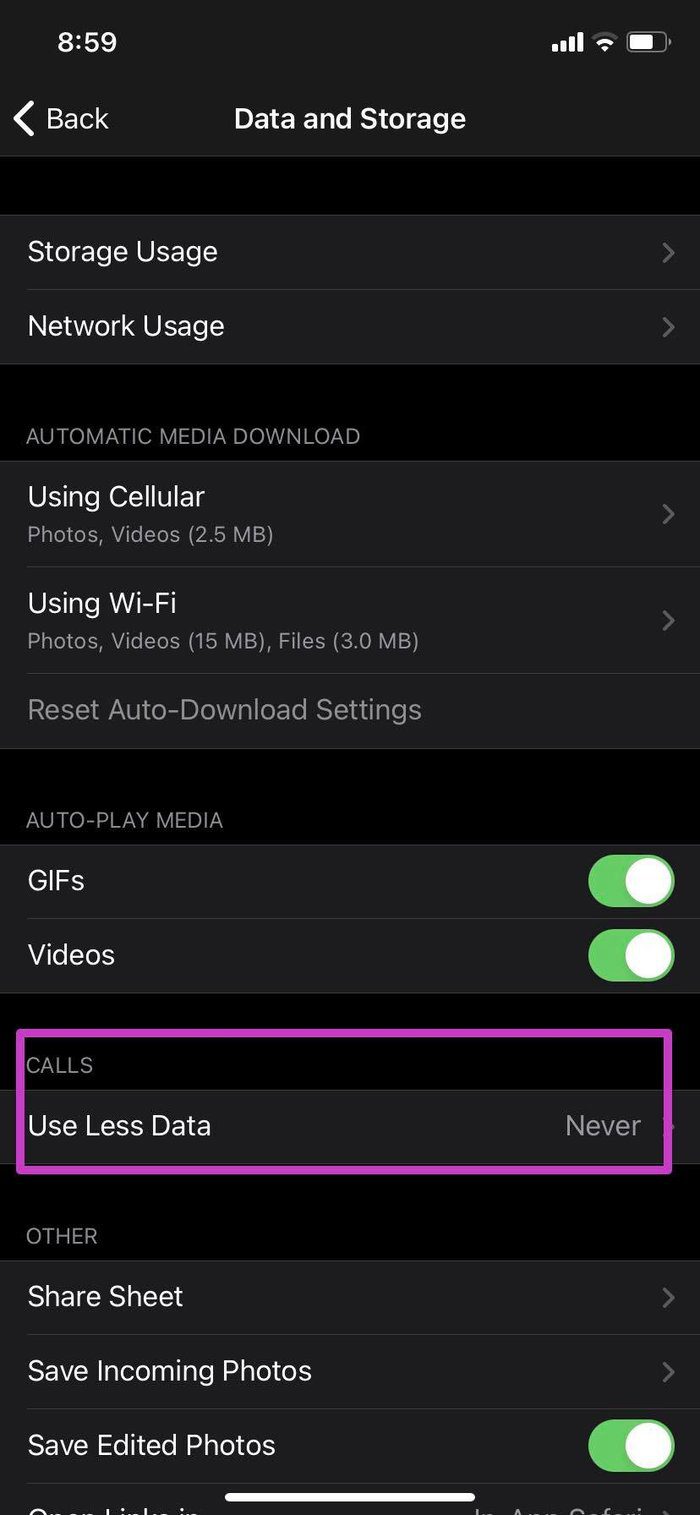
Telegram offers a native data saver tool to save data on calls. However, you should disable it for a flawless experience, as it might throttle your calls. Here’s how.
Step 1: Go to the Telegram app and open Settings. Here, tap on Data and Storage.
Step 2: Scroll down to Calls and ensure Use Less Data is set to Never.

Fix 6: Reset Network Settings
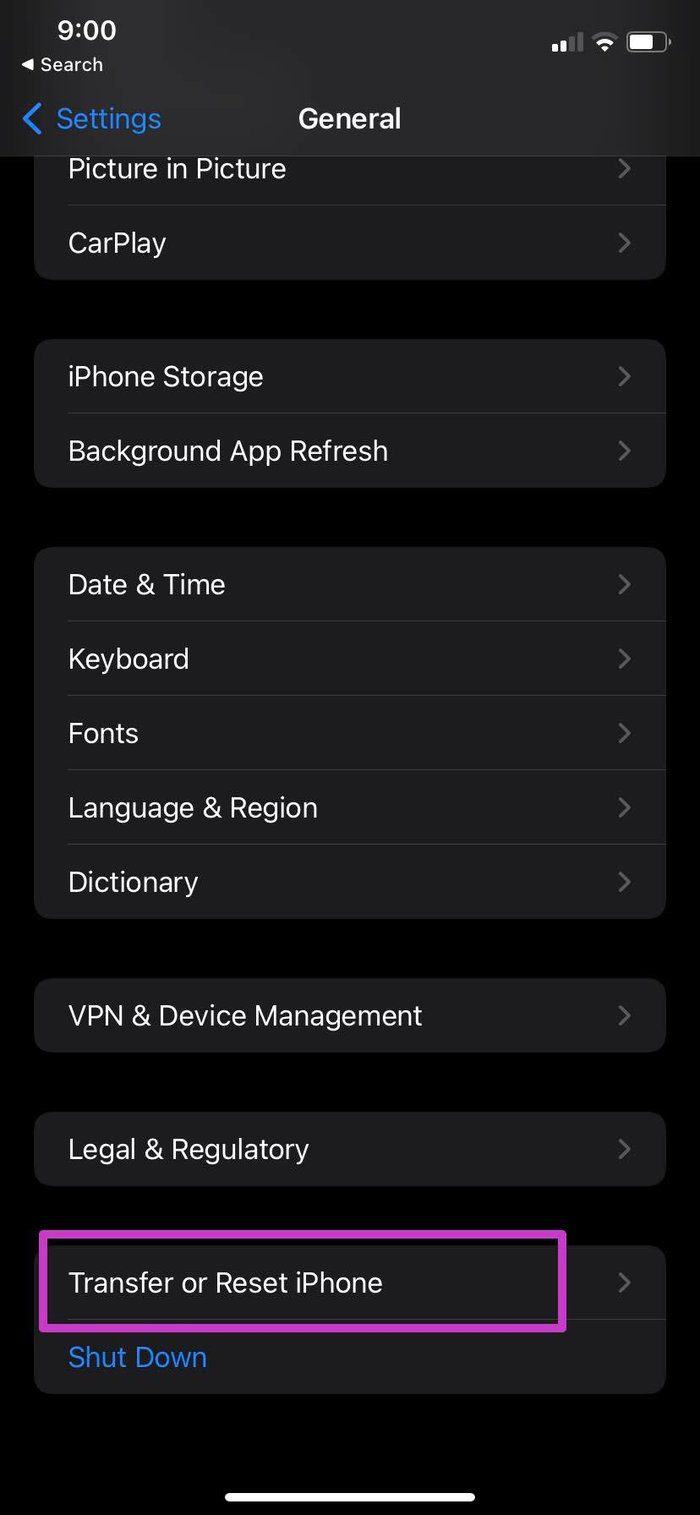
If you still have issues with Telegram calls on the mobile network, reset all network settings on your iPhone. This can help do away with any network settings that might prevent your Telegram calls from ringing without affecting your other device data. Follow the below steps to do it.
Step 1: Navigate to Settings → General → Transfer or Reset iPhone.
Step 2: Select Reset and tap on Reset Network Settings.
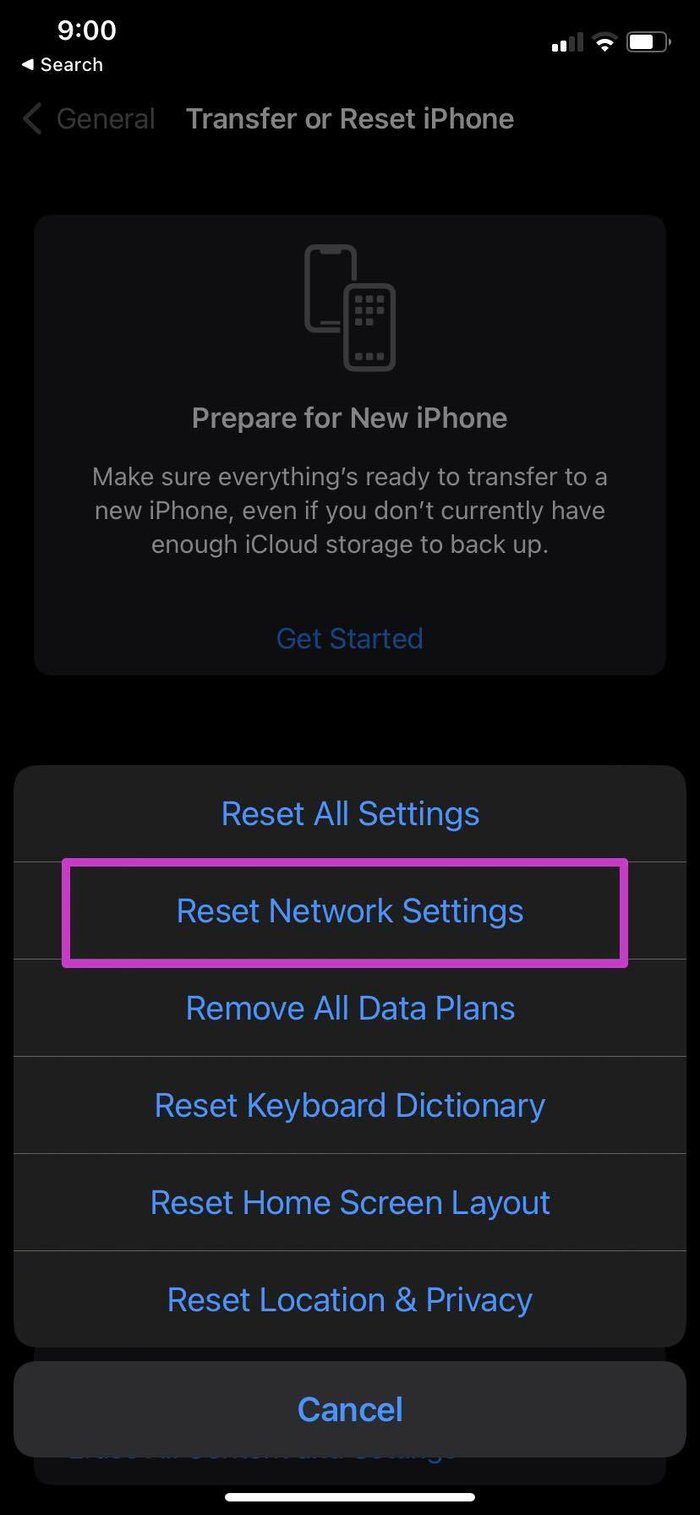
Follow the on-screen instructions to finish the process. Then, ask someone to call you on Telegram to check if the issue has been fixed.
Was this helpful?
Last updated on 26 June, 2024
Read Next
 6 Ways to Fix iPhone Not Ringing for Incoming Calls
Basic Fixes Disable silent mode: If the color beside the alert slider is orange, your iPhone is set to silent.
6 Ways to Fix iPhone Not Ringing for Incoming Calls
Basic Fixes Disable silent mode: If the color beside the alert slider is orange, your iPhone is set to silent.
 3 Best Ways to Fix iPhone Calls Not Ringing on Mac
Basic Fixes Connect devices with the same Wi-Fi: Such features work only when your Apple devices are connected to the same Wi-Fi network.
3 Best Ways to Fix iPhone Calls Not Ringing on Mac
Basic Fixes Connect devices with the same Wi-Fi: Such features work only when your Apple devices are connected to the same Wi-Fi network.
 5 Ways to Fix Apple Watch Not Ringing for Incoming Calls
Basic Fixes Restart Apple Watch: Restarting your Apple Watch can get rid of any temporary bugs and glitches.
5 Ways to Fix Apple Watch Not Ringing for Incoming Calls
Basic Fixes Restart Apple Watch: Restarting your Apple Watch can get rid of any temporary bugs and glitches.
 4 Ways to Fix WhatsApp Calls Not Ringing When Phone is Locked
Basic Fixes Restart device: Restart your smartphone to fix any temporary bugs and glitches.
4 Ways to Fix WhatsApp Calls Not Ringing When Phone is Locked
Basic Fixes Restart device: Restart your smartphone to fix any temporary bugs and glitches.
 5 Ways to Fix Instagram Calls Not Ringing or Working
Try Basic Fixes Check your internet connection: A weak or unstable internet connection can cause Instagram to malfunction.
5 Ways to Fix Instagram Calls Not Ringing or Working
Try Basic Fixes Check your internet connection: A weak or unstable internet connection can cause Instagram to malfunction.
 3 Ways to Fix Telegram Calls Not Switching to Speaker on iPhone
Common Fixes Check volume levels - Go to Settings > Sounds & Haptics and maximize the Ringtone and Alerts volume slider.
3 Ways to Fix Telegram Calls Not Switching to Speaker on iPhone
Common Fixes Check volume levels - Go to Settings > Sounds & Haptics and maximize the Ringtone and Alerts volume slider.
 2 Fixes for iPhone Not Ringing When Facebook App Is Open
Basic Fixes Turn off Silent mode: If your iPhone is not ringing but vibrating when the Facebook app is open, turn off the Silent mode, and it should do the
2 Fixes for iPhone Not Ringing When Facebook App Is Open
Basic Fixes Turn off Silent mode: If your iPhone is not ringing but vibrating when the Facebook app is open, turn off the Silent mode, and it should do the
 4 Ways to Fix Android Phone Ringing But No Call
Basic Fixes Restart device: Restart your Android device to fix any temporary bugs and glitches.
4 Ways to Fix Android Phone Ringing But No Call
Basic Fixes Restart device: Restart your Android device to fix any temporary bugs and glitches.
The article above may contain affiliate links which help support Guiding Tech. The content remains unbiased and authentic and will never affect our editorial integrity.

