Try Basic Fixes
- Update the Sticky Notes app: Using an outdated app version can cause problems. Head to the Microsoft Store and check for any pending updates for the Sticky Notes app.
- Install Windows updates: Sticky Notes can also malfunction if you are running an old version of Windows. To avoid this, you must install any pending Windows updates right away.
Fix 1: Disable the Insights Feature in Sticky Notes
Insights for Sticky Notes is a useful feature that allows Cortana to read the information you enter into notes and suggest actions based on it. However, this feature can occasionally interfere with the app’s functionality and prevent it from loading your notes. Hence, it’s best to disable it if the Sticky Notes app is not functioning properly.
Step 1: Open the Sticky Notes app on your PC and click the gear-shaped icon in the top right corner.
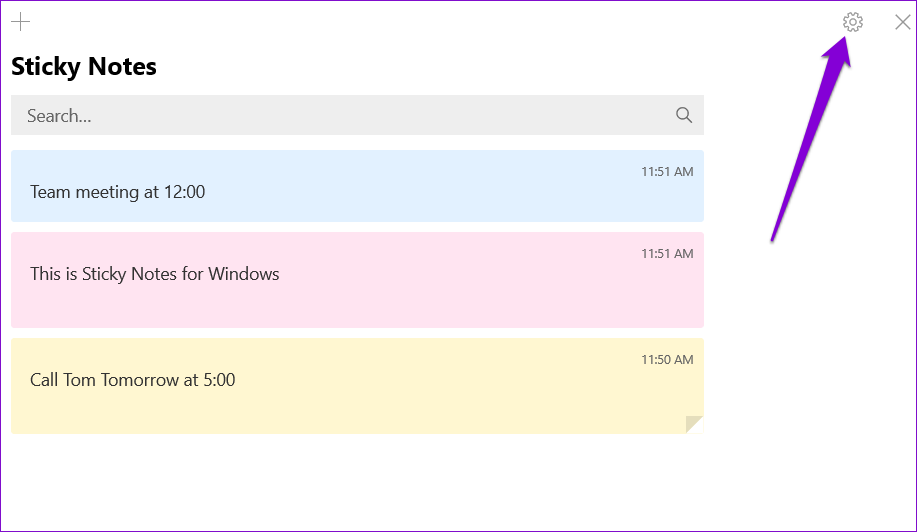
Step 2: Under General, toggle off the Enable insights option.

Fix 2: Repair or Reset the App
Windows provides several methods for repairing broken apps. However, the quickest way to repair the Sticky Notes app is through the Settings app. Here’s how you can go about it.
Step 1: Press the Windows key + I to launch the Settings app and head to Apps > Installed apps.

Step 2: Scroll down to the Sticky Notes app on the list. Click the three-dot menu icon next to it and select Advanced options from the resulting menu.

Step 3: Under the Reset section, click the Repair button.
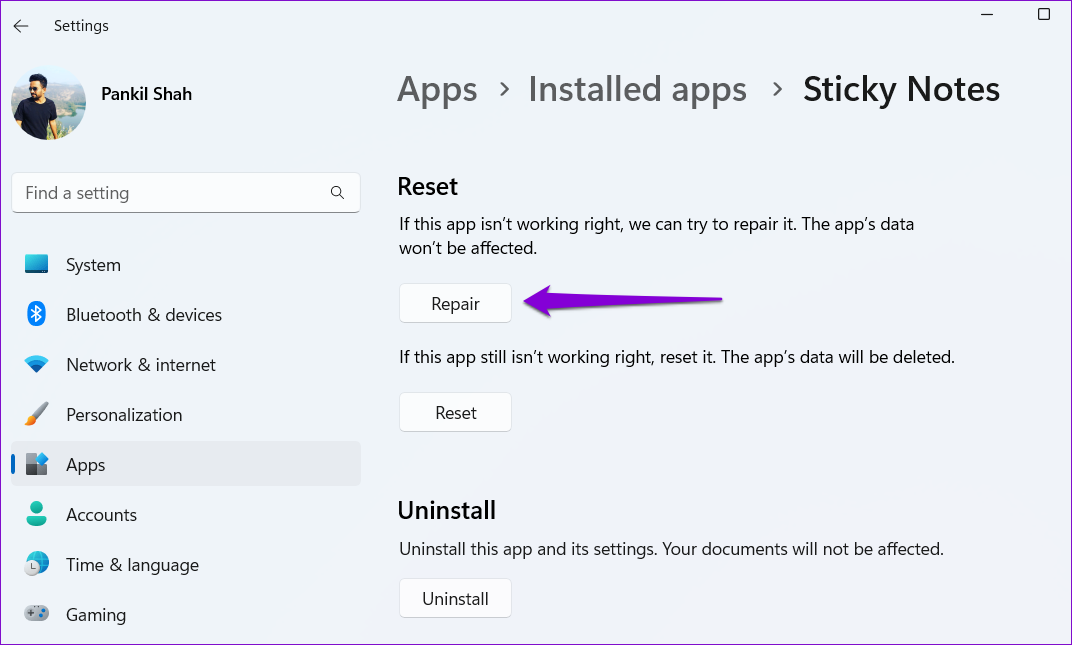
If repairing the app does not help, you can try resetting it. Note that this process will delete all the app data and reset all the app settings. So, back up all your important notes or sync them to the cloud so that you can access your notes from other devices.
Fix 3: Re-Register Sticky Notes
If the Sticky Notes is not opening or is missing entirely, you can try re-registering the app on your PC. Thankfully, it’s not as intimidating as it sounds. Here’s how to do it.
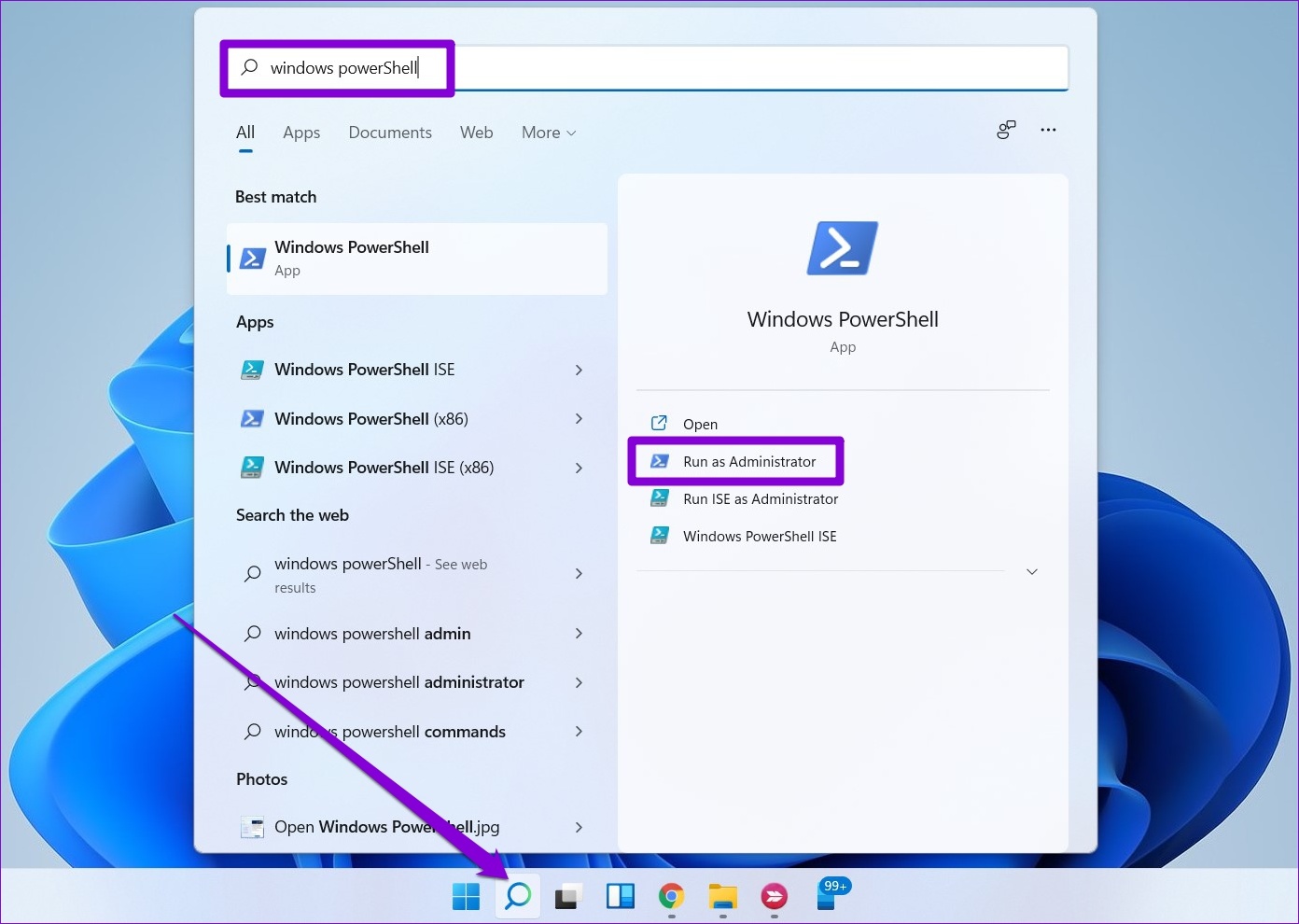
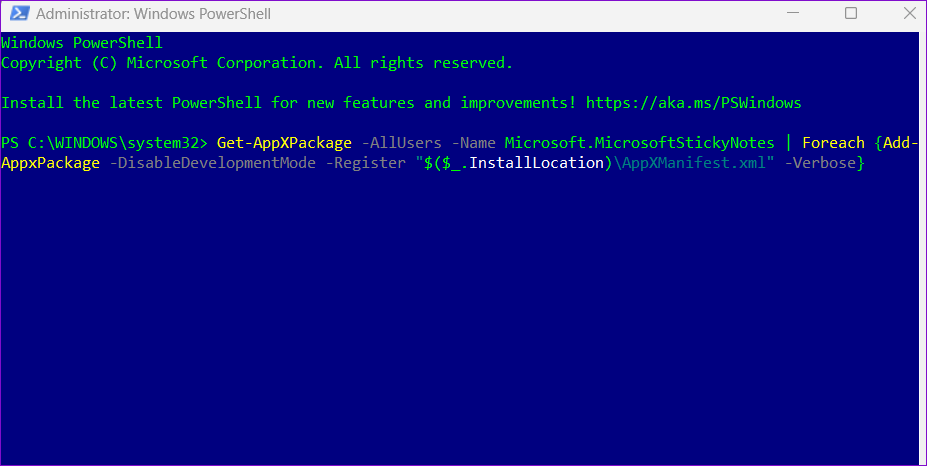
Step 1: Click the search icon on the taskbar, type in windows powershell, and select Run as Administrator.
Step 2: In the PowerShell window, copy and paste the following command and press Enter:
Get-AppXPackage -AllUsers -Name Microsoft.MicrosoftStickyNotes | Foreach {Add-AppxPackage -DisableDevelopmentMode -Register "$($_.InstallLocation)\AppXManifest.xml" -Verbose}
Was this helpful?
Last updated on 25 July, 2024
Read Next
 Top 8 Ways to Fix Sticky Notes Not Working on Windows 10
Recently, Sticky Notes received a much-needed update for the Windows 10.
Top 8 Ways to Fix Sticky Notes Not Working on Windows 10
Recently, Sticky Notes received a much-needed update for the Windows 10.
 6 Ways to Recover Deleted Sticky Notes in Windows 10
Microsoft improved Sticky Notes with Windows 10 while retaining the simplicity of taking notes that came with the classic version.
6 Ways to Recover Deleted Sticky Notes in Windows 10
Microsoft improved Sticky Notes with Windows 10 while retaining the simplicity of taking notes that came with the classic version.
 4 Best Ways to Put Sticky Notes on Desktop in Windows 10
Sticky Notes is one of the coolest apps ever created.
4 Best Ways to Put Sticky Notes on Desktop in Windows 10
Sticky Notes is one of the coolest apps ever created.
 9 Best Sticky Notes Keyboard Shortcuts on Windows 10
Our beloved Sticky Notes on Windows has grown in a beautiful app over the years.
9 Best Sticky Notes Keyboard Shortcuts on Windows 10
Our beloved Sticky Notes on Windows has grown in a beautiful app over the years.
 How to Share Sticky Notes Between Computers
Gone are the days when you had to rely on Google Drive or simple copy-paste method to move your Sticky Notes from one computer to another.
How to Share Sticky Notes Between Computers
Gone are the days when you had to rely on Google Drive or simple copy-paste method to move your Sticky Notes from one computer to another.
 How to Access Sticky Notes on iPhone, Android, and Mac
Sticky Notes has been a part of the Windows operating system for years.
How to Access Sticky Notes on iPhone, Android, and Mac
Sticky Notes has been a part of the Windows operating system for years.
 11 Ways to Fix Sticky Keys Not Working on Windows 10 Error
Sticky Keys are helpful to prevent you from pressing multiple keys at the same time.
11 Ways to Fix Sticky Keys Not Working on Windows 10 Error
Sticky Keys are helpful to prevent you from pressing multiple keys at the same time.
 How to Fix Samsung Notes App Not Working
Basic Fixes Disable Add-Ons: Open the Notes app > Settings > Toolbar Add-on > Disable the Add-Ons.
How to Fix Samsung Notes App Not Working
Basic Fixes Disable Add-Ons: Open the Notes app > Settings > Toolbar Add-on > Disable the Add-Ons.
The article above may contain affiliate links which help support Guiding Tech. The content remains unbiased and authentic and will never affect our editorial integrity.