Fix 1: Remove and Re-Add Your Scanner
Removing the scanner from Windows and setting it up again can help resolve any problems caused by incorrect configuration. Here’s how you can go about it.
Step 1: Press the Windows key + I to open the Settings app and head to Bluetooth & devices > Printers & scanners.

Step 2: Select your scanner from the list.

Step 3: Click the Remove button at the top.
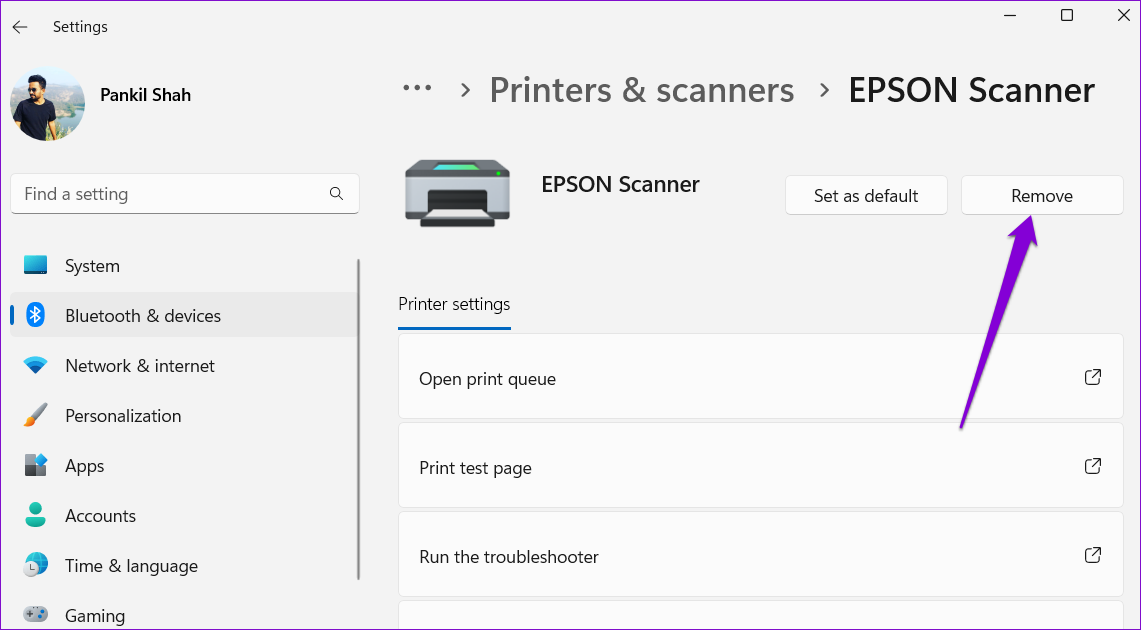
Step 4: Head back to the Printers & scanners menu. Click Add device and follow the on-screen prompts to set up your scanner again.

Fix 2: Configure Scanner Services
Windows requires certain services to run in the background for the scanner to function properly. For instance, Windows Image Acquisition (WIA) is a service responsible for acquiring images from your scanner.
If one of the scanner-related services fails, Windows may have trouble communicating with the scanner. Here’s what you can do to fix it.
Step 1: Press the Windows key + R to open the Run dialog. Type services.msc in the box and press Enter.
Step 2: Scroll down to locate the Windows Image Acquisition (WIA) service. Double-click it to open its properties.

Step 3: Use the drop-down menu next to Startup type to select Automatic. Then, hit Apply, followed by OK.

You’ll need to repeat the above steps to configure the Remote Procedure Call, DCOM Server Process Launcher, RPC Endpoint Mapper, and Shell Hardware Detection services. After that, restart your PC and try using your scanner again.
Fix 3: Run the Hardware and Devices Troubleshooter
The hardware and devices troubleshooter on Windows can automatically detect and fix any common issues. You can run this Windows troubleshooter to fix any issues that may be preventing your scanner from working.
Step 1: Press the Windows key + R to open the Run dialog. Type msdt.exe -id DeviceDiagnostic in the box and press Enter.
Step 2: In the Hardware and Devices window, click Next to initiate the scan.

Fix 4: Run SFC and DISM Scans
Windows 11 may encounter such issues if some system files are corrupted or missing. In such cases, running the SFC (or System File Checker) scan can help you repair those damaged system files.
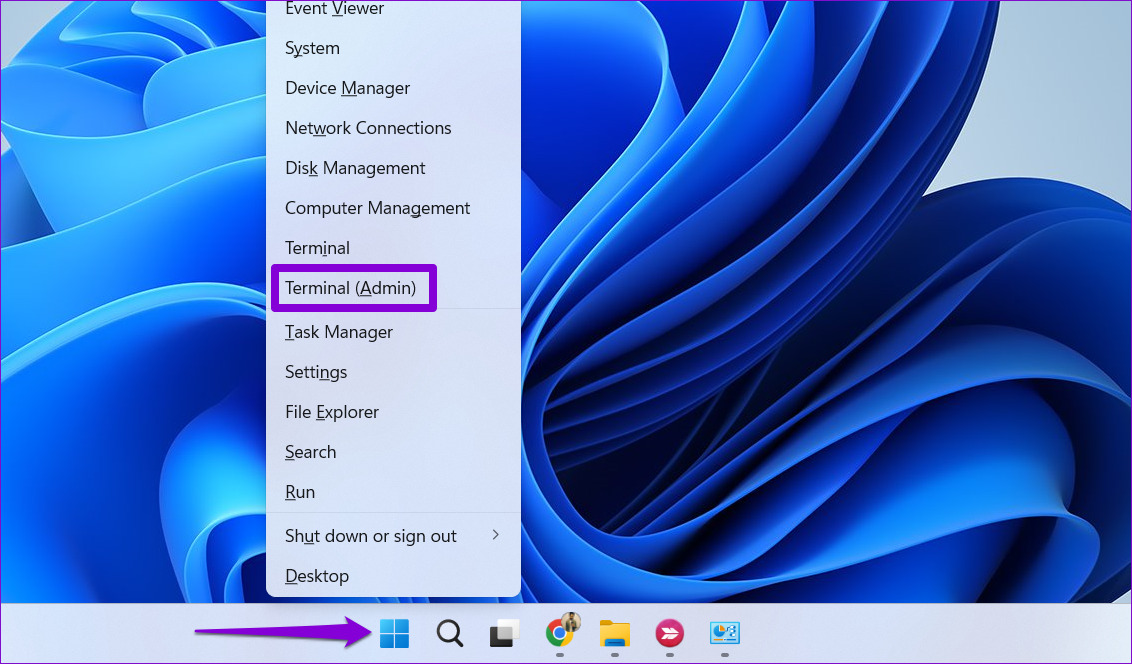
Step 1: Right-click on the Start icon and select the Terminal (Admin) option from the resulting menu.
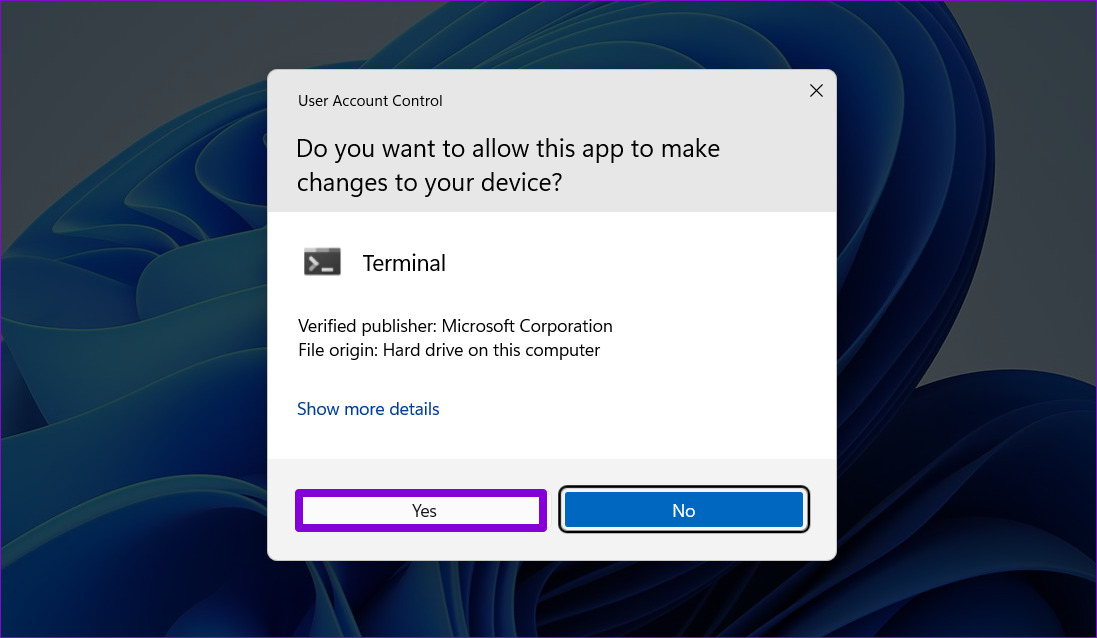
Step 2: Select Yes when the User Account Control (UAC) prompt appears.
Step 3: Type the command mentioned below and press Enter.
SFC /scannow

Next, you need to run the DISM (Deployment Image Servicing and Management) scan. Besides scanning system files, it will also download internal system files from Microsoft’s server if required.
Open the Terminal app with admin rights again and run the following commands one by one.
DISM /Online /Cleanup-Image /CheckHealth
DISM /Online /Cleanup-Image /ScanHealth
DISM /Online /Cleanup-Image /RestoreHealth
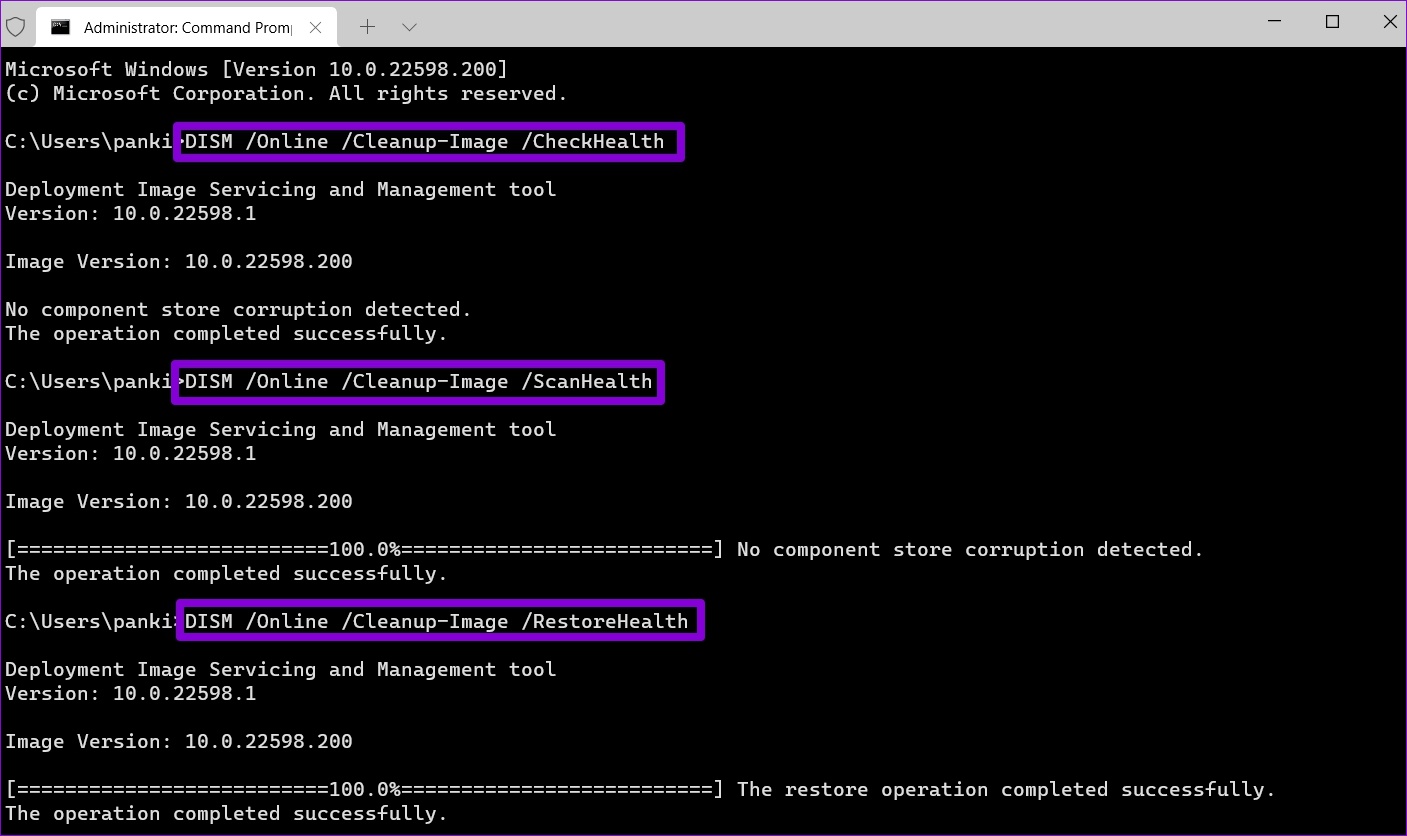
Restart your PC after running the above commands. Following that, your scanner start working on Windows.
Fix 5: Update or Reinstall Scanner Drivers
Outdated or malfunctioning drivers can also prevent Windows 11 from connecting with your scanner. In most cases, you can resolve the issue by updating the driver.
Step 1: Right-click on the Start icon and select Device Manager from the list.

Step 2: Expand Imaging devices, right-click on your scanner, and select Update driver.
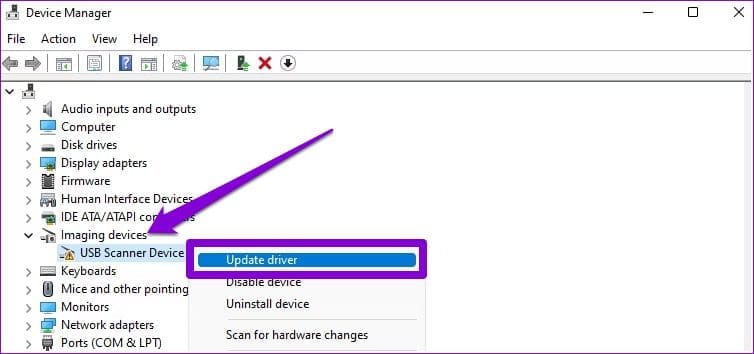
Follow the on-screen prompts to finish updating the driver. If the issue persists even after this, there’s a chance that your scanner driver is corrupt. In that case, you’ll have to uninstall the driver. Once removed, restart your computer to let Windows automatically install the missing driver when it boots next.
Was this helpful?
Last updated on 19 May, 2024
Read Next
 2 Ways to Fix QR Code Scanner Not Working on iPhone
Common Fixes Use Camera in Photo mode: QR code scanning doesn't work in other camera modes such as Portrait, Pano, Macro, Video, etc.
2 Ways to Fix QR Code Scanner Not Working on iPhone
Common Fixes Use Camera in Photo mode: QR code scanning doesn't work in other camera modes such as Portrait, Pano, Macro, Video, etc.
 2 Ways to Fix QR Code Scanner Not Working on Android
Basic Fixes Clean your camera lens: Try cleaning the lens of your phone camera using a cotton bud.
2 Ways to Fix QR Code Scanner Not Working on Android
Basic Fixes Clean your camera lens: Try cleaning the lens of your phone camera using a cotton bud.
 Adobe Scan vs Genius Scan: Which Document Scanner App Is Better on iPhone
You can recollect the times you ran around looking for an actual scanner to get a digital copy of a document.
Adobe Scan vs Genius Scan: Which Document Scanner App Is Better on iPhone
You can recollect the times you ran around looking for an actual scanner to get a digital copy of a document.
 Top 7 Ways to Fix Windows Key Not Working on Windows 10
Windows 10 operating system is full of keyboard shortcuts.
Top 7 Ways to Fix Windows Key Not Working on Windows 10
Windows 10 operating system is full of keyboard shortcuts.
 6 Ways to Fix Windows Security Not Opening or Working on Windows 11
Try Basic Fixes Uninstall any third-party antivirus program: Third-party antivirus programs can sometimes interfere with the Windows Security app and prevent it from opening on your Windows 11 PC.
6 Ways to Fix Windows Security Not Opening or Working on Windows 11
Try Basic Fixes Uninstall any third-party antivirus program: Third-party antivirus programs can sometimes interfere with the Windows Security app and prevent it from opening on your Windows 11 PC.
 7 Ways to Fix Windows Key Not Working in Windows 11
Basic Fixes Check for physical damage: There might be physical damage or dirt buildup on your keyboard.
7 Ways to Fix Windows Key Not Working in Windows 11
Basic Fixes Check for physical damage: There might be physical damage or dirt buildup on your keyboard.
 4 Ways to Fix Telegram Notifications Not Working on Windows 10 and Windows 11
Try Basic Fixes Disable Do Not Disturb mode: The Telegram app may not be showing notifications due to the Do Not Disturb mode on your Windows PC.
4 Ways to Fix Telegram Notifications Not Working on Windows 10 and Windows 11
Try Basic Fixes Disable Do Not Disturb mode: The Telegram app may not be showing notifications due to the Do Not Disturb mode on your Windows PC.
 3 Best Ways to Fix Keyboard Backlight Not Working on Windows 10 and Windows 11
Try Basic Fixes Toggle the keyboard backlight using the hotkey: You can use a key combination to quickly enable or disable the keyboard backlight on your Windows 11 PC.
3 Best Ways to Fix Keyboard Backlight Not Working on Windows 10 and Windows 11
Try Basic Fixes Toggle the keyboard backlight using the hotkey: You can use a key combination to quickly enable or disable the keyboard backlight on your Windows 11 PC.
The article above may contain affiliate links which help support Guiding Tech. The content remains unbiased and authentic and will never affect our editorial integrity.