


Basic Fixes
- Disable Add-Ons: Open the Notes app > Settings > Toolbar Add-on > Disable the Add-Ons.
- Check date and time on your Samsung phone: Open Settings > General management > Date and time > enable Automatic date and time.
- Force quit and relaunch Notes app: This will give the app a fresh start on your device if it has been running in the background for some time.
- Update or reinstall Notes app: Open the app > Hamburger icon > Settings > About Samsung Notes > Install the update if one is available.
- Check Samsung Notes on PC: You can check your Samsung notes on PC if you can’t on mobile.
Fix 1: Enable Auto Save Notes
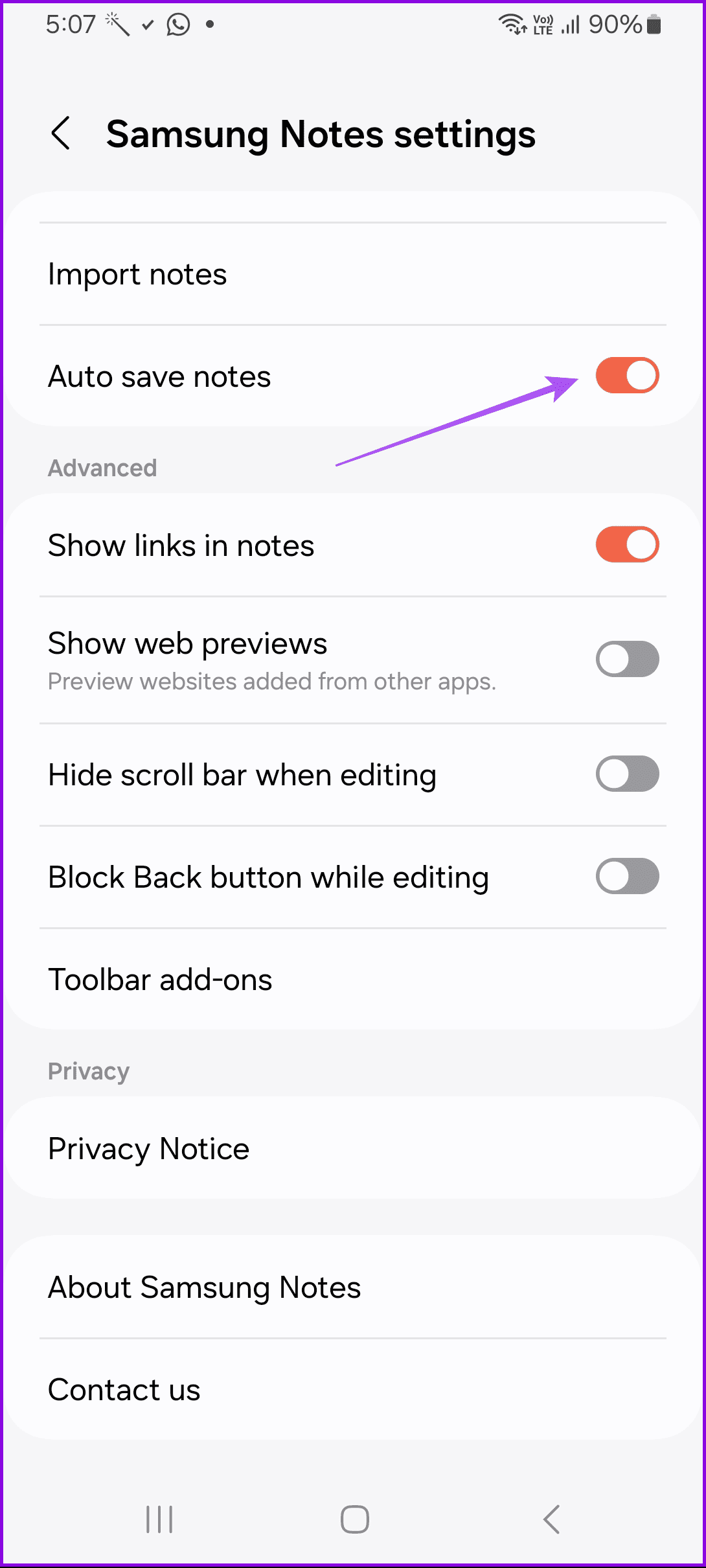
If your notes do not save automatically and you keep losing them, you must ensure that the Auto save notes feature is enabled as shown below:
Open the app > Settings > enable Auto-Save Notes.

Fix 2: Enable Samsung Notes Syncing
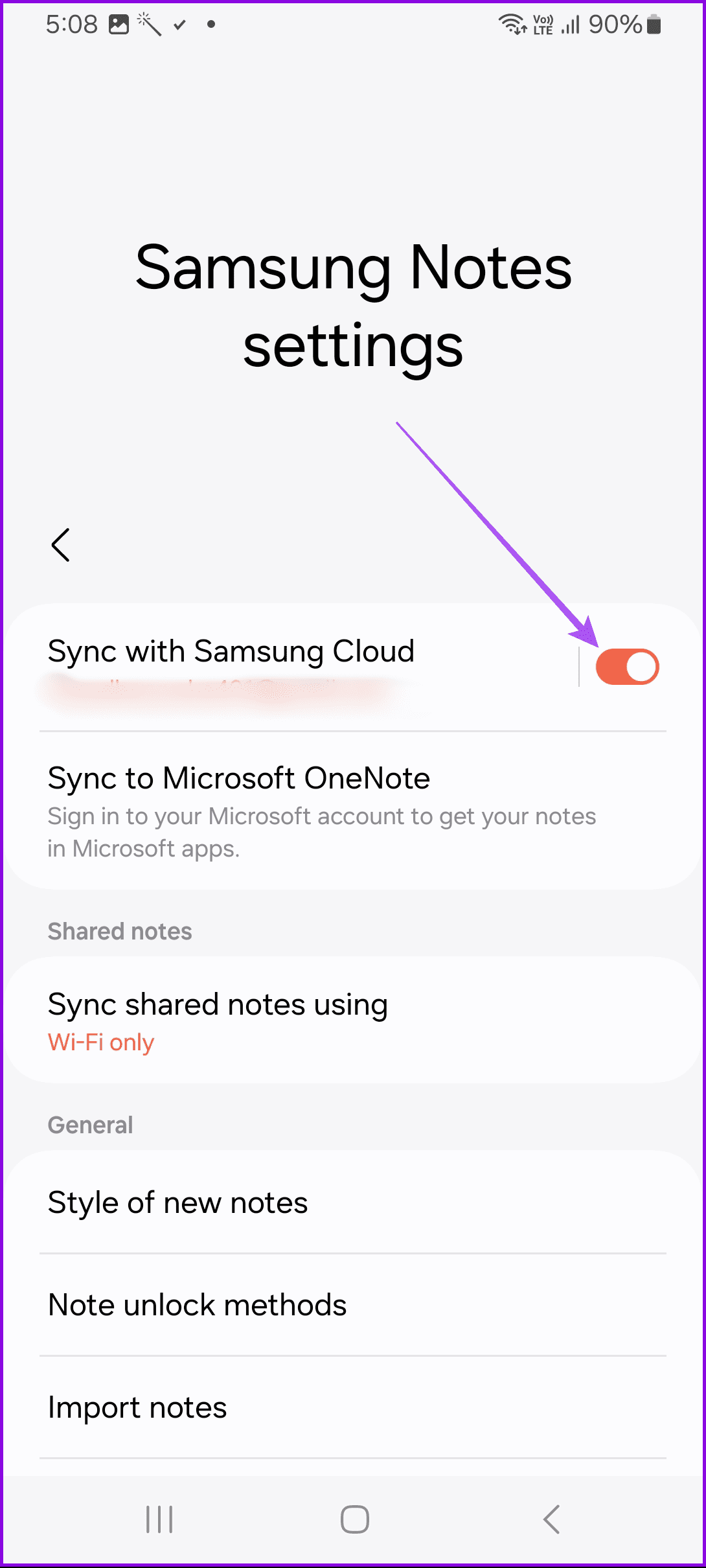
If your notes aren’t syncing to Samsung Cloud or Microsoft Account, and that’s why you think the Samsung Notes isn’t working, check whether the sync feature is enabled.
Open the app > Settings > enable Sync with Samsung Notes.
Fix 3: Allow Background Data Usage
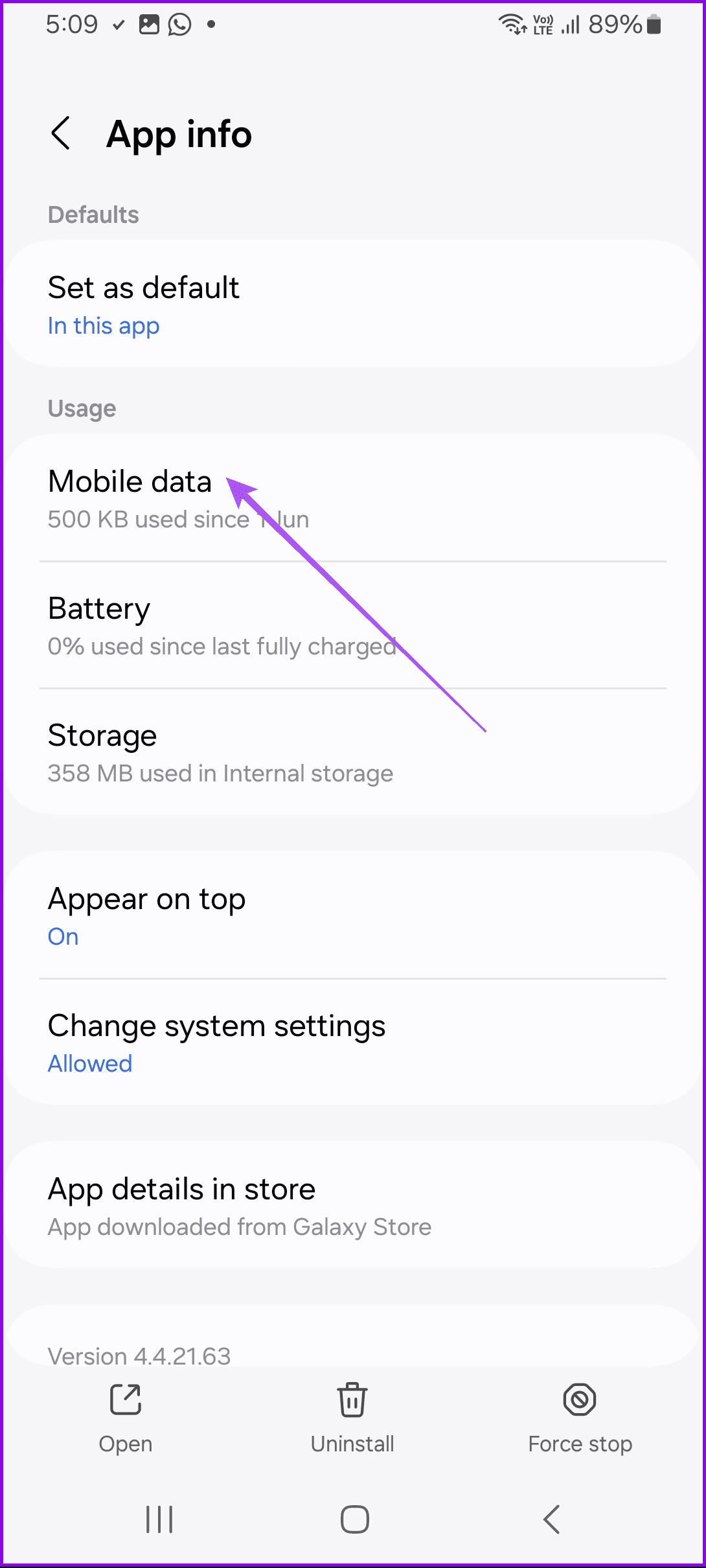
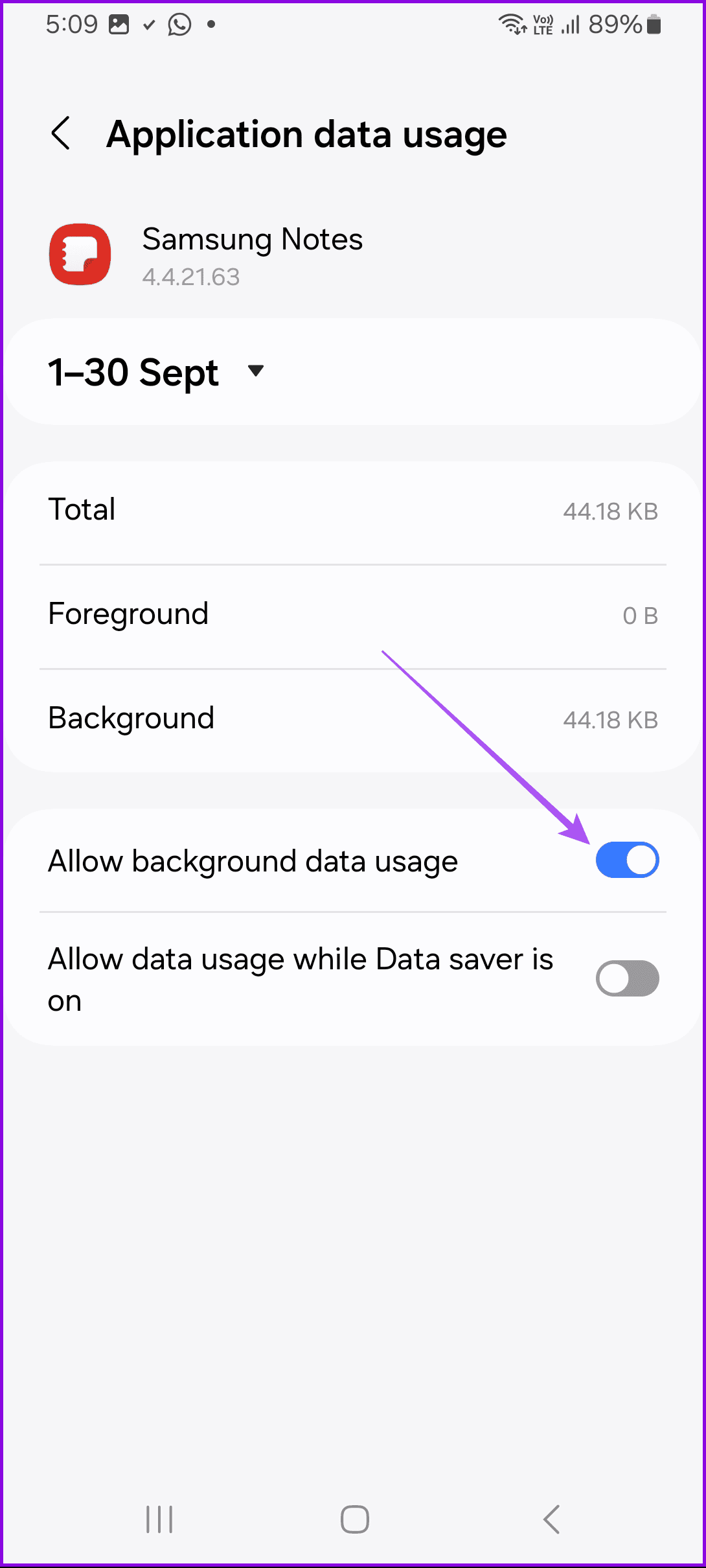
Syncing of your notes will be faster with the help of batter internet speeds. So we suggest enabling background data usage for the Samsung Notes app.
Open Notes app info > Mobile data > enable Allow background data usage.
Fix 4: Clear Notes Cache
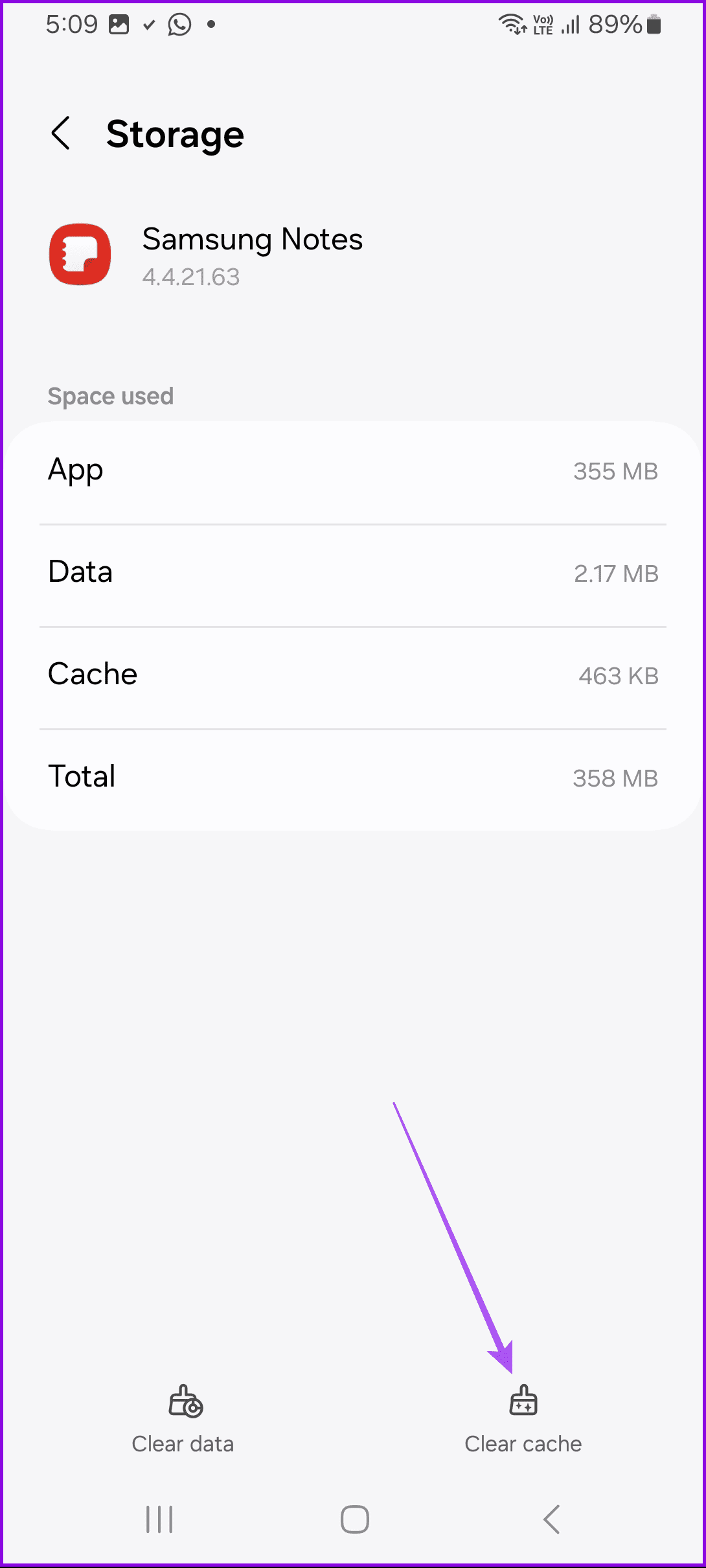
You should also try clearing cache for the Samsung Notes app. Doing so will not delete your notes or other personal files. However, it will help solve the issue of Samsung Notes not opening or keeps crashing.
Open Notes app info > Storage > Clear cache.

Tip: Once the Samsung Notes app starts functioning smoothly on your phone, check out tips and tricks to use the Samsung Notes app like a pro.
Was this helpful?
Last updated on 04 September, 2024
Read Next
 A Complete Guide to Using Samsung Notes App Like a Pro
There isn’t a shortage of note-taking apps on Android.
A Complete Guide to Using Samsung Notes App Like a Pro
There isn’t a shortage of note-taking apps on Android.
 Top 15 Samsung Notes App Tips and Tricks to Use It Like a Pro
Samsung Notes app has come a long way.
Top 15 Samsung Notes App Tips and Tricks to Use It Like a Pro
Samsung Notes app has come a long way.
 11 Best Ways to Fix Samsung Notes Not Syncing Issue
Samsung phones come pre-installed with many apps, and one of them is Samsung Notes.
11 Best Ways to Fix Samsung Notes Not Syncing Issue
Samsung phones come pre-installed with many apps, and one of them is Samsung Notes.
 3 Ways to Fix Sticky Notes App Not Working on Windows 11
Try Basic Fixes Update the Sticky Notes app: Using an outdated app version can cause problems.
3 Ways to Fix Sticky Notes App Not Working on Windows 11
Try Basic Fixes Update the Sticky Notes app: Using an outdated app version can cause problems.
 5 Ways to Fix Snapchat Voice Notes Not Working
Fix 1: Check App Permissions Snapchat requires access to your phone's microphone to record Voice Notes.
5 Ways to Fix Snapchat Voice Notes Not Working
Fix 1: Check App Permissions Snapchat requires access to your phone's microphone to record Voice Notes.
 How to Transfer Samsung Notes to Google Keep
There’s a constant battle going on between Samsung and Google apps.
How to Transfer Samsung Notes to Google Keep
There’s a constant battle going on between Samsung and Google apps.
 How to Sync Samsung Notes with Microsoft OneNote
Enable OneNote Sync for Samsung Notes When you sign in with your Samsung account on your Galaxy phone, One UI syncs your notes, contacts, messages, call history, reminders, and browsing
How to Sync Samsung Notes with Microsoft OneNote
Enable OneNote Sync for Samsung Notes When you sign in with your Samsung account on your Galaxy phone, One UI syncs your notes, contacts, messages, call history, reminders, and browsing
 Top 8 Ways to Fix Sticky Notes Not Working on Windows 10
Recently, Sticky Notes received a much-needed update for the Windows 10.
Top 8 Ways to Fix Sticky Notes Not Working on Windows 10
Recently, Sticky Notes received a much-needed update for the Windows 10.
The article above may contain affiliate links which help support Guiding Tech. The content remains unbiased and authentic and will never affect our editorial integrity.

