Fix 1: Check Permissions and Force Stop Samsung Internet App
Samsung Internet browser requires a few permissions to run on your Android. If you have denied any permissions to the Samsung Internet browser app, it may not function properly.
Step 1: Long-press on the Samsung Internet app icon and tap the i icon from the resulting menu.
Step 2: Tap on Permissions and ensure that you have enabled them for each feature.


Step 3: After checking app permissions, go back and tap on Force Stop at the bottom-right corner.
Reopen the app and check if the problem gets solved.
Fix 2: Reset Samsung Internet App
Step 1: Open Settings and go to Apps.
Step 2: Look for Samsung Internet and tap on Storage. Then, tap on Clear Data at the bottom-left corner and select Delete to confirm.


Fix 3: Turn Off Experimental Features
Samsung Internet browser gives you access to several experimental features. However, the experimental nature of these features can make the browser unstable at times. Hence, it’s best to disable them if you’re experiencing problems.
Step 1: In the Samsung Internet browser app, tap the menu icon and select Settings.
Step 2: Scroll down to tap on Labs and turn off the toggles for all the experimental features.


After this, the Samsung Internet app should work smoothly on your Android.
Fix 4: Disable Anti-Tracking Feature
Step 1: Open Samsung Internet, tap the hamburger menu at the bottom-right corner, and select Settings.
Step 2: Tap on Privacy Dashboard and select Smart Anti-Tracking. Tap on Never to turn off the feature.


Fix 5: Clear App Cache
Step 1: Long-press on the Samsung Internet app icon and tap the info icon from the resulting menu.
Step 2: Go to Storage.
Step 3: Tap Clear Cache and hit Delete to confirm.
If nothing works, install the latest version of the Samsung Internet app on your device. Plus, update One UI as well.
Was this helpful?
Last updated on 15 April, 2024
Read Next
 Top 7 Ways to Fix Samsung One UI Home Keeps Stopping Issue
What can be more annoying than the random errors popping up on your Android phone?
Top 7 Ways to Fix Samsung One UI Home Keeps Stopping Issue
What can be more annoying than the random errors popping up on your Android phone?
 4 Ways to Fix Samsung Messages App Keeps Stopping
Try Basic Fixes Force stop the Messages app: When an app on your phone fails to work properly or stops for no apparent reason, force stop the app and open
4 Ways to Fix Samsung Messages App Keeps Stopping
Try Basic Fixes Force stop the Messages app: When an app on your phone fails to work properly or stops for no apparent reason, force stop the app and open
 6 Ways to Fix Samsung Internet Browser Keeps Opening Automatically
Fix 1: Block Pop-Ups Blocking pop-ups on Samsung Internet is one of the most effective ways to stop the browser from opening on its own.
6 Ways to Fix Samsung Internet Browser Keeps Opening Automatically
Fix 1: Block Pop-Ups Blocking pop-ups on Samsung Internet is one of the most effective ways to stop the browser from opening on its own.
 How to Fix if File Manager Keeps Stopping on Android
Basic Fixes: Restart Android phone: Long-press the power button and tap on Restart.
How to Fix if File Manager Keeps Stopping on Android
Basic Fixes: Restart Android phone: Long-press the power button and tap on Restart.
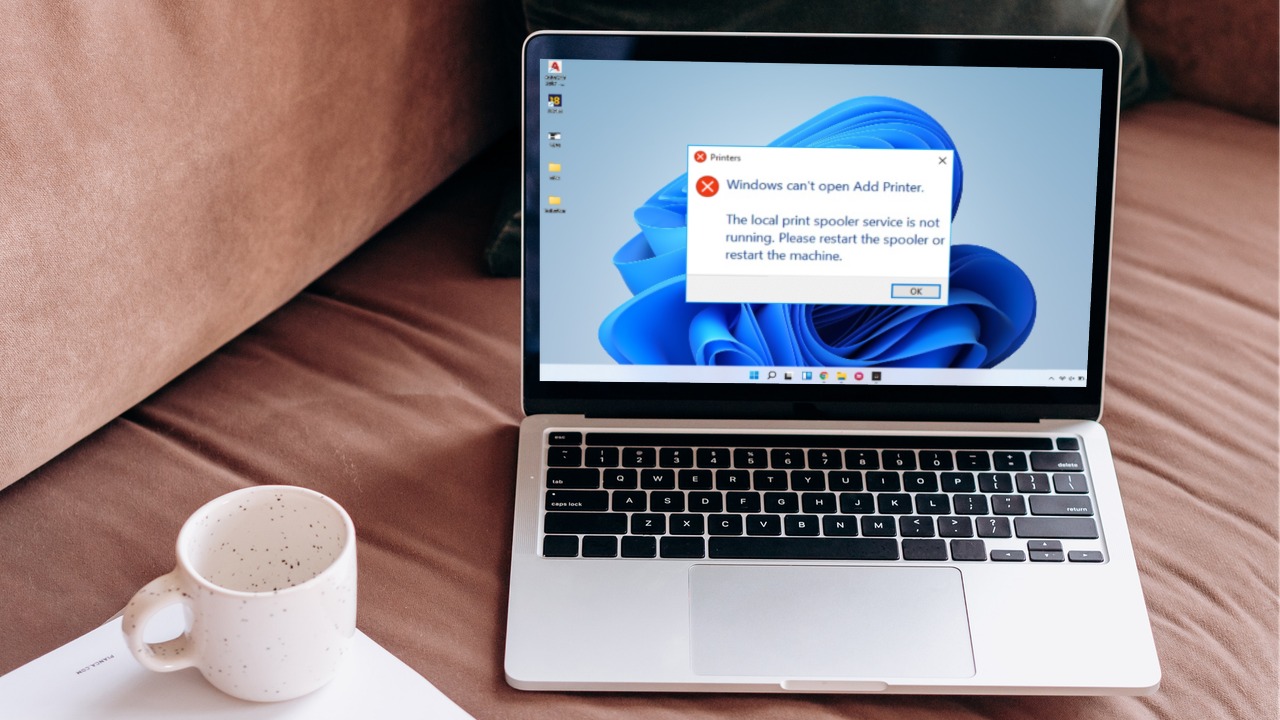 6 Ways to Fix Print Spooler Keeps Stopping on Windows 10 and Windows 11
Fix 1: Run Printer Troubleshooter Windows comes with a dedicated printer troubleshooter that can automatically diagnose and fix any printing issues on your PC.
6 Ways to Fix Print Spooler Keeps Stopping on Windows 10 and Windows 11
Fix 1: Run Printer Troubleshooter Windows comes with a dedicated printer troubleshooter that can automatically diagnose and fix any printing issues on your PC.
 Fix: Background Intelligent Transfer Service (BITS) Keeps Stopping
Fix 1: Set Background Intelligent Transfer Service to Automatic (Delayed Start) If the Background Intelligent Transfer Service or its related services are misconfigured, you must reset them to their default
Fix: Background Intelligent Transfer Service (BITS) Keeps Stopping
Fix 1: Set Background Intelligent Transfer Service to Automatic (Delayed Start) If the Background Intelligent Transfer Service or its related services are misconfigured, you must reset them to their default
 5 Ways to Fix Samsung Internet Browser Not Loading Pages
Try Basic Fixes Check your internet connection: The Samsung Internet browser may have trouble loading web pages if there is a problem with your internet connection.
5 Ways to Fix Samsung Internet Browser Not Loading Pages
Try Basic Fixes Check your internet connection: The Samsung Internet browser may have trouble loading web pages if there is a problem with your internet connection.
 Samsung Internet vs Microsoft Edge: Which Browser Is Better on Android
Google Play Store on Android is full of web browser choices.
Samsung Internet vs Microsoft Edge: Which Browser Is Better on Android
Google Play Store on Android is full of web browser choices.
The article above may contain affiliate links which help support Guiding Tech. The content remains unbiased and authentic and will never affect our editorial integrity.