Fix 1: Disable Content Blocker Extensions
If you use any content blocker extensions to avoid ads or pop-ups while browsing, they may interfere with Safari and prevent them from loading images. To check for this possibility, disable your extensions temporarily.
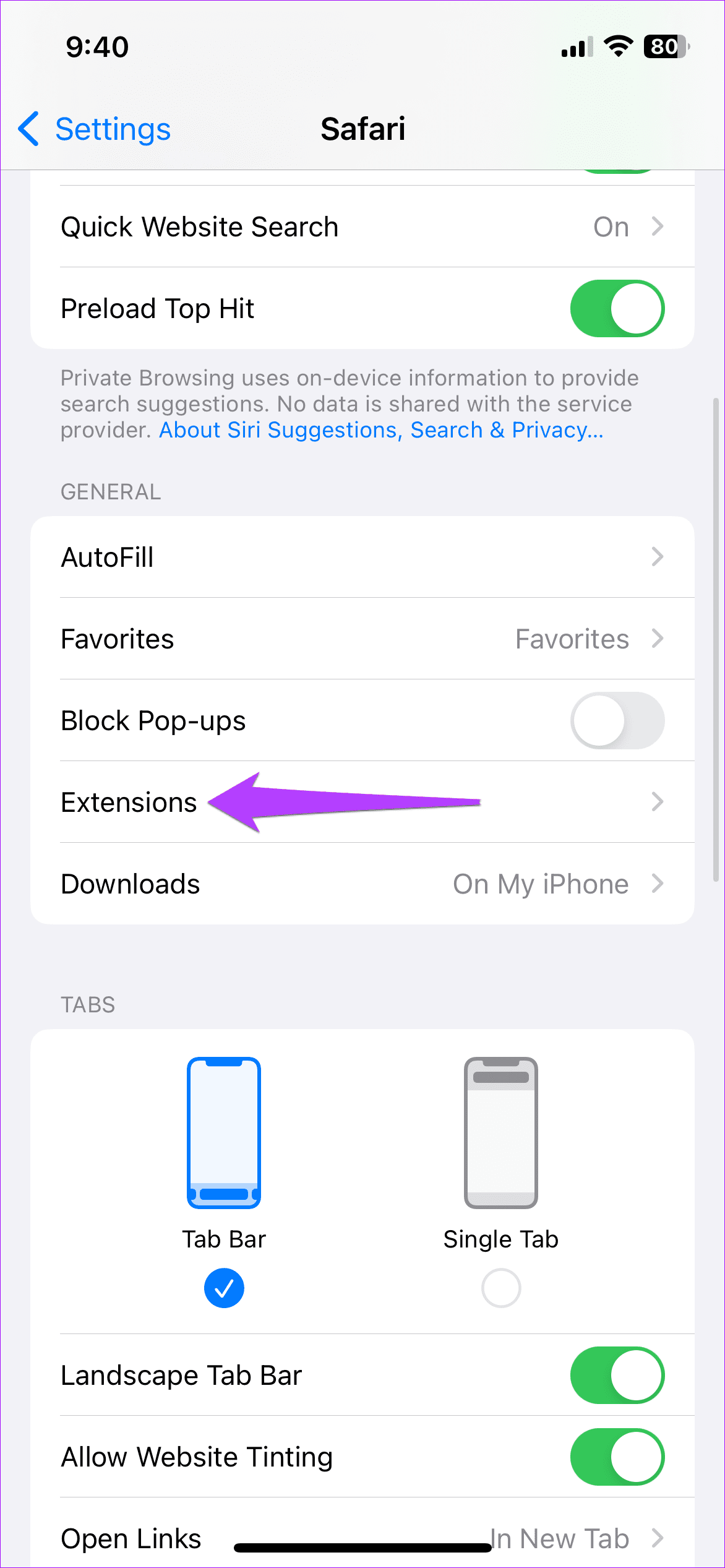
Step 1: Open the Settings app, scroll down, and tap on Safari.
Step 2: Go to Extensions and turn off all your extensions one by one.


Fix 2: Ensure JavaScript Is Enabled
Many websites rely on JavaScript to display images and other visual elements. However, if you’ve disabled JavaScript in Safari, the browser may fail to load images on your iPhone.
Step 1: Launch the Settings app on your iPhone and go to Safari.
Step 2: Scroll down to tap Advanced and turn on the toggle for JavaScript.


Fix 3: Turn off Content Restrictions
The Screen Time feature on your iPhone can come in handy when you want to impose content restrictions on apps. If you’ve previously enabled this feature, Safari may fail to load web pages or specific content on those web pages. Disable these restrictions and see if that makes a difference.
Step 1: Open the Settings app and navigate to Screen Time.
Step 2: Tap Content & Privacy Restrictions and turn off the toggle for the same in the following menu.


Fix 4: Clear Browsing Data
Overwhelming or corrupt Safari browsing data can also affect Safari’s performance on your iPhone. Here’s how to clear it out and start with a fresh slate.
Step 1: Open the Settings app and scroll down to tap on Safari.
Step 2: Tap Clear History and Website Data. Choose All history and tap Clear History to confirm.


If Safari won’t load any images after clearing the browsing data, update your iPhone to the latest iOS version as a last resort.
Was this helpful?
Last updated on 07 May, 2024
Read Next
 6 Ways to Fix Safari Not Loading Pages on iPhone and iPad
Basic Fixes: Restart phone and modem: Long-press the power button and use the slider to turn your device off.
6 Ways to Fix Safari Not Loading Pages on iPhone and iPad
Basic Fixes: Restart phone and modem: Long-press the power button and use the slider to turn your device off.
 3 Fixes for Images Not Loading in Mail App for iPhone
Try Basic Fixes Turn off VPN: Since VPNs route your internet traffic through different servers, they can sometimes lead to delays or issues loading content, such as images in emails.
3 Fixes for Images Not Loading in Mail App for iPhone
Try Basic Fixes Turn off VPN: Since VPNs route your internet traffic through different servers, they can sometimes lead to delays or issues loading content, such as images in emails.
 7 Ways to Fix Images Not Loading in Google Chrome
Fix 1: Verify Site Settings To start, verify the content settings in Chrome and ensure websites are allowed to load images on your computer.
7 Ways to Fix Images Not Loading in Google Chrome
Fix 1: Verify Site Settings To start, verify the content settings in Chrome and ensure websites are allowed to load images on your computer.
 4 Ways to Fix Images Not Loading in Microsoft Edge
Fix 1: Check Site Permissions The first thing you should do is review site permissions in Microsoft Edge to ensure websites are allowed to load images.
4 Ways to Fix Images Not Loading in Microsoft Edge
Fix 1: Check Site Permissions The first thing you should do is review site permissions in Microsoft Edge to ensure websites are allowed to load images.
 Top 4 Ways to Fix Facebook Not Loading in Safari
https://youtu.be/rIpRwwjzGtQ Basic Fixes Check Facebook server status - When facing server issues, Facebook won't load properly no matter the browser.
Top 4 Ways to Fix Facebook Not Loading in Safari
https://youtu.be/rIpRwwjzGtQ Basic Fixes Check Facebook server status - When facing server issues, Facebook won't load properly no matter the browser.
 How to Fix Apple Mail Not Loading Images on Mac
Basic Fixes Check internet connection: Ensure that you have good connection speeds on your Wi-Fi network in order to load images.
How to Fix Apple Mail Not Loading Images on Mac
Basic Fixes Check internet connection: Ensure that you have good connection speeds on your Wi-Fi network in order to load images.
 4 Ways to Fix Instagram Not Loading In Safari
Basic Troubleshooting Check Instagram status - If Instagram servers are down, you can't open the app, load the home feed, or post anything during the downtime.
4 Ways to Fix Instagram Not Loading In Safari
Basic Troubleshooting Check Instagram status - If Instagram servers are down, you can't open the app, load the home feed, or post anything during the downtime.
 5 Ways to Fix Google Chrome Not Loading Pages on Android and iPhone
Try Basic Fixes Enable or disable the VPN: If webpages are not loading in Chrome, consider disabling your VPN connection temporarily and see if that resolves the problem.
5 Ways to Fix Google Chrome Not Loading Pages on Android and iPhone
Try Basic Fixes Enable or disable the VPN: If webpages are not loading in Chrome, consider disabling your VPN connection temporarily and see if that resolves the problem.
The article above may contain affiliate links which help support Guiding Tech. The content remains unbiased and authentic and will never affect our editorial integrity.