Fix 1: Check for Realtek HD Audio Manager in Apps
Step 1: Open Windows Settings (Win + I) and navigate to Apps > Installed Apps.
Step 2: In the search bar, type Realtek. If the Realtek app is installed, it will show up. If it doesn’t, download and install it again.

It is available on Intel’s website and Dell.
Fix 2: Add Realtek HD Audio to Windows Startup
If you have the Realtek HD audio driver installed on your PC, it also registers the Realtek Audio Universal Service.
Step 1: Type services.msc in the Run prompt (Win + R) and press Enter.
Step 2: In the Services Snap-in, locate and double-click the Realtek Audio Universal Service and open its Properties.

Step 3: Select Automatic from the drop-down next to Startup type. Click on OK to save the changes.
Next time you restart the PC, the Realtek services and app launch will automatically be ensured.
Fix 3: Enable Realtek Audio for Playback Devices
Windows sometimes disable devices for no reason, or if you have been experimenting and have accidentally disabled the speaker, then you need to enable it.
Step 1: Open the Control Panel by typing control in the Run prompt (Win + R) and pressing Enter.
Step 2: Locate and click the sound icon to open the Sound settings.
Step 3: Find the Realtek speaker, right-click, and click on Enable. Now, play an audio file to check if you can hear it.

Fix 4: Troubleshoot Audio Driver Issues
Windows 11 packs a bunch of troubleshooters that diagnose and automatically fix some of the common issues on a computer. Here’s how to run an audio-specific troubleshooter to detect and fix the issue:
Step 1: Open the Get Help app on Windows by searching it on the Windows Start menu.
Step 2: Type Audio troubleshooter in the search box and press enter.

Step 3: You should see a Welcome to Windows audio or sound troubleshooter message and a confirmation prompt. Here, you give your consent to proceed with the diagnostics and try automated steps to fix the problem.
Step 3: Click on Yes, and the audio troubleshooter will run. It will diagnose and apply fixes for your computer’s audio problem.
Fix 5: Uninstall Buggy Realtek HD Audio Driver
A corrupt or buggy driver can make the device visible in the system, but it may not work as expected. Device Manager can help you uninstall the device and then add it again. The best part is that you have the option to delete the driver along with the uninstallation.
Step 1: Right-click on the Start button, and from the menu that opens, select Device Manager.
Step 2: When the Device Manager window opens, expand the Sound, video, and game controllers section.
Step 4: Right-click on the Realtek High Definition Audio and select Uninstall.
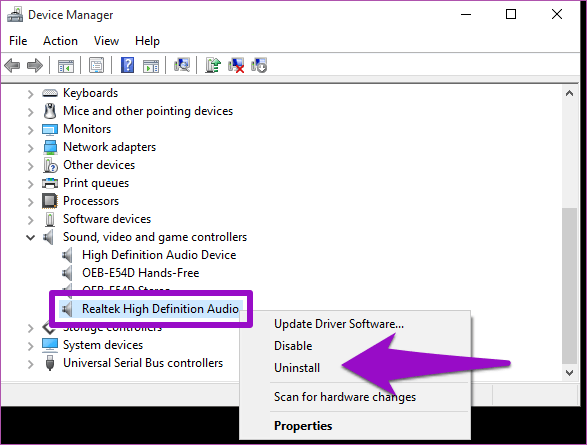
Step 3: Check the Delete the driver for this software option and tap on OK to proceed with the uninstallation.

Ensure to restart the PC for the final cleanup. Once done, you can install the driver again. This will ensure that all corrupted existing drivers are fixed.
Fix 6: Create Realtek HD Audio Driver Shortcut
To ensure the Realtek HD Audio Manager works, you can create a shortcut of the app’s display icon on the desktop of your Windows computer.
Step 1: Press the Windows + E keys to launch File Explorer and navigate to this location:
C:\Program Files\Realtek\Audio\HDAStep 2: Right-click RAVCpl64, click on Send to, and select Desktop (create shortcut).
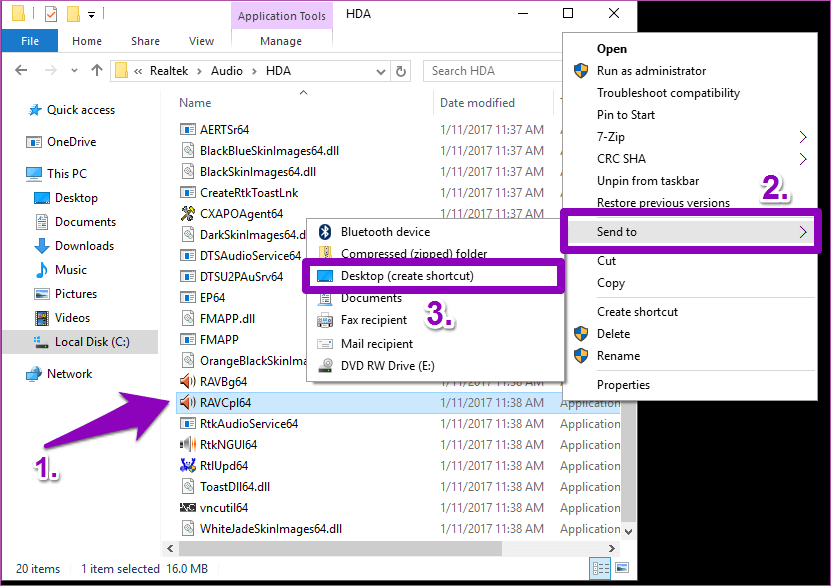
Step 3: Go to the desktop and double-click the shortcut to launch it if it is not running in the background.

FAQs
Why Is Realtek Not Showing Up in Device Manager?
One of the primary reasons for it to be missing is disabled status. You need to go to the Sound section of the Device Manager, and if the Realtek device is disabled, enable it.
What Is an Alternative for Realtek HD Audio Manager?
If your PC only supports Realtek devices, you don’t have an option. However, if your configuration supports Dolby, it is an excellent alternative to Realtek Audio HD Manager. It features automatic audio control and enhances the overall quality.
Was this helpful?
Last updated on 08 July, 2024
Read Next
 How to Fix Bluetooth Missing from Device Manager in Windows 10
Bluetooth is present today in every household, so we no longer think of it as something awesome or advanced.
How to Fix Bluetooth Missing from Device Manager in Windows 10
Bluetooth is present today in every household, so we no longer think of it as something awesome or advanced.
 How to Fix Bluetooth Missing From Device Manager in Windows 11
Basic Fix: Replug your Bluetooth adapter: This applies to those using Bluetooth adapter on Windows 11 PCs.
How to Fix Bluetooth Missing From Device Manager in Windows 11
Basic Fix: Replug your Bluetooth adapter: This applies to those using Bluetooth adapter on Windows 11 PCs.
 8 Ways to Fix Windows Search Bar Is Missing Issue
Windows 10 came with a lot of tweaks under the hood.
8 Ways to Fix Windows Search Bar Is Missing Issue
Windows 10 came with a lot of tweaks under the hood.
 2 Ways to Fix Group Policy Editor (gpedit) Missing on Windows
Why Can't I Find the Group Policy Editor on Windows PC?
2 Ways to Fix Group Policy Editor (gpedit) Missing on Windows
Why Can't I Find the Group Policy Editor on Windows PC?
 8 Best Ways to Fix Taskbar Disappeared or Missing on Windows 11
The Windows 11 taskbar is where you can find your favorite apps and the Start menu.
8 Best Ways to Fix Taskbar Disappeared or Missing on Windows 11
The Windows 11 taskbar is where you can find your favorite apps and the Start menu.
 5 Ways to Fix Some Update Files are Missing or Have Problems Error on Windows 11
Fix 1: Run the Windows Update Troubleshooter Windows 11 includes a dedicated troubleshooter to automatically identify and resolve any common issues with the Windows Update process.
5 Ways to Fix Some Update Files are Missing or Have Problems Error on Windows 11
Fix 1: Run the Windows Update Troubleshooter Windows 11 includes a dedicated troubleshooter to automatically identify and resolve any common issues with the Windows Update process.
 6 Ways to Fix the “Missing File Privileges” Error in Steam for Windows
Fix 1: End the igfxEM Module Process The igfxEM process is a component of the Intel Graphic Executable Main Module.
6 Ways to Fix the “Missing File Privileges” Error in Steam for Windows
Fix 1: End the igfxEM Module Process The igfxEM process is a component of the Intel Graphic Executable Main Module.
 Copilot Missing on Windows 11? Here’s How to Bring It Back
Get Copilot From the Microsoft Store If you can't find Microsoft Copilot on your Windows 11 system, install it from the Microsoft Store to get started.
Copilot Missing on Windows 11? Here’s How to Bring It Back
Get Copilot From the Microsoft Store If you can't find Microsoft Copilot on your Windows 11 system, install it from the Microsoft Store to get started.
The article above may contain affiliate links which help support Guiding Tech. The content remains unbiased and authentic and will never affect our editorial integrity.